Windows 8 Task Manager In-depth Review (Updated)

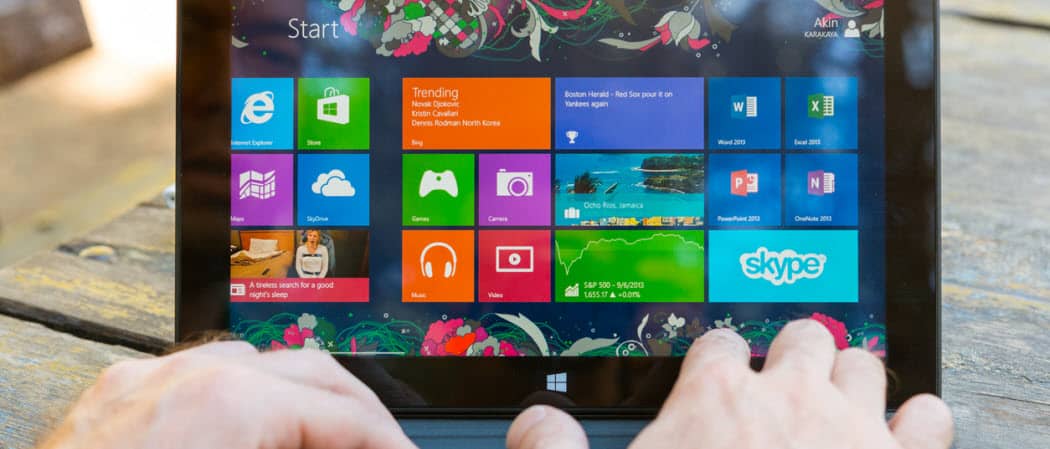
Say what you want about Windows 8’s Modern interface, there’s some powerful features under the hood accessed from the desktop like the new Task Manager.
Editor’s Note: This article has been updated to reflect changes in the latest version of Windows 8.1 update 1.
Task Manager is usually the first thing I start looking for after installing a new OS. Being that I’m always installing new software and tweaking things, I frequently need to monitor the performance of my system and kill apps which aren’t behaving. After installing Windows 8, I managed to discover three or four different ways to pull up the new Task Manager as well as the old legacy on from Windows 7.
If you want to print this article so you can read it later, feel free to skip the video and scroll down where I cover the full review including screenshots.
Note that this video was created during the Developer Preview of Windows 8, but the features of the Task Manager have remained the same
Windows 8.1 Task Manager
First from the Windows 8 Metro UI, Launch the Search field using the Windows 8 Shortcut Key Windows Key + W or just start typing task manager from the Start screen.

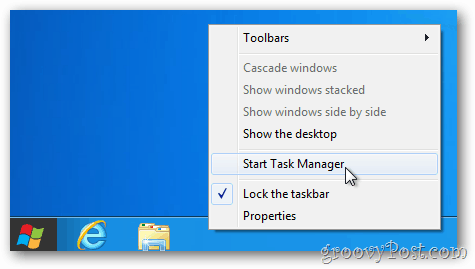
Or, just like previous versions of Windows. from the desktop right-click the taskbar and then select Task Manager.
It will switch over to the desktop in order to open Task Manager. As you can see, the default Task Manager has been greatly simplified– only listing the apps running and their status.
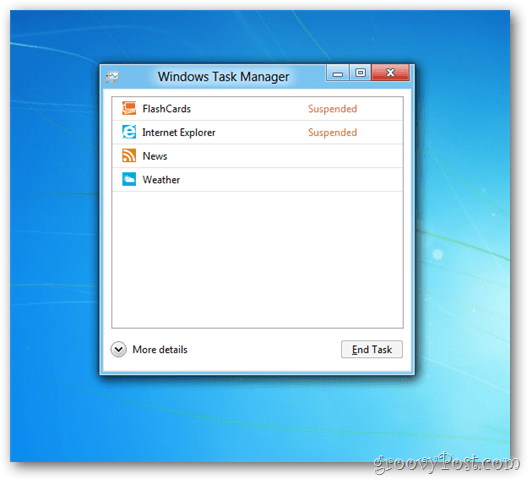
Similar to other tablets like the iPad, Windows 8 suspends inactive applications in order to conserve on Memory and CPU.
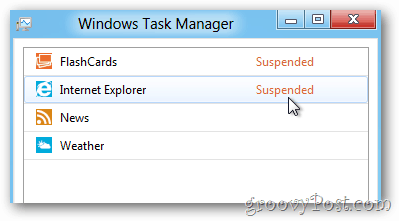
If you want to close the app, right-click to highlight is and select End Task. If you’re not sure what a process that’s running is, you can search online for it, which more convenient that before.
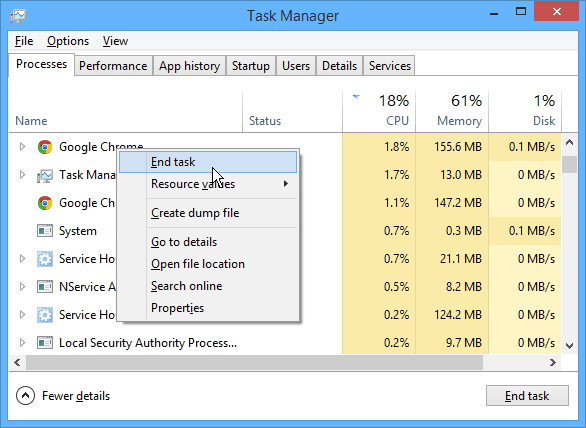
To view the new Task Manager in all its glory, Click the More details button.
I know it’s probably not normal to get excited about something like the Task Manager, but honestly, the new Windows 8 Task Manager is very nice. Starting with the Processes Tab, Windows 8 provides in-depth details around each application running including status (suspended), percentage of CPU being used, Memory, Disk and Network.

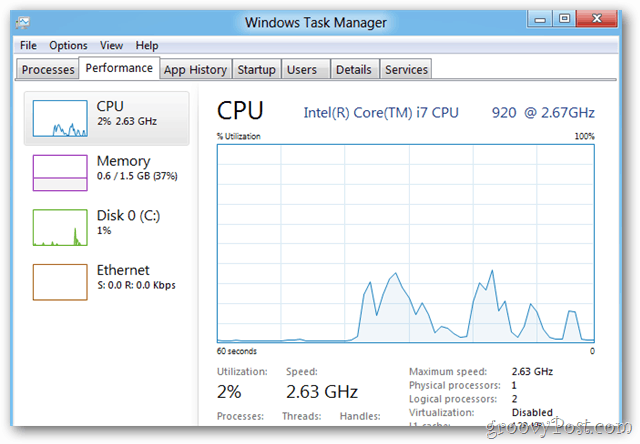
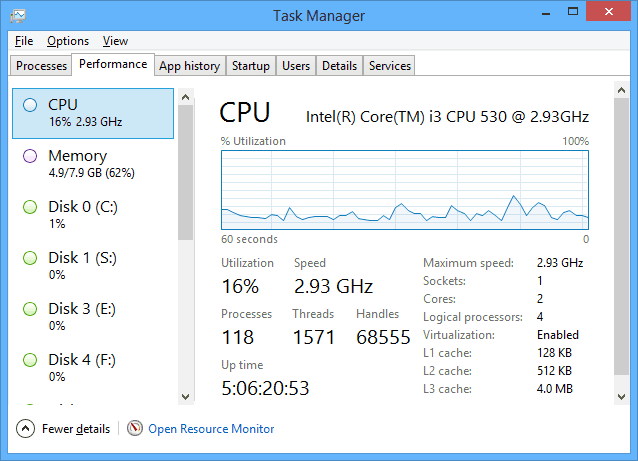
Here’s a few screenshots of the new Tabs starting with Performance Tab.
App History Tab – This will be really cool for Windows 8 Server.

Startup Tab: This is a where you can disable programs and apps from running during startup. For more on this, read our article on how to disable startup programs in Windows 8.1.
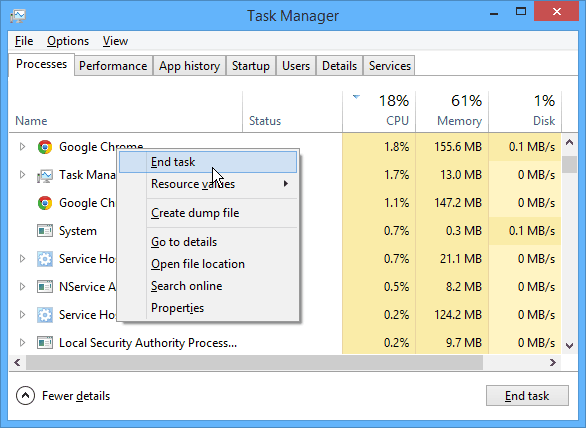
The Users tab displays each of the users that are using your PC.

The Details Tab shows which apps, programs, and other services are running and the amount of computer resources they’re taking up.
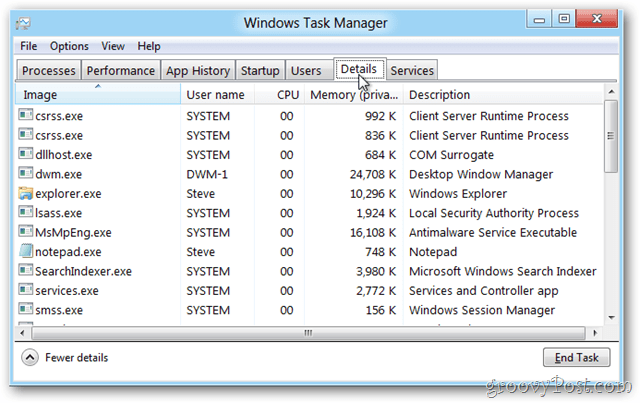
The Services Tab is similar to that of previous versions of Windows.

On each of the tabs, don’t forget you can click on the File menus to change things like Update Speed to get sample data from the OS quicker or slower. Handy when troubleshooting something.
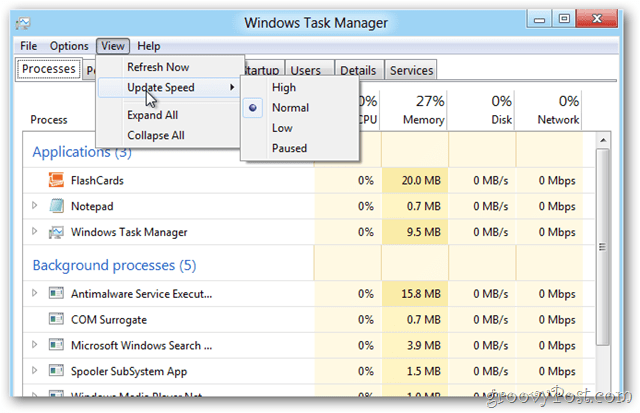
There’s a lot going on with the new Windows 8.x Task Manager. If you would like this level of detail on your Windows 7 machine, check out DBC Task Manager.
Did I miss your favorite Windows 8 Task Manager Tip? Drop a comment or email tips@groovyPost.com.
1 Comment
Leave a Reply
Leave a Reply







chewbie
September 24, 2011 at 3:32 pm
does ctrl+shift+Esc still work?
what’s the command (.exe name) of the new task mgr?
can You access it through Ctrl+Alt+Delete or is that keycombo dead with win8?
I appreciate the input!