How To Disable Windows 8.1 Startup Programs

In previous versions of Windows, disabling startup programs helps your system boot much faster. You can still do it in Windows 8.1 too, and it’s easy.
In previous versions of Windows, you can help it start up faster by disabling startup programs with Task Manager. You can still do it in Windows 8.1, but the process is different. Task Manager has been revamped since the days of Windows 7, and disabling startup programs is easier, plus more information about the apps and programs is provided.
While Windows 8.x does boot noticeably faster than Windows 7 and earlier, you can make it boot even faster by disabling startup programs.
Disable Windows 8.1 Startup Programs
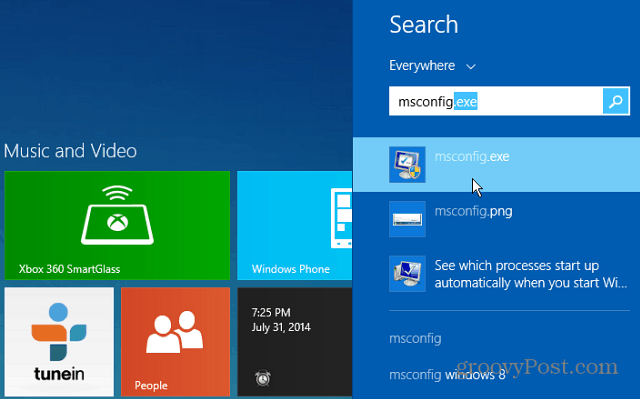
There are, of course, a couple of ways to get to the same place with Windows, and that’s no different in Windows 8.1. First, from the Modern Start screen
1. From the Modern Start screen type: MSConfig and hit Enter.
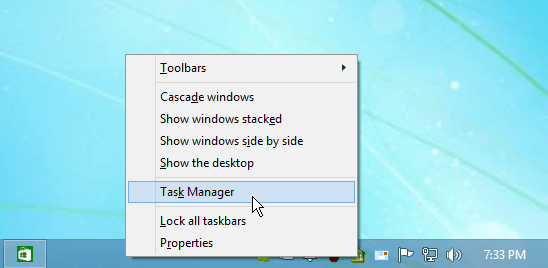
2. Or from the desktop, just like Windows 7, right-click the Taskbar and select Task Manager.
Either way, you do it, the new Task Manager will open on the desktop. Click the Startup tab to see the items set to run when you boot your system. Right-click on any of the programs to and click Disable.
3. Click the Startup tab to see the items set to run when you boot your system. Right-click on any of the programs to and click Disable.
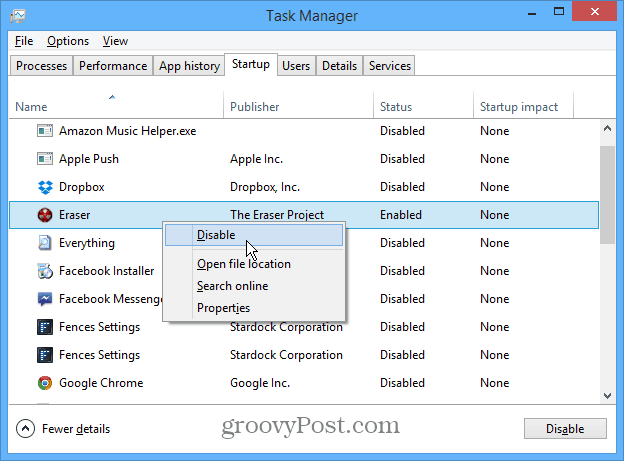
The program will still appear on the list, but the Status will change to Disabled. Right-click an app again and select Enable to have it run during startup.
Notice that when you right-click a program in under the Startup tab, you’ll see more options. This allows you to get a better understanding of what each program is or does before you disable it. I find the option to search for the program online to be particularly beneficial. We’re all guilty of installing desktop programs or apps, using them once, and after a year you have no clue what they are.
For more details, check out our guide on new features available in the Windows 8.x Startup tab in Task Manager.
48 Comments
Leave a Reply
Leave a Reply







Alan Wade
March 30, 2012 at 12:33 pm
As ever, all of your tips are great!
Thanks for all of your hard work
Alan
Duane Waite
July 26, 2015 at 3:46 am
Thanks for the help.
Brian Burgess
March 30, 2012 at 2:24 pm
Thanks for reading Alan! We’ll continue to bring everyone the best we can!
Justin
April 2, 2012 at 3:45 am
Here are a couple other ways to get to Task Manager:
1. My Favorite – CTRL+SHIFT+ESC (Or CTRL+ALT+DEL and click “Task Manager”)
This key is inherited from previous versions of Windows including
Windows NT 5.0 (Windows 2000)
Windows NT 5.1 (Windows XP, Server 2003, Home Server [codenamed Quattro])
Windows NT 6.0 (Windows Vista, Server 2008)
Windows NT 6.1 (Windows 7, Server 2008 R2, Home Server 2011)
As a side note it really bugs me that Windows NT 6.2 was called Windows 7, Microsoft should have either increased the internal version to 7.0 or called it Windows Vista R2 to mirror what they did with Server 2008’s upgrade being called Server 2008 R2.
This is my favorite because if a program is misbehaving and somehow prevents the mouse or keyboard from working you can use this shortcut to switch away from the program and use Task Manager to kill it.
If even Task Manager can’t open then you can shutdown or restart the computer from the CTRL+ALT+DEL menu as that shortcut key is reserved by Windows and no running program can override it.
2. If you move your move to the bottom left of the Windows 8 taskbar and right click you get a menu of tools to select including Task Manager.
3. You can pin Task Manager to the Windows 8 Start Screen.
4. You can pin Task Manager to the Taskbar.
The ability to pin things to the Taskbar was added with Windows NT 6.1 but you could add shortcuts to the Quick Launch toolbar in previous versions.
In Windows 95 and Windows NT 4.0 you got the Quick Launch via installing Internet Explorer or the Windows Desktop Update patch.
Windows 98/98SE/ME and Windows NT 5.x bundled Internet Explorer so they got features like Quick Launch built-in.
It is possible to rip out Internet Explorer from Windows 98, 98SE, ME, 2000 and XP but you lose many features like Quick Launch and the ability to surf the internet without another web browser installed.
dallen
July 4, 2012 at 11:08 pm
How do we ADD programs to the startup list?
Dallen
July 4, 2012 at 11:22 pm
ok, I just found “Task Scheduler” under computer management. which allowed me to create a task to run a program at startup. probably bot the correct way to do it but it works :)
Steve Krause
July 4, 2012 at 11:42 pm
@disqus_sCieidrNJ4:disqus another option is to try the “Startup” Folder.
It’s not as easy to find as it was in Windows 7 – https://www.groovypost.com/howto/windows-7-make-programs-run-automatically-during-startup/
however just go into Desktop Mode and open Windows Explorer and Navigate to this folder:
C:UsersSTEVEAppDataRoamingMicrosoftWindowsStart MenuProgramsStartup
Obviously you will want to replace my username with yours. I’m not near my computer so if this works, let me know. :)
Austin
July 11, 2012 at 8:28 am
Yeah, finding the Windows 8 Startup folder can be tricky… Here’s a full explanation of where it’s located:
https://www.groovypost.com/howto/windows-8-startup-folder-location/
Steve Krause
July 11, 2012 at 8:39 am
Nice write-up! Thanks Austin!
Austin Krause
July 11, 2012 at 8:34 am
Finding the Windows 8 startup folder sure can be tricky…
Here’s the full guide on getting to the Windows 8 startup folder:
https://www.groovypost.com/howto/windows-8-startup-folder-location/
John
August 20, 2012 at 6:32 am
You can also just type “shell:startup” (or “shell:common startup”) at the Start screen to get to the user (or all users) Startup folder.
https://blogs.msdn.com/b/jasone/archive/2012/08/19/windows-8-where-did-the-startup-folder-go.aspx
Shari Ann
July 30, 2013 at 4:35 pm
Thank you, Dallen. After mucking about with msconfig and task manager and all the other approaches suggested online, accessing the Task Scheduler and setting up a basic task to open Outlook upon startup was indeed the simplest solution.
I’m not a stupid person, nor am I a computer noob; I maintain all of my family’s pcs, updating them over the years, even taking apart my own desktop and notebook pcs to repair and upgrade them.
I purely hate how Windows 8 has made formerly simple functions needlessly complicated. If I wanted a damned touch screen tablet I’d buy one, and then maybe–though I doubt it–Windows 8 might make more sense. As it is, on my newest Dell notebook without a touch screen, it’s nothing but aggravation.
platothelapdog
February 20, 2014 at 1:38 pm
%APPDATA%\Microsoft\Windows\Start Menu\Programs\Startup
Slap a program in there Win 8.1 and I think 8 also.
ca
March 2, 2015 at 12:41 am
Thanks, that really helped to remove optimizerpro virus
Nicole Wilk
November 3, 2012 at 5:53 am
Excellent! Thank you!
Kevin Wilkes
April 19, 2013 at 2:54 am
It’s a pity Microsoft have removed the option from the msconfig program as Task Manager does NOT list all the individual programs which can get started on startup. If you’re looking for where some rogue program is getting started from, Task Manager may not help you – there are at least 5 places (probably more) in the registry that can start programs; msconfig used to list them all, TM seems to filter them somehow.
In my opinion the new TM is a backward step giving you less information.
Joe
July 2, 2013 at 1:39 pm
No, you need to give us more info. Please! When I go to the Startup tab in Task Manager, and it lists Cyberlink Virtual Drive and Cyberlink DVD and another five apps, I see they are all enabled. I knew that. But it didn’t help. When you select the app to disable, you right click it, and the selections come up to disable, open file location, search online and properties, disable is in light grey though the other three are in dark black. It won’t do disable or even tell me why! So deciding I can use other software for videos, I’m now trying to delete Cyberlink, but in the list of programs in Control Panel it doesn’t show Cyberlink Virtual Drive at all, just four other Cyberlinks. Lol. This is crazy. I loved windows 7 where I could do all the disabling. So I uninstalled Cyberlink DVD Player but that just did that one; the other three are still showing up in the Control Panel and the Virtual Drive still shows up in Task Mgr Startup.
Fariborz Adib
July 9, 2013 at 1:28 pm
THX
Rick
August 5, 2013 at 8:24 pm
Microsoft reminds me of JC Penney right before it went bankrupt. On yeah, that hasn’t happened quite yet. JCP started catering to their lowest common denominator, the kids who don’t have jobs and little money, but made their store a cool place for the young to hang out. Microsoft, you’re next. Too bad, nobody made a product (at one time) as good as yours. Oh well, you’ll find out soon enough that your strategy of building a flashy operating system (Win 8) while stripping out parts of windows we’ve all come to appreciate will relegate your crappy software to the trash heap.
Wesley Huang
August 12, 2013 at 5:14 am
There’s a startup program. It named is “program”
I can disable n enable it, but i can’t open the file location and propeties.
And it have no icon..
Please, solution..
don
August 12, 2013 at 9:05 am
Great article, but it does not help with stuff like Norton internet security for instance. the trial ran out with new computer, I thought I would just remove from startup and leave it on so I could try something else for a bit to see which I liked better since you get a better deal if you use the renew from your computer. But it does not load it’s components through the startup folder. It is also impossible to kill using the task manager. It always comes back. I found a couple of services running and disabled starting there but not sure that will do it as I have to reboot.
If anyone does know how please let me know. I just want to keep it from running so I can try something else and then remove it with their remove tool if I like something else better. I am also open to suggestions for best internet security package, keeping in mind I am on very limited fixed income, so it has to be cheap or even better free, lol…
thanks a million
don
p.s.s. have an old very very expensive laptop, alienware m9700 and I thought I would try windows 7 on it but for the life of me I can’t seem to find the right drivers for sound to work, also Ethernet says asterisk but it is working so not sure there, lol.. I can put the old xp back on with recover disk but would like to play with windows 7 on it, windows blue (8) won’t load, goes by really fast but I think it was memory error, not sure… anyway any help appreciated…
platothelapdog
February 20, 2014 at 1:38 pm
%APPDATA%\Microsoft\Windows\Start Menu\Programs\Startup for adding to the auto runs in Windows 8 and 8.1
Ziggy
July 31, 2014 at 6:15 pm
Has anyone used CCleaner by Piriform on their Win 8 machine? It’s pretty effective with Win 7.
Vivek
August 4, 2014 at 1:35 am
msconfig.exe does not work any more for disabling the start up programs in windows 8.
#combuzzer
Brian Burgess
August 4, 2014 at 2:21 am
@Vivek: If you open it via the Modern UI, Click the Startup tab in System Configuration and click the “Open Task Manager” link. Then you will see the Startup programs.
If you open it via the desktop, you don’t need to do that extra step.
Keith Taylor
October 19, 2014 at 8:52 am
Really?, well where did all the programs that were listed in misconfig’s start-up tab in every prior version of windows go? Mine only shows 4 programs starting up, and I know for a fact there are several times that many programs loading up at start-up… I can no longer control what my computer loads up since microsoft has hidden or removed every possible way to get to the list like it was in every prior version of windows…. Completely LAME. FAIL.
Does anyone know how to get to the start-up list as it was in every prior version of windows? I want to speed up my computer and shut off 2/3rds of the programs loading.
Justin
October 19, 2014 at 9:31 pm
You can use the Sysinternals Autoruns program.
It shows you what’s on startup gathered from many sources (even more than msconfig) and lets you enable/disable them.
Sysinternals was bought by Microsoft a few years ago and the free download is on Microsoft’s TechNet site.
You can download it at http://technet.microsoft.com/en-us/sysinternals/bb963902.aspx
Keith Taylor
October 20, 2014 at 5:24 am
Thanks Justin, I’ll check that out. It certainly can’t show any less than msconfig does, since windows 8 msconfig “startup” tab only links to the task manager.. and has zero listed of programs that initialize at startup ;)
Oh why oh why change something when it’s not broke…. microsoft..
Fred Welch
August 27, 2014 at 1:20 am
Hi Brian Burgess,
I am very glade to be here on your best site. I hope you allow me to ask for extra information with this topic after I follow yours but still get problem or wondering some points on How To Disable Windows 8.1 Startup Programs. thank you from Fred Welch.
Tjet
September 27, 2014 at 1:58 pm
Help
I think I disabled the wrong program in the start up now I have a blank screen.
I have a Lenovo Thinkpad twist S230U
Kyle McKenna
November 12, 2014 at 6:28 am
Win 8.1 won’t let me disable a single app, even ones I installed myself. the ‘disable’ function is greyed out. Signing on as admin only lets me disable those running on admin acct. Very frustrating, like all of 8.1
Peter
December 19, 2014 at 2:48 am
You have to log in as an administrator to be able to disable some start up items.
There are loads of articles about how to log on as an administrator.
Robert Thie
December 19, 2014 at 7:06 am
To the Microsoft Bridge.
My family have been faithful paying passengers on the good ship Microsoft Windows.
However,the Captain has left the ship, and the crew appears unable to fathom the waters.
We are getting seasick
I think Windows10 might become your last chance to keep us on board!
Sorry it has to end like this,
Robert and family
ghostxdreams
December 24, 2014 at 8:11 pm
there is a program i really like it makes finding those hard to find and hard to get rid of start-up programs ez to remove and you don’t have to be a wiz kid to run it. you can Google it and run the trial version buy it if you like it*and you will* there are cracked version out there but be careful now on to the name of it——Total Privacy 5———– and second program i run just as a reg cleaner is also another free program you can find by searching Google ______ccleaner_____ and not the two cc was not a typo lol hope this helps someone
Steve Krause
December 25, 2014 at 12:29 pm
Thnx for the FYI — We’ve talked a lot about CCLeaner over the years here at gPost however Total Privacy 5 is something I’ve not played with. Will take a look.
-S
Anthony
December 31, 2014 at 12:21 pm
I can disable the offending programs (Gtbrmon64, 64brmon64 & 5kbrmon64) all left after removing a game from Gamingworld, owned by Mindspark. But I cannot find or remove them yet, even when hidden files are shown.
Windows 8.1
No money to buy an app, a free one if possible to find & remove these files PLEASE, anyone?
Anthony
December 31, 2014 at 12:23 pm
Mindspark is NO help whatsoever. They just refer me to the same worthless help pages. I’d to find others interested in starting a class-action lawsuit against Mindspark.
Tore Bergström
January 14, 2015 at 1:37 am
Is there a way to stop autostarting of a special program for a non-privilegied user?
While it always starts for a privilegied user.(Maybe wrong spelling)
Problem is: My (non-password) wife disturbed by computer asking for _my_ password after startup.
tia
/TB
Prisma Try Laksana
July 1, 2015 at 12:44 am
But how to remove it ?
MF
July 29, 2015 at 8:41 am
Ain’t workin for FortiClient
Aisha
August 5, 2015 at 10:48 am
Helpful. Thank you for these very clear instructions.
Armando
August 28, 2015 at 8:48 am
Thanks a lot for your invaluable help.
jennabd
April 6, 2016 at 6:44 pm
quick and efficient solution- thank you!
bukunola
May 14, 2016 at 4:25 pm
Many thanks
Turbo George
September 14, 2016 at 6:38 pm
Justin, Thanks for the info on Autoruns program… Downloaded and it’s perfect!!! Belisimmo! You are a star for sharing…
marius kriel
March 11, 2017 at 6:56 am
i need help please, i have windows 8.1 installed. Now when i switch my computer on, it says: preparing automatic repair. the whole day nothing happened, it gave me options to refresh or restore stuff, etc Can anyone help please.
marius
xxleogamerxx
April 6, 2017 at 12:07 pm
Cheers, I needed this because of Chromium making my computer slow.
Hafiz
May 18, 2017 at 10:32 am
Thanx for help it works