Find the Microsoft Outlook Temporary OLK folder


Microsoft Outlook creates a Temporary or OLK folder where it stores attachments opened while reading emails. Here’s how to find it and your lost attachments.
Where does Microsoft create the Outlook Temporary folder (better known as the Outlook OLK folder)? Or, where does Microsoft store that pesky OLK folder and temporary data such as attachments?
Depending on the operating system, version of Outlook, and the user currently logged in, the OLK temporary folder gets created in a different location. The good news is, it’s simple to find no matter the version of Outlook, including Outlook 2010, Outlook 2013, Outlook 2016, Outlook 2019, and Outlook for Microsoft 365 (or O365).
To determine the spots where folders got created, open the Windows registry using regedit.exe and look for the Registry key OutlookSecureTempFolder using the map below:
Outlook 97: HKEY_CURRENT_USER\Software\Microsoft\Office\8.0\Outlook\Security
Outlook 98: HKEY_CURRENT_USER\Software\Microsoft\Office\8.5\Outlook\Security
Outlook 2000: HKEY_CURRENT_USER\Software\Microsoft\Office\9.0\Outlook\Security
Outlook 2002/XP: HKEY_CURRENT_USER\Software\Microsoft\Office\10.0\Outlook\Security
Outlook 2003: HKEY_CURRENT_USER\Software\Microsoft\Office\11.0\Outlook\Security
Outlook 2007: HKEY_CURRENT_USER\Software\Microsoft\Office\12.0\Outlook\Security
Outlook 2010: HKEY_CURRENT_USER\Software\Microsoft\Office\14.0\Outlook\Security
Outlook 2013: HKEY_CURRENT_USER\Software\Microsoft\Office\15.0\Outlook\Security
Outlook 2016: HKEY_CURRENT_USER\Software\Microsoft\Office\16.0\Outlook\Security
Outlook 2019 & O365: HKEY_CURRENT_USER\Software\Microsoft\Office\16.0\Outlook\Security
All the latest versions of Microsoft Outlook, including Outlook 2016, 2019, O365, and Outlook for Microsoft 365, use the same registry location for the OLK folder. Use the map above to locate the OLK temporary folder, AKA OutlookSecureTempFolder.
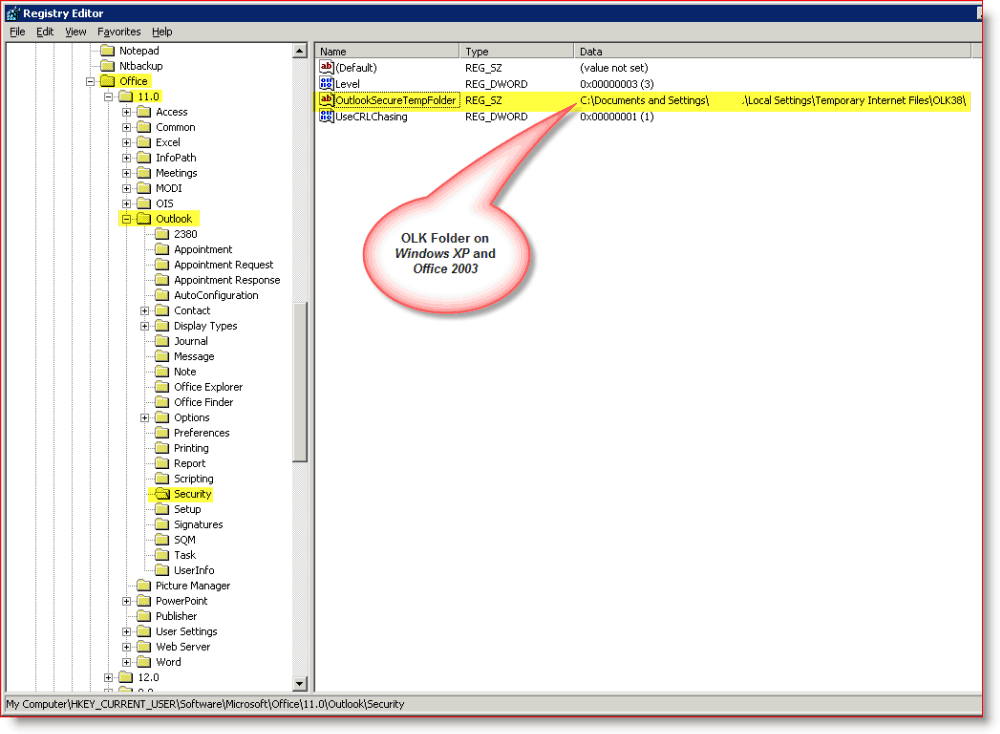
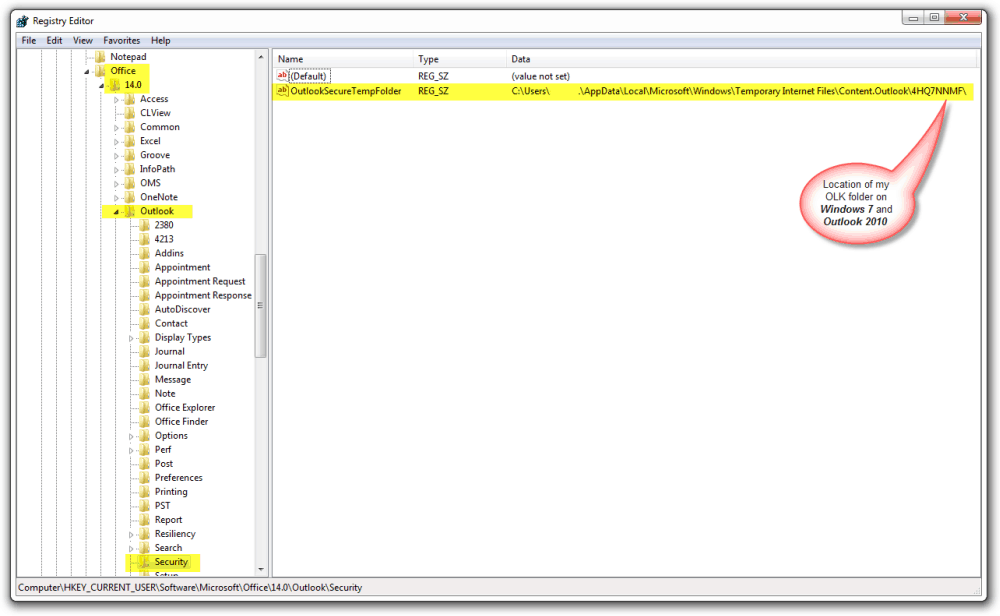
Using the chart above, here are a few screenshots comparing my Windows XP system running Office 2003 vs. my Windows 8.1 system running Office 2010. And here is my current desktop, Windows 10, and Outlook for Microsoft 365.
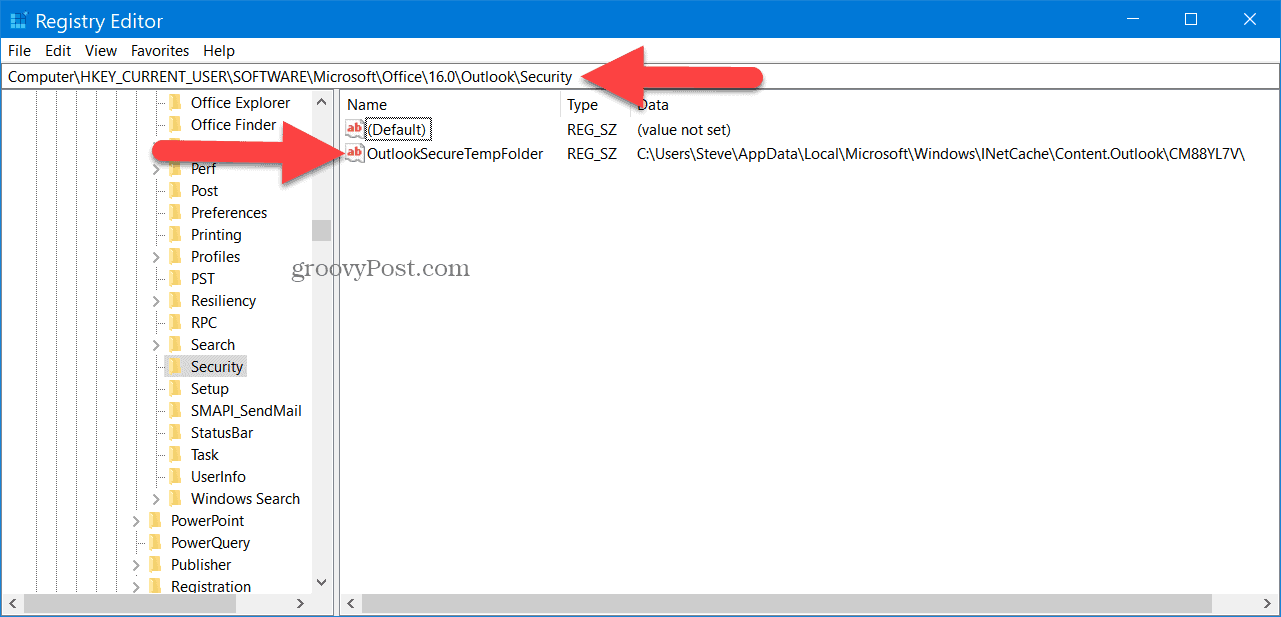
Windows 10 running Outlook for Microsoft 365
As you can see from the screenshot, the OLK temporary folder is located at:
C:\Users\Steve\AppData\Local\Microsoft\Windows\INetCache\Content.Outlook\CM88YL7V\
Background – What is the OLK folder, and why is it so hard to find?
When you open file attachments from an email, Outlook needs to save the files somewhere on your hard drive before opening the file. To do this, it checks the registry to see if Outlook has already created a temporary folder (aka – the outlook OLK folder) for this use. If Outlook finds a registry entry for the OLK folder, it saves the file and opens it for you. However, if the registry entry doesn’t exist, it creates, it then saves a copy of the attachment in the folder.
For example, let’s say your running Windows 10 and Outlook for Microsoft 365 like me. When you open your first attachment in Outlook, your computer will create the following sub-folder to store that attachment temporarily:
C:\Users\USER-NAME\AppData\Local\Microsoft\Windows\INetCache\Content.Outlook\XXXX\
In this example, the logged-in user’s name would replace the user-name, and the subfolder at the end will be created with a randomly generated sequence of letters and numbers.
This information can be very useful. For example, let’s say you open an attachment, make a bunch of changes then close it before you have a chance to save it. Or, perhaps your PC crashes before you can save it. The good news is you can probably find the file in the Outlook Temporary OLK folder and recover your work. Speaking of recovering your data, have you configured the Word and Excel autosave feature?
Now the bad news
Let’s say you open an attachment that contains sensitive or confidential information. While reading the document, Outlook unexpectedly closes. In this scenario, the attachment will remain in the Outlook Temporary folder indefinitely since Outlook normally deletes them when you close the document correctly. Now let’s say your PC is lost or stolen. Yup, all your documents are just waiting for the new owner of your PC to find and open them.
Don’t think this is very common? Just look. No really. Stop reading and look in your OLK folder. If you’ve been using your computer for any length of time, you will likely find a few dozen files sitting there.
Protect yourself against the OLK folder
Each time I build a new machine, one of the first things I do is encrypt the OLK folder using the built-in Microsoft file and folder encryption called EFS. It’s fast, easy, and adds a nice security layer should I lose my laptop and haven’t had a chance to encrypt my hard drive. Now, if you’re using a home PC and don’t have IT guys managing your system, you’re probably okay with just Wiping your system if you sell it or swap out your hard drive for a faster SSD drive.
170 Comments







RickB
August 21, 2007 at 1:59 pm
Exactly what I was looking for! Thank you very much. Keep the articles coming!
Ola
September 13, 2011 at 6:28 am
This worked a treat.
I opened regedit, did a search for OutlookSecureTempFolder, when found, right-clicked and selected modify, copied the path to the folder, pasted that into windows explorer, hit the enter button – takes you straight into folder.
You have just saved someone from having to re-do a 2000 word doc.
Many thanks for the tip
Barbara
November 22, 2011 at 10:48 am
THANK YOU for posting this information. Each system upgrade has provided it’s challenges on getting back to temporary files. This very helpful information has saved me hours of work to recreate a document that others are waiting to receive.
Steve Krause
July 4, 2012 at 10:51 pm
@b63999abad889dfdd6693ac5c73cf860:disqus
you are very welcome. Welcome to the blog.
Carrie Smith
March 19, 2013 at 8:45 am
I followed these instructions in attempt to recover edited Word document which had been attached to an e-mail but not closed without saving to harddrive. My laptop has Windows 7 home premium with Outlook 10. Under the registry editor, there is no “security” folder under the directory for 14.0, office. Any idea where else i can look to find temporary folder?
Thanks.
>>
Steve Krause
July 4, 2012 at 10:52 pm
@fbeb24390148e2b6dc7e15cb659a553a:disqus I’m glad I could help! Welcome to groovyPost!
Simon H
March 19, 2013 at 10:10 am
@ Carrie Smith
Try this Carrie, it will find the OLK folder without the need for searching the registry.
1. Choose an email that contains a JPG attachment, If you don’t have one then send an email from yourself to yourself with an JPG image file attached.
2. Open the email and double click on the image file to open it in windows photo viewer.
3. Right click on the image in windows photo viewer and choose open file location
4. This opens the OLK Folder and you will be able to see the files it contains.
5. Press Alt + up arrow to move up one folder (This displays the OLK folder).
6. Right click the folder then drag and drop it onto your desktop. (You will get a message saying “These files might be harmful to your computer”).
7. Click “OK” then choose create shortcut.
Let me know if you have any problems
Simon
Ivon
June 27, 2013 at 4:59 pm
Same Issue. Worked great! Thanks!!
PIPO
July 18, 2013 at 11:24 am
Simon – thank you, so much I have wasted hours and hours with Google searches trying out all sorts of solutions posted by good people with no success at finding the OLK folder.
The JPG option took seconds and I found it!
So grateful.
Darae
March 18, 2015 at 4:47 am
Thank you so much!!! I could not open up my scanned documents (pdf) all of a sudden. I found the folder using the jpg suggestion, deleted quite alot of files and now they open up just fine. Thank you Thank you!!!
Darae
Janine
June 9, 2015 at 4:21 am
absolutely brilliant…. thankyou…
Umer
September 28, 2015 at 1:52 am
Easiest way to find this folder, saved alot of time, Thanks alot dear!
Steve Krause
September 28, 2015 at 10:42 am
You bet! Glad I was able to save ya some time. I know this has saved me dozens of times over the years! ;)
Rebecca
October 9, 2015 at 1:54 am
Oh, BLESS YOU! I’d propose to you if I wasn’t spoken for!
This halted my near panic attack in its tracks – so you’re my hero :) Thank you much!
Chakra
March 14, 2014 at 7:37 am
Thank you sir! You just gave me back 24 hours of my life.
Jason
April 30, 2015 at 10:44 am
This was critical for me – couldn’t get to my file without this added bit.
Joanne
November 19, 2011 at 8:06 pm
I had heart-stopping panic until I found this! Thank you so much for posting it!
Ali
May 12, 2013 at 4:22 am
Hi under the instructions above I get as far as 14.0\outlook then in the outlook folder it just has auto discover I can’t find security anywhere. Can you help please?
MrGroove
August 22, 2007 at 10:17 pm
Thanks for the feedback! I had to look for it a bit so I figured others would appreciate it. There’s also a little trick you can do to make the olk folder show up in Explorer. Just delete all the text in the desktop.ini file in the IE temp folder. Makes it easy to find later. I’ll post that How To one shortly.
Lizaoreo
October 12, 2007 at 8:33 am
There’s also a problem associated with this that we ran into recently. We had a user who wasn’t able to open a certain attachment and upon investigation I learned of this OLK temp folder. What had happened was there were 99 files already named like that and Outlook didn’t know what to do about it. Basically what happens is if you open a file that has the same name as another file in the OLK folder, it increments a number in parenthesis.
IE.
OutlookAttachement.doc
OutlookAttachement.doc (1)
…
Outlook Attchement.doc (99)
The problem occurs when 99 files get there, after that it won’t create anymore and gives an error that can be painful to decipher, basically you need to delete everything in that folder every now and again.
The error was something about the outlook temp folder and some rights issues.
MrGroove
October 14, 2007 at 12:33 pm
Welcome to the site Lizaoreo.
Thanks for the additional information as well!
MrGroove
October 15, 2007 at 10:40 am
Lizaoreo, FYI – Based off your comment, I just wrote a new article on this very topic: https://www.groovypost.com/howto/microsoft/outlook/fix-outlook-cant-create-file-attachment-error/
I’m fairly certain this is what you were referring to.?
brad
October 15, 2007 at 10:44 am
This is great information. Is there a way automate the deletion of this directory or a registry setting that limits the max size of this directory and after that it cleans itself up?
JOHN
January 10, 2008 at 11:16 pm
Thanks for your help. I found this months before and I opened an attachment yesterday but saved it without specifying a file location. I looked for the file that I changed, did a file search, reopened the attachment, but all my changes were gone. I found your website and found this hidden location and found my modified file. Thanks for your help.
MrGroove
January 11, 2008 at 8:35 am
Welcome to the site John!
I’m glad the article was helpful!
Paul
February 26, 2008 at 3:36 pm
I have been having the same problem, but the issue is – that I cannot find the OLK folder to delete the contents…. Windows has hidden this pretty well. I can view other “hidden” folders – but can’t find this one…..
Any suggestions??
-Paul
MrGroove
February 26, 2008 at 7:18 pm
Hello Paul!
Did you follow the map in the above post? Open RegEdit and follow the map and it should show you exactly where your OLK folder is hidden. Once you have that just Click “Start” -> “Run” and paste in the folder path and you shoudl have your OLK folder on the screen with all the files inside of it. If you still can’t find it, start a new discussion in our Forum and I can continue to help you troubleshoot the issue with screenshots etc… here:
https://www.groovypost.com/forum/
krazykuppy
March 1, 2008 at 10:17 pm
hiya – i’m almost in tears because I”m in a the same situation with Outlook 2007. The problem is, I’m not quite as technically savvy as you guys, and I don’t know how to “open the windows registry using regedit32.exe and use the map’…. *sniff* can anyone explain it to me in lay terms?
krazykuppy
March 2, 2008 at 5:14 pm
Hey all
Just to follow up from my last post, I wanted to share a different way to solve this problem.
So, to recap for those just tuning in, when you open an attached file from an email in Outlook 2007 and then “save” it (thinking its going into a designated location on your hard drive – but its not), it does not save to the temporary OLK directory the same way that it did in Outlook 2003. After the initial panic when you realize it seems almost impossible to find the Outlook 2007 temporary file location, here is a super quick and very easy way to locate the file:
1) Open Google Desktop and search for “content.outlook” on your desktop
2) If you don’t have Google Desktop, install it from here: http://desktop.google.com/
3) Once your search results come up, click on “Open Folder” underneath any email that comes up
3) Casually view all of the files contained in the hidden temporary folder to find the file you thought you’d lost
4) Listen to the angels singing “alleliuah” and smile knowing all is well in the world :-)
Good luck to everyone who experiences the initial terror of this glitch… know that there is hope!
kk
MrGroove
March 5, 2008 at 10:00 am
@KrazyKuppy
Hey there KK. Thank you for the post and WELCOME to the site!
To answer your first question, just Click the typical “Start” -> “Run” in XP (or Click the Windows Start Button in Vista) and type in: “Regedit32”. This will open the registry. From there it should be easy to navigate to the proper registry location using the Map above in the article.
That being said, I really “love” your suggestion above for Outlook 2007! Being that content.outlook is in the path of the hidden OLK folder, using google desktop search, windows desktop search or even Vista Search (As I did), once you pull up the content.outlook folder the hidden temporary folder should be staring you in the eyes. For instance, my folder is located here:
C:\Users\mrGroove.groovypost\AppData\Local\Microsoft\Windows\Temporary Internet Files\Content.Outlook\XLCYUT3R
Thank you for the post and helping add to the community here at groovyPost.com!
krazykuppy
March 21, 2008 at 3:59 pm
Hey MrGroove – I’m glad you liked that google search idea. It comes in quite handy sometimes!
kk
Rob
April 29, 2008 at 2:11 pm
There is another way to view where the OLK file is located. Open the attachment and do a “save file as.” It will show the path to the OLK folder before you save it. Click on the down arrow next to save in…viola!
Rob Nanney
Verizon Help Desk Technician (in the trenches)
T1000
May 1, 2008 at 7:25 am
I just used this to find a “lost” paper that Outlook decided to save to that OLK no man’s land, this article saved me and my project group several hours of work! Not to mention huge demoralization. Thanks a lot!
Dave
May 22, 2008 at 12:53 pm
I have a workstation running Outlook 2003 in XP that would not display embedded images in email, but they would show up when you forwarded or replied it. For anyone else who has that problem, finding and deleting the contents of this folder will most likely fix it.
However, I could not find it using the registry editor. Rob’s (post #15) method worked great to find the folder. Once I deleted everything inside of it; embedded images were once again visible!
Julie
June 4, 2008 at 10:39 am
My boss (no matter how many times I have told her) opened and worked on a word document through Outlook 2007. I could never find where those documents were being saved. I knew where to look in previous versions to find the temp files, but was pulling my hair out trying to find this one. I found this post and found her files. I am also putting this site in my favorites. I learned a lot today. Thank you very much.
Steve Krause
July 4, 2012 at 10:51 pm
You are very welcome!
MrGroove
June 5, 2008 at 11:42 am
@Dave & Julie
First, Welcome to the site! I’m always really glad to hear when people enjoy the articles! Thank you for the feedback!
pedram
June 12, 2008 at 1:53 pm
easy batch file:
REM This file opens the Outlook Temporary Folder.
cd “%userprofile%\local settings\temporary internet files\”
cd olk*
explorer .
tom
June 13, 2008 at 8:49 am
Great thread. I consider myself generally tech savvy and have never had a problem locating the temp folder for Outlook attachments before (in Windows XP, but now I have Vista!). Before looking up this post, I was able to locate the folder by using the “save as” method and manually typing in the location. The question I still don’t see an answer to is why this folder does not show up even with the show hidden files option being chosen. I do not like the idea that there are folders which may contain sensitive data on my computer that I cannot see. It, of course, raises the specter of what other information is being hidden on my computer. I was at least aware that somewhere there had to be an Outlook temp folder. Is there any way to make these “double secret” hidden folders viewable? Has anyone tried to determine what information is being “hidden” in this manner. I don’t want to sound too paranoid but it upset me that Microsoft made this folder essentially unviewable except to those “in the know”.
Adrian Nabarro
June 17, 2008 at 3:39 am
Thanks for this – really helpful :)
Tr.
July 20, 2008 at 9:34 pm
Thanks a lot for the info. Here comes another problem I’ve been trying to resolve. I have Outlook 2007 on my PC and when I create new mail and attach photo file like .jpg or .tif, I just can’t open it to make sure I am attaching the right file before I send it. It shows error saying something like the file can’t be opened and also displays the whole string of the OLK folder. If anyone had run into this problem and successfully solved it, please help.
Thanks a lot..
db
July 23, 2008 at 10:41 am
Is there a way to get the olk temp files to automatically delete instead of trying to manuelly delete them using the method mentions in this article?
db
Oliver
July 24, 2008 at 10:30 am
Hi,
Hope you can help. I use XP SP2 and office 2003. Each time I download or want to open a file in jpeg I get the error c:\windows\temporary internet file\olk12d Not a jpeg file.
Do you know how to fix this as I cannot open any jpeg files
thanks in adv
Oliver
MrGroove
July 28, 2008 at 9:58 pm
@Oliver – Hi Oliver, that is a very odd error. Are you not able to open any .jpeg files or do you have problems only when opening inside outlook? The first thing I would try either way is to delete the outlook OLK folder.
If you take a look in your registry as explained above, you should be able to find your OLK folder. First close everything, delete the OLK folder then reboot. Hopefully this clears it up. If not, please post further questions in the FORUM.
Thanks!
Mahesh
May 11, 2011 at 6:58 am
Dude, You just solved a BIG BIG problem for me. I had lost my ppt file on which I was workin for 2 days and then I found it in the secured Outlook folder! Thanks a lot guys!! Hats off too you!!
Steve Krause
July 4, 2012 at 10:50 pm
@60d94840f1ec3ecc6e1d844e6f47abb2:disqus
you are very welcome. Welcome to the blog.
Dave tastic
June 1, 2011 at 8:39 pm
Ohhh I’m so greatful for this tutorial. Litterally a whole days worth of work saved and went missing and now have found it. Lovely work!
Steve Krause
July 4, 2012 at 10:50 pm
@6d36db76f49a67f324b61fe665ccae66:disqus you are very welcome. Welcome to the blog.
Arron Penfold
June 3, 2011 at 3:28 am
Very useful, thank you very much… :)
Tilo
June 3, 2011 at 12:10 pm
Thanks a lot, you are my hero.
Katrina
June 14, 2011 at 10:46 am
Thank you so much, after reading several other websites for hours I finally came upon your solution. Saved me redoing a whole day of work.
SpikeyD
June 22, 2011 at 2:08 pm
OMG, my head nearly exploded when I realized I had been working all day with a temp file. You just saved me from having to work until midnight. THANK YOU
Steve Krause
July 4, 2012 at 10:49 pm
Trust me @c6fe9f432052ace7fcb88ce56efef99d:disqus, been there!
I’m glad the article helped out. Thanks for the comment!
ganesan natarajan
July 15, 2011 at 7:20 am
Thank you so much. This is an excellent info. on recovering the work done on excel file opened from outlook.
Murali
July 22, 2011 at 2:12 am
Thanks a lot for this info… This is very useful…
Aarti
August 9, 2011 at 9:58 am
Thanks so much for these posts …. :) am glad this was the need for the day. Infact will be nice if gmail/yahoo’s word/ppt attachments are opened and changed but got closed without being saved on the hard disk. Is there a way to recover those documents also ?????
Will be great if you can help on that.
Many thanks …….. :)
MrGroove
August 9, 2011 at 12:41 pm
Hi Aarti – I’m glad the how-to helped you out! In regards to GMAIL/Yahoo…. You should go back to GMAIL, re-open an attachment, click File-Save and see where it’s saving the files. Your old files just might be sitting there and you’ll learn the location so you can open them manually later.
You should open a different attachment however than the ones you forgot to save just in case they get overwritten the 2nd time you open them.
Giovanni
August 9, 2011 at 11:08 am
The temporary storage location is RANDOMLY generated, so a batch file with a static location will not work between machines. I wrote this script to automate the clean-up process.
@echo offecho.&echo Outlook Temporary File Cleaner v2.0 by Giovanni Heward&echo.
for /f "tokens=5 delims=\" %%v in ('reg query hkcu\software\microsoft\office^|findstr "[0-9][0-9][.][0-9]"') do (
for /f "skip=2 tokens=2 delims=:" %%f in ('reg query hkcu\software\microsoft\office\%%v\outlook\security /v outlooksecuretempfolder') do (
set f=%systemdrive%%%f
if exist "%f%" (
echo Folder: %f%
echo Found: v%%v
set /p x = Cleaning...<nul
rd "%f%" /s /q||set /p x=Failed!<nul
set /p x = OK!<nul
md "%f%"
cd "%f%"
) else (
echo Folder %f% found in registry does not exist, skipping.
)
)
)
Stu
September 11, 2013 at 12:41 pm
Excellent script. Didn’t work on Windows 7. I have updated so that it will:
@ECHO OFF
ECHO.&ECHO Outlook Temporary File Cleaner v2.0 by Giovanni Heward
ECHO.&ECHO Cleaning Outlook Temporary Files…&ECHO.
SetLocal EnableDelayedExpansion
FOR /F “TOKENS=5 DELIMS=\” %%V IN (‘REG QUERY HKCU\Software\Microsoft\Office^|findstr “[0-9][0-9][.][0-9]”‘) DO (
FOR /F “SKIP=2 TOKENS=2 DELIMS=:” %%F IN (‘REG QUERY HKCU\Software\Microsoft\Office\%%V\Outlook\Security /V OutlookSecureTempFolder’) DO (
SET F=%SystemDrive%%%F
IF EXIST “!F!” (
ECHO Folder: !F!&ECHO.
ECHO Found: V%%V&ECHO.
SET /P X = Cleaning…<nul
RD "!F!" /S /Q||SET /P X=Failed.<nul
SET /P X = Done.<nul&ECHO.
MD "!F!"
CD "!F!"
) ELSE (
ECHO Folder !F! found in registry does not exist, skipping.))
ECHO.)
PAUSE
Russ Frostick
August 10, 2011 at 2:13 am
Hi All,
I have a similar problem with not being able to find attached files that I have been updating, but I am using Microsoft Live Mail.
Any ideas.
Russ.
Vijay
August 25, 2011 at 11:58 am
Thanks a million. Saved a lot of rework for me.
Tom
September 1, 2011 at 8:56 am
Hi there MrGroove, fellow tech here. Hoping you know more than me. I know all about the secure temp folder and how to get to it. I have a unique situation though in that i need to get into a different users olk then the one i am logged on as. I can’t go to hkey current user because the current user is not what i need. It is not possible anymore to log on as that user. Any ideas? any hope? thanks a bunch!
Paul
September 2, 2011 at 11:52 am
Thank you, thank you.
Shihab
September 13, 2011 at 10:23 am
YOU! saving my life with this post. Thanks
MrGroove
September 13, 2011 at 11:31 am
@Shihab – Awesome! I’ve not saved many lives with my writing so thank you for the feedback!
Bigwolf
September 20, 2011 at 1:30 am
Excellent, many thanks. Just saved me a lot of hassle having to call someone in.
Ravneet
September 27, 2011 at 4:25 pm
You just saved me SO MANY hours of frustration! :D
Thank you! Thank you! Thank you!
Steve Krause
July 4, 2012 at 10:49 pm
My pleasure! Welcome to groovyPost @d3a22c6ad308cad135ca197ef7fff25d:disqus. That’s what we do, help people!
tottiittot
October 3, 2011 at 3:49 am
You saved my day!!!! Thanks!!!
DocDeb
October 3, 2011 at 8:38 am
How wonderful! This is a great article!
It drives me a little bonkers when Microsoft rearranges and changes things like this. I would have never thought of typing “Content.Outlook”.
Thanks Again!!
Steve Krause
July 4, 2012 at 10:48 pm
You bet @1a205ed067da323258c19f11e4b1b150:disqus. Thanks for the comment!
AWu
October 6, 2011 at 2:52 pm
THANK YOU. You just saved me a full day of work! T_T
Ashvin
October 10, 2011 at 12:42 am
Thanks dude, it worked for me too :)
thank you !!!!!!!!!
Joyce
October 16, 2011 at 2:34 pm
I opened my thesis, that I sent to myself, from aol. I did some additonal typing on it and save it but not as ‘save as’ to a word document. Now I cannot retrieve it. I have tried what you’ve directed, the only document that keeps coming up is the original one from AOL but not the one that I typed or updated. How can you help me?
Belinda
October 20, 2011 at 12:34 pm
You are a lifesaver! I collaborated on a document with a coworker without realizing I was making my changes in the Outlook email attachment. Was able to recover the temporary document using your instructions. You saved me hours of extra work – thank you!!!!!
Steve Krause
October 21, 2011 at 9:36 am
@Belinda – Awesome! I’m glad I could help.
Simon H
November 2, 2011 at 3:23 am
In Win 7 Outlook 2010 I found the OLK file by double clicking on a JPG file attachment, I then right clicked on the opened image and choose open file location. The OLK file opened with all its contents.
This could be a safer way to find the OLK file if you are helping someone over the phone as there is no risk of them inadvertently damaging the registry.
johnjo
November 22, 2011 at 10:58 am
Sounds easy but it didn’t work for me
Simon H
November 22, 2011 at 11:17 am
I tried it on a few of our win 7 computers running outlook 2010 and it works on all those.
Are you opening the jpeg attachment in windows photo viewer?
Double click the jpeg attachment to open it in windows photo viewer. In Windows photo viewer, right click the photo that is displayed and choose “open file location”.
It opens the OLK folder showing you all the files it contains.
I also created a shortcut to the OLK folder like this.
From within the OLK folder, press alt + up arrow to move up one folder. Then you can right click the folder and drag and drop it onto your desktop. Mine gave a message saying “These files might be harmful to your computer”. Click “OK” then choose create shortcut.
From now on you are just a double click away from seeing what’s in that OLK folder.
johnjo
November 23, 2011 at 4:44 am
Yes it does work when I open the jpeg attachment…. Originally I was right clicking the attachment instead of opening it first.
This site is so groovy I have added it as one of my home tabs
Steve Krause
November 23, 2011 at 7:58 pm
@Johnjo – Hey thanks! I’m glad you like the site and my tips. Welcome to the community!
johnjo
November 23, 2011 at 4:47 am
and thanks for the shortcut tip mega useful
Bryan A
November 2, 2011 at 11:51 am
Mr. Groove,
This is great information – actually something I have known about for a while as I ran into the issue someone else did of multiple same-name temp files.
But, what I can’t seem to find: is there any way to change the default location? I have a user that, no matter how hard I try, will NOT save her files before opening them. She opens, does the File Save As, and always forgets to change the folder. I am usually called up to her office at least 1x – 2x every week to retrieve the files. So, I want to change the location it goes to by default. Is there a way to do this?
Thank you again for the information, and for all the other tips and tricks from everyone else!
Bryan A
November 2, 2011 at 12:15 pm
Update to my own question – I found a solution for changing the default Save As path. Of course, the answer was more/less right here all along:
In the registry, go to the HKCU\Software\Microsoft\Office\(version#)\Outlook\Security entry. Double click on OutlookSecureTempFolder entry. Change this to the path you want the files to Save As to as default.
For my user, I changed it to her Network Share location: O:\username
Now, if she opens an attachment, works on it, and clicks on Save As, the location that opens is her network share.
Hope this helps others that might have the same issue.
Steve Krause
November 23, 2011 at 8:03 pm
Great point @Bryan – I probably should have noted in the article that you can change the path if needed. Good point.
Sara
November 6, 2011 at 10:18 pm
THIS WORKED!! THANK YOU SO MUCH!
Steve Krause
November 6, 2011 at 10:41 pm
Hi Sara – I’m glad it helped you out! Getting feedback like this is why I write this stuff! For more Outlook How-To articles and tips — Check out https://www.groovypost.com/tags/outlook-2010/
Kevin
November 9, 2011 at 12:54 am
I could just kiss you! I just spent the last 4 late-night hours working on this excel doc and had no idea that I didn’t save it locally.
You are a lifesaver!
Steve Krause
November 23, 2011 at 8:01 pm
@Kevin – You’re very welcome however a Thank you is probably good enough. :)
I’m glad my site helped you out. The best way to say thanks is to share the site with friends however.
Thank you!
-Steve
Paul Im
November 22, 2011 at 6:58 am
You’re getting a virtual bear hug from me. YOU THE MAN DUDE!!!!!!!!!!!! THANK YOU. THANK YOU.
You should add the bit about copying and pasting the file path into explorer.
Steve Krause
November 23, 2011 at 8:02 pm
@Paul – Thanks for the feedback! I work hard on the site and I appreciate all the feedback. Welcome to the groovy Community!
Allan
November 29, 2011 at 6:28 pm
Thanks, this info saved my backside!
I spent all day working (and saving) a version of a file opened from an Outlook attachment. It completely disappeared when I closed it.
Thought I was hosed.
Steve Krause
January 17, 2012 at 5:38 pm
Hi @Allan!
My pleasure. I’ve been there before and actually LOST all that work until I figured out this little tip…. I’m glad I was able to save you some time!
Welcome to the site! I hope to see you around the comments of some of my other articles!
-Steve
Panasan
December 16, 2011 at 5:11 am
Thank you very much. Without this info, I should have lost my saved file, which is in the temporary folder.
Ny company’s IT guy does not know about this when I need this help from him. He just simply said that use the “search” function (Windows 7), and if no search result, that means the file had been lost. Fortunately, I did not believe him and Googling for this, and found this page.
Steve Krause
January 17, 2012 at 5:33 pm
Hi Panasan!
It was very much my pleasure to help you get up and running again. I’m glad the tip bailed you out!
Perhaps you should have your IT guy subscribe to groovyPost!
Tag
January 17, 2012 at 3:47 pm
Hey there, thanks for saving my ass. I lost data through Outlook that I’d spent three hours working on and was able to retrieve it using these tips.
Steve Krause
January 17, 2012 at 5:35 pm
Hi Tag!
This is a tip I wrote back in 2007 however it’s one of those tips one really shouldn’t be without!
Thank you very much for the feedback! This article receives about 2000 views a day so it’s rare for someone to stop and say thank you for the free tips. :)
Thanks,
-Steve
Susan Clancy
February 13, 2012 at 12:52 pm
Thank you so much. This article is brilliant and helped me retrieve a file that took about 4 hours of work!!
Sravya
February 13, 2012 at 3:20 pm
Thank you so much! This helped me so so much! You are a star!
Steve Krause
February 15, 2012 at 3:52 am
Excellent Sravya – Glad we could help.
Delli babu.p
February 26, 2012 at 8:55 pm
thank u very much steve iam easily deleted temp files of outlook now i can able to open all my outlook attachments thank u very much ..
Adam KSA!
February 14, 2012 at 12:10 am
Oh my god, thank you sooo much!!!! God bless you!
Bruce
March 7, 2012 at 7:22 pm
Hi Steve,
I managed to find the OLK folder, but could not locate the doc file that I have saved in outlook.
I am currently running win7 with outlook 2007, and my path looks like this :
C:\Users\\AppData\Local\Microsoft\Windows\Temporary Internet Files\Content.Outlook\QAO28WO3
Any idea where I can locate the missing file? I have read that the saved files in outlook will automatically be deleted upon exiting outlook, which i am hoping that did not happen for my case :(
Kate
March 20, 2012 at 10:45 am
Thank you.
Frederick
April 16, 2012 at 12:30 pm
Perfect. Was very helpful. Exactly what I was looking for. Saved a lot of rework. Thank you
Steve Krause
April 16, 2012 at 7:38 pm
You are very welcome Frederick! I’m glad we had what you were looking for! :)
Arun
April 17, 2012 at 6:02 am
This really helped me. Thanks very much for posting this article.
Suhailiy
May 1, 2012 at 12:24 pm
Hi Steve am having the problem with finding my attachment file from outlook web app that I saved automatically somewhere.
I tried to follow your article instructions but no luck. I don’t have the document and seetings folder, the folder option is set to show hidden files. Also tried the registry doesn’t find the directory for me.
This is on Windows 7 professional version.
No sure what to do…
Any suggestions.
Thanks much
Shakiem
May 23, 2012 at 8:43 am
Hey MrGroove,
this was very helpful, I lost an email attchment that i was able to retrieve using your tip. By the time i got to the end of the comments, 5 years had passed and you were no longer MrGroove but Steve:)
Thanks!
Steve Krause
May 23, 2012 at 5:55 pm
@Shakiem – heheheh yes this is true. I think this was one of the first groovy how-to articles I wrote when I started this blog. Back then I was much Groovier…. heheheh
Welcome to the site Shakiem. Hope to see you around in the comments on some of my more recent blog posts hehehe
-S
Prem
May 23, 2012 at 8:47 am
You are a real life saver. Thanks a ton for taking the initiative and investing in the time to share your precious knowledge with others.
With very best wishes, and regds
Steve Krause
May 23, 2012 at 5:53 pm
Hi Prem – You bet! I figure if I’m running into an issues, there’s probably a few thousand people out there with the same problem. I’m glad the tip was able to save you some time!
Jan Kroeze
June 14, 2012 at 12:07 pm
I have a similar but slightly different problem. I clicked “save” (instead of save as) after editing an attachment I opened from my webmail. It has to be somewhere, but I don’t know where. The tips in this thread don’t seem to apply… any ideas?
Steve Krause
July 4, 2012 at 10:54 pm
Hi @ccbd99917b2dab746f63545791f09044:disqus one thing you can do is open up another attachment from the same webmail account and click Save As. This should show you the default path for where the files are being saved. From there just open Windows Explorer and goto that path and I bet you will find all your files.
Another option is to try a tool like Everything: https://www.groovypost.com/reviews/freeware-everything-voidtools/
Then do a search for the file… You might get lucky!
Baz
July 4, 2012 at 6:09 am
Thanks man. Very useful in my company !
Steve Krause
July 4, 2012 at 10:48 pm
Yeah you bet! I’m glad you found the article helpful. Thanks for the comment!
BS
August 7, 2012 at 8:09 am
Thanks Steve, you seriously saved me from having a bad day today..i worked all day on a file and kept saving it, but in the end could not find it anywhere…. thanks for the brilliant information……this i will remember for life……..
marian1202@yahoo.com
August 8, 2012 at 9:52 am
Tnx!!! WORK’S for me !!!!
Steve Krause
August 8, 2012 at 10:05 am
Yeah you bet!
And just an FYI — For anyone who has installed Office 2013 — The Registry path appears to be using the same location as Outlook 2010 for now. I’m going to keep an eye on that as I think that might be because Office / Outlook 2013 is still in beta however when it goes gold, I’ll be sure to update the article.
-S
Guy Smiley
August 28, 2012 at 2:25 pm
I used to have a .bat file that would purge the OLK* in Outlook 2000, then run CCleaner and Defraggler. I had to change it after MS Outlook 2007 was installed on my comp. However, here’s a quick-n-dirty .bat file to purge this Outlook 2007 temp folder. Make sure you snatch whatever you want out of it before you wipe it, b/c this script wipes the entire folder. MS Outlook 2007 checks for and recreates the folder each time you open an attachment, so no worries.
1) copy/paste what’s between the ~~~ into a .txt file
2) replace (yourname) with your username folder
3) save & rename .txt file to .bat. EG: Purge_Outlook_Temp.bat
4) double-click .bat file to run it.
~~~~~~~~~~~~~~~
:: remove outlooks temp dir
:: /S = remove all sub-folders and files (like deltree, just wipe the folder
:: /Q = quiet … do it w/o asking y/n
@echo off
echo Purging Outlook Temp Dir …
echo.
rmdir /S /Q “C:Documents and Settings(yourname)Local SettingsTemporary Internet FilesContent.Outlook”
echo.
echo Finished Purging Outlook Temp Dir
echo.
pause
~~~~~~~~~~~~~~~
Steve Krause
August 28, 2012 at 3:51 pm
Great tip Guy. I’ll have to play with this one.
hasi_wk
September 19, 2012 at 2:04 am
very concise and informative post
Muhammad Waqas Ashraf
October 17, 2012 at 12:56 am
Really Great Knowledge….
Nigel
February 22, 2013 at 10:49 am
thanks, useful tip
Larry
March 1, 2013 at 11:50 am
I have Outlook 2003, when I receive a excel file in email from a person using Excel 2003 or Excel 2007, I can open, modify and reply back with no issues. However, when I get a excel file from someone using Excel 2010, It opens as read-only immediatley. I looked in OLK and I can see it create file.xls and file(2).xls as soon as it opens. It only creates file.xls from the 03/07 people.
Any ideas?
Sean Cleetus
March 6, 2013 at 2:47 pm
This article was very informative and has saved me from redoing my work. Thank you.
In general, your site is informative and thanks a lot for sharing.
Adiveppa
March 13, 2013 at 3:27 am
Thanks a lot saved my 3 hrs of work
Anna
April 1, 2013 at 4:08 am
THANK YOU!!! LIFESAVER instructions!!!! Im very grateful!!!
Jeff
April 1, 2013 at 2:35 pm
I looked all over the internet for an answer. Finally found it here. That’s the last time I’ll click ‘Save’ after editing an Outlook attachment. You saved me from having to start over from scratch.
Sahalu Saidu
April 1, 2013 at 6:39 pm
Thanks Steve! Just the info I am looking for to recover an important file. Thanks again!
Harsh Gandhi
April 26, 2013 at 8:15 am
Thanks you very much for the wonderful post, it saved my lot of time today.
john
May 6, 2013 at 4:05 pm
Steve
This is full of excellent tips. However, it seems our IT geniuses don’t give us much latitude. I can’t get into regedit, nor can I install ANY programs. I don’t have windows photo viewer (I have picture and fax viewer, but that doesn’t seem to have the open folder option). I’ve also tried quicktime picture viewer and office picture manager. THis is an older computer running XP (no windows desktop search or google desktop) and Outook 2007. Any other thoughts on finding the double secret probation OLK folder?
Thanks
J
Venkat Dasari
May 10, 2013 at 6:19 pm
This post is a life saver. Thank you very much.
Lindsey
July 3, 2013 at 10:58 am
I can’t find the OLK folder – the folder options are:
HKEY_USERS/.DFAULT (or a bunch of S-1-5-19 stuff)
or
HKEY_CURRENT_CONFIG/Software/Microsoft/Windows/CurrentVersion/Internet Settings
No OLK folder. I also tried the trick of opening a .jpg but there is no Open File Location option when right clicking, and when looking at the properties, the folder path it says it is saved can’t be found:
C:\Documents and Settings\StanleyL\Local Settings\Temporary Internet Files\Content.Outlook\EHY6THFS
After Local Settings, the folder optons are only Application Data, Apps, or Temp – none of which lead to the path above.
I am on Windows XP and Outlook 2007. Help!
Simon H
July 3, 2013 at 2:35 pm
If you can’t find the registry key manually then you can use Ctrl+F to search the registry as follows.
1. In regedit click on the my computer icon at the top of the left hand pane.
2. Press Ctrl+F
3. In the search box type OutlookSecureTempFolder
4. Click on “Find Next”
5. Depending on the speed of your PC it will take a few seconds or minutes to search the registry.
6. When the search completes you will see OutlookSecureTempFolder highlighted.
7. To the right under the data column you will see the file path to the OLK folder. you might need to hover your cursor over it to display it in full.
Before going to the OLK folder you may need to show hidden files and folders as follows:
Click Start, and then click My Computer.
On the Tools menu, click Folder Options.
On the View tab, make the following changes:
Select the Show hidden files and folders option.
Click to clear the Hide protected operating system files (Recommended) check box.
Click OK.
You should now be able to find it.
Sumit
July 14, 2013 at 1:08 am
Thanks a lot bro you saved my life
Amit Tiwari
July 28, 2013 at 9:46 am
Is there a way we can configure outlook to save ALL incoming files in a particular directory on hdd
Simon H
July 28, 2013 at 11:44 pm
Just edit the OLK registry key to point to the folder where you want it stored.
Steve Krause
July 28, 2013 at 11:49 pm
And as a nice trick, make sure that folder is getting backed up or being saved to a folder covered via dropbox so then you also can get revision history.
But I guess Windows 7/8 also has revisions however I’ve never found them to be very stable….. but crashplan and dropbox has never failed me.
Fazel Ismail
August 16, 2013 at 3:29 am
Very helpful..
I lost the saved word document and later found that I didn’t download it to local drive..
Being friday evening it was crazy…
You saved my time..
Thanks so much
Rajat
September 12, 2013 at 6:53 am
Thanks a ton! You just saved hours of avoidable work for me :)
Alex
October 18, 2013 at 3:33 am
Thanks a lot guys you saved the day :)
Lizbeth
October 29, 2013 at 2:25 pm
Hello all, I have been spending all the day with a similar problem. I saved a file yesterday in the OLK by mistake but I closed Outlook and I couldn’t find the file today. After hours of researching I found the location of this OLK but I’ve seen that the OLK name has changed and also the files that were saved there, I just can access to the most recently created. Is there any possibility that my file is still somewhere in my computer?? I am working with Outlook 2003 and Windows XP. Help please!!! My manager is going to get angry if I lost this information.
Robin
November 18, 2013 at 3:38 pm
I can only say thank you times ten! I really appreciate this.
Chris
December 17, 2013 at 11:22 pm
Thank you!!
Oscar
January 30, 2014 at 12:42 am
Running Outlook 2013 in a RDS environment, browsing on C:-drive is prohibited.
When I change the OutlookSecureTempFolder value to the location of the users home, for example H:\TEMP\ the value changes back to it’s original state “C:\Users\\AppData\Local\Microsoft\Windows\Temporary Internet Files\Content.Outlook\QWWCVRG3\”.
So redirecting for what ever reason, does not seem to be working ?
Any advice will be helpfull, thanks.
Edmond
March 9, 2014 at 9:44 pm
Thank you very much. I manage to get back my 1 day of work.
Bra
March 31, 2014 at 2:52 pm
Thank You, Was really helpfull
Kate
April 1, 2014 at 3:34 pm
Steve, you are a GENIUS and just saved me having to redo a bunch of edits on a document that I accidentally didn’t SAVE AS. I now have a desktop shortcut to the temporary Outlook folder in case I get myself into the same mess again.
THANK YOU!
Harish
April 5, 2014 at 5:19 am
I have Outlook 2010. I could not browse to folder mentioned in register – even after doing hide and unhide all folders and subfolders. However, after reading registry I could figure that it’s in temporary internet file folder.So instead, I accessed temporary internet file folder through IE9 and added remaining path from registry.
Just in case others run into same problem..here is alternative to access your Temporary Internet Files folder.
Deepti
May 12, 2014 at 11:22 am
Wow…worked wonderfully!!!
Luka
May 22, 2014 at 9:32 am
Thanks a lot!!!
IT Guy
July 9, 2014 at 5:12 am
A Corporate IT Guy doesn’t need to access your hard drive. If he has access to the company server(s) he can access your account directly or just access the server based mail archive.
You are either to paranoid or not paranoid enough. (Your choice)
Besides, unless you have asked IT for assistance in finding a spreadshhet you edited directly from an Outlook Attachment, he doesn’t really care what you have in your mail.
melissa keener
May 28, 2015 at 2:18 pm
Thank you that was driving me insane and other website information didn’t help. This led me right to it.
Steve Krause
May 28, 2015 at 7:35 pm
Awesome! Glad the article helped out Melissa. Thanks for the feedback!
-S
Barnabas
July 3, 2015 at 3:21 am
Thanks a million for the post. Hoooo boy!! am i glad I looked up your tip. Seventy pages and counting…man you really helped me recover the file. I had been stupid not to save it first in my folders… Anyway, thanks for this awesome post
Steve Krause
August 3, 2015 at 9:56 pm
Awesome! Glad it was able to help you out Barnabas. FYI – I just updated the article to include Office 2016 as well so feel free to refer back here if you ever upgrade to the latest Office Suite from Microsoft.
Thanks!
-Steve
Chris
August 20, 2015 at 3:20 pm
I think I am in love with you. It has never been so easy for me to find that pesky folder when all my edits to a word document opened from Outlook just disappear!
Steve Krause
August 23, 2016 at 4:34 pm
Well OK then. I’ll take that as a Thank you. ;)
-S
Dragos
September 3, 2015 at 12:24 am
Very helpful, helped me recover a file I thought lost.
Mahesh
September 29, 2015 at 7:36 am
Thank you. This post saved my 6 months.
Srinath
November 12, 2015 at 10:17 pm
Hey Steve
Been struggling with this issue for the past four months, on my work laptop. With limited edit permissions and access to hidden folders, it was becoming a nightmare to locate these files, what with my repeated forgetfulness to save files on to a folder. Landed up on your blog, went through the registry process, manually typed in the folder path since my access limitation prevented viewing the Cache folder, reached the goldmine to find months of saved work.
The folder path is now handy on my desktop Sticky Notes so I can continue saving files directly! :D
Works like a dream, thank you very much for your detailed post!
Steve Krause
August 23, 2016 at 4:33 pm
Awesome! Glad the tip helped ya!
kelly
November 24, 2015 at 8:03 pm
Well, this is all fine and dandy, ,but what about after you trek down the folder tree and past C:\…AppData\Local\Microsoft\Windows and then there is no Temporary Internet Files folder. Then What??
kelly
November 24, 2015 at 8:03 pm
Outlook 2003, Win7, meant to mention
Vijay
February 28, 2016 at 11:43 pm
Thanks A TON
Georgia Jaeger
March 14, 2016 at 9:56 am
Thanks, MrGroove for your post. Very helpful in getting the client up and opening his PDF files. Is there a size limitation of the Attachment folder?
Thanks again.
Steve Krause
August 23, 2016 at 4:33 pm
Don’t think so no. There is a limit however for most Email Clients and ISP’s. 25-50Meg usually.
Simon Gandy
September 27, 2016 at 1:10 am
Don’t usually like to leave messages on websites but this has just helped me find exactly what I was looking for, and MS was no help, so thank-you very much!
Steve Krause
August 2, 2017 at 10:51 pm
Awesome Simon. Thnx for sharing. I’m glad it was able to get you back up and running!