How to Make Edge Clear Browsing Data When You Close It


Sometimes you might want your cookies and other browsing history cleared each time you close Microsoft Edge. Here’s how.
Unlike Google Chrome which only allows you to automatically clear browser cookies on exit, the new Microsoft Edge (based on Chromium) allows you to clear ALL stored data automatically each time you close the browser. Granted, you can do this today manually but, by automating it, there’s no chance to forget — especially in those cases when you might be sharing a computer with other people. Sure, you could just use InPrivate (InCognito) mode, but InPrivate mode normally blocks browser extensions from running making that a hassle. Whatever the reason, let’s take a look at how to make Edge automatically clear browsing history and cookies when you close it.
How to Automatically Clear Browsing Data When You Close Edge
First, open Microsft Edge and click the Settings and more button (three dots) in the upper-right corner of the screen. Then scroll down and click on Settings from the menu.

In the Settings section click on Privacy, Search, and Services on the left panel. Then click on “Choose what to clear every time you close the browser” under the Clear Browsing Data section.
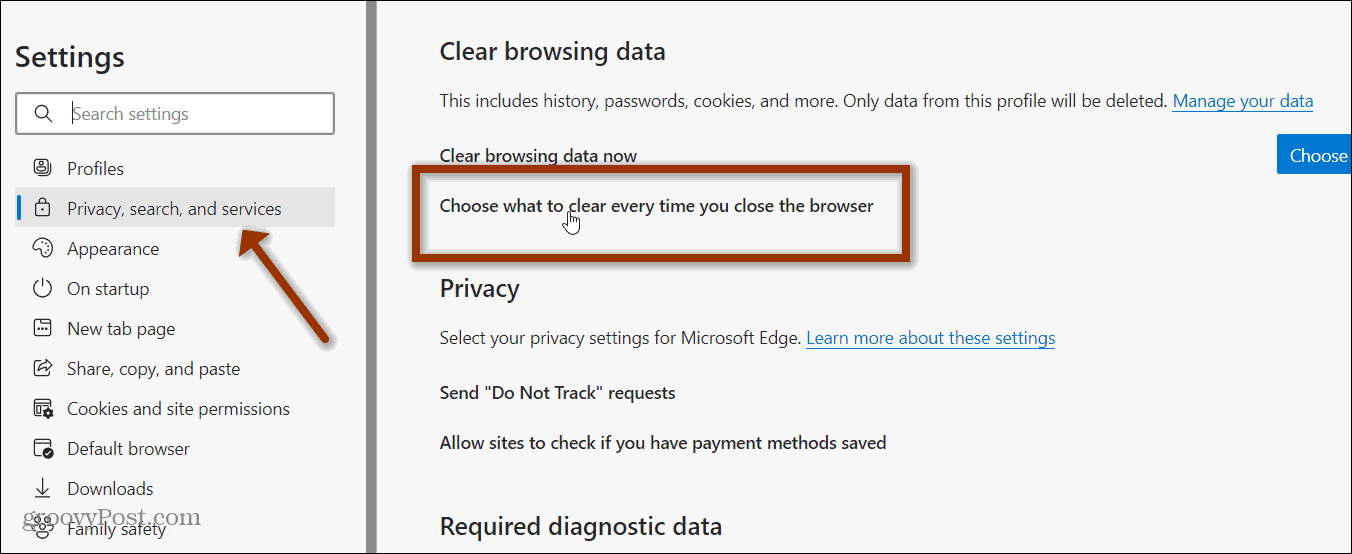
Next, you will see a list of everything you can clear when exiting the browser. Simply toggle on each of the items you want to clear.

The things you can clear include Browsing history, Download history, Cookies and other site data, Cached images and files, Passwords, Autofill form data, and Site permissions.
It’s also worth noting that when you toggle on Cookies and other site data to be cleared; you can add sites not to be cleared. This can be helpful if you don’t want to re-log into a frequently used site, for example. Click the Add button and type in a site’s address and click the Add button. Do this for each site you want to include on the Do not clear list.

Related: Make Microsoft Edge Use Extensions in InPrivate Mode
You can also edit and remove sites from the list if you need to make adjustments later.

That’s all there is to it. The next time you close out of your Microsoft Edge browsing session all the data you selected will be cleared out.




