
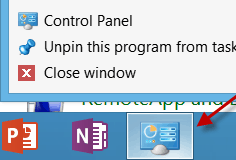
In Windows 8 and RT, there’s a new metro-style Control Panel, but the classic one still exists too. There’s a couple of ways to access it, but if you want to be able to get at it quickly, pin it to the Taskbar. It’s actually easier than doing it in Windows 7 too.
On the Windows 8 Desktop, adding the classic Control Panel as a shortcut on the Desktop is easy. Just open Personalization, click “Change Desktop Icons” and check Control Panel.

Adding it to the Taskbar isn’t as easy as doing a drag and drop. In fact, you simply can’t. Instead, you need to go through the process of creating a new shortcut and pointing it to Control Panel. The process is similar to pinning the Recycle Bin to the Taskbar.

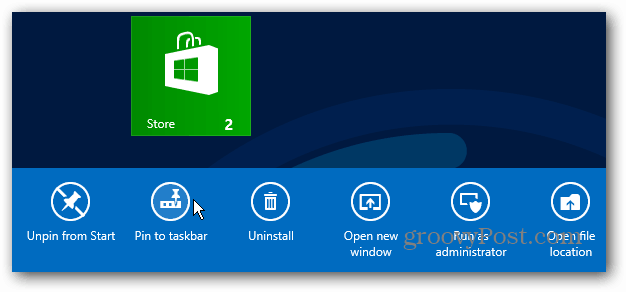
Since Windows 8 allows you to pin Start Menu items to the Taskbar, that functionality can be used to pin the Control Panel. From the Start screen, type: control panel and under the Results, right click the Control Panel icon. Then click the Pin to Taskbar icon that comes up on the bar at the bottom of the screen.
Now go to the desktop and you’ll see the Control Panel icon pinned to the Taskbar. You can use it to open Control Panel, or you can right click it, and access recent controls from the Jump List.

5 Comments
Leave a Reply
Leave a Reply





Mustafa Muflehi
June 16, 2013 at 7:25 am
Many thanks.
Very useful and it’s nice to know that Control Panel can be pinned to the task bar on Windows 8.
Anna greeves
August 9, 2013 at 1:53 pm
Brilliant. At least I’ve been able to able to sort out one thing. Not happy with W8 – lost outlook express, the @ symbol has now moved to shift 2 (still working on that one) and none of the games I enjoyed on XP are around. Wish I had gone to a mac but stuck with W8 for now as have just bought new computer….!!
Brian witha Brain
August 26, 2013 at 12:20 am
Windows 8 is such a step up. No more of the “express” light apps. All of those apps can be found from outside vendors. Thoughtful layout. Even the loss of the Start button, makes perfect sense. Admittedly it takes a few minutes to acclimate to the new user philosophy. Once you let go of the past the future possibilities seem pretty cool. With hints like this, 8 can be customized to work any way you want.
Nora
March 30, 2014 at 10:05 pm
Great instructions. Worked perfectly.
Brandon
July 30, 2016 at 7:02 am
Close… but a bit off. You have to pin it to start menu first, then go to start menu and pin it to taskbar. You can’t pin directly to taskbar from search results.