How to Insert Lorem Ipsum or Random Text into a Microsoft Word Document


Creating Lorem Ipsum or Random Text is simple if you have a copy of Microsoft Word. Here’s how it works as well as how to tweak the default behavior.
Microsoft Word (All versions) has a hidden feature that allows you to insert Lorem Ipsum or Random text into your document easily. I actually use the feature all the Word 2007, 2010, and the latest Word 2013 has a feature that allows you to create Random text or Lorem Ipsum text quickly and easily using a simple command. It’s very convenient for bloggers who need to create a mock website with dummy text or create a mockup of something for a PowerPoint presentation.
So first, let’s review the command for Lorem Ipsum and then consider the command for inserting Random Text into a word document.
Editors note: As of 2017, only the Windows version of Microsoft Word supports inserting Lorem Ipsum. Microsoft Word for Mac only supports inserting Random text.
Insert Lorem Ipsum into a Microsoft Word document
Type =lorem() into a new or existing Word document and hit the enter key.
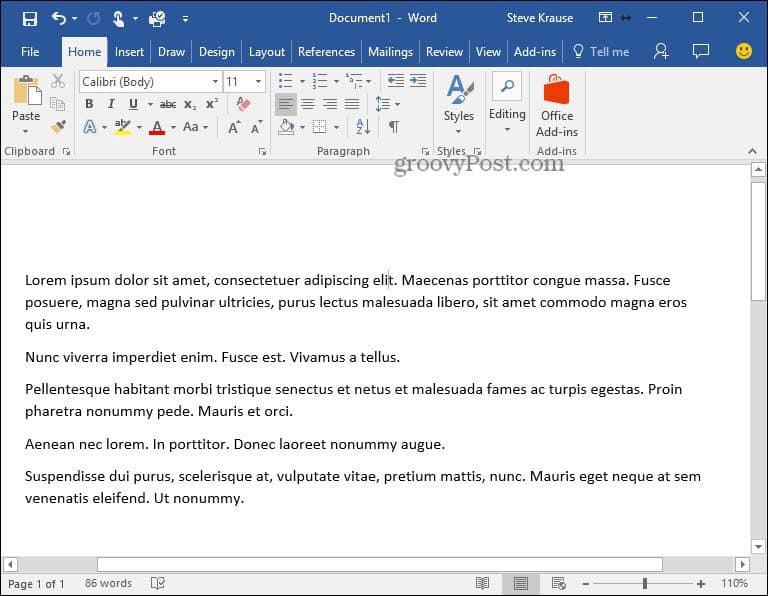
Inserting Random text works in the same way.
Insert Random Text into a Microsoft Word document
Type =rand() into a new or existing Word document to insert Random text.
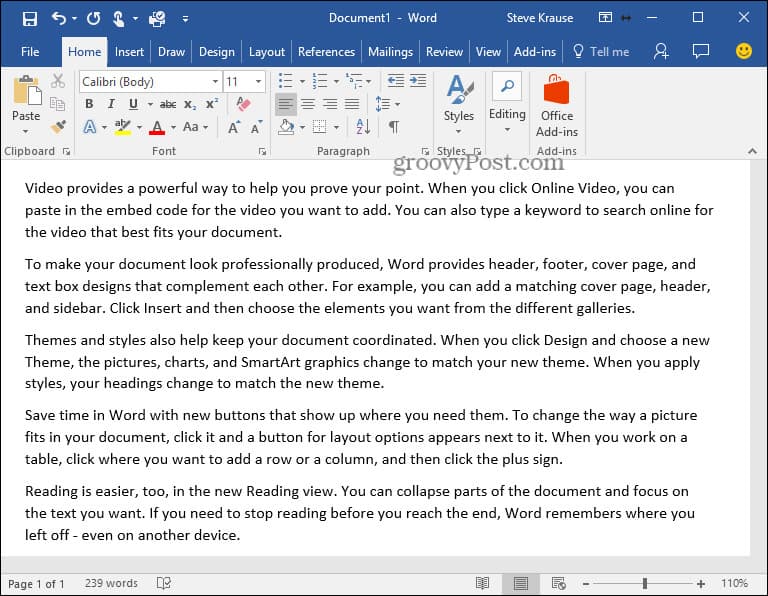
Additional Features
Although you can use the commands above, Microsoft also allows you to change the default behavior by modifying the syntax. Very handy if you want to control how much text is generated.
- Use the Syntax =lorem(paragraph,sentence) or =rand(paragraph,sentence)
- =lorem(3,9) will create Lorem Ipsum text output with 3 Paragraphs each with 9 Sentences
- =rand(4,3) will create Random text output with 4 Paragraphs each with 3 Sentences
- Word 2016, 2013, 2010 and 2007 support the =lorem() syntax
- Word 2016, 2013, 2010, 2007 and 2003 support the =rand() syntax
Article originally published 4/8/2008. Updated 8/8/2017.
10 Comments
Leave a Reply
Leave a Reply







jjacks
April 10, 2008 at 9:48 am
Great tip. That’s a new one for me! Would almost classify this as an “easter egg”.
Thanks GroovyDude
MrGroove
April 10, 2008 at 4:06 pm
@JJacks – Appreciate the feedback! The feature is actually documented in KB212251 which is why I didn’t call it an Easter Egg. It is however one of the more obscure features in the Microsoft Office family.
Bill Peschka
February 28, 2011 at 12:10 pm
If the title is “How-To Insert Loren Ipsum into Microsoft Word 2010 or 2007 Document” and the Additional Info says lorem() only works in 2007, couldn’t the title be shortened and the footnote eliminated?
MrGroove
May 22, 2011 at 12:03 am
Hi Bill – Just tested Word 2010 and it look like it’s working now so I updated the article again. Thanks for the comment.
David Ferrier
October 29, 2011 at 8:25 am
Minor typo:
•Word 2007, 2010 ***support*** the =lorem() syntax
•Word 2003, 2007 and 2010 ***supports*** the =rand() syntax
I suggest both comments use “support”
You can get free plastation network codes here.
November 7, 2011 at 11:25 pm
I’ll immediately snatch your rss feed as I can’t to find your email subscription link or e-newsletter service. Do you have any? Please let me realize so that I may subscribe. Thanks.
DB
April 23, 2013 at 3:27 pm
Not working for me. Is there some setting I need to fix? When I type it, all I get is a paragraph return. Any ideas? Thanks!
Bill Peschka
April 23, 2013 at 9:32 pm
What version of Word?
What are you typing that doesn’t work?
DB
April 24, 2013 at 8:28 am
Bill, I am in Word 2007 (still). At the top of a new document I typed =lorem(3,3) just to see if it would work. When I hit enter, I simply moved to the next line; no new text appeared. I’m hopeful that this is user error because I think it would be cool to use. Thanks for following up.
Bill Peschka
April 24, 2013 at 9:21 am
DB
I’m on 2010 so can’t match your experience. I remember having no problem in 2007, but believe I was using the =rand(3,3) rather than lorem..
So, my only suggestion would be to try rand()
Good Luck