
In the first article of this series on Windows 7 backup, I explained How to create a Windows 7 system restore. This article is the follow-up to demonstrate how to use that restore point to recover a problematic PC as well as How-To recover or use a restore point on a Windows 7 machine that won’t boot.
To recap, Windows 7 System Restore is a familiar and relatively safe way to restore your computer. By default, System Restore is turned on and will create Restore Points whenever you install new software or make changes to Windows settings.
Okay, let’s get started on restoring Windows 7!
Note: If you’ve recently restored your computer to a system image, Windows 7 will automatically remove all system restore points that existed previously to your restoration.
How To Restore Windows 7 To A System Restore Point
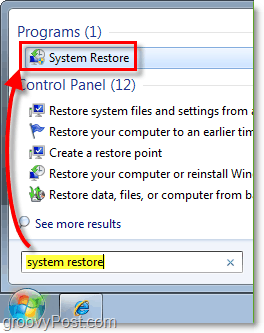
1. On your Start menu, Type in system restore. Press Enter or Click the System Restore program shortcut.
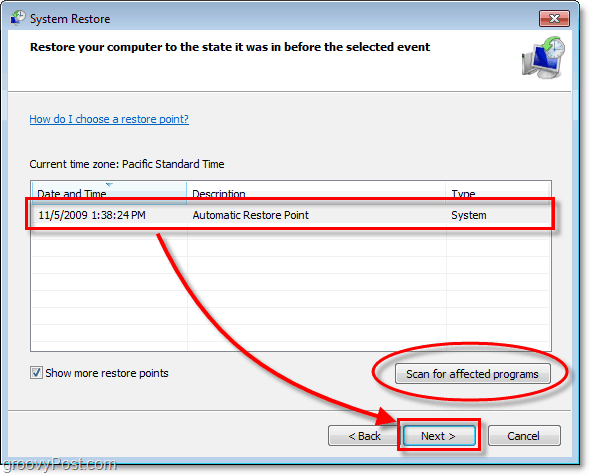
2. On the system restore page, Click Next. Now you’ll be asked to Select a system restore point previously created. If you see multiple restore points, try to choose the one that’s dated BEFORE any problems started.
Optional: If you are unsure if performing the restore will cause some of your programs to lose data, you can Click the Scan for affected programs button to see if that is an issue.
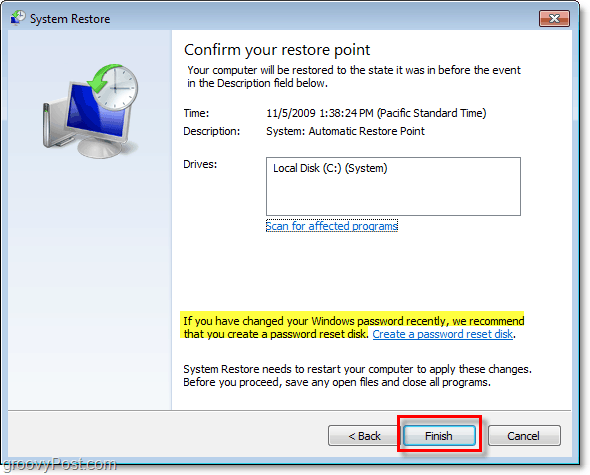
3. Confirm the restore point Time and Description and Click Finish
Note: I’ve highlighted below an essential point. If you’ve recently changed your password, system restore will set it back to what it was at the time you created the restore point. If you can’t remember your old password, create a password reset disk before restoring.
All done!
But wait, what if Windows 7 won’t boot? How do I access system restore?
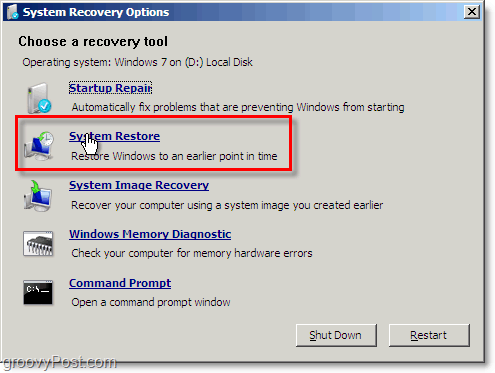
After a reset, if you continuously Press the F8 key, you can go into Advanced Boot Options. At the top of the list, you’ll see the option to Repair Your Computer.
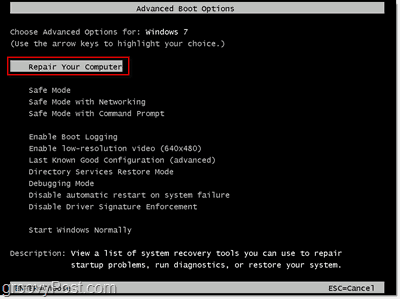
This option will take you into a Repair Boot mode on the System Recovery Options Menu. From here just Click System Restore and follow the tutorial above.
11 Comments
Leave a Reply
Leave a Reply







ShockerSH
November 9, 2009 at 11:22 pm
Yeah, the system restore I knew about however the BOOT recovery I had no idea. Is that new with Windows 7 or was that in Vista?
Arghya Chatterjee
June 7, 2017 at 12:15 am
Excellent .Very Helpful
Animis
November 10, 2009 at 1:40 am
I love the F8 Repair tool, I didn't see it in Vista. Must be new.
MrGroove
November 11, 2009 at 6:00 am
Yeah, the advanced boot options w/system restore and system image options is new with Windows 7.
Vincent
August 15, 2010 at 9:07 pm
So when i get into the System recovery Options, it asks for a password….I have tried what I normally use, and any thing else I can think of, but it does not work…any ideas?
MS
September 24, 2010 at 4:21 am
What if you want to a restore point you created manually. It doesn’t show up in the list and is well before the date in the list?
zillah
March 29, 2011 at 2:26 am
Dear Friend
What about if I can not into Repair Option that means F8 won’t put you in the ‘Advanced Option’
How can we restore windows 7 ?
Thanks
MrGroove
March 29, 2011 at 9:34 am
What exactly happened to your system? Are you saying when you press F8 your system will not go into the repair menu as shown in the screenshot above? Can you confirm your keyboard is working?
Steve
April 15, 2012 at 2:51 am
Win 7 System Retore I Followed what you said My F8 Key to repair Computer in window ‘s7
yiu have to Put The Windows 7 64 Bit DVD it So what comes up after I hit repair your computer is
Startup Repair
System Restore <—————I Choose This One
System Image Recovery
Windows Memory Diagnostic
Command promt
The Another window Pop's up
Restore systems files and setting's
RED X >> No Restore points have been created on your computer’s system
drive. To Create a restore point Open System Protection .
the
Greyed Out But Canel is lit up
I Click ON System Protection in that window.
Your Computer is running in a limited state,you cannot undo the resotre operation
it says
I restart the computer ……………………………………………
The Open Start Type In System Restore
Then
Same thing No Restore Point’s are there I trye to Create system restore
By calling it Steve’s Restore
And It won’t Let Me The System Restore Button is on
I go into Control Panel in Windows 7 And Click On Services to make sure system restore it turned on in there and it is ?
so I been repeating thease steps over and over and still it won’t let me Create a system resotre?
Sarah
July 29, 2014 at 10:55 am
What will the startup repair do compared to the system restore?
jayjaymartin
January 23, 2016 at 8:27 am
Hi, I installed my Windows 10 Brix yesterday but I’m seeing terrible lag when viewing videos at 1080p. Installed all the drivers, chipset etc. Is this normal or are these machines expected to be able to handle streaming videos in 1080p? Its not net lag, definitely hardware before anyone suggests!