Customize the Windows 7 Taskbar for a Classic XP Look

Update: Windows 7 is no longer supported by Microsoft. And Windows XP support ended years ago. Make sure you are running Windows 10 or higher on your PC.
With Windows 7, Microsoft completely revamped not only the look but also the functionality of the Taskbar. Large icons replace text labels, and instances of the same application now stack onto one icon on the Taskbar. The new feature keeps things straightforward and minimalistic and when coupled with Aero, beautiful.
Depending on what you’re doing, sometimes it’s nice to use the old Taskbar. For example, say you’re trying to teach someone like grandma how to use a new operating system, or you yourself don’t have time to adjust or learn something new. Or perhaps you fear change and prefer the way “things have always been.”
Seriously, though, this is one of the many very great things about Windows 7; a lot of customization options are available. With the release of Windows 7 just days away we’re going to begin focusing more and more on Windows 7, its new features, how to use them, and how to customize the new operating system. For now, however, let’s just focus on the task at hand and review how to return the Windows 7 Taskbar to the look and feel of Windows XP.
Taskbar Examples
A: The New Windows 7 Taskbar
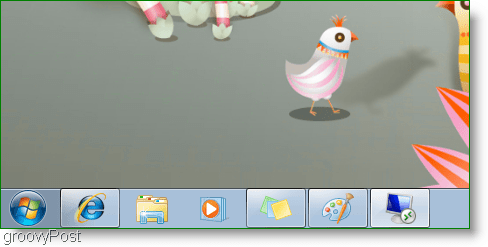
B: The Windows 7 Classic Functionality Taskbar
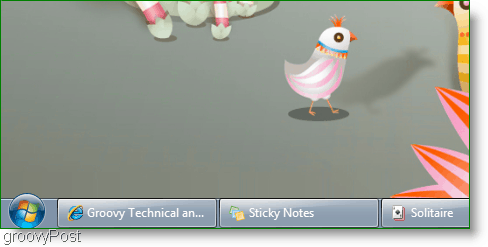
C: The Windows 7 Classic “XP Style” Taskbar
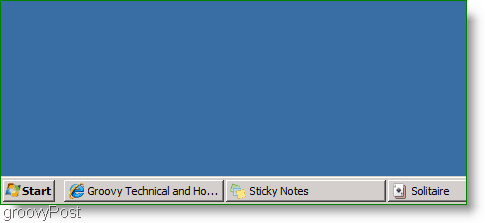
Use Classic Functionality and XP Style Taskbar on Windows 7
1. Right-click any empty space on the Taskbar and click Properties on the context menu

2. The Taskbar and Start Menu Properties windows should appear. Check the Use small icon option, and then select the Never combine in the Taskbar buttons drop-menu. Click OK to save changes and continue.
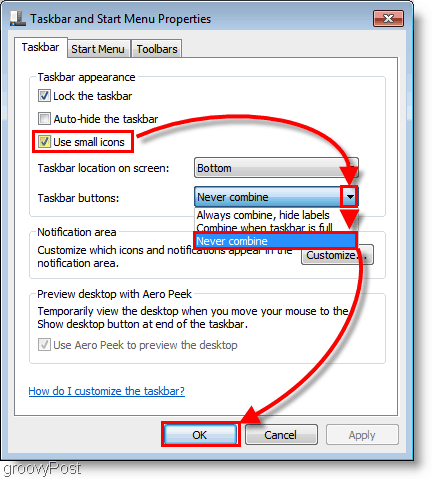
3. Right-click each icon on your Taskbar and select Unpin this program from taskbar.

Now your desktop will have the Windows 7 style mixed with the classic text label look. If you want to continue and use the Classic XP style just follow the next couple of steps.
4. Right-click any open area on the desktop. From the context menu that appears click Personalize.

5. The Appearance and Personalization window should pop up; Scroll down to Basic and High Contrast Themes. Click the Windows Classic theme; it might take a while to switch themes depending on your system.

Questions, Comments? Would love to hear from you!
13 Comments





shockersh
October 20, 2009 at 3:51 pm
no no no!! The new windows 7 toolbar is a thing of beuty! don’t ruin it with the lame xp look!!!!
borax
October 27, 2009 at 2:13 am
@shockersh, Yeah I have to agree, although I do miss the quick launch bar.. maybe I’m just lazy but the pins make it harder to open up apps if they are already running
Billy Buerger
October 27, 2009 at 3:46 pm
Nope, the win7 toolbar sucks for me. For one, put it on the left or right of your screen and all the horizontal space is wasted. As I tend to have a LOT of applications running and multiple instances of them, having the window title is a lot easier to find then the stupid preview windows that pop up when I don’t want them to. And I don’t put anything on my desktop. So desktop peek is useless. Instead, I put all of my commonly used applications in a toolbar on the taskbar. Which when putting the taskbar on the left side gives me room for 20 programs which can be opened very quickly. Last, since the system menu doesn’t come up when you right click on the taskbar button, there’s no way to use the old-school trick of finding a window hiding off screen. Right-click->move->arrow key = window stuck to your cursor to put wherever you want. It doesn’t happen often but sometimes with remote desktop sessions, windows get confused and show up on a screen that doesn’t exist anymore.
vampluvr25
January 5, 2010 at 8:46 pm
I love it too. What im trying to figure out is how to switch back to defaut taskbar settings. for somereason my internet exploror icon wont display the tab pictures at the bottom any more and i dont know why.
if that makes any sense to you and you know how to fix it please contact me mtcharmed@yahoo.com
grooveDexter
January 6, 2010 at 12:02 am
This could be an issue with a setting in Internet Explorer.
Check Tools > Internet Options
From the General Tab -> Click Settings
Make sure the “Show previews for individual tabs in the taskbar” is checked.
Screenshot of Setting
Percy
January 2, 2011 at 9:22 am
Those new icons just make it really hard if not impossible to navigate. I’m new to Windows 7 and have even changed XP to the older Classic look. I agree that the new icons look nice but to begin with I need to find my way around. Maybe later I’ll start using the new 7 pretty look.
AAA
February 3, 2011 at 2:18 am
i wish i could use the classic right click menu on the tasks of the taskbar(without using SHIFT) , and that the menu won’t have an offset from the place that you’ve done the right click .how come “pin to desktop” is more important than minimize,close,move,maximize ?
in the previous versions, i could also choose multiple tasks and close them all. i don’t think it’s possible now.
also, the current taskbar doesn’t show well which task has the focus . i wish i could change that too.
Robert Norwood
January 16, 2012 at 5:19 am
The problem with Win7 is it requires you to learn a whole new OS and way of doing things. If that’s the case go with Apple, they’re not out to confuse you. I have better things to do like work and produce. My experience goes back to the NT days and tried and true habits stick – never rush out and install every money suck Microsoft comes out with – let some other fool get burned. This has always been solid advice against service packs that used to blow up in your face and buggy – buggy operating systems. Now, they’ve got better but in general let the MS zombies pay the price until the bugs are worked out or a failed OS replaced. Office releases are always followed by an newer one so skip a release so you don’t pay for a new one and then have to buy the upgrade – upgrades suck. Most of XP’s detractors are kids who like superficial ornaments like colors and cartoons, totally useless things like fading. I think W7 features in an XP theme would’ve been nice. XP is the AK-47 of OS’s – it’s for people who use computers for real work. Windows 7 is like, I dunno, what, something for the gaming and movie watching crowd? Finally, what I really think this is about is Windows trying to mimic the Apple/Mac experience. Touchy feeley isn’t in their blood and doesn’t need to be – they should just stick with what they do best.
Lorinda Raley
January 25, 2012 at 12:39 am
Interesting weblog, I just book marked it
Amt Das
June 28, 2017 at 8:57 am
no, no, no !!! I want to change the start up icon and task bar design as my wish from the registry edit option. How can I change it?
blackhawk
November 17, 2017 at 7:34 pm
I have a custom XP theme that took a long time to get how I wanted it.
Can’t get it to run.
Relearning everything for a new OS version is a wasted task.
W7 aero is lame and a resource hog.
Everything after w7 is trashware.
User gui is -everything-
MS is beyond redemption… feel the wuv
Tim Pearson
December 9, 2017 at 9:09 am
Win7 taskbar shows an additional button/icon, just above the taskbar when you go make an active program selection, this blocks out important dialog on the program Im using. How do you turn off this feature. Of course this feature hasn’t been given a name I can only describe it to you, just like all the rubbish they throw into these modern operating systems.
David Aitken
August 12, 2019 at 6:55 am
A couple of points for dear Austin.
I have heard the rather patronising message time again that ‘change is good and people who resist it are retards.
Perhaps Grandma has less time left on the planet and doesn’t want to waste it needlessly learning a ‘new’ interface when the old one worked perfectly well!
Change can be a good thing but in the case of Windows, Mr Gates changes his product as often as he can in order to sell the latest and thus make more money. This is change for the sake of change which is a very bad thing (unless you are Bill Gates of course)
I use a computer to do a job. I don’t use a computer to re-learn Windows every time a new version comes out. Windows is an operating system to allow humans to interact with the processor. Unfortunately Windows has become the alter at which we are forced to worship in the never ending quest to be ‘up to date’.
So, do I ‘fear’ change? Yes I most certainly do and for very good reason. A product should become easier to use, more efficient, longer lasting, more robust, better value for money, the list goes on and I’m not just talking about Windows. We now have water-saving toilets that don’t flush, washing machines that don’t fill with hot water and wash cooler (not), kettles with weak lid hinges, clothes irons with small filling holes… Another big list and this is just the small stuff. Look at the B737 MAX horror and the Grenfell disaster and you will begin to get some idea of the level of contempt with which big business regards the small man in the street. We are all wallet fodder for their bottom line profit and Windows is one of the worst offenders.
So don’t brandish the latest version of Windows under my nose when all I need is an operating system that enables me to run my software without constantly waiting for updates. That would be the same updates that also stop other things working and cause multiple problems with things which were previously working fine until they were forced into premature obsolescence.