How to Remove Or Add Words to The Office 2010 Dictionary


Here’s how to add or remove words from the Office 2010 Dictionary. This lets you customize your dictionary and makes creating Word documents easier.
Have you ever been working in Microsoft Word and “Oops, I didn’t mean to add that word to the dictionary!”? If you’ve ever accidentally added a word to the Office dictionary, then you aren’t alone. With Office 2010, this can become very problematic because now every Office 2010 application shares the same dictionary. If you want to perfect your spell-checker, then this groovy guide will show you how to add or remove words from the custom word list.
How To Edit The Office 2010 Custom Word Dictionary
1. In any Office application (Word, Outlook, Powerpoint, etc.) Click File > Options.

2. In the Options menu click the Proofing tab, and then click the Custom Dictionaries button.

3. The Custom Dictionaries list should appear. Click Edit Word List.
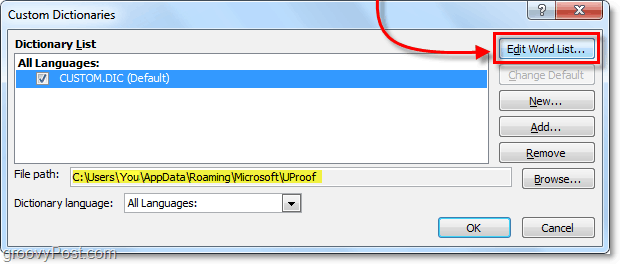
4. In the custom.dic dialog you can type in Word(s) and then Add them to the dictionary. Or if you need to remove a word just click the word from the Dictionary list, and then click Delete. When done, be sure to click OK to save changes.
Alternatively, you can edit the Office dictionary custom words list using Notepad.
5. You can also edit the Dictionary from its .dic text file located at:
%AppData%\Microsoft\UProof\Custom.dic

6. Just open up custom.dic and start typing in the words that you want to add to the custom dictionary. Keep it to one word per line and remember that words are case sensitive when being spell-checked later. Once you’ve finished, Save and exit notepad.
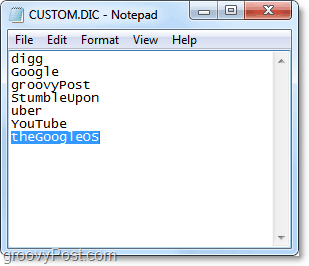
Any word you’ve added to the custom.dic file no longer gets flagged by Office 2010 spellchecker. So be wary of typos too.
36 Comments
Leave a Reply
Leave a Reply



Al
August 25, 2011 at 3:52 am
The CUSTOM.DIC file doesn’t seem to exist in my computer. I have fully installed 0ffice 2010. When I enter
%AppData%MicrosoftUProofCustom.dic
I am informed that windows can’t find C:users … etc.
Any idea why?
Jessica
September 21, 2011 at 10:56 pm
Ah, the article is missing the backslashes you need for the file path. Just copy the “location” from the article into My Computer, but before you hit Enter, add a “\” between:
%AppData%
Microsoft
UProof
Custom.dic
So it should look exactly like this:
%AppData%\Microsoft\UProof\Custom.dic
Now go ahead and pres Enter, and the file will pop right up. (It might ask you which program to open it with – Notepad works great, and be sure to save when you’re done.)
This article is great, by the way; I just installed a fresh version of Office, and I’m very grateful that I don’t have to right-click/Add every single word that was in my custom dictionary – I can add them all at once!
MrGroove
September 22, 2011 at 5:58 pm
Hi Jessica! Not sure what happened to my blog! It lost its formatting and all the ” \ ” between the path!
Thanks to you, I went ahead and updated the post to show the proper path! Thank you very much!
Kerrie Gesmondi
September 15, 2011 at 7:54 pm
I enjoy you taking the time to publish this post It continues to be quite helpful to me certainly Value it
Carol
September 30, 2011 at 2:23 pm
Dear Groovy,
I want to remove the variant spellings “enrol” and “enrolment.” They don’t appear in the custom dictionary, but the spell checker doesn’t mark them as misspelled.
What am I missing?
Thanks,
Carol
David
July 19, 2013 at 1:36 am
I could not find one a reply to the email from Carol below.
I similarly wish to remove a word that is not in the custom dictionary and which does not get picked up in Outlook when I spell check it, The word is “fopr” the other word os “provision” so I just don’t know why they sais through the spellchecker. The words are not in my custom dictionary.
Is there any solution to this? tks.
Carol September 30, 2011 at 2:23 pm #
Dear Groovy,
I want to remove the variant spellings “enrol” and “enrolment.” They don’t appear in the custom dictionary, but the spell checker doesn’t mark them as misspelled.
What am I missing?
Thanks
Karen
February 11, 2012 at 11:33 am
Thanks! Easy to follow instructions. I appreciate the help.
shane tout
March 20, 2012 at 6:42 am
You might want to mention there is a difference if going through Outlook. The Proofing option is not available UNLESS you open a message first. Then go to Mail, then Spelling and Autocorrect… and so forth.
Easier to change from Word or PowerPoint then it is changed in all applications.
madscientest
August 8, 2012 at 1:19 pm
you can tell these applications are build from diff people/departments who have no idea how to communicate with each other. and the evidence is found is stuff like this.
Brian Burgess
August 11, 2012 at 10:44 pm
@madscientest — That is why we are here! AND with all the new software and services coming from Microsoft, we’ll be here to help you learn all of that too!
Paul
October 3, 2012 at 1:51 pm
I found that in Outlook, while I had a Calendar entry open, I didn’t see the Proofing option either. In Outlook Options I selected Mail, then under Compose Messages there was a Spelling and Autocorrect button. Selected Spelling and Autocorrect, and a Editor Options dialog opened and it had a Proofing link that when selected showed me the Custom Dictionaries button that is discussed in the tutorial.
R Mills
March 26, 2012 at 2:16 am
Dear Mr Krause
As a fairly incompetent computer user I just wanted to thank you for such a clear and easy to use website.
You made my day today.
With kindest regards
Rosie Mills.
jmosso
April 10, 2012 at 8:16 am
TYVM!
Hubert
April 19, 2012 at 7:26 am
This is needed. Thanks
Hubert
April 19, 2012 at 7:28 am
Thanks very helpful
Philip
May 28, 2012 at 7:52 am
Would be nice if I had a proofing option in my version of Outlook 2010.
madscientest
August 8, 2012 at 1:17 pm
no kidding! another shortcoming in the world of micro$oft.
Brian Burgess
August 11, 2012 at 10:59 pm
Yep, that is why we’re here. And with all of the new products and services on the way…we’ll be here to help everyone with those too.
Jose
July 17, 2012 at 12:23 pm
Extremely helpful article! I also was confused about the proofing tab in Outlook, but just went to Excel and changed it there.
Steve Krause
July 17, 2012 at 12:34 pm
Excellent! Glad it made sense and helped @Jose
Welcome to groovyPost!
-S
MaineMom
July 17, 2012 at 1:34 pm
These are awesome directions, and I will surely use them, but this doesn’t describe something else I need to be able to do. As a copy editor, I have very specific rules I have to follow, and the dictionary in Word does not always spell things the way that I need them spelled, so it thinks a word is correct when it is actually wrong for me. How do I change these words that are pre-loaded in Word so they get marked as incorrect?
Gary H
August 6, 2013 at 5:53 pm
I am having the same problem. Let me know if you ever learn how to remove a word from the main dictionary. It is very frustrating.
Kevin Weinrich
February 25, 2014 at 4:02 pm
Yes, I would like to delete an odd word like “finial” from the built-in dictionary.
Teresa Hessler
January 4, 2013 at 2:30 am
Thank you SO much!
Gary H
August 6, 2013 at 5:52 pm
I do a lot of specialized typing. In the main spell check dictionary are words that “I” want to remove. These are words that Microsoft has added, but I don’t use them. I need to remove them to make spell check easier to use. I already know how to use the custom dictionary, but I NEED to remove words from the main dictionary. Can you help?
Thank you and could you e-mail me with a response?
Thanks again and I love all your hints, except I’ve never seen this one.
BobRobin
August 7, 2013 at 8:02 am
I looking for reply (to this post, Gary H August 6, 2013 at 5:52 pm) I need to remove a word from the MS Word 2010 Main Dictionary.
Thanks in anticipation…
Bob
GBentrim
September 5, 2013 at 9:40 am
I use a lot of Information Technology related words in my work – most don’t make much sense as they are acronyms and such. However, I have found that my SpellChecker will identify a word that is missing a capital letter within the word (i.e. RedHat or SharePoint) but it will not identify a word that has a captial letter within the word that should NOT be captalized (i.e. VMWare – incorrect, no capital W…VMware – small case w correct).
Any suggestions…
Anthony Farag
January 14, 2014 at 1:21 pm
Spot on! Very helpful, I always wondered about this issue.
Thank you.
MidiMagic
March 25, 2014 at 5:28 pm
My problem is that a specific word is flagged for capitalization, and there is no “Add to dictionary” entry in the shortcut menu and no Add to dictionary button in the spellchecker, but only when this word is flagged. “Add to dictionary” appears for other misspellings.
The word is “del”. In many proper names, “del” must be lowercase, but Word demands that it be capitalized.
I manually added it to the custom dictionary by editing the dictionary in the Options window and using the add button to add the word. But Word ignores it. Word still marks “del” for capitalization. But the custom dictionary still works for other words.
I posted this earlier, but discovered a typo in the email address after posting it.
Apparently Word has a list of words that must ALWAYS be capitalized that the custom dictionary can’t override.
How do I get rid of this annoying error.
Colin Main
January 19, 2015 at 8:19 am
Whilst I have never been able to remove words from the main dictionary, it is possible to set up auto-correct rules to at least change them to something more probable. In my case I cannot stand “targeted” but prefer the (less popular but still perfectly valid) “targetted”. I cannot remove the former but I can get it automatically corrected to the latter.
Interestingly, word 2013 used to autocorrect “targetted” to “targeted” but it never appeared in the auto-correct list!
Kevin Weinrich
January 20, 2015 at 5:19 am
Colin, that solved my problem perfectly. Thanks for a great workaround!
Karen
February 5, 2015 at 7:32 am
Enter the custom dictionary through file, options, proofing – add the offending word (‘correpondence’ in my case) exit out, then go back in and delete the offending word (‘correpondence’). Now spell check picks it up as an incorrectly spelled word where it didn’t before. It did not previously appear in the custom.dic list as a word that had been added.
This worked for me.
Nina
April 2, 2015 at 8:57 am
Thank you!
Olivia
October 1, 2015 at 6:52 pm
Thanks so much for this! Very clear and concise and very useful at my very urgent need
Les Wharton
August 22, 2016 at 3:07 pm
how do you stop the autocorrect of the abbreviation of Canada–CAN–where what i am typing and want is the abbreviation CNA?
John Byrne
August 25, 2017 at 5:44 am
MS Pro Plus 2010
How can I stop office from “correcting” “some time” to “sometime”? I’ve added “some time” to custom dic but that doesn’t help. I’ve added “sometime” to the exclusion dic but that doesn’t help