How to Change The Windows 7 Explorer Default Folder


If you’re not a fan of the default view of File Explorer on Windows 7 opens, you can change it. Here’s how.
In Windows 7, the UI including the taskbar, jump lists, etc. was a huge upgrade. But what about the folder shortcut on your taskbar? I find it helpful being that I can just click it and I’m instantly in Windows Explorer sitting in my Libraries folders. But like any groovy geek, I like to choose my own destiny, so let’s change where it points me!
How To Change Your Explorer’s Default Folder on Windows 7
Step 1
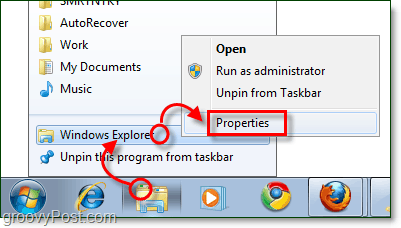
Right-click your Explorer taskbar icon and select Properties.
Note that you may have to Right-Click it and then right-click it again within the jump list that appears to get to the context menu where you can select Properties.
Step 2
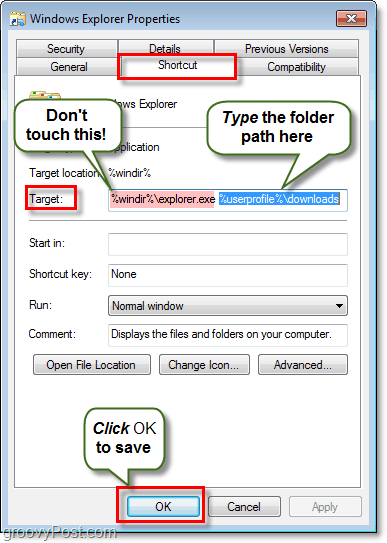
The shortcut tab should open by default, but if it doesn’t just click the Shortcut tab.
The only area of interest on this tab is the Target box. By default the target will point to:
%windir%\explorer.exe
This location is exactly where we want it to point, to so don’t modify that at all. What we’re going to do is add some text after it.
Type a single space after the %windir%explorer.exe part, and then Type your folder path right after it. For example, I want it to point to my Downloads folder so mine becomes:
%windir%\explorer.exe C:\Users\grooveDexter\downloads\
Or I could have just put %userprofile%\downloads\ since that will automatically point to the C:\Users\grooveDexter\ folder for me. Notice I didn’t change the first part, I just added the folder location right after explorer.exe. This procedure might sound a little confusing, so refer to the screenshot below as it explains it a bit more clearly. Don’t forget to Click OK to save changes!
Done!
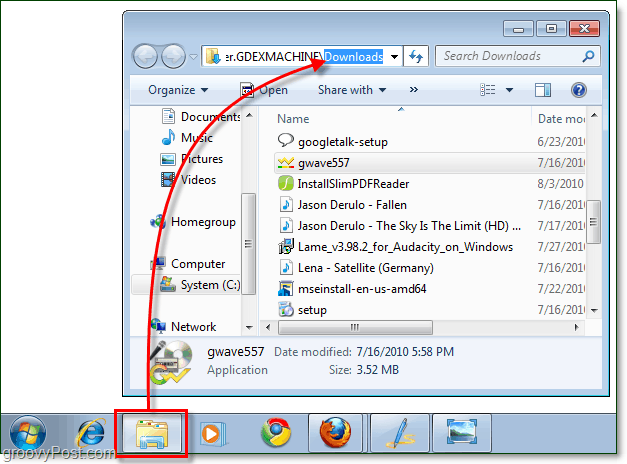
From now on when you click the Windows Explorer shortcut on your taskbar, then it will open up to the folder you specified in Step 2! Groovy eh?
If you ever want to revert to the original settings just go back in and modify the target, setting it back to the default path of just %windir%\explorer.exe.
12 Comments
Leave a Reply
Leave a Reply





DW96
August 12, 2010 at 4:21 am
Unique tutorial! Very thoughtful, but I must ask – can I make it open My Computer?
flink
May 20, 2014 at 3:17 am
The GUID in the line below is for My Computer. If you google around, you can find the GUID for any of the objects you can see in explorer but can’t add to the target box. Whitson Gordon over at lifehacker published that line in his article on setting the default location.
%SystemRoot%\explorer.exe /E,::{20D04FE0-3AEA-1069-A2D8-08002B30309D}
zuhaib
December 13, 2018 at 4:51 am
great. i was looking for this for months.
thanks
TomStirewalt
August 13, 2010 at 2:46 pm
Never one to leave well enough alone, I wonder how to make the left pane of Windows Explorer expand to reveal the tree structure for the deep drill-down target when you execute the “trick” above.
Double left clicking on the open Windows Explorer Window (anywhere, I’ve tried it multiple times) does not do it (sometimes it does other things depending upon where you click).
One still has to left click on each folder’s right-pointing triangle in the left pane to drill down.
Why would I want to do this? Well, for example, what if my \Downloads folder and my \Software-to-be-tested-&-saved folder are not under one another, but rather of the same “rank” and I want to move/copy something from \downloads over to the other folder? I still have to click by click expand/drill down on the left side to reveal the similarly ranked folder to \downloads.
Sombody please show me a neat trick! Thanks.
Trevor
September 29, 2010 at 4:43 pm
My Win7 already expands the tree by default… but the settings are under (with Windows Explorer open):
Organize –> Folder and Search Options
Make sure “Expand to Current Folder” is checked.
Mike
February 22, 2012 at 1:45 pm
Excellent! That worked……but I usu. use Start-E to open Explorer, is there a way to modify that to open my desired folder? Thanks.
Tamrat
October 4, 2012 at 4:00 am
Easy,effective and marvelous tutorial..keep it up mate.
Asok Asus
December 27, 2012 at 10:01 am
All of these solutions result in an extra instance of the explorer.exe process each time the modified shortcut is used, and they accumulate until you logoff.
A simpler and better solution is simply to replace all of the “Windows Explorer.lnk” shortcuts throughout the system with an ordinary folder shortcut named “Windows Explorer.lnk” that points to whatever folder you’ve chosen.
Here’s a little procedure that does this for Windows 7 and 8, where the replacement shortcut points to the %USERPROFILE% folder. The standard admonition should you try this is to first make a restore point as a precaution.
http://reliancepc.com/menu/tips/Downloads/ReplaceDefaultExplorerShortcuts.zip
Once unzipped, you can use 7zip to look inside the resulting .exe (which is a 7z SFX) and see what it does and that nothing nefarious is inside.
Endymx
March 29, 2016 at 7:16 am
Thanks this helped me on 2016 (at work) :)
TJ Rigsby
July 31, 2019 at 10:35 am
Yayyy!! I’ve tried at least 16 ways to get this and no one made it as clear and concise as this post! Thank you thank you!
Rick
November 16, 2020 at 11:55 am
Thanks sooo much. I wanted it to open to my desktop, and now it does. Thanks again.
M Q
December 4, 2022 at 8:20 pm
ty so much :D
Love,
A latina in cold Europe,enjoying her virtual machine guest OS /Win7/ now more thanks to you.