How to Add an Additional Mailbox in Outlook 2010


How to add a additional mailbox to Outlook 2010 the simple way. Follow this step-by-step tutorial with screenshots to learn how adding a mailbox is easy.
Adding an extra mailbox to your Outlook 2010 profile is simple as long as you know where to look. I’ve covered the process for Outlook 2007 and Outlook 2013. But since Microsoft moved things around with Outlook 2010, I figured I would include the step-by-step again using Outlook 2010 screenshots.
Update: Steps to add a mailbox to Outlook 2016 can be found here.
How-To Add a Mailbox to Outlook 2010
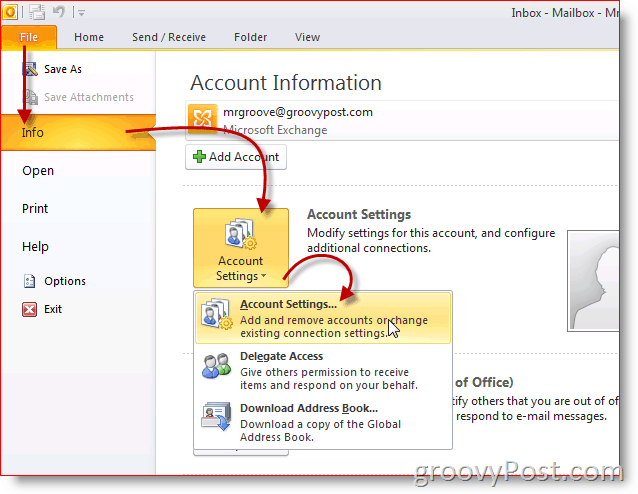
1. Open Outlook 2010 and Click File, Info, Account Settings
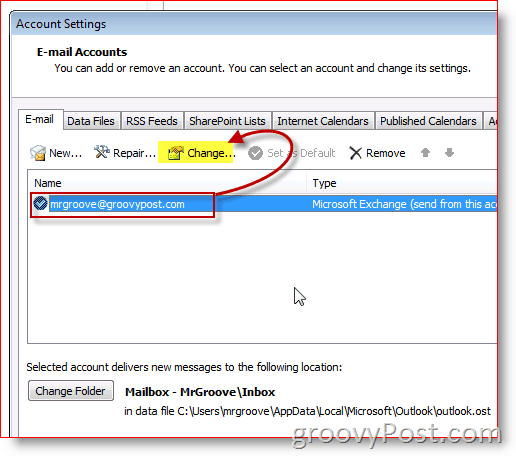
2. Highlight the account and Click Change
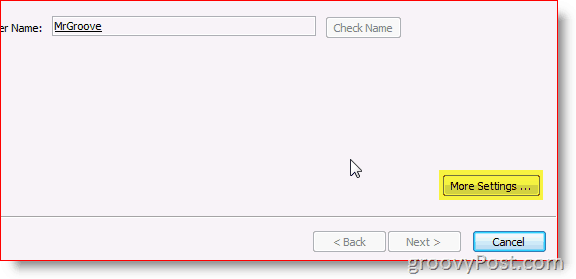
3. Click More Settings
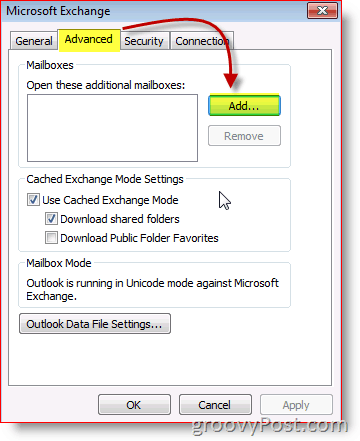
4. Click Advanced Tab then Click Add
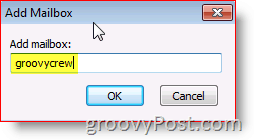
5. Type in the name of additional/secondary mailbox and Click OK
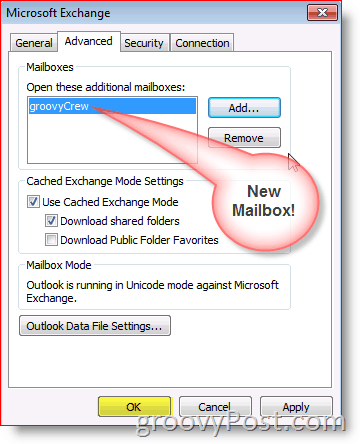
6. Verify the new mailbox is listed. Click OK to save
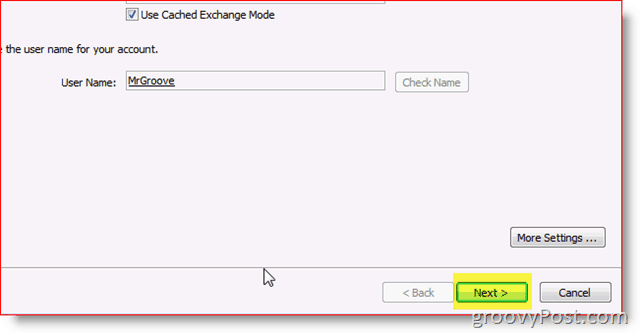
7. Click Next
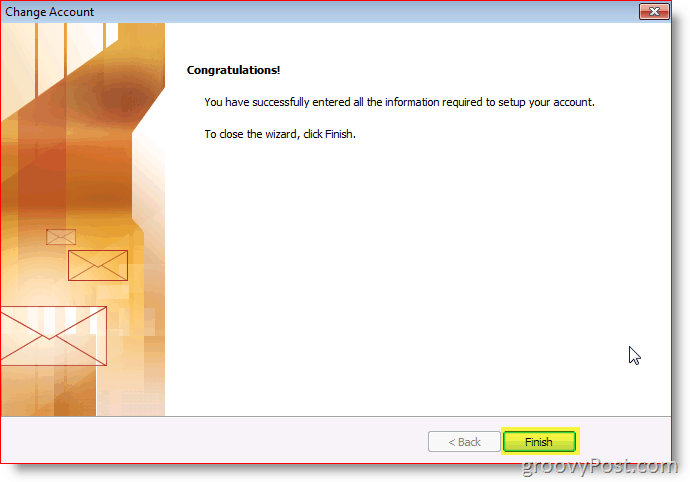
8. Click Finish
9. Click Close
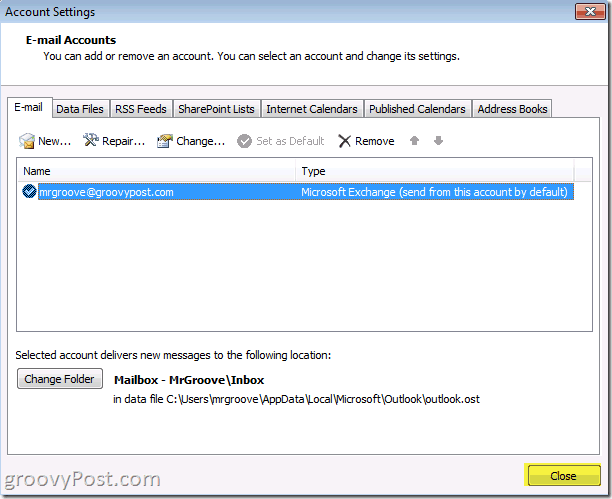
Done! Your new Mailbox will be underneath your primary account.

Questions? Comments? Drop a note in the comments.
123 Comments
Leave a Reply
Leave a Reply





Michael Sands
May 18, 2010 at 6:35 am
I use Office 2007 and have all (three, two GMAIL’s and one Comcast) of my separate mailboxes converge so I only have one inbox. I noticed that I was unable to do the same in 2010. Having three inboxes to keep track of, is a feature?
venkat
November 4, 2011 at 1:11 am
Hi,
I am using Exchange server 2010 and Outlook 2010.
when I try to add additional mail box in my Profile.
as shown in this site..
The name cannot be resolved. The action cannot be completed.
I am having full admin rights then also I am not able to add.. please reply and give suggestions.. its urgent.. waiting for your reply..
venkat
VInnMann
May 26, 2010 at 1:51 pm
Ok Ive added an additional mailbox, and have search option set to serch all outlook items, but it doesnt seach there. Under search tools, locations to search, the additional mailbox is not there.
MrGroove
May 28, 2010 at 9:17 am
Sorry for the SLOW response Vinn!
Ok, by default Outlook Search should include all your mailboxes including PST files etc… To confirm this Click inside the SEARCH box OR Click Ctrl+E
That should put you into the Search Tab. From there Click the Search Tools Button on the ribbon (On the right side of Search Tab Ribbon) then Click Locations to Search. Here you will have a list of everything availalbe to be searched. If you don’t see a CHECK MARK next to the Mailbox or PST Archive you want searched, Just click on it.
Now, after you add a new mailbox, Outlook does take some time to Index it. To check on the status of the Index, Click Search Tools again, then Click Index Status.
Make sense? Need more help? Let me know and I can write an article on this.
VInnMann
June 1, 2010 at 4:48 am
I have indeed looked through the “locations” to see if Outlook is searching in my added mailbox, and it is not. I have 4 IMAP (external to my company) mailboxes that are searched, all are gmail. I have an Internat Calander, and of course my exchage account, but my added mailbox is not there. Not sure why… or how to get the mailbox to be included in the “locations”
James Landay
September 19, 2010 at 9:04 pm
I have the same problem of the added mailbox NOT being in the set of included locations for indexing. How do I add it? Under “Indexed Locations” it shows a “Microsoft Outlook” tab that has my exchange mailbox, internet calends, Gmail, but not my 2nd exchange mailbox. It USED to be there, but I had to install new certificates for that server and THEN it went away. How do I get it back?
Robert van Geenen
December 1, 2010 at 1:20 pm
Maybe this will solve the indexing issue w/ delegate mailboxes:
http://technet.microsoft.com/nl-nl/library/cc732491(WS.10).aspx#BKMK_EnableIndexingOnlineDelegateMailboxes
Enable Indexing of online delegate Mailboxes
Supported on: Any version of Microsoft Windows with Windows Search 4.0 or later.
If enabled, Windows Search indexes items in online delegate mailboxes on a Microsoft Exchange Server. With Microsoft Outlook 2007, users can cache portions of delegate mailboxes locally (for example, contacts or a calendar). This policy does not affect locally cached portions of a delegate mailbox. To have this policy affect all parts of a delegate mailbox, no portions of the delegate mailbox can be cached locally.
The default behavior for Windows Search is not to index online delegate mailboxes. Disabling this policy blocks indexing of online delegate mailboxes. Regular online mailboxes are managed separately from online delegate mailboxes (see the “Enable Indexing of Uncached Exchange Folders” policy). To stop indexing of online mailboxes and online delegate mailboxes, you must disable both policies.
Default configuration: no default
carl
May 28, 2010 at 10:47 am
Hi there,
I’ve also found a nice add-in which let’s you search through your whole Outlook data in an instant. It’s called Lookeen. Ever Heard of it? I just downloaded it and it works with Ol 2010 pretty nice…
I added all my archives and several pst-files, and after a quick index it finds all I was searching for in a second. Maybe of some interest to you too?!
Greets Carl
Joe43
May 28, 2010 at 2:51 pm
My company tried out Lookeen.
It’s not free, it works decent enough, but it’s definitely not needed in Office 2010.
MrGroove
August 3, 2010 at 12:09 am
Aye – Office 2010 works out REALLY well.
John
November 19, 2014 at 7:08 pm
I am far from Mr. Techy, but I am having MAJOR issues adding email accounts and it seems that no one has any assistance for me. I have been advised to contact Microsoft for this issue “ha ha ha, try to get hold of someone there”. I have 2010 and it is just a mess. I have tried every combination know to man and still can NOT get this rectified. “Typical MS product”!!! Arghhhhhh!
Help!
Oskar
May 31, 2010 at 5:56 am
I face the same problem as I did with with Outlook 2007. What is sent through the additional account ends up in the “sent items” under your main mailbox. In Outlook 2007 there was a hotfix and a registry fix to solve this. But for Outlook 2010 I can’t findanything regarding this.
Anyone that solved this? I hade to change my account from shared and add it into Outlook 2010 as another account. But so far I have not found a solution for using a shared account.
Peter
June 23, 2010 at 4:58 am
Thanks allot, couldn’t be more clear!
Palani
July 29, 2010 at 1:58 am
Thanks a ton, the steps were so simple and easier. Could you let me know what software you are using to take screenshots and perform marks in it?
MrGroove
October 21, 2010 at 1:30 pm
Hi Palani – I’m using Snagit from Techsmith.com
It’s not free but, it’s the best software out there for screenshots!
Karthik
November 2, 2010 at 10:36 am
Hi Oskar,
I have checked and found that the sent item saving issue can be fixed by adding the additional mailbox as a additional account and checked.
Ravi
January 6, 2011 at 11:15 pm
I am using Outlook 2010. I have added a shared mailbox to my outlook. But, all the folders within that shared mailbox are not being shown. What may be the reason for this? Also, all emails within a folder(of shared mailbox) are not being shown. If i right mouse click on the folder and look in to Synchronization tab, I see that server folder contains more items than the offline folder. Any help on this would be greatly appreciated.
Robert van Geenen
January 7, 2011 at 2:45 am
Hello Ravi,
Has this sharing worked satisfactory in previous versions of Exchange and or Outlook?
You would probably want to check the sharing permissions on the folders that you want to be visible to the accounts accessing the folders. In my experience I had to expressly set permissions on all folders and subfolders down the folderhierarchy before they were displayed properly within the outlook client of delegate.
Hope this will help.
Robert
Ravi
January 7, 2011 at 2:57 am
Hi Robert,
Thanks for the reply. It works fine with Outlook 2003, 2007. The problem is only with outlook 2010. I have ownership rights for this shared mailbox. If i uninstall Outlook 2010 and install 2007/2003, works fine without any problem.
Cheers
Ravi
Steve S.,
June 11, 2012 at 6:55 am
Thanks! Yep, I too had to add per folder. Tedious to say the least.
Robert van Geenen
January 7, 2011 at 4:09 am
Hello Ravi,
Does your Exchange organization include multiple versions of Exchange? In my experience both accounts have to exist on the same version of Exchange. I.e. If one account exists on an Exchange 2010 storage and the other on Exchange 2003, as was the case in my situation the accessing of the shared account wasn’t possible. After moving the delegate account to the new Exchange 2010 storage server, no further configuration was needed and everything worked fine. If this isn’t your situation, I’m guessing there’s an issue w/ permissions, but again only a gut feeling and speculation.
I found lots of useful information on this site: http://msexchangeteam.com/. Perhaps you can profit from it too.
Robert
Ferda
March 31, 2011 at 11:42 pm
Thank you, this morning i need this info and i added new mailbox on outlook 2010 with your help. Thank you again. :)
Robert van Geenen
April 1, 2011 at 1:48 am
Hi Ferda,
Glad to read the information was helpful to you too!
My only remaining issue regarding OOF on the Outlook 2010 client using rpc over https has been resolved as well. This turned out to be related the SSL certificate for the autodiscover service. More info regarding this specific issue in the Technet KB: http://support.microsoft.com/kb/940881
Robert
Mae
May 23, 2011 at 9:57 am
Say let I add in the additional mailbox, and if I want to switch out computers, will my emails in the the mailbox stay on the computer or not.
Thanks,
Mae
Robert van Geenen
May 24, 2011 at 1:57 am
Hello Mae,
The contents of the delegate mailbox will remain on the Exchange Server. It would in fact be rather pointless to download all items to client computer and remove them from the server. At least in my scenario where we actually share the delegate mailbox amongst a group of people and the group needs to be able to access all items on the central (Exchange Server) location.
So to answer your question, if you use default settings you will be able to access your delegate mailbox from every computer set up to access the delegate mailbox. Items can however optionally be cached locally. More on cached mode: http://technet.microsoft.com/en-us/library/cc179067.aspx
MrGroove
May 24, 2011 at 11:32 am
Yeah but he will need to re-install Outlook on the new computer and then re-add his mailbox and any additional mailbox on that new computer (manually).
Robert van Geenen
May 24, 2011 at 1:49 pm
On individually managed clients that is of course true. I was assuming the use of identical (or at least pre-loaded w/ Office Outlook) domain based clients w/ roaming profiles enabled as is the case in my situation. Sorry for any confusion I might have caused.
MrGroove
May 25, 2011 at 7:17 am
AH – your right again. Your right Robert. With a properly configured environment yeah, the profile setup should be auto. I just wasn’t sure if the 2nd mailbox would be added automatically to Outlook on a new rebuild. I’ve not tested it in awhile with the dual combo of Outlook 2010 and Exchange 2010. We just only recently had our system here at corp updated to Exchange 2010.
How do you like roaming profiles these days? In the past I found it was a lot of data to move around. Are you using folder redirection or?
Robert van Geenen
May 28, 2011 at 2:14 am
Hello MrGroove,
Roaming profiles can be a bit of a pain to configure properly. Some folders are redirected in our environment. The use and further tweaking of roaming profiles should always be customized to the way they are used within the organization. For example, in my situation roaming profiles are used mainly for contingency purposes. The centrally stored roaming profiles and home folders are backed up every night.
Robert
Jesper
June 8, 2011 at 4:49 am
Here we have problems getting the extra mailboxes to roam with our users. We are only using redirecting folders (AppData) but the settings about extra mailboxes is not redirected?? Do you guys know where the settings about extra mailboxes are stored?
Thanks,
Jesper
Robert van Geenen
June 11, 2011 at 12:01 am
Hello Jesper,
I believe the information is stored in the NTUSER.DAT file in the user profile folder.
Robert
Andris
May 27, 2011 at 3:00 am
Greetings,
How it is possible to add Exchange account after IMAP account? Different organizations, different email addresses etc.
Thanks,
Andris
Robert van Geenen
June 10, 2011 at 11:10 pm
Hello Andris,
Personally I have never tried adding an exchange account *after* an IMAP or POP3 account. I’m assuming you’re running into an issue. Could you please provide more info? Adding a non-exchange account after the exchange account shouldn’t be a problem. The steps to follow are easy enough. Start > Control Panel > User Accounts > Mail > E-mail Accounts > New. It’s also possible to add an extra account from within the outlook account, but I prefer managing the account through the Control Panel.
Outlook connectors are available for download free from charge to integrate Hotmail/Live accounts and even social network connectors for Facebook and LinkedIn in the Outlook client.
Robert
Lynda Bales
June 10, 2011 at 10:56 am
Can you have personal folders in a second mailbox, or do they all set in the original mailbox?
Thank you,
Lynda
Robert van Geenen
June 10, 2011 at 11:35 pm
Hello Lynda,
The personal folder files (PST’s) in theory can be shared amongst individual Outlook users. However, you might run into issues when accessing the PST simultaneously from different Outlook clients. I have never tried this scenario, so I can’t be sure. The key step in making the PST available for sharing is making sure it’s located on a network share or when using a single machine on the shared documents location. A PST file is very flexible in that it can also reside on a flash drive, external drive or even CD/DVD (very useful for archival purposes and backup!). From personal experience I would advise you to be careful in adding a very large PST file to the Outlook client, especially if it’s shared over the network. A large PST file can seriously affect the performance of the Outlook client. Of course machine an network resources are a factor. A fast machine and network will suffer less performance loss than for instance an older WinXP machine on a low bandwith network.
So in short, to answer your question, yes it’s definitely possible for the delegate box to have it’s own PST file(s). However it will not be added to Outlook automatically when adding the originating delegate box.
In Exchange 2010 there’s a feature called on-line archiving. I haven’t delved into this yet myself, but this might be a more flexible way to accomplish your specific wishes. Some introductory information: https://www.microsoft.com/online/exchange-email-archiving.aspx
Robert
Micah
July 27, 2011 at 5:21 pm
Robert:
Thanks for this post; it is helpful. But I am trying to figure out if it is the solution for my problem!
We are using Exchange 2010 and Outlook 2010 exclusively in a domain environment. All users have their own email boxes but we also have client data that we need to share with all users. We previously had a separate “Clients” IMAP email box, but now that we have switched to Exchange we need a new solution. We could create a new “user”/email box to hold the client folders that is shared. We could put all the Client data in a sub-folder of an existing user’s account, but I don’t think Outlook 2010 will let us share a subfolder (as opposed to the Inbox). Can we create a repository in Sharepoint that will hold the email and let us respond to the emails there?
Any ideas?
Thanks!
Micah
MrGroove
July 28, 2011 at 10:13 am
I’m personally not 100% but I do think you can do Journaling and deliver the email to the sharepoint site so you can share it and archive it there. I would personally recommend just created a shared mailbox and let everyone share it.
Micah
July 28, 2011 at 10:38 am
Thanks.
But O2010 will only let me add a mailbox that is attached to a user. If I try to create a new box called “Clients,” I get an error message that says, “The name cannot be resolved. The name cannot be matched to a name in the address list.” So then if I try to create a second box with my name, it says, “This user has already been added to the mailbox list.”
It seems like I have to create a phantom user to have an additional box, no?
Any thoughts?
Robert van Geenen
July 29, 2011 at 1:42 am
Hi Micah,
Actually, that’s how I addressed the issue. I created the ‘functional accounts’. I then set the account settings to “user cannot modify password” and “password never expires”. Also the account is set to never expire. Off course nobody has the password, except me. If I ever need to log on to the account to perform maintenance. For instance to modify the rules and alerts settings to deliver system messages to their appropriate subfolder within the functional account.
Micah
July 29, 2011 at 8:15 am
Robert:
Thanks. But can you clarify? What do you mean when you say that you created the “functional accounts”? Do you mean you created a fake user and gave that user an email account which was shared with your users?
Does that create a licensing issue?
Micah
Michelle
July 29, 2011 at 3:48 am
Hi
I have added two mailboxes with no problem but when I add the thrid outlook goes in to not responsing and I can’t use outlook.
I have checked my premission for the mailbox and they are fine. I had this mailbox working yesterday but it started cause promblems when I tried to make it one of my profiles so when i open outlook I can easily choose which mailbox I want to open. As soon as I remove the mailbox my outlook works perfectly.
any ideas?
Tage Stabell
August 19, 2011 at 8:07 am
Excellent tutorial.
I would have spent hours trying to figure that out by myself.
Thank you!
Robert van Geenen
August 22, 2011 at 2:39 am
Hi Micah,
Sorry for not having gotten back to you sooner.
Yes, what I mean by functional accounts are in fact what you describe as fake accounts. I’m not familiar w/ any other way to accomplish this, in fact when I first started maintaining an Exchange 2000 environment back in the day, to my knowlegde this was the Microsoft best practice way to do it. Since it always fitted my needs perfectly w/o any adverse side effect I continue this practice to this day.
Michael Lum
September 15, 2011 at 2:09 am
I tried to follow your very simple instructions above, but do not use an exchange server for my two separate email accounts. Therefore, I do not get the Microsoft Exchange window when I click “More Settings…” in step 3.
Both of my email accounts are pop3 accounts with Time Warner California Roadrunnner (emailone@ca.rr.com, emailtwo@ca.rr.com).
I would like to separate these email accounts out so that they don’t all get clumped together in one inbox. Is this possible?
Jeffrey
April 26, 2012 at 10:19 pm
I have the same question as Michael and I can’t find an answer. I don’t use exchange; I have pop accounts. Is it possible to create the two inboxes?
Ben Oostdam
September 15, 2011 at 11:27 am
@ Micah
I think you want all the shared data in a(multiple)separate mailbox(es)?
Thats easy enough.
create the additional account.
Put all the data in it, using your existing folder structure.
Give all the wanted permissions on the mailbox using the powershell command Set-MailboxPermission -Identity Sharedusername:\Foldername -AccessRights etc. etc.
This way you can “Fake” and “manage” the mailbox as a public folder and even build some kind of rights structure in it.
You can automate the rights issue for new accounts using the cmdlet en some good Security groups.
Mail’/contact me if you can’t sort it out with the above information, and I will create an article for it on my site.
Add your your mailaddress to it, plus exactly what you want and
perhaps I can even remotely assist you, or sent you the url.
Regards,
Ben Oostdam
Rowland
September 28, 2011 at 12:38 pm
I have created a second email account and I am getting my mail there. However when I delete an email it stays in the “In” box with a strike through. How do I get it to be moved to my Deleted folder?
Eric
September 29, 2011 at 6:52 am
Thank you, a lot!
Morgan HUC
October 6, 2011 at 2:37 pm
THIS WORKED.
Thank you so much! :)
Anna Townsend
October 12, 2011 at 6:16 am
I’m ecstatic this worked! Thanks for this, and isn’t it amazing that you cannot find anything on Outlook’s help on how to do this type of thing? I wonder why that is?
Ken
October 20, 2011 at 6:10 am
Good steps to know. After accomplishing this, the user was able to add the mailbox, but is unable to expand the folder structure for the added account. Permissions are set to allow the user “Reviewer” permissions on the Inbox. Any other permissions I should be looking at (either through Exchange or Outlook)? (Exchange 2010, Outlook 2010)
Jag
October 21, 2011 at 8:27 am
Very well explained.
Thank you
Mike
November 19, 2011 at 8:11 am
Excellent explanation Thanks
Steve Krause
October 4, 2012 at 4:50 pm
Thanks MIke!
Thiruvengatam Adavan
November 25, 2011 at 12:32 am
Hi,
I was successfull in adding additional mail to my Outlook 2010.
But when I click on that mailbox, it does not expand at all.
Can you please tell me how I can expand it.
Warm Regards,
Thiru
MikenAZ
December 13, 2011 at 4:06 pm
I have the same issue as Adavan above. The Exchange account was added but Outlook cannot expand the new account folder. So no Inbox, sent, junk, etc., folders under the new account folder.
I can see I have messages ready on the server in the ‘mailbox store’ window.
Network: SBS 2003 server
Exchange 2003
Client OS: XP Pro/Win 7 (Win7 in this case)
Outlook 2010
All updated.
MikenAZ
December 13, 2011 at 4:18 pm
More info:
When I click on the new account folder in outlook, the following displays in the center of the viewing pane to the right:
“Cannot display folder. Microsoft Outlook cannot access this specified folder location. The operation failed, The object cannot be found.”
If I click the small arrowhead next ot the new account I get a pop up warning window with the yellow exclamation point badge saying: “Cannot expand folder”.
I am directly connected to my LAN when doing all of this.
Benjamin Johnstone
August 9, 2012 at 1:45 pm
Log into the account of the folder or calender you want to share. Right click on the Main Folder and click properties then permissions. Add the account you want to be able to see the folder to the allowed group. Do that for all sub-folders as well (Inbox, sent, junk ect.)
RG
January 4, 2012 at 3:05 pm
Make sure you have the permissions set correctly on the mailbox that you are trying to access.
Marrrta
January 9, 2012 at 7:26 am
In my case, the “Add” button (see step 4.) is disabled – what could the possible reason be? How should I go about fixing it so as to be able to access the other shared mailbox?
Alberto Voli
January 18, 2012 at 11:54 pm
Exchange Shared e-mails work great once setup with the shell, and they are automatically seen in outlook 2010. They don’t count as an exchange licence and are wonderful to share a ‘shared’ ‘sales’ mailbox. the problem is when I try to access it from the Iphone. Because it does not have a password correlated to it, I have not been able to figure out how to set it up on the Iphone. Has anyone had any luck with this?
Vic Cserer
January 30, 2012 at 12:54 pm
I have added that second mailbox as you have shown. it shows up in my inbox fine, but when I click on it I get the error “cannot expand the folder”. If i click on “file/open/other users folder” it works fine, but will not stay as it shows up as a search.
we have recently gone to a MS hosted BPOS solution and OL 2010. I ahve given myself ownership of the delegated mailbox….any ideas?
Benjamin Johnstone
August 9, 2012 at 1:48 pm
Log into the account of the folder or calender you want to share. Right click on the Main Folder and click properties then click permissions. Add the people or group you want to be able to see the folder to box at the top. Choose what level they are (owner, reviewer, ext) and click apply. Do that for all sub-folders as well (Inbox, sent, junk ect.)
Ben
February 2, 2012 at 6:01 am
I have 2 POP3 email accounts (wife’s and mine) that we’re trying to set up separately in Outlook 2010. I got it to where Outlook prompts you to which profile you want to open when you start Outlook. My emails all seem to work okay. But if I open my wife’s profile, there is a main profile with Inbox, Deleted, etc… but none of those download any emails from the server. Then there’s a 2nd email account that shows up under all that with ONLY an Inbox. It essentially looks like your screen shot below “Done! Your new Mailbox should now be listed below your primary account” BUT the email below the top info only has an Inbox. It DOES download emails from the server, but if you delete anything it just disappears…doesn’t seem to land anywhere. Any ideas on how to resolve?
Shannon
February 15, 2012 at 10:35 am
I need to know “How-To REMOVE an Additional Mailbox in Outlook 2010”. Can you point me in the right direction?
Robert van Geenen
February 24, 2012 at 6:49 am
Hello Shannon. When you follow the instruction on how to add a delegate mailbox, you’ll end up in the dialogue box that apart from an ‘add’ button, also has a ‘remove’ button. Highligt (click) the delegate box you wish to remove and simply hit the remove button.
Rowland
February 24, 2012 at 5:00 pm
If I want to make the secondary mailbox my primary mail box, how do I go about that?
Robert van Geenen
March 2, 2012 at 4:35 am
I’d suggest creating a new profile in which the delegate box is set as primary. You’ll have to have the credentials for the delegate box.
Meghan
March 22, 2012 at 7:14 am
This worked for me- thanks so much for the help- however, now when I send an email from that box, I need it to say from “THAT BOX” instead of my name. can you help with this?
Robert van Geenen
March 22, 2012 at 8:21 am
Meghan, do you mean ‘send on behalf of’ or ‘send as’? These are two distinctly different security settings.
Max
March 28, 2012 at 11:14 am
I have been given publishing editor rights by my boss, yet no messages generate in her inbox. I have added and removed her inbox according to your directions, yet still am unable to see her messages. Any insight?
Manirathnam
April 12, 2012 at 2:34 am
All my messages from primary inbox moved to new mailbox added. How to recover it back and change the settings for the mail to receive in primary account inbox.
Craig Bonfield
May 2, 2012 at 4:24 pm
Absolutely brilliant.
I know how to do this in Outlook 2007, but I wasn’t sure where to look in 2010.
Now I do.
Easy to read documentation, after step 3 I knew what to do.
Cheers
CraigB
Kurien
May 23, 2012 at 8:53 am
Thank you!
This worked for me.
Steve Krause
May 23, 2012 at 5:53 pm
Awesome! Thanks for the feedback.
Rugged_Grey_Chin
June 21, 2012 at 11:31 am
Aaaah! Thanks VERY much, the instructions in the MS Self Help docs were basically useless in this area and i’ve waited nearly 1/2 a day struggling with this… Awesome!
Steve Krause
June 21, 2012 at 4:48 pm
Another satisfied customer :) :)
I’m glad I could help! Welcome to groovyPost!
sujith
July 10, 2012 at 2:49 am
Thanks so much………….
Gina
July 16, 2012 at 11:50 am
These instructions are very good. Thank you!
Do you happen to know how to add this additional mailbox in as a location to search in Outlook 2010? Your main mailbox and PST files are options to check for search inclusions, but when you add additional mailboxes, there doesn’t seem to be a way to add these in. You can search by individual folders under advanced find options, but when you’re dealing with mailboxes with multiple folders it makes it very cumbersome for searching. It would just be easier to add it in to the list and search the whole mailbox (or, better yet, multiple mailboxes). I’m hoping there’s a way to do this that I haven’t stumbled on yet!
Rach
July 17, 2012 at 10:26 am
I have this set up so that I have full permission on the other user’s folder but I would like to be able to flag items for followup in that folder. However, Outlook will not allow me to do this. I create task, set reminders, etc. but cannot flag emails in the other user’s folder. Any suggestion?
daveib
July 27, 2012 at 9:18 am
I did this and was able to add the user’s mailbox but the mailbox appears empty even though when I go to the EMC, and open her mailbox properties, it says there are almost 2400 items in it. How can I force Outlook to download those to my outlook instance?
Mostly Cloudy
August 15, 2012 at 12:28 pm
RE Solution: “Log into the account of the folder or calender you want to share. Right click on the Main Folder and click properties then click permissions. Add the people or group you want to be able to see the folder to box at the top. Choose what level they are (owner, reviewer, ext) and click apply. Do that for all sub-folders as well (Inbox, sent, junk ect.).”
I apologize for asking what is likely a dumb question…but just exactly how do you do the above? I have gone through the steps to add the mailbox but I cannot expand the folder. To the best of my knowledge the user has given me permissions for the various components [inbox, sent items, etc]; is there something else that the user needs to do? Do I have to add the e-mail account of that user to my Outlook; if so, it looks like I would need their password, which is not a good thing, because I don’t want it [not to mention it would make our IT area very unhappy.] It is probably very obvious that I am confused and in need of very basic detailed step by step instructions. Thank you very much. Signed, Lost, but not in Space
Cyril Thomas
August 27, 2012 at 3:10 am
I have added another mailbox sucessfully but now whenever i am opening up the outlook client it ask for me the password for the primary mailbox… how to get rid of that…
BobN
September 27, 2012 at 4:27 am
I find it amazing that Microsoft does not have your tutorial already on their support website. Very clear–it got the job done. Thanks!
Steve Krause
October 4, 2012 at 4:49 pm
You’re very welcome and welcome to gPost
Bob-virginia
October 11, 2012 at 10:04 am
Thanks Steve, very helpful and simple indeed.
Steve Krause
October 11, 2012 at 2:14 pm
Hi Bob — thank you for the feedback. Glad it was helpful.
Sent from my Mobile
chrisf1960
October 14, 2012 at 10:12 am
When I click on the Advanced tab in step 4, I do not see the same screen as your instructions show. I do not have an ‘Add’ option I can click. Why would that be?
I have Outlook 2010.
Leda
June 10, 2015 at 1:41 am
I also do not see the “add” option. Help please!
Michael Clark
October 25, 2012 at 8:59 am
Perfection! Thanks!
ukol44
November 16, 2012 at 7:10 am
Permissions have been granted. I can open the mailbox via FileOpenother users folder…
I then added the mailbox using the process above.
The mailbox name shows up in the folder list, but I get the following error when I attempt to open from the folder list… “Cannot display the folder. Microsoft Outlook cannot access
the specified folder location. The operation failed. An object cannot be found.”
Grace
February 18, 2013 at 9:46 pm
Fantastic! Clean, simple, to-the-point instructions. Setting it up was a breeze!
Jens Anders
February 26, 2013 at 3:58 am
Most useful – thanks:-)
Ajay
March 6, 2013 at 4:12 am
Hi Steave, I’m trying add group mailbox in Outlook 2010. Group Mailbox created in different domain for this I unable to configured in my outlook. while adding getting below error message.
“The Name cannot be resolved. The name cannot be matched to a name in the address list.”
Greg
March 7, 2013 at 2:00 pm
Thanks Steve – I like the screen shots too.
Steve Krause
March 8, 2013 at 9:29 am
Yeah you bet. Thnx for the comment @Greg. welcome to groovyPost!
Paul Cox
March 18, 2013 at 4:18 am
Great article, really useful to add additional accounts. We made a video that shows you how to add your first pop account.
https://youtu.be/QGZbHq4fl-g
carmen
March 21, 2013 at 10:49 am
How to I automatically have emails sent from the added mailbox indicate from the new mailbox name and not from me. It should be from-generic mailbox name and not from Carmen. thanks.
Sami
March 22, 2013 at 4:09 am
Dear All,
i have an exchange account using outlook 2010 (domain: abc.com), everytime i try to add another exchange account (domain: def.com) with some exchange proxy settings, it worked fine and emails start downloading normally after 20 or 30 secs outlook crashes.
i couldn’t find a solution on google for my case,
can you please assist??
Regards,
Sami
Taylor
May 17, 2013 at 12:05 pm
Thanks for the tutorial! It was very helpful.
Rich
May 21, 2013 at 8:17 am
Hi Steve, awesome job you did here. Yours was the most clear and easy to follow that I’ve seen. Only one problem for me, I’m setting up another mailbox with internet email settings, not exchange. So when I go to the advanced tab there was no tab to add. Any chance you have a work around here? Thanks
Aarathi
May 24, 2013 at 5:32 am
Thanks a lot for this! Saved me a lot of time.
Marius Parent
July 5, 2013 at 4:28 am
Hello,
I use 2 emails account in Outlook 2010, and the search tolls didn’t work really well.
Use to use Google desktop : Very good but didn’t work with 2010.
I notice that under the tab: Option search Tools / Location to search: it’s indicate only one email to search.
How can I add a the second email address?
Thanks,
marius
Linda in WI
August 1, 2013 at 7:04 am
Steve:
I’ve used this information at two of the worksites I cover as a field support rep, and now everyone is calling me a “Goddess”. Thank You for making me look good! :)
~ Linda in Wisconsin
Krish
September 3, 2013 at 2:42 pm
Thank You for publishing this. To the point and works nicely. Very helpful
bit ly imvu free credits
September 10, 2013 at 4:08 pm
dating Arrange meeting a expected is beauteous fiance fro you proper after breaking up.
This highly sought out market for big brand might bring
life to the publication business and retail industry. A couple good examples of places that really show monetary elitism, are games such as World of Warcraft, IMVU, as well as
the new Diablo 3.
Lynn in PA
September 25, 2013 at 1:44 pm
Thanks Steve. This “How To” was a lifesaver. The .pst file did not transfer to my new pc from the old and I was at a loss!
Y. O'Connor
February 13, 2014 at 12:45 pm
Thank you. I don’t know if you are still monitoring this string.This was the best step by step I have found for doing this. However, I receive this error:
Cannot display the folder. Microsoft Outlook cannot access the specified folder location
Any thoughts on how to resolve?
Thank you.
Rajingbutterfli
March 27, 2014 at 1:26 pm
Thanks so much for making this so easy!
Guylaine
April 10, 2014 at 1:50 pm
I don’t have an “Add” button in the Advanced tab???
Ebony
September 25, 2014 at 6:22 am
Hi I’ve added a shared mailbox. However I can’t seem to send emails from this new mailbox. I have to send it from myself and not under the maibox alias. Any suggestions on how to fix this?
mangie
October 14, 2014 at 7:17 am
hi
I’ve been trying to add a nother mailbox but when I reach the stage open the additional mailbox where i must Add, the add button is just blank not highlighted for me to add… can you please help anyone.
jlinker
March 4, 2015 at 6:16 am
I have a mailbox added. I wanted to create a rule that when an email entered that mailbox with specific text in the subject, it would copy the email to a folder under my main account. But I cannot seem to find away to make a rule that applies to that mailbox rather than my own inbox. Is it possible to do this?
John Hamm
June 5, 2015 at 3:50 pm
I did not have any problems adding a 2nd email account to outlook 2010 win 7, but I can not reply or forward any emails from the 2nd account. The message I get is “Task ‘jwhamm40 at gmail.com – Sending’ reported error (0x8004010f) : Outlook data file cannot be accessed.’ I don’t have this problem with the mmhamm at gmail.com account. Can someone help?
Guylaine
June 10, 2015 at 1:01 pm
Make sure that in your Internet e-mail settings you
entered the new e-mail under user information.
naj
June 12, 2015 at 8:22 am
am facing aproblem with one of my users my office exchange server is not hosted locally therefore we are on cashmode for all users but when we add extneral mailboxes they become online mode which slows outlook and crushes it all the time
personal assistance is working for 3 users thier for in addition of her mailbox 3 mail boxes and 6Psts are added to her profile
i need assistance in finding way to run them all on outlook and on cash mode without it crashing
kindly note while hitting addvance in mail box and adding the other mails we cashed mode exchange seeting its set to use cashmode exchange
Fahad Nabeel
September 30, 2015 at 2:46 am
Hi, Is there a document that stores the email accounts in Outlook 2010? What is its name, and where is it?
B Keyes
January 25, 2016 at 6:15 am
It would be really helpful if you noted at the beginning of this article that it only applies to users who are using Microsoft Exchange.
Mohanraj A N
May 13, 2016 at 9:14 am
I found this information very useful to setup additional email account in outlook.
Jacinta
May 16, 2016 at 7:43 pm
Very useful and easy-to-follow guide. Thank you
Monica Sandler
October 13, 2016 at 8:37 am
I have users with access to 3 or 4 additional Inboxes other than their own “official” (primary/personal) inbox. For some reason Outlook does not auto-send-receive on the primary mailbox, only on the other Inboxes. My user has to hit F9 or Send/receive frequently.
How do I change the priority?
Stiggy Tardust
January 17, 2017 at 10:40 am
“The Name cannot be resolved. The name cannot be matched to a name in the” address list.”
In my case, mailbox was set to Hide from Exchange address lists (in EMC)
Because, why leave former users’ mailboxes to fill with internal mail?
Unchecked, and bingo, was immediately able to attach.
Now to add procedure to remind the C-levels of the need to undo attachment, re-hide when done with mb.
Debbie Leyton
July 11, 2018 at 6:21 pm
Incredibly useful – exactly what I was looking for