How to Update Windows 7 Automatically with Windows Update

Updating Windows 7 is an important part of owning the operating system. Here’s a tip on how to do it.
Update: Windows 7 is no longer supported by Microsoft. It would be best to upgrade to a supported version of Windows 10 for a modern and supported operating system from the company.
Original article…
One of the most important ways to protect your computer from malicious software is by regularly installing official Windows Updates each month. Unlike Windows XP, which uses an external web page for updates, Windows Vista and Windows 7 both use a Windows Update Application built right into the OS.
The new interface adds a few features and also changes things around a little. Let’s take a look at how to make sure you’re getting all of the updates from Microsoft needed to keep your computer secure.
(Note – For corporate enterprise systems being managed by your corporate IT department with WSUS, SCCM, and GPO, some or all of the options below may be grayed out or unavailable per your corporate standard/AD Group Policy.)
Update Windows 7
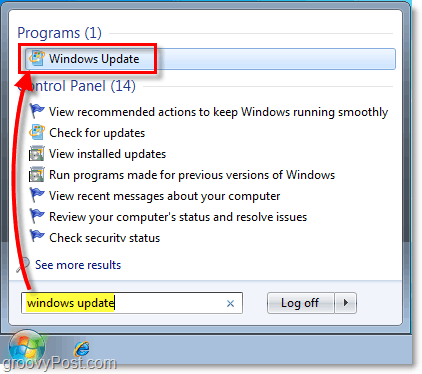
In Windows 7, find the Windows Update tool by opening the Windows Start Orb (Hotkey: Win Key Or CTRL+ESC) on the Toolbar and Type windows update. You can then press Enter or click the Program link to open it up.
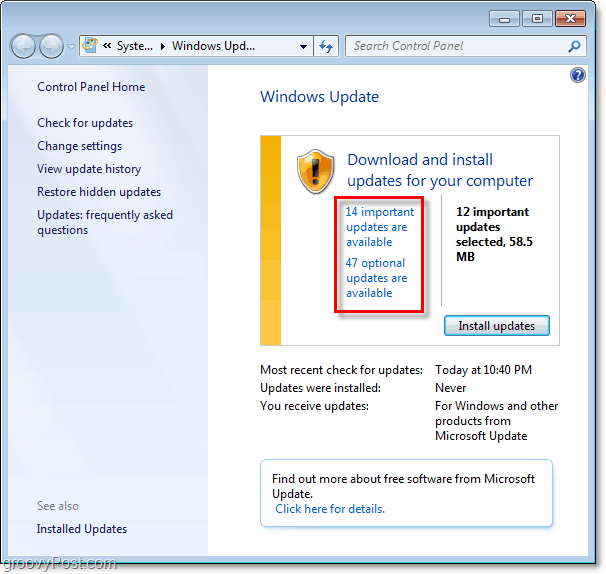
Once you’re in the Windows Update tool, you may need to Check for Updates, but after that’s done, you’ll get a summary of the total number of updates available that you haven’t installed yet. For more information on these updates, Click the important updates are available link or the optional updates are available links. They both take you to the same place.
If you Click an individual update, you can read a brief description of the update or even more information. Under optional updates, you may notice several language packs depending on your version of Windows 7. Since I don’t speak all of those languages, my preference is to Right-Click the ones I didn’t want and Hide the update.
Once you’ve finished selecting which updates you want to install/hide, the next step is the Change Settings window.

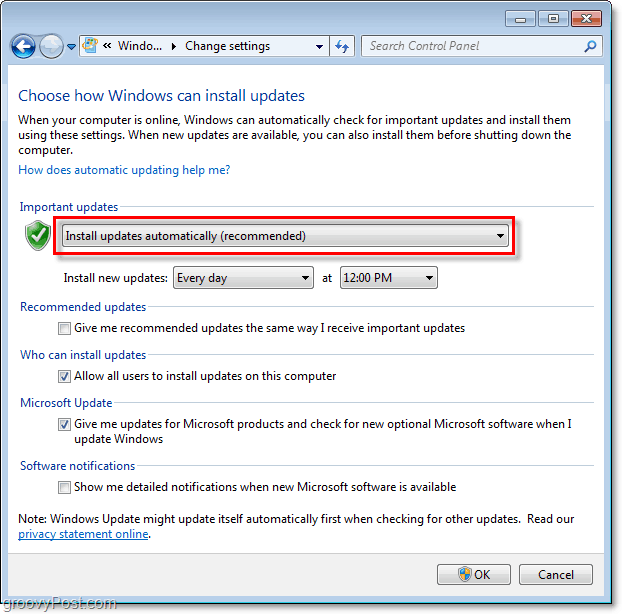
You really only need to visit this menu for new systems you’ve not configured yet. Personally, I recommend you Select Install updates automatically as this will ensure the highest level of protection for your Windows 7 System. You can optionally change the time you want the updates applied (I normally choose 2 am since I never turn off my machines… yeah yeah I know.)
Summing Up
Once configured using the settings above, your box will proactively reach out and check with Microsoft each day at the time specified (12 pm above) to see if new security and software updates are available for your computer.
Normally Microsoft only releases or updates Security updates on the 2nd Tuesday of every month (Patch Tuesday); however, software updates/hotfixes or patches that fix more general bugs for your OS and other Microsoft titles like Office can be released at any time during the month which is why I recommend configuring your Auto-Update to check daily for updates and security patches.
5 Comments
Leave a Reply
Leave a Reply







ShockerSH
November 9, 2009 at 9:58 am
Dont forget if you set it up to accept important updates you should also get Office updates which is important since that's where emails come in etc…
MrGroove
November 11, 2009 at 6:03 am
Yup, that should be covered by checking the “Microsoft Update” checkbox in the last screenshot above.
AlexMVP
November 12, 2009 at 11:58 am
OK… anyone who doesn't have auto updates running should just be shot… end of discussion. :)
ShockerSH
December 19, 2009 at 12:03 am
yeah well… our admin at work turned off Windows Update then he forgets to update WSUS… so now who's the idiot!!!!
Jasper Begay
April 14, 2011 at 7:26 am
Excellent blogpost!! Very informative… Looking for more posts like this!! Keep you the goodwork!