How To Create a PST File for Outlook 2013


PST Files are the storage system for Microsoft Outlook. Here’s how to create a PST file for Outlook 2013.
PST files in Microsoft Outlook 2013 operate a lot like they have in previous versions of Outlook. What are PST files? They are the files Outlook users to store your email, contacts, and calendar data. Put simple, PST files are the data file for Outlook 2013 used to store all your email client data.
Although the default install of Outlook creates a .PST file, I like to create multiple PST files to organize my email and my email archives of previous years. Here’re the simple steps for creating and customizing a PST file.
How to Create PST Files in Outlook 2013
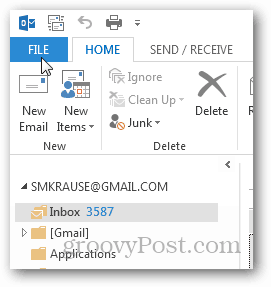
Open Outlook 2013 and click File in the Top Ribbon.
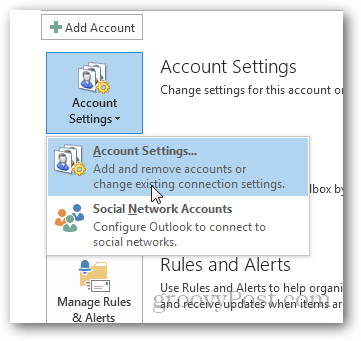
Under Info Tab, Click Account Settings.

And Click Account Settings again.
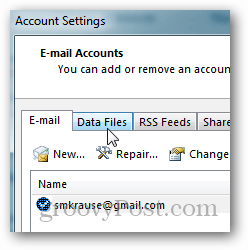
Click Data Files.
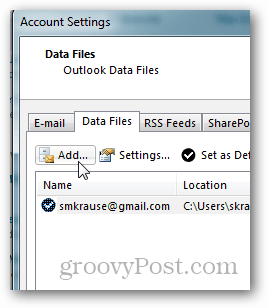
Click Add.
Click Outlook data file (.pst) and Click OK.
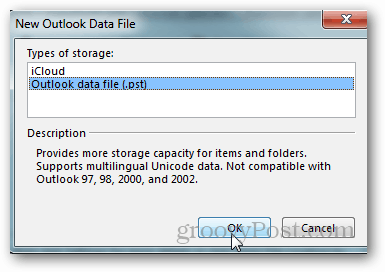
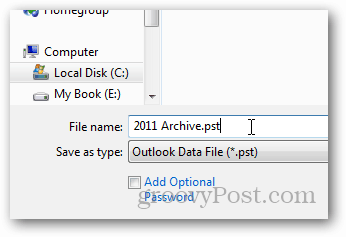
Name the File and Click OK to save it.
Note: Optionally, you can check the box below the name to add a password or you can do this later. Just be aware, this will not encrypt your PST file, and it’s a simple process to break the password and gain access to the PST. Personally, I never use a password on PST files.
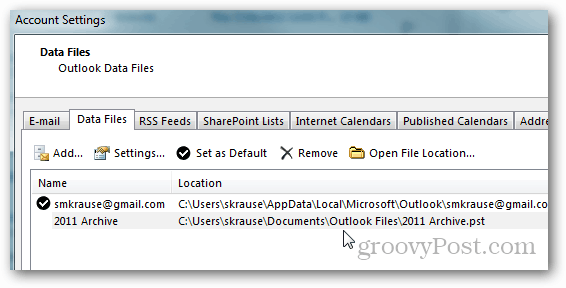
After Clicking OK, your Data Files / PST files will be listed along with their path. Notice my 2011 Archive PST I just created is listed here.
Click Close to continue on the Account Settings page.
Outlook will take you back to your Inbox HOME tab and if you minimize your Default Mailbox, your new PST Files, and Folder Structure will be waiting there for you.
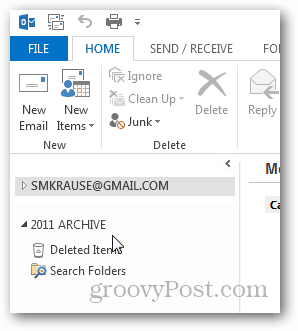
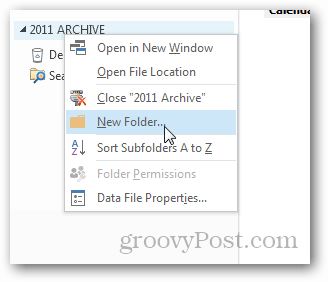
At this point, I like to create a folder called Inbox so I can move old email from my current PST file / Mailbox into this Archive Folder. To do this, Right-click the new PST File Archive and Click New Folder.
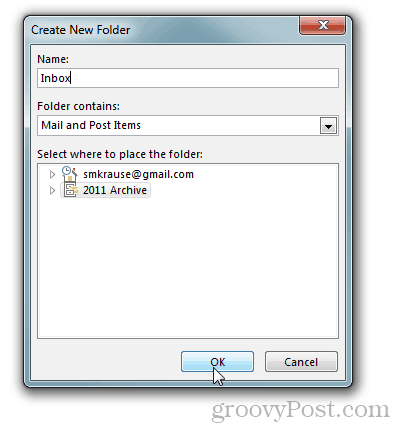
Give it a name Inbox and Click OK.
And there it is.
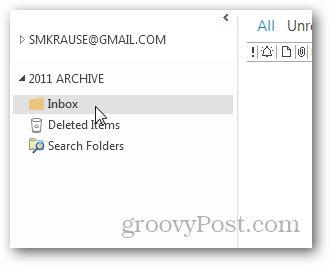
From here you can Drag-and-Drop email from your current Inbox into your new Archive Inbox. Just remember to have a solid backup solution when you start creating Archives on your computer in case your drive dies and you need to recover old PST files.
30 Comments
Leave a Reply
Leave a Reply





Simon H
August 4, 2012 at 9:06 am
Nice write up Steve and exactly how I archive my old mail.
I’ve experienced that people don’t initially understand that you
can close the data file. They think the
navigation pane will be cluttered up with numerous folders from each years archived
mail.
With this in mind I think it’s worth pointing out that you can right click the data file in the
navigation pane and click “close”
Then when/if they need to access their old mail, click File > Account
Settings > Account Settings > Data File tab > Add
Navigate to and select the Data file
Click “OK”
Simon H
Steve Krause
August 4, 2012 at 9:58 am
Very good point Simon. Thnx for the extra tip!
Ayman Salah
August 18, 2012 at 4:25 am
I can’t find change folder bottom in Outlook 2013 like 2010
Can you help?
Viness Pillay
June 24, 2016 at 5:59 am
Dear Ayman
Did you work out how to change folder bottom in Outlook 2013 like 2010?
Regards
Viness
Srini
December 18, 2012 at 3:35 am
Hey, good one, it helped me… thank you :-)
Sarah Smith
January 22, 2013 at 9:07 pm
Hi Steve,
Thanks for sharing the tip. I would like to know that that whether Scanpst is included in the this new version of Outlook 2013 or not. As corruption of pst file is the big issue.
Regards
Sarah
Steve Krause
April 27, 2013 at 11:03 am
Hi Sarah,
No it’s not. That’s a stand-alone tool not included in Outlook. If you have a corrupt PST file you will still need to use SCANPST to correc.t
frankwick
February 5, 2013 at 2:30 pm
You can also create a PST in outlook 2013 with the following: Home > New Item > More > Outlook Data File
Steve Krause
February 7, 2013 at 11:40 am
Love Microsoft — always about 10 ways to do something. Thnx for the tip!
CRan
December 8, 2015 at 8:51 am
great tips on creating PST file
Billy Gates
February 19, 2019 at 2:36 pm
Yeah, seriously. Why would you do it the other way?
Harreni
November 1, 2013 at 11:52 pm
Great man. Thanks a lot.
Tiger
February 6, 2014 at 4:58 am
Great ;)
Sam
October 6, 2014 at 9:00 am
Thx. This helped a lot.
Andrew
November 19, 2014 at 3:37 pm
I am trying to setup Outlook 2013 for a friend to use an old style IMAP email account. Outlook creates the new file as an OST file which with IMAP does not support subfolders under the inbox folder. Folders are fine with a PST file in Outlook 2013 but I can’t find a way to add email service to the PST folder in Outlook 2013. Am I missing something or is this not possible in Outlook 2013?
Just to comment Microsoft should not default the type of file created ie OST or PST, they should ask. But if they are not going to ask they should default the file type to PST if the email account being setup is an old style account. I would call that common sense but I tend to find that common sense occurs very infrequently and so is not common at all.
Andrew
Girish Mhaske
May 20, 2015 at 5:53 am
Thank you, .. fantastic
:)
Selina
June 15, 2015 at 4:35 pm
Great clear and direct instructions! Thank you
sahara trip
July 11, 2015 at 12:14 am
I was a victim of this microsoft new version coustomisation,
working in old one was a breeze.
Newer version keep hiding these advaced options.
Thats why i switched the key from useless SOFT
Steve Krause
July 11, 2015 at 12:15 pm
FYI – The process is also exactly the same for Outlook 2016. We will probably update the article or create a new one – FYI.
Ray
August 4, 2015 at 6:00 am
Thanks. This is great since we are on limited mail box sizes. I use it essentially to back up and organize ALL my official mail.
Steve
August 28, 2015 at 4:16 pm
I am trying to set-up a PST so my emails will automatically populate it when received (and come off the server), oppose to drag & drop manually. Can you talk me through that?
Joseph Pascua
January 5, 2016 at 6:18 pm
Very good information. Easy to follow steps. Thank you very much.
sneha uday
January 5, 2016 at 11:36 pm
Wow nice one I got it …. Its very clear and accurate
Marlene
February 2, 2016 at 2:36 pm
Great post! Pics help for those of us in a rush! Worked like a charm.
Shilpa
February 8, 2016 at 6:18 am
Thanks a lot! It helped me :)
Jared
March 8, 2016 at 6:17 pm
Hi, I need to create a new outlook.pst because I keep getting the error that it cannot be found when I try to launch. Problem is that Outlook will not run because of the error, meaning i cannot create one using the program itself. It defnitely is not in the folder it is supposed to be in, mine is C:\Users\user\AppData\Local\Microsoft\Outlook\outlook.pst
Any ideas?
Chuawm
March 30, 2016 at 2:24 am
Hi Steve,
My Old PC Win 7 with Office 2010, it have 82 pst files total 5.1GB in a single user profile,
When transfer to office 2013 it only can add until 74 .pst files, continue add will can out Error messages ” outlook has exhausted all shared resources, please close all messaging application and restart outlook (example Skype for Business). ”
I do it to an other Win 7 with office 2013, it same. But try on Win 7 with office 2010 is ok can add all 82 .pst files.
Already try run Scanpst.
Pls advice.
Saqib
April 19, 2016 at 5:30 am
I have created a new PST and i want all the mails to be receive in the pst inbox and not the original one. Is that possible ??
Its like i dont want to move manually all the mails but it should get saved in PST by default.
Derrick
April 29, 2016 at 12:41 pm
I have not found how to default the automatic delivery to your PST, however by creating the below rule; has help with limited mailbox size on most servers. (Note: it does not move your sent and deleted items, so you still have to manage that)
On Home bar select Rules; Create Rule;
Click Advanced Options; check “with a size in a specific range”
In Step 2, click the blue underscored link; leave top on “0” and “999999” in bottom box; click OK
Click next
Check “move it to the specified folder”
In Step 2 click blue link again, find your PST inbox and select it; click OK
Then click Finish
vinayak
June 3, 2016 at 1:55 am
thanx steve:)