Change the Kindle Fire HD Browser Search Engine

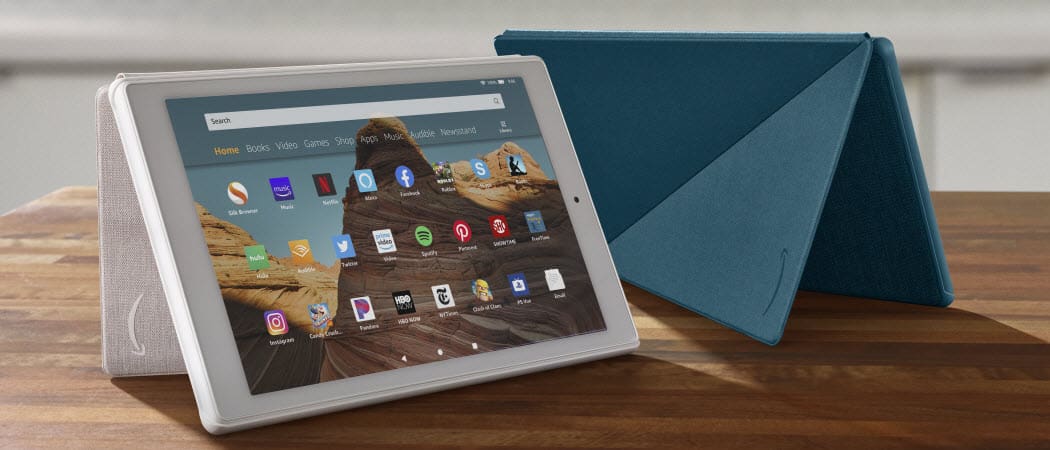
With the release of the Kindle Fire HD, Amazon has partnered with Microsoft and made Bing the default search engine for it’s Silk browser. Here’s how to change it back to Google.
When the first Kindle Fire came out, the default search provider for its Silk web browser was Google. After that, Amazon partnered with Microsoft and made Bing the default on the Kindle Fire HD. But you can change it to something else if you want, like DuckDuckGo, for example. Here’s how to do it.
Change Kindle Fire HD Search Engine
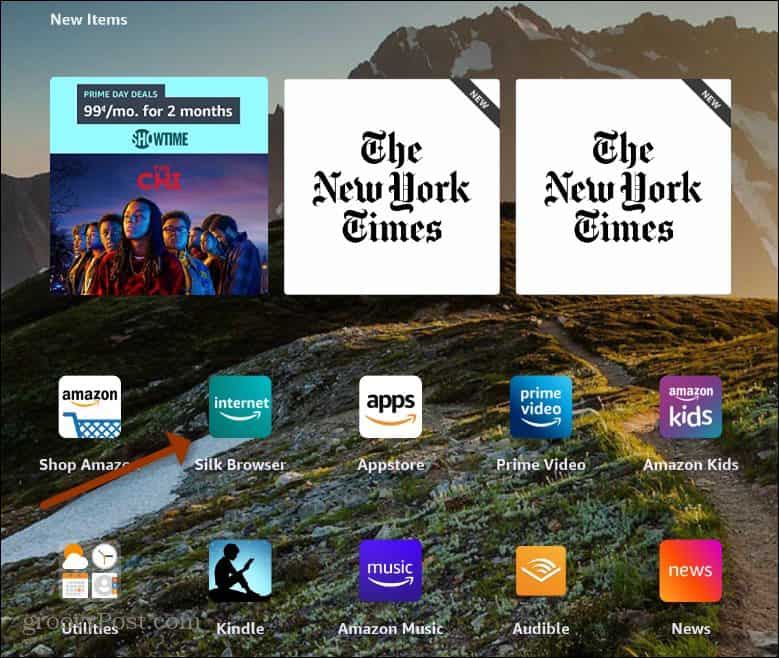
To change the default search engine for the Silk browser on your Fire HD, start by launching the browser from the home screen.
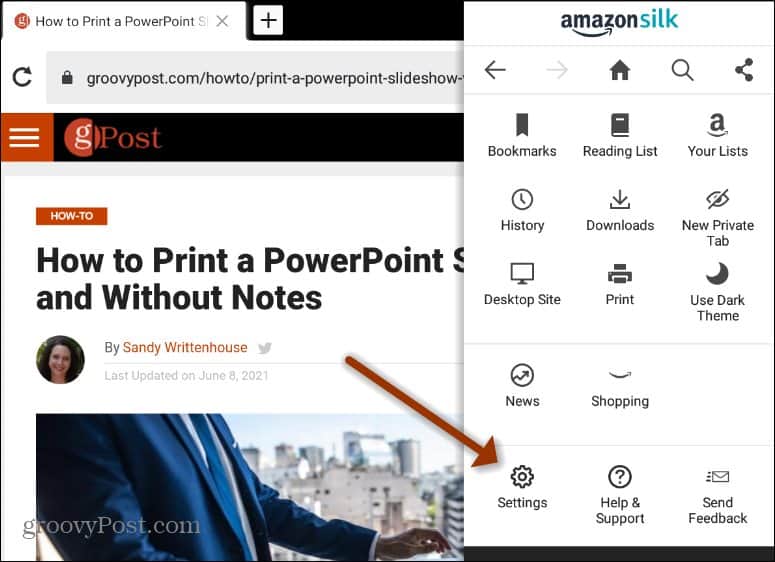
When the browser launches, tap the Options (three dots) button on the screen’s upper-right corner and then tap Settings.
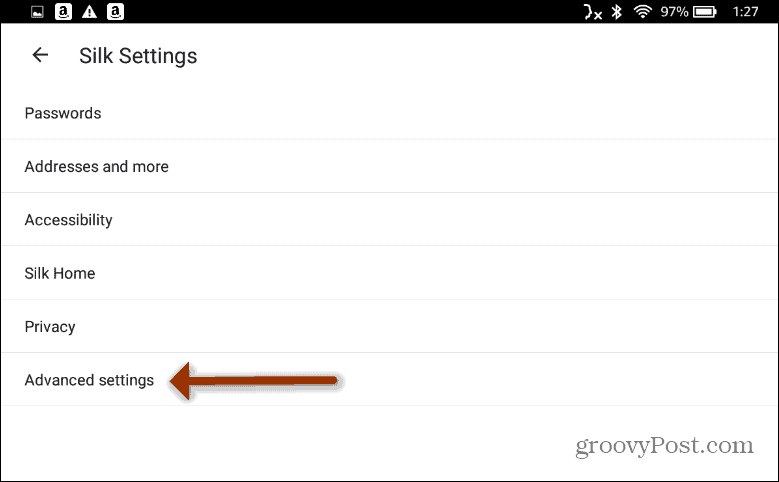
Next, tap on Advanced Settings from the menu’s list of options.
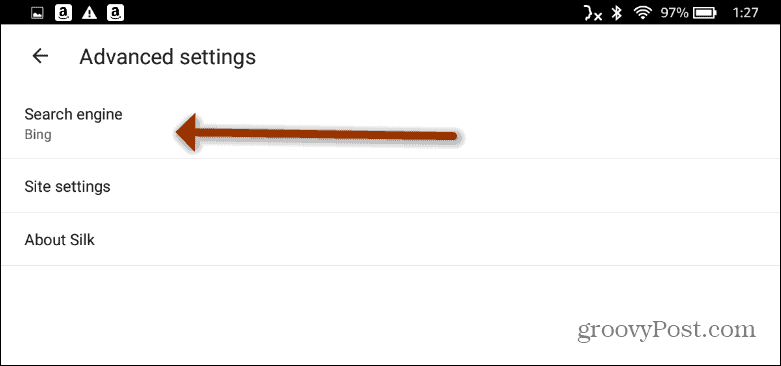
Now, tap on Search Engine from the menu. For example, here, it is currently set to Bing as the default.
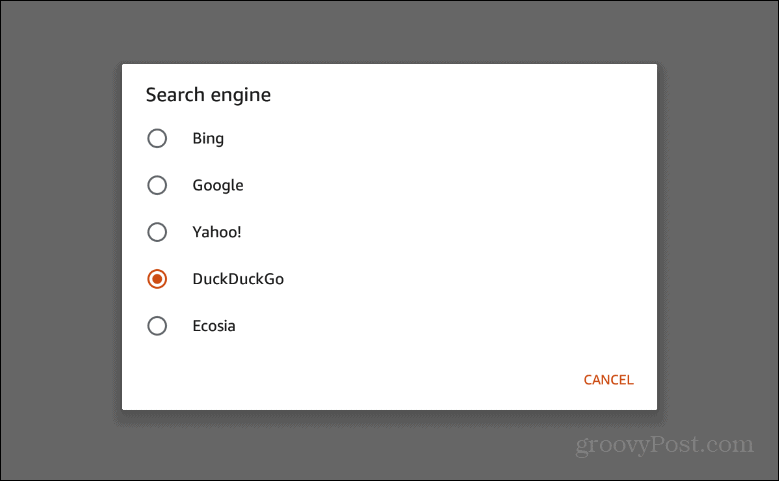
A new menu will pop up, and you can choose the search engine you want to use. Currently, it offers Bing, Google, DuckDuckGo, Yahoo, and Ecosia. Just select the one you want, and the menu of search engines will disappear.
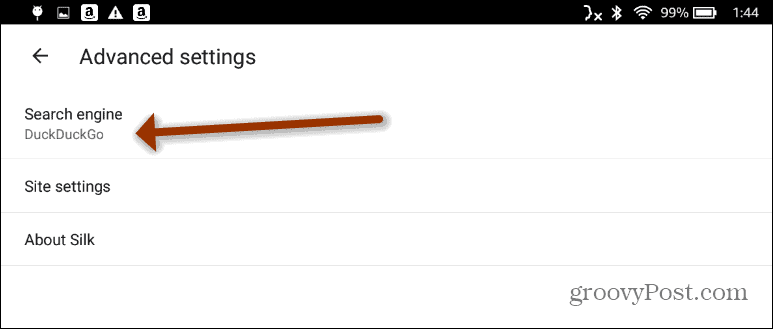
You’ll then see the change reflected on the Search Engine menu. For example, here, I made DuckDuckGo my default search engine for the Silk Browser.
That’s all there is to it. If you want to change the search engine again, follow the same instructions but choose a different one from the list. And for more on the Kindle Fire HD, check out our article on how to remove ads from the lock screen on Fire HD. Or, take a look at how to pair a set of Bluetooth speakers to the tablet.
If you don’t have one yet, it’s never too late to pick one up. The company recently released new models of the Fire HD 8, Fire HD 10, Fire HD 10 Plus, and there’s now even a kids version:

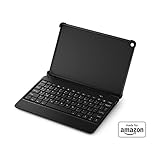



Amazon.com Price updated on 2024-05-10 - We may earn a commission for purchases using our links: more info
24 Comments
Leave a Reply
Leave a Reply






rosa kiser
February 24, 2013 at 11:33 am
I’m so glad I found your article!!! I was unhappy with Bing, I tried using it but I have difficulty finding what I need…it’s not as user friendly as google!! Really glad that I am able to switch it out. THANK YOU!!!
www
September 10, 2013 at 4:35 am
Wonderful, what a weblog it is! This website presents helpful data to us,
keep it up.
dawnelle
November 13, 2013 at 12:45 pm
When I click my menu button settings is not an option. :( Is there another way…I HATE BING!!!
iynque
December 26, 2013 at 4:02 pm
Figured it out: drag from the top, tap more in The top right corner. Go to Application settings and scroll to find Silk browser. From there you can change the default search engine.
Gail
March 22, 2015 at 8:30 am
THIS IS HOW TO DO IT
Jocelyn Roberts
April 2, 2014 at 10:53 am
Well I searched for Change the Kindle Fire HD Search from Bing
to Google title and discovered this, never thought i’d
find the answer
john
June 11, 2014 at 7:39 am
I hate Bing and more than that I hate how it overrides your preference setting every time you change it to Goggle ! The main reason is the fact that they shove it down your throat ! If you follow your instructions above you may get 1 or two searches done then Bing overrides your choice and changes your setting back to Bing. Why does Kindle even give you the choice (Very temporarily as it is). I love the Kindle except for Bing and there obnoxious way of forcing you to use them. I will not purchase another Kindle due to this problem and the lack of respect that Microsoft and Kindle give to their customers preferences. I currently have 5 kindles for my family and will use another product in the future !
Heather
January 4, 2015 at 2:24 pm
Ahh!Thank you so much!! I couldnt figure this out and really dispise Bing!
Jolie
November 30, 2015 at 5:20 am
I CHANGED THE SEARCH TO GOOGLE IN SETTINGS BUT BING STILL SHOWS UP IN SILK BROWSER WHEN I SEARCH!!!!! Help….
Ashley
December 30, 2015 at 4:51 am
I am having the same issue
Anon
January 5, 2016 at 2:38 pm
Me too, really annoying and can’t find anyway to stop this. In the search engine settings it says Google but everything comes up in bullcrap Bing. I got mine for Xmas it looks like this is an issue with the new tablets this year.
John
January 22, 2017 at 10:53 pm
You can’t change it. Until Amazon changes it themselves, Google “How to get Google Play Store on the Kindle”. I did it to mine , my wife’s and my four grandkids. Amazon doesn”t want you to know how because they want you to buy apps from them. Which I can understand, but really that type of thinking is along the Apple priority type of thinking. Google will allow Amazon in but Amazon doesn’t want Google in. Anyway, once you get Google Play Store downloaded, download the Chrome app like you would on your computer, and you won’t have to hit Silk anymore, just use Chrome.
Kim G
October 30, 2017 at 11:04 am
Thanks! Bing sucks! I was about to send all three of these Fire tablets back because of this stupid Bing issue.
Googlefan
February 14, 2016 at 12:50 am
This changes the search engine when you access the internet via the silk icon, but not if you type into the search bar at the top of the fire home screen.
Anyone know how to change the default search bar please?
Marita Nelson
February 3, 2017 at 12:23 pm
Why is there even a place to change search engines. It’s a dummy button. Doesn’t change a thing. Is ipad a better choice next time I purchase?
Lynelle
May 20, 2017 at 9:10 pm
I did this and it is still BING….HEEEEELP. I am debating on whether to return it or not….
Tyjen
March 23, 2018 at 1:13 am
thankyou
Arie
May 15, 2018 at 10:21 pm
So glad to be able to use google. Bing did not have secure parental controls and allowed kids to be able to see inappropriate content very easily. Searched for many different options on how to block content. So far I’ve added my kid to a Microsoft family plan and an app for monitoring content. Was moments away from ordering new, child type tablet but I’m optimistic this will provide the controls i need.
RossC
September 29, 2018 at 2:29 pm
Just set up my new Kindle Fire 7 and didn’t want Bing..
Your simple, clear instructions made it possible to change to Google search..
Thank you..
Joe
December 30, 2018 at 4:12 am
Change those ways! Bing is just as good ..perhaps even better than Google. That’s my experience anyway.
ben
March 22, 2019 at 12:22 pm
doesnt work bing still comes up
Martin
March 27, 2020 at 7:46 am
The only option is Bing In the Advanced Engine. (Our other tv had Google as an option)
What can be done to fix this problem?
Alan Thomas
June 12, 2021 at 7:37 am
Bing to Google YES PLEASE
Slippersgirl
June 26, 2021 at 9:16 am
Wish I’d found this article 2 days ago. My browser on my Fire 10 suddenly became bing. No idea what it was before – Silk? Google? Lost all my bookmarks and history getting back on to google. Will now switch to duck duck go. Again thanks for sharing info in a way non techies can understand.