Add Storage Space to Microsoft Surface RT with a MicroSD Card

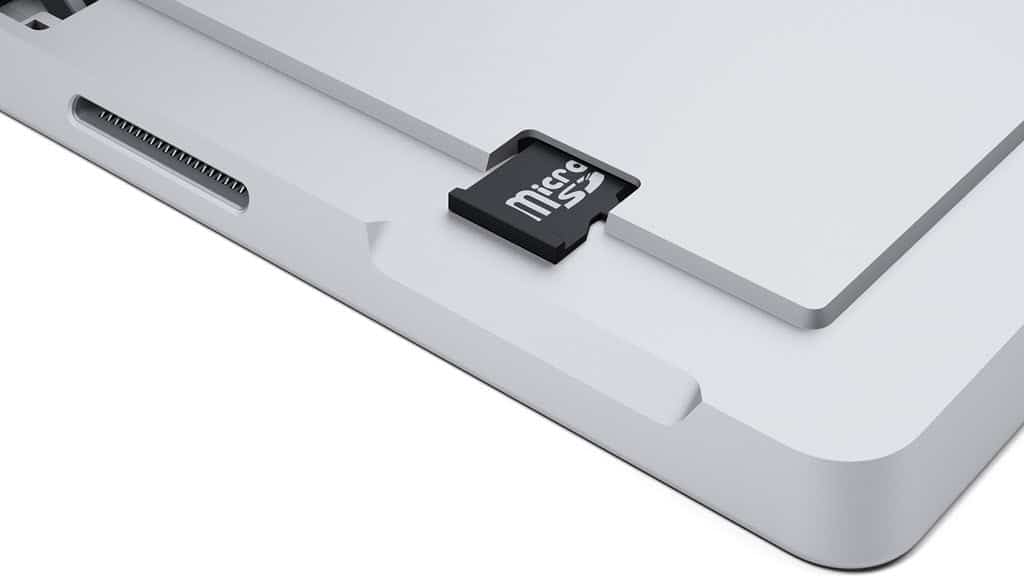
The 32GB Microsoft Surface with Windows RT actually only has around 16GB of free space out of the box. Get more storage space by adding a MicroSD card.
The Surface with Windows RT comes in 32 and 64GB models. If you have the 32GB model out of the box, you actually only have around 16GB of free space. The OS, Office 2013, and pre-installed apps take up the bulk of the room. The cool thing is you can add additional storage, up to 64GB.
Installing MicroSD Card on Surface
Installing the microSD Card is straightforward. The problem is finding the slot for it. It’s actually tucked away behind the kickstand just above the power connector.
![MicroSD Card Slot Surface[2]](https://www.groovypost.com/wp-content/uploads/2013/01/MicroSD-Card-Slot-Surface2.jpg "MicroSD Card Slot Surface[2]")
After inserting the drive, it will be detected by Windows, and you’ll see a pop-up like this appear on your display.
![Device Detected[2]](https://www.groovypost.com/wp-content/uploads/2013/01/Device-Detected2.png "Device Detected[2]")
There you go! If you open “Computer” on the desktop, you should see your new card ready to handle your files.
![My COmputer[2]](https://www.groovypost.com/wp-content/uploads/2013/01/My-COmputer2.png "My COmputer[2]")
You can manually add and remove files and access them like any external drive from desktop or modern UI.
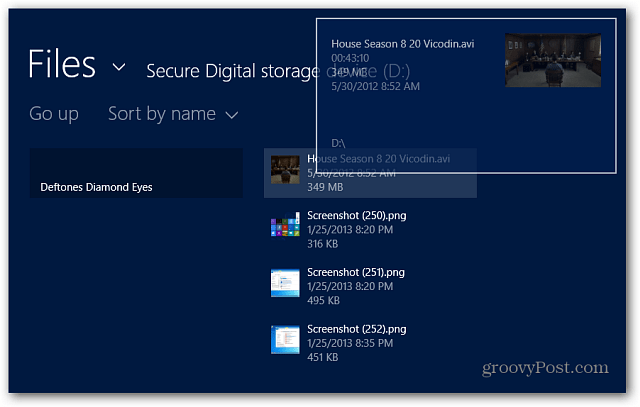
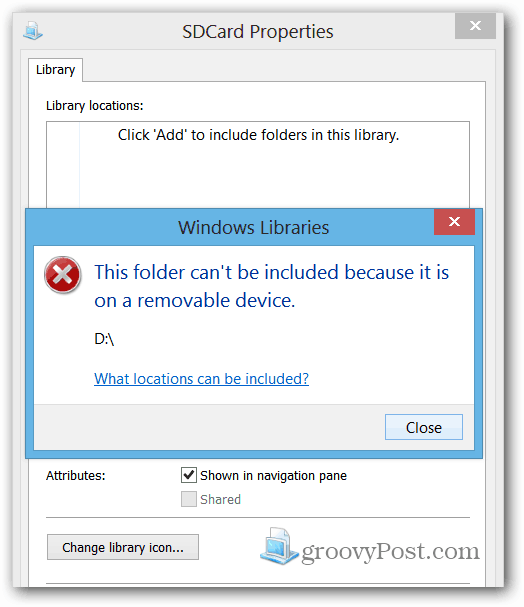
This is a great way to add more storage to your Surface, but it doesn’t work as seamlessly with Windows RT as you’d think. Libraries and metro-style apps are the issues. There is a workaround for this problem though, check out my article: Make a MicroSD Card Work with Surface RT Libraries and Apps.
And for more on SD card storage expansion, check out Jack’s article on how to choose an SD card for best performance.
Leave a Reply
Leave a Reply