How to Add Speaker Notes in PowerPoint


A PowerPoint presentation can be used in various ways, but the primary purpose is in the name—to present. If you’re using PowerPoint as an aid to help you speak to an audience, it’s a good idea to know what you’re going to say.
That’s where speaker notes come in. They allow you to expand on the points on your PowerPoint slides, keeping them simple in the process. Here’s how to add speaker notes in PowerPoint.
Adding Speaker Notes to a PowerPoint Presentation
If you want to add speaker notes to a PowerPoint presentation, start by opening your PowerPoint presentation file. These instructions should work in all versions of PowerPoint.
With your PowerPoint presentation open, you’ll notice the PowerPoint screen should be separated into three. On the left is a list of your slides, and in the middle, you can edit the selected slide.
At the bottom, below the slide you’re editing, is the notes section. If you can’t see this section, you’ll need to press the Notes button to display it.
The Notes button is shown in the menu bar at the very bottom of the PowerPoint window.
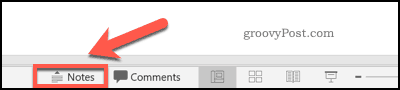
If it isn’t already visible, pressing the Notes button will show the speaker notes section.
Adding speaker notes here is simple—just press on the section with your mouse or trackpad and begin typing.

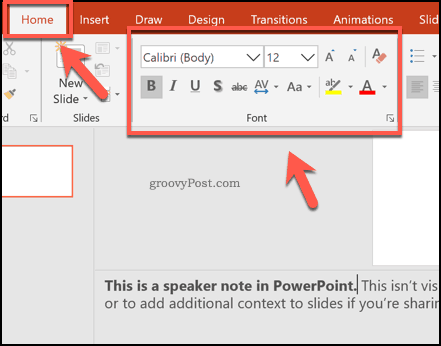
You can add any additional formatting to your notes by selecting the text, then using the formatting options in the Home tab of your ribbon bar.
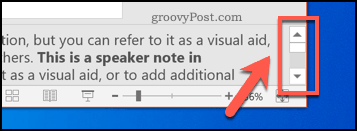
If your notes exceed the size of the section, you can scroll through them using the scroll bar on the right, or by resizing the section using your mouse or trackpad.
Viewing Speaker Notes During a Live Presentation
Speaker notes are an aid for the presenter, not the audience. During a presentation, only the presenter can view the notes on the screen of the PC or Mac running PowerPoint. This view mode is called Presenter View and should appear automatically when your PC is connected to a projector and the Slide Show mode is active.
If it doesn’t, press the Slide Show tab on the ribbon bar. From here, make sure that the Use Presenter View checkbox is enabled under the Monitors section.
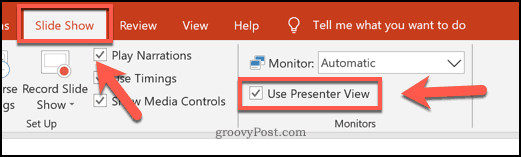
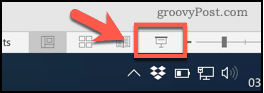
You’ll then be able to view your speaker notes on your screen during a live presentation. You can launch the presentation by pressing the Slide Show button in the bottom-right of the PowerPoint window.
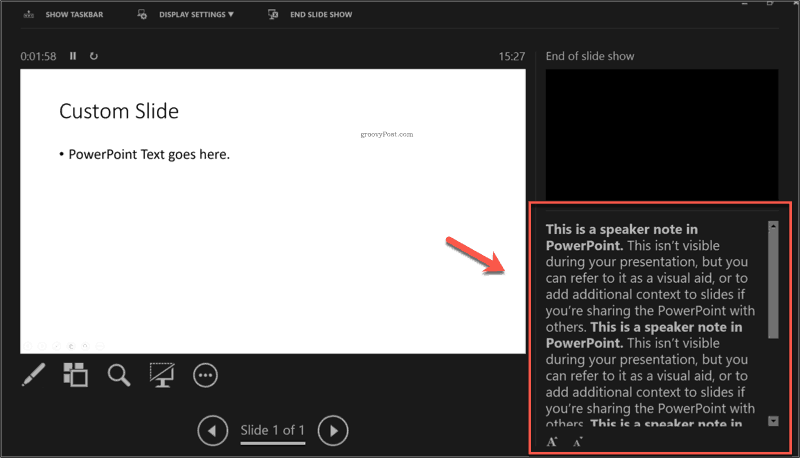
The Presenter View mode has various sections. The current slide is shown on the left, with a running timer above the slide to show you your current presentation time.
Various editing options are shown underneath, while the speaker notes are shown in a scrollable section on the left.
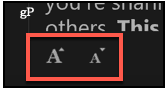
You can increase or decrease the size of the text shown here by pressing the text resizing buttons underneath your speaker notes.
As we’ve mentioned, you can usually only view the Presenter View mode if you have a second monitor or projector to display the main Slide Show view mode on.
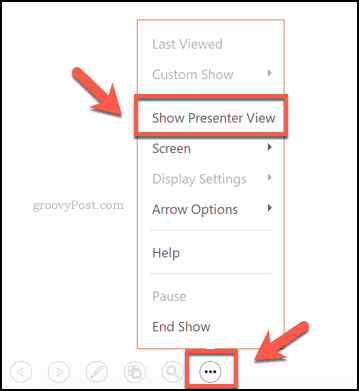
You can switch to the Presenter View mode on your standard monitor by clicking the three dots menu button in the bottom-left corner of the Slide Show mode during a live presentation.
From there, click the Show Presenter View option to view your speaker notes on your main screen.
Improving Your PowerPoint Presentations
Using speaker notes in PowerPoint can help you deliver better presentations. To improve things further, you could think about other ways to deliver your presentation. You could broadcast a PowerPoint presentation online, for instance.
If that doesn’t appeal to you, see if the content of your presentation is really working for your audience. If it isn’t, ditch the text and think about adding video to a PowerPoint presentation instead.