Clear Internet Explorer 7 (IE7) Browser History & Temp Files


If you want to keep your browsing history private (especially if you share a computer) here’s how to clear its history and more.
In a previous tutorial, I talked about How-To Clear the Browser History and Temporary Internet Files for Internet Explorer Browsers before IE7. With IE7, Microsoft provides a much easier solution which only requires a few simple clicks. This is a real quick tip so let’s get right to it.
Update: Microsoft is killing off Internet Explorer 11 next year. Its main purpose now on Windows 10 is to get old-school sites to work in modern browsers. If you’re looking for it for some reason, here is how to find IE 11. But instead, use Microsoft Edge or Google Chrome for the best online experience.
Clear Internet Explorer Browser History and Temp Files
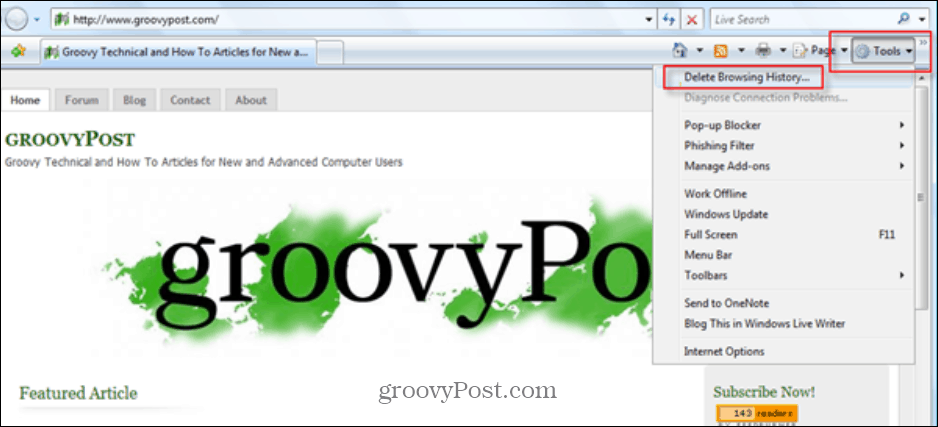
First, launch IE 7, and click Tools > Delete Browsing History.
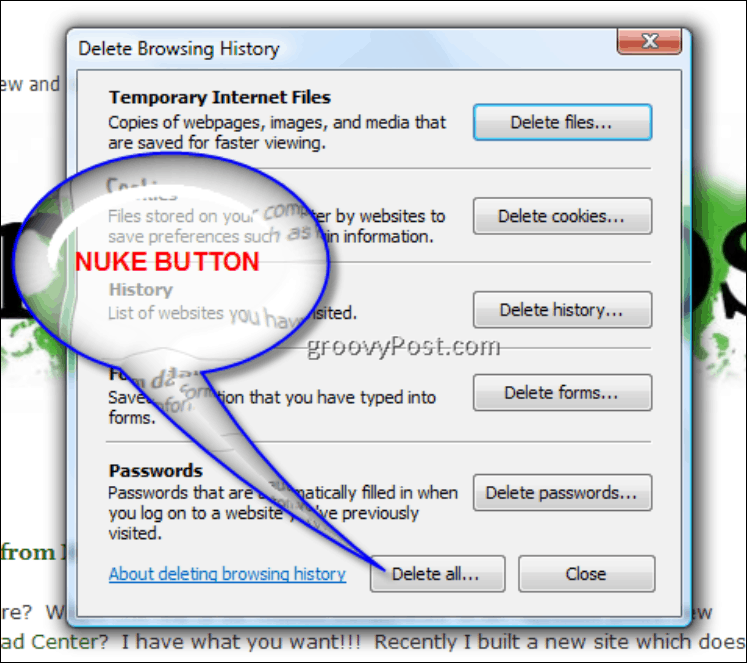
From the Delete Browsing History box, you have the option to delete Temporary Internet Files, Cookies, Browser History, Form Data, and Stored Passwords. At the least, I Delete All (or the “Nuke” button as I call it), which will delete all these files, including the option to delete files and settings from add-on programs as well.
All done. You should be good to go at this point. If you’re interested in How-To to clear the browser history from either a batch file or the Command line, check out these two articles:
- Automatically Clear IE7 Browser Temporary Files at Exit
- Create a Batch File to Delete IE7 Browser History and Temp Files
5 Comments
Leave a Reply
Leave a Reply







Tony
September 27, 2008 at 12:24 pm
Good tip but I prefer the howto you wrote to just script the process https://www.groovypost.com/howto/microsoft/ie/create-a-batch-file-to-delete-ie7-browser-history-and-temp-files/
keep this stuff coming!
MrGroove
October 4, 2008 at 1:29 am
@Tony – Thanks for the Feedback. I went a little How-To crazy with the Browser History How To Articles. Glad to see you enjoyed a few of em ;)
Anne Beckett
April 6, 2009 at 12:36 pm
Question:
What does one do when the Tools Menu (on browser).. Internet options will not open? Since I added ie7, I have had a problem in clearing cache or making ANY changes in ie preferences as the “Internet Options” box flashes open and closed.
Any idea for that problem??
Thanks.
beverly springer
June 6, 2010 at 3:07 am
i want to get rid of temp cookies on a daily basis
Freebies
July 11, 2011 at 8:44 pm
I am sure that is helpful ideas, are you going to write a more intricate blog though? It seems I’m a bit confused on where you’re coming from.