How to find your Microsoft Outlook .PST File


Being able to find your Microsoft Outlook PST file is important, especially when you want to backup your email archive or move it to another computer. Here’s how to find it.
Every year when the calendar flips to January, I like to create a new Outlook PST file and move all my email into it. I then compress the new PST file and burn it to DVD for archival purposes. It’s probably a mental thing but I just really like starting the year off with a beautiful, clean Email Inbox. Granted it doesn’t last very long (staying clean that is) but, it’s my once a year “new years cleaning” so to speak. :)
When I explained my new years “process” to a co-worker she asked said:
Hey that’s great but, how do I find my PST file after I create it and archive all my email?
Of course, I told her to do a search on groovyPost.com for the answer, and that’s when it hit me that we’ve not yet written that article!!!
So, although it’s a little late (sorry Gloria), here’s the groovy step-by-step for locating your Outlook PST file!
Find Your PST Files: Method For Default Outlook Installations
1. Click the Start Menu icon and in the search box Type in: %appdata%\Microsoft\Outlook
Press Enter to continue.

2. In the list you will see your PST file, depending on your email setup the name can be different, but by default, it will be called Outlook.pst

There it is! That was easy but wait – what if your PST file wasn’t there? Hmm… Well, sometimes users might find that their PST files are not in the default location. Here’s what to do if that is the case.
How To Find Outlook PST Files Not In The Default Location
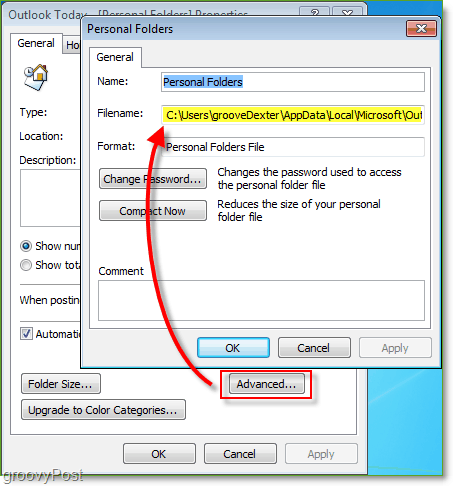
1. In Outlook, located right underneath All Mail Items Right-Click Personal Folders. On the context menu that appears Click Properties for “Personal Folders.”

2. In the Outlook Today Properties window, Click Advanced. In the pop-up, you’ll find the location of your PST files. Copy the location and Paste it in explorer, or just browse to get them.
I hope this has been helpful in aiding you to find the Microsoft Outlook PST file location. Now that you’ve found the place be sure to backup often! You can also use this new groovy knowledge to repair a corrupted Outlook PST file should it ever come to that… <ouch>
4 Comments
Leave a Reply
Leave a Reply







MrGroove
January 7, 2010 at 12:11 am
Nice find grooveDexter ;) Missed that one!
Robert
January 7, 2010 at 8:47 am
Mr Groove —
Running Office 2007
I am trying to delete folders from my archive.pst file. My archive is at 1,752,253 KB – I am getting a message that I am at max permissible size. When I try to shift + delete the folder does not delete.
How can I delete these folders to get achive.pst down to acceptable size ?
Office will not allow me to open the folders – message is because I am at max permissible size.
Thank you in advance for any advice you can offer.
I have already moved some folder to a 2nd archive file “archive-old”
MrGroove
January 7, 2010 at 8:01 pm
Hi Robert,
The answer is a bit long and screenshots are needed to help solve your problem. Because of this I've moved your question into our Reader Forum where it's a little easier to watch for your questions and responses. Plus, other groovyReaders are watching for ppl like you who need help and can offer assistance as well.
Here's the link to where I moved your question along with my solution: https://www.groovypost.com/forum/microsoft-offic…
franklinboose
November 6, 2013 at 12:46 am
Hi,
First of all i want to show you some detais about Outlook PST finder software that how it work:-
>> Click on Sys Tools Outlook PST finder tool. Go to Start menu >> Programs >> Sys Tools Outlook PST Finder >> Sys Tools Outlook PST Finder.
>> Now you can select one machine to find PST file from it and after that fill the username and password with search option then it will show the searching progress to find PST file from selected machine.
>> Now, you can sucessfully find PST file from the selected machine click “OK” to exit.
If you have uncountable Outlook PST files and you want to list single one then that time absolutely only one time you should try Outlook PST finder tool because this tool not only locate PST file although as well as it save it in safe location. The most important thing of this application is that it provides you FREE DEMO version through you can get details of PST file located from configured user profile