How to Automatically BCC in Outlook 2010


Microsoft decided to roll back access to BCCs in Office 2010. Here’s how to bring it back and automatically BCC in Outlook.

Article Summary:
- A step-by-step screenshot tutorial for automatically BCCing an email address for all outgoing Outlook messages.
- From Outlook 2007 to Outlook 2010, Microsoft removed the BCC field. We’ll show you how to add the BCC field back in.
- To auto BCC in Outlook, we’ll need to show the developer tab and add a script.
- See the comments for how to set up an automatic BCC for messages sent only from a particular email address (for multiple Outlook accounts—thanks, Nathan!)
Update: This article was originally written for Outlook 2010. If you are running a more modern version, read our article: How to Automatically BCC in Outlook Using Rules.
Perhaps it was due to one too many passive-aggressive intra-office stealth BCCs (Blind Carbon Copy.) But seriously, for some reason, Microsoft decided to roll back access to BCCs in Office 2010. For one, the new message dialog doesn’t even have a BCC field. But you also can’t set up Outlook 2010 rules to automatically BCC someone (although you can set up a rule to automatically CC a message.) For my purposes, this is kind of a pain. I am a Gmail/Outlook hybrid user (I have about three different email addresses, each for a different purpose) and I like to keep all of my messages archived in my main Gmail account for easy reference. So, what I wanted was a way to forward all of my sent messages to my Gmail account (I already have all incoming messages forwarded there by a server-side rule.) Easier said than done but I think I’ve figured out the easiest way.
It turns out that there are three things to be done to unlock the full potential of BCC in Outlook 2010:
- Show the BCC Field in the New Email window.
- Reveal the Developer ribbon.
- Add some custom Visual Basic code.
It’s not as complicated as it seems. But let’s move through these three from easiest to hardest.
(Note: You can also buy third-party Add-Ins for Outlook 2010 that do this—but I’d recommend this method. It’s free.)
Show the BCC Field in New Emails in Outlook 2010
Step 1
Launch Outlook 2010.
Step 2
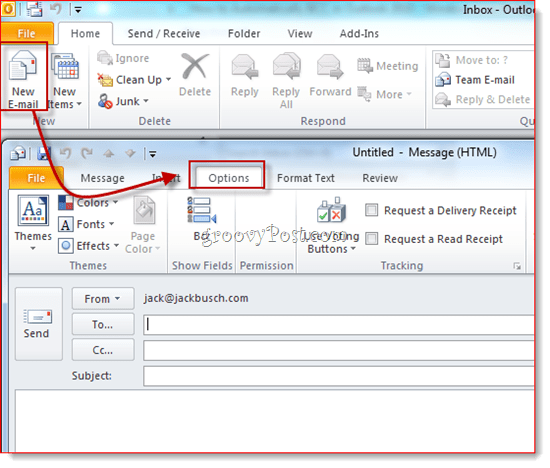
Click the New Email button. In the message composition window, click the Options tab.
Step 3
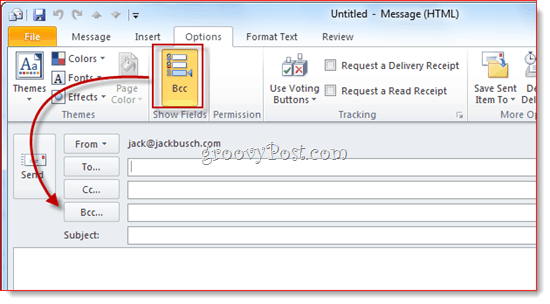
Click the BCC button. This action reveals the BCC field. Henceforth, you shall have access to the BCC field in all future Outlook 2010 emails. If you get tired of the extra space it takes up, just click it again to be rid of it.
Now, you can use the BCC field for one-offs. But what if you wanted to automatically BCC yourself (or someone else) on every outgoing message? To do this, follow the steps below.
Display the Developer Ribbon
I’m basing this how-to on a great bit of custom Visual Basic code written by Michael Kizer. Michael wrote this VBA snippet for Outlook 2007, but it works for Outlook 2010. The only problem: it’s a bit tough to find Visual Basic Editor in Outlook 2010. It’s hiding in the Developer ribbon, which, by default, is hidden from view. Here’s how to enable it:
Step 1
Launch Outlook 2010.
Step 2
Click the File tab and choose Options.

Step 3
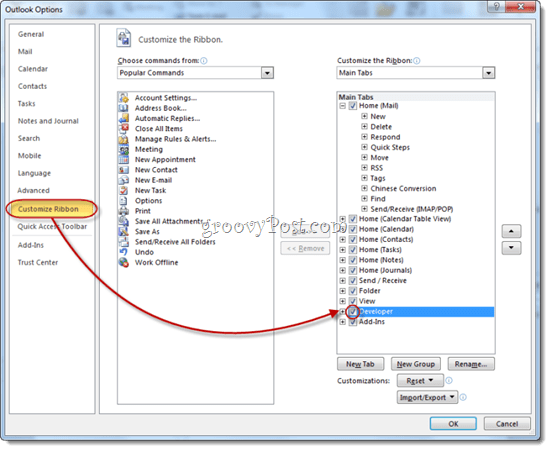
Click Customize Ribbon on the left-hand panel. Now, in the list on the far right, make sure Developer is checked. Click OK.
Step 4
The Developer tab will now be revealed in your Outlook 2010 ribbon.

Automatically BCC Outgoing Messages in Outlook 2010
Now, it’s time to add the code that Mr. Kizer put together.
Step 1
Go to the Developer tab and click Visual Basic.
Step 2
On the left, expand Project1 (VbaProject.OTM to reveal Microsoft Outlook Objects. Expand Microsoft Outlook Objects and then double-click ThisOutlookSession.

Step 3
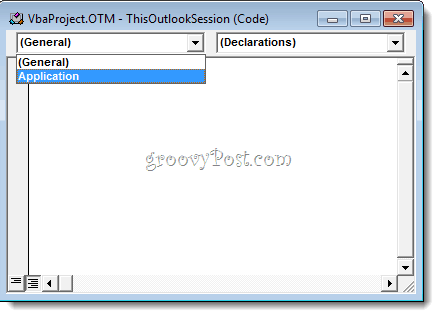
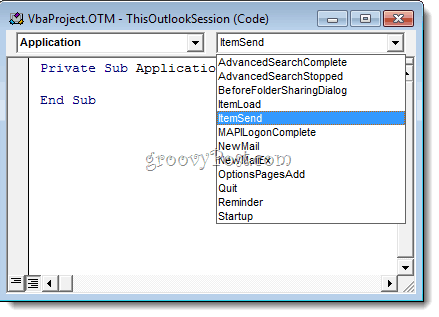
In the code editor window, choose Application from the drop-down menu in the top-left.
Step 4
In the top-left drop-down menu, choose ItemSend.
Step 5
Position your cursor after “Private Sub Application_ItemSend(ByVal Item As Object, Cancel As Boolean)” and before “End Sub.” Now, copy and paste the following between those two lines.
Dim objRecip As Recipient
Dim strMsg As String
Dim res As Integer
Dim strBcc As String
On Error Resume Next

' #### USER OPTIONS ####
' address for Bcc -- must be SMTP address or resolvable
' to a name in the address book
strBcc = "SomeEmailAddress@domain.com"

Set objRecip = Item.Recipients.Add(strBcc)
objRecip.Type = olBCC
If Not objRecip.Resolve Then
strMsg = "Could not resolve the Bcc recipient. " & _
"Do you want still to send the message?"
res = MsgBox(strMsg, vbYesNo + vbDefaultButton1, _
"Could Not Resolve Bcc Recipient")
If res = vbNo Then
Cancel = True
End If
End If

Set objRecip = Nothing
Step 6
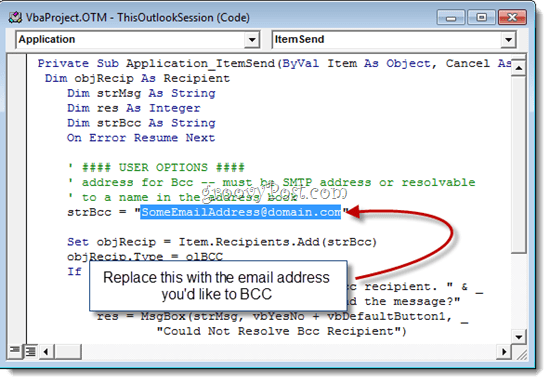
Look for the line that reads: strBcc=”SomeEmailAddress@domain.com” and replace it with the email address you’d like to BCC for SomeEmailAddress@domain.com. For example, swap it out for mysecondaryemail@gmail.com or igbrother@supervisor.com.
Step 7
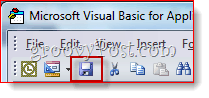
Don’t forget to save the changes. Close the Visual Basic Editor and return to Outlook.
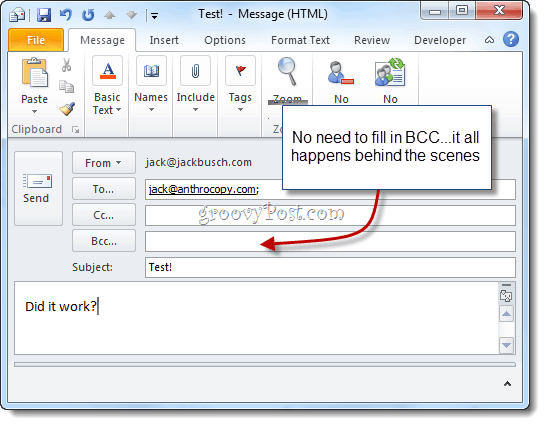
Now, when you send messages from Outlook 2010, they’ll be automatically BCC’d to the recipient you chose in the Visual Basic editor. You don’t have to type their name in the BCC field, nor will you even see it entered into the BCC field since the Visual Basic script kicks in after you hit send. (A handy tip for any cyberspies.)
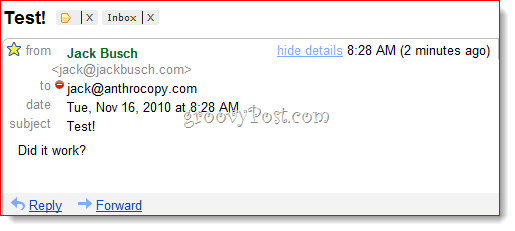
And there you have it.
Filtering BCC’d Gmail Messages
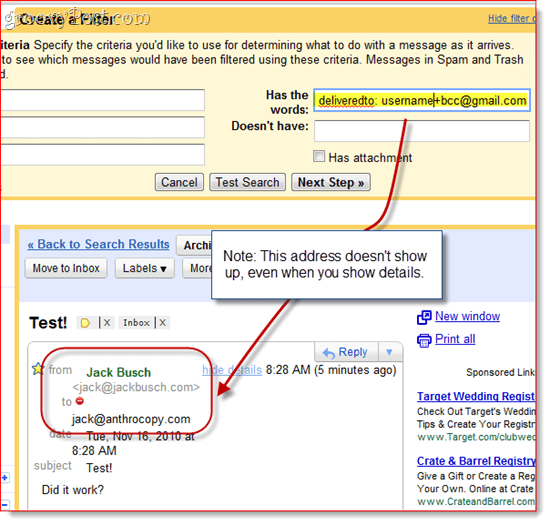
One last thing to note: if you are using this to build a Gmail archive, I recommend using a customized Gmail address with something like +bcc appended to it. However, since the address won’t show up in the to: field, you can’t filter it out like normal. So, instead, you’ll have to use the “deliveredto:” string in Gmail. For example, I’d use “deliveredto: username+bcc@gmail.com” and then set up a rule that automatically archives these messages and marks them as read.
A Note About Macro Security
Note: This section may help those who find that the macro stops working the next day or after a system restart.
To get this to work, you may need to alter your macro security settings. Either way, you’ll probably get a nagging message like this when Outlook 2010 launches:
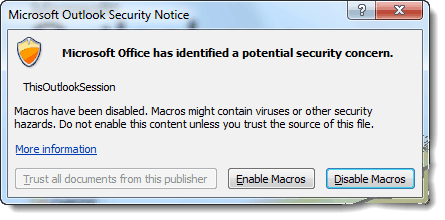
As you can see, that just refers to the script that you put into ThisOutlookSession—it doesn’t mean you have a virus. You can click Enable Macros to proceed with your Auto BCC script intact.
If you want to skip this step, you can change your Macro Security settings by going to the Developer tab and clicking Macro Security.
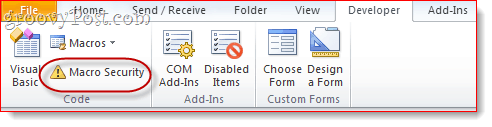
Under “Macro Settings,” you’ll have a few different options:
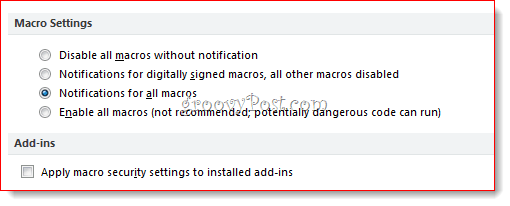
For a nag-free existence, choose “Enable all macros,” though this is, of course, potentially dangerous. The real solution here is to get your macro digitally signed—but that’s a bit of an involved process, which I’ll go over in another post (How to Create a Self-Signed Digital Certificate in Microsoft Office 2010). Stay tuned!
284 Comments
Leave a Reply
Leave a Reply







ArunKumar
December 18, 2010 at 6:09 am
First of all,
Tkz a lot for the given code…
It works fine for me…
Hats Off to You . . .
Adnan Telfah
June 16, 2015 at 3:43 am
thanks a million man,,, this is really helpful.
wish you the best of luck :)
G. Harrison
April 6, 2016 at 10:21 pm
Jack Busch, Thanks for this. It works great. I’m on day one tho. You’ve saved be like $29.95 from having to buy one of those OOTB solutions to do this. Glad you are from Pittsburgh, since that’s where I’m from too. Pittsburgh people are bright and always finding ways to do things smarter, quicker, and cheaper! Blessings!
Michael Nicholas
August 1, 2018 at 3:15 am
Mr. Arun
Advise how did u do that??
I followed the very same procedures but it did not work
ArunKumar
December 18, 2010 at 10:35 pm
Hi,
How to restrict access to Developer Tab to the users, but at the same time this code should run properly .
Donald
February 13, 2011 at 11:06 pm
it worked for the first time, but it doesn’t work after i reboot my PC. I went through every steps again but still no luck.
HARSH TRIVEDI
November 4, 2019 at 5:00 am
same problem
Yılmaz
February 15, 2011 at 1:59 am
Hey Bro,
I love you. This is great sharing!
Thanks
Yılmaz
February 15, 2011 at 2:19 am
Just want to add one thing instead of using “username+bcc@gmail.com”.
If you use “username+bcc@gmail.com” then you will not be able to search all emails from one source.
Gmail allows me to have only one gmail account. and you can not direct the incoming emails from “username+bcc@gmail.com” to “username@gmail.com”.
What I have done is; I bcc the emails to my original gmail addresse and made the Filter in gmail asd described above and everything worked just FINE
MrGroove
February 16, 2011 at 10:43 am
Were glad it worked out. Good feedback.
Karen
February 24, 2016 at 9:25 am
Hi can you advise how I can switch this off as no longer necessary
ArunKumar
February 15, 2011 at 3:05 am
Hi,
When i tried it i works fine for me.
But after a couples of weeks later, i doesn’t work. !
When gone through the developer’ ribbon, all the mentioned things were quite fine.
But still it doesn’t work.
What the issue & solution for this.
Stephen
May 27, 2011 at 6:22 am
Same problem for me… worked beautifully for a few weeks and then, poof, nada. And the code is still there just as before.
Joel Lovell
May 8, 2012 at 6:47 am
Same problem here – worked fine for a while, then stopped.
michal
March 8, 2013 at 7:15 am
same here – worked 1 day, then stopped. No MAKRO security monit.. Any suggestions?
bc bcc
August 21, 2013 at 11:08 am
same thing :(
no comment??
Alessandro
February 23, 2011 at 8:43 am
hi I followed the steps but it didn’t work for me…I was wondering whether it has something to do with the line alignment, as when you copy/paste, the lines all start at the same point, while in the picture at step6 they do not. I’m sorry for being such an ignornant in the subject, but does the alignment matter? thanks
groovinJackman
February 23, 2011 at 8:49 am
hi alessandro – i don’t THINK the alignment should matter, since white space doens’t usually get parsed
do you get an error message? maybe you dropped a quote when swapping out your addy for the BCC field?
Alessandro
February 23, 2011 at 9:56 am
I checked the spelling and not to have cancelled anything by mistake, but it is all right. I don’t get any error message, it just does not deliver any copy of the email to the BCC address too.
It is not a matter of alignment, in fact: I also tryed to copy/paste the code of the article written for Outlook 2007 and linked at the beginning of this article. The alignment is different there, but it still does not work.
Alessandro
February 23, 2011 at 11:59 am
Problem solved: it works just great, you just need to check the security level of outlook and let it execute the macros – the security settings are in the developer tab…I do not know how safe that is though … Outlook advises not to do so because bad code could be executed… well, somebody will probably blow up my computer, but at least the automatic BCC works :) Any suggestions not to let my computer easily become a weapon of mass distruction and still get this code work?
vasilis
December 3, 2013 at 5:21 am
by me the visual button is locked! i cant proced further? is there a way to skip?
Stacey
January 21, 2016 at 2:33 pm
While I getting Bcc’d now, I continue to get this message because of two lines, 16 & 18 above. I was able to fix one so it wasn’t “red”. It reads, “Compile Error” and “Syntax Error”. Can you help me with this issue?
Dimitry
March 8, 2011 at 7:23 am
Thank you. Works great. Was using a similar method in Outlook 2007 but did not translate well to 2010.
Adi
March 24, 2011 at 11:55 am
I have multiple e-mail accounts in Outlook. Is there a way to amend the code to only work with specific accounts?
Alessandro
March 24, 2011 at 2:51 pm
How about taking care of the issue on the other side? I mean, like a rule that deletes the messages coming from a specific account to the address you choose to store them. That’s easy and does not require modding the code
Adi
March 24, 2011 at 5:13 pm
Great! Thanks for the idea!
TG2
March 2, 2012 at 1:57 pm
The problem with doing something on the “back end” is that with multiple accounts you may want A) Multiple different BCC’s (i do) and B) some accounts you maybe do not want to have *ANY* BCC for because it may violate terms in your office.
in my case … I want to have the BCC Code work for all emails (new & reply/forward/etc) of my *personal* account in outlook.. but *NOT*.. repeat *NOT* for *any* of the emails that are to/from my corporate email account! Doing so would potentially violate terms & conditions of client information.
AND it would be *MUCH* better if the CODE would actively put the email address in the BCC so that the user could see the BCC address appear, and selectively choose to remove it.
its a function I never liked of other “always BCC” features in outlook and other programs.. and probably one of the reasons other “office” users hated it…. since someone would blindly set it up by accident..
Andy
May 31, 2012 at 4:45 am
Here is the solution to get it to BCC from only a specific account, hope this help someone in the future:
Private Sub Application_ItemSend(ByVal Item As Object, _
Cancel As Boolean)
Dim objRecip As Recipient
Dim strMsg As String
Dim res As Integer
Dim strBcc As String
On Error Resume Next
If Item.SendUsingAccount = “ACCOUNT NAME” Then
strBcc = “BCC EMAIL ADDRESS GOES HERE”
End If
Set objRecip = Item.Recipients.Add(strBcc)
objRecip.Type = olBCC
If Not objRecip.Resolve Then
If res = vbNo Then
Cancel = True
End If
End If
Set objRecip = Nothing
End Sub
Please note that the “ACCOUNT NAME” above is the name of the account when you created it can can be found by opening the email account settings, clicking ‘more settings’ then the account name will be under the general tab.
Good luck!
Rudy
March 12, 2013 at 10:45 am
hi There
Any chance to change the variable Item.SendUsingAccount so that not the ACCOUNT NAME but the ACCOUNT MAIL ADDRESS can be used?
BR
Rudy
test
December 28, 2015 at 4:32 am
Thank’s…..
Good Job
Steve
May 17, 2017 at 6:19 pm
Hi,
the above doesn’t work for me as my account name is the same as my email address and the above won’t allow that.
David
July 20, 2017 at 8:48 am
This really helps as the original window view shown covers where the new lines should begin, especially the “End If” lines. otherwise you get a compile error.
PizzaMan
October 29, 2017 at 8:16 am
That’s great, thanks!
Just a small additonal tip: even though the title in outlook read “Inbox – EmailAddressWithCaps@something.com – Outlook”, the name of the account was in all lowercase for me
Tom
March 30, 2011 at 2:35 am
Excellent tutorial and code, many thanks! I had this working within 2 minutes.
The lack of the auto bcc feature in Outlook was stopping me from using it for email. Now I can finally ditch Thunderbird. Many thanks again!
Tom
March 30, 2011 at 9:33 am
I found that when I sent a new email, it is bcc’d automatically. But when I reply to an email, my reply is not bcc’d. Does anyone know how to change the VB code above to also bcc replies?
Many thanks
Susan
May 14, 2012 at 12:50 pm
I also would like to know how to get this to work for both replies and forwards, which is really what I need.
Any help would be appreciated.
Jon
July 3, 2013 at 1:03 pm
I’m interested in having Outlook auto bcc only when I am replying to an e-mail, not for new e-mails being sent out. I read through all of the posts, and didn’t see any code related to that. Anyone have any ideas?
Thanks!
Hyacinthe
May 20, 2016 at 1:53 pm
I’m also interested in this request by Jon.
Any line of code that can be added for replies?
The rest works great by the way… once I disabled the macros.
Phil
October 24, 2013 at 6:47 am
I am also having the problem that this does not seem to work for replies and forwards. Several people have asked about this, but no one (as far as I can tell) has posted a solution or a reply. Help?
As an added twist, I have the Outlook option “when replying to a message that is not in the Inbox, save the reply in the same folder”. I use personal folders which help me to keep organized, but it also seems to stymie the macro – no auto self bcc when I forward or reply all to a messages from a personal folder.
Any help would be appreciated!!
Dave
December 4, 2015 at 8:10 am
Same problem… is there a fix?
mike
April 14, 2011 at 1:55 pm
this work great when i turned it on however after restart it no longer works. when testing and clicking send/receive in outlook i get the following error:
‘message being sent exceeds the message size estbablihsed for this user’
anyone else having this problem?
RomanSC1
April 18, 2011 at 12:47 pm
I had the same problem, after i reboot, it did not work again. What do i do? I have Kaspersky antivirus if that makes a difference.
Thanks,
RomanSC1
ara21
May 14, 2011 at 10:19 pm
Like RomanSC1 and Donald, it also worked fine until I rebooted my machine. Now it’s no longer working. Any idea why? I’m using AVG Free Antivirus.
Roland
May 12, 2011 at 12:35 pm
Great – did it. Took me a few minutes. Can’t believe it. I had an Outlook BBC add-in program (paid for it). The moment I switched to Outlook 2010 and had Gmail it did not work anymore.
You did it.
Thanks a lot
MrGroove
May 12, 2011 at 3:58 pm
Awesome! Great feedback. I’m glad the article helped you out!
Are you a first time reader on the site?
Roland
May 12, 2011 at 7:32 pm
Yes I am, but know I bookmarked your site. Again – Thanks
Blayne
May 14, 2011 at 10:20 pm
This is a great post. I use gmail in the exact same fashion. Thanks for the help.
racsor
May 19, 2011 at 1:07 am
You are my hero!!
but you’re exit and login in outlook
thanks!
Roland
May 27, 2011 at 3:08 pm
I was excited at teh beginning and immediately wrote a great review, but the first time I restarted the computer, I have it on my home PC and my laptop and it happened on both) it did not work anymore. I reinstalled it and it worked – restart and it did not work anymore.
So I gave up and I will reverse the settings.
Too bad
Peter Onderwater
June 2, 2011 at 8:59 am
Hello,
I’m glad that I find this article. (I’m a first time reader)
I have a question:
I have a view emailaccounts, but I don’t need for each of them a BCC.
Please, can you tell me, how I can make a BCC for a one or two emailaccounts?
thanks!
Roland
June 3, 2011 at 5:04 am
Well Peter,
unfortunately it does not work for me anymore. It works exactly the length of one PC switch on. Once I switch off my PC it is gone. Reinstall it’s there. Turn off PC and Turn on again = Gone
There’s another program out there but you have to pay and it works perfectly if you have an Outlook address. If you have gmail in Outlook it does not.
My solution right now: Whenever I open an email BCC is on as well. I punch in the address(es), think for a second “do I need a copy?”, put in my email address or leave it blank. It works ………..
Mario
June 26, 2011 at 8:47 am
Good article! Worked like a charm.
But i need something little diferent. I need that emails are sent to the BCC: address ONLY if they are going FROM unique email address. Thing is that colegues are using mail enabled public folders (example: support@domain.com), and they are also sending from address from public folder. Now they want to have all outgoing mails in one folder. So i made let’s say Outbox public folder and gave it another email (support_out@domain.com).
So what i need that only when i send email FROM support@domain.com that email is BCCed to support_out@domain.com.
I have tryed something like:
strBcc = “support_out@domain.com”
Set objSend = Item.SenderName
If objSend = “support@domain.com” Then
Set objRecip = Item.Recipients.Add(strBcc)
objRecip.Type = olBCC
End If
Set objRecip = Nothing
Set objSend = Nothing
NOT working tho :)
FYI if i run this without that IF that i added, emails are BCCed to support_out@domain.com just fine. Now i need to do the same only if FROM is support@domain.com
THX for any help!
Nathan
August 2, 2011 at 9:26 pm
Try this:
Dim objRecip As Recipient
Dim strMsg As String
Dim res As Integer
Dim strBcc As String
On Error Resume Next
‘ #### USER OPTIONS ####
‘ address for Bcc — must be SMTP address or resolvable
‘ to a name in the address book
strBcc = “SomeEmailAddress@domain.com”
If Item.SentOnBehalfOfName = “support@domain.com” Then
Set objRecip = Item.Recipients.Add(strBcc)
objRecip.Type = olBCC
If Not objRecip.Resolve Then
strMsg = “Could not resolve the Bcc recipient. ” & _
“Do you want still to send the message?”
res = MsgBox(strMsg, vbYesNo + vbDefaultButton1, _
“Could Not Resolve Bcc Recipient”)
If res = vbNo Then
Cancel = True
End If
End If
End If
Set objRecip = Nothing
Janene
August 30, 2011 at 8:07 am
Hi Nathan
I’ve tried the option of bcc only from one particular email address. I’ve used the example given but I keep receiving the same error. Please can you help.
Here is what I’ve done:
Private Sub Application_ItemSend(ByVal Item As Object, Cancel As Boolean)
Dim objRecip As Recipient
Dim strMsg As String
Dim res As Integer
Dim strBcc As String
On Error Resume Next
‘ #### USER OPTIONS ####
‘ address for Bcc — must be SMTP address or resolvable
‘ to a name in the address book
strBcc = “info@divorcesmart101.co.za”
If Item.SentOnBehalfOfName = “christel@divorcesmart101.co.za” Then
Set objRecip = Item.Recipients.Add(strBcc)
objRecip.Type = olBCC
If Not objRecip.Resolve Then
strMsg = “Could not resolve the Bcc recipient. ” & _
“Do you want still to send the message?”
res = MsgBox(strMsg, vbYesNo + vbDefaultButton1, _
“Could Not Resolve Bcc Recipient”)
If res = vbNo Then
Cancel = True
End If
End If
Set objRecip = Nothing
End Sub
The error I get is: Compile erro: Expected: Then or GoTo
What Im trying to accomplish is when Christel@divorcesmart101.co.za sends email, info@divorcesmart101.co.za must be bcc
Hope you can assist
suzanne
August 7, 2014 at 3:49 am
I have the same issue. As anyone an answer for this?
Thanks
James feldman
October 9, 2011 at 9:16 pm
Thanks for that, Nathan. Big help, except that when using an Exchange account (hosted by a 3rd party) and a Hotmail account on the same profile, it would not return the value of Item.SentOnBehalfOfName for either account – however I got it working by testing for Item.SendUsingAccount.SmtpAddress which returned a value for the Exchange account, but not the Hotmail account.
Awesome stuff, thanks again. Helped out with a long-standing client.
Ron
August 27, 2013 at 1:13 am
Hi Nathan,
Thanks for your details about adding BCC only when sent from a certain address. It didn’t work for me but, when I changed the line
If Item.SentOnBehalfOfName = “support@domain.com” Then
to the following line suggested by Rajinder
If Item.SendUsingAccount.SmtpAddress = ” SomeEmailAddress@domain.com ” Then
Then it worked for me and achieved the result I was looking for.
Regards
Ron
Vance
July 7, 2011 at 8:59 pm
Works beautifully. Had this set up in less than 2 minutes thanks to your instructions. Thank you very much for sharing!!
Ed Eaglehouse
July 11, 2011 at 3:06 pm
Thank you so much for supplying a fix. It’s just mind-boggling that Microsoft threw out such a critical feature. I have to use Outlook 2010 where I work, so I’m grateful you were kind enough to publish how to get around this missing function.
Alex McPhail
July 13, 2011 at 8:17 am
Thank you for the very helpful Auto BCC instructions.
Attiq Ur Rehman
July 14, 2011 at 8:32 am
Good Work!
I was looking for the same since a month back. Even had tried Auto BCC for Outlook. It sucks!
Awesome Script…Thanks Man :)
Joo
July 18, 2011 at 3:40 am
Dears,
YOU MUST ACTIVATE MACROS OPTION, ON SECURITY SETTINGS!!!!
Otherwise: it doesn´t work.
Tks
Bolmo Joosten
July 27, 2011 at 2:53 am
Dear all,
To make it work I had to replace
objRecip.Type = olBCC
by
objRecip.Type = Outlook.OlMailRecipientType.olBCC
It worked perfectly after this!
Enzio
July 29, 2011 at 6:18 am
Hi Guys,
first of all thanks a lot for the solution for BCC.
I was missing this feature for years!!!
However I have problems running this feature when activating “outlook social network connector” in the registry: runosc=1
After activating the BCC function is not working anymore.
Any idea?
Thanks
Best regards,
Enzio
Paul
August 3, 2011 at 1:01 am
The auto BCC is a GREAT solution!
however it is only working on new messages. How can i make it work when i reply or forward messages?
thanks
Paul
Richard
March 3, 2012 at 4:05 pm
Was there ever a response to Paul as to how to make the auto bcc work on replies and forwards???
Maxim
August 8, 2011 at 3:30 am
Hello! For some reason Outlook does not run my macro. I don’t get even a notification? Of course no mail sent to BCC address.
Nathan
August 8, 2011 at 2:32 pm
Try signing the VB with a digital certificate.
Click on Start > All Programs > Microsoft Office > Microsoft Office 2010 Tools > Digital Certificate for VBA Projects
Add a certificate name and click on OK.Click OK again when the certificate is created.
In Outlook, press Alt-F11. Click on Tools > Digital Signature. Choose the certificate and then click on OK.
Note: You may need to install the certificate into the Trusted Root Certification Authorities (which is what I had to do).
Save the project, then close VB. Close Outlook and then reopen. Accept any macro warnings that appear the next time that Outlook opens.
Maxim
August 8, 2011 at 3:02 pm
Wow! great! thank you. My macro started to work after a reload. But I will keep your suggestion in mind for my future VBA programming.
Irvin
September 20, 2011 at 8:33 am
Epic thanks
Big Doug
May 11, 2012 at 3:33 pm
The certificate did it for me. Thanks!
Tiv
August 9, 2011 at 6:16 am
Hi,
This is great but how do BCC multiple email addresses?
Thanks
Lisa
August 13, 2011 at 10:44 am
I also would like to know how to change the code to Bcc to multiple addresses
Nathan
August 13, 2011 at 4:41 pm
Try adding a semi-colon between the email addresses i.e.
strBcc = “SomeEmailAddress@domain.com;AnotherEmailAddress@domain.com”
Lisa
August 13, 2011 at 10:51 pm
I have tried that. Unfortunately it does not work
Bob
August 13, 2011 at 6:24 pm
Along with the many who’ve gone before me, I add my thanks. I wanted to only BCC mail that had a specific character string in the subject line. That only took about two minutes to add…
Rajinder
August 19, 2011 at 6:04 am
I hope this helps….i am not a programmer in any form, but have been able to paste this together from several different sites. It works for me very well as I have several accounts setup in my Outlook 2010. Enjoy….good luck with using it.
Private Sub Application_ItemSend(ByVal Item As Object, Cancel As Boolean)
Dim objRecip As Recipient
Dim strMsg As String
Dim res As Integer
Dim strBcc As String
Dim objMsg As Outlook.MailItem
On Error Resume Next
‘ #### USER OPTIONS ####
‘Select one of the below Options, remove the comment marks (‘) in front of the line
‘Add text to the subject line when sending email
Set objMsg = Outlook.ActiveInspector.CurrentItem
‘objMsg.Subject = “Test”
‘objMsg.Subject = “Prepended text here – ” & objMsg.Subject
‘objMsg.Subject = objMsg.Subject & ” – Appended text here”
‘ Address for Bcc — must be SMTP address or resolvable
‘ Automatically selects the bcc address from the set “from” setting or
‘ to a select email address, your choose
strBcc = Item.SendUsingAccount
‘strBcc = “SomeEmailAddress@domain.com”
‘ Option 1: Select if you wish to auto bcc from a select account in outlook automatically
‘If Item.SendUsingAccount.SmtpAddress = ” SomeEmailAddress@domain.com ” Then
‘ Option 2: Select through notification meesage before sending the email if you wish to bcc the email
res = MsgBox(“Would you like to receive a copy of this message (Bcc)?”, vbYesNo + vbDefaultButton1, _
“BCC Message”)
If res = vbNo Then
Cancel = False
Else
‘ Option 3: Select if you wish to sent on behalf:
‘ If Item.SentOnBehalfOfName = ” SomeEmailAddress@domain.com ” Then
Set objRecip = Item.Recipients.Add(strBcc)
‘ objRecip.Type = olBCC
objRecip.Type = Outlook.OlMailRecipientType.olBCC
If Not objRecip.Resolve Then
strMsg = “Could not resolve the Bcc recipient. ” & _
“Do you want still to send the message?”
res = MsgBox(strMsg, vbYesNo + vbDefaultButton1, _
“Could Not Resolve Bcc Recipient”)
If res = vbNo Then
Cancel = True
End If
End If
End If
Set objRecip = Nothing
End Sub
If you have problems with it not working, then do the following:
• In outlook clicked on Tools/Macros/Security changed the level to Warning for all macros, ok
• Again pressed Alt F11, clicked on Tools/Digital Signature click on Choose … u will see the Digital Signature u saved and select and press ok.
Restarted Oulook
Upon restart it will ask to trust all the macros from press yes. And it’s done
Cheers
Gary
August 29, 2011 at 2:23 am
Hi,
Thanks for the input. But i want to choose from a list of email ids to BCC when i send out a mail. Is it possible? Thanks!
Ron
August 27, 2013 at 1:08 am
Hi Rajinder,
Thanks for your details about adding BCC only when sent from a certain address. This helped me to achieve the result I was looking for.
Regards
Ron
Garrett Dumas
September 7, 2011 at 2:47 pm
This worked perfectly. Thanks for the info!
Jennifer
September 8, 2011 at 2:53 pm
Hello,
I tried a few different VB codes to BCC myself and it actually worked for a day – I LOVED it. But then it STOPPED working. I am using Outlook 2007.
Here is what I originally used:
Private Sub Application_ItemSend(ByVal Item As Object, Cancel As Boolean)
Dim objRecip As Recipient
Dim strMsg As String
Dim res As Integer
Dim strBcc As String
On Error Resume Next
‘ Enter the address for Bcc
‘ It must be SMTP address or
‘ resolvable to a name in the address book
strBcc = “jennifer_hill@jackmorton.com”
Set objRecip = Item.Recipients.Add(strBcc)
objRecip.Type = olBCC
If Not objRecip.Resolve Then
strMsg = “Could not resolve the Bcc recipient. ” & _
“Do you want to send the message?”
res = MsgBox(strMsg, vbYesNo + vbDefaultButton1, _
“Could Not Resolve Bcc recipient”)
If res = vbNo Then
Cancel = True
End If
End If
Set objRecip = Nothing
End Sub
————————————————
Here is what I just tried (not working either):
Private Sub Application_ItemSend(ByVal Item As Object, Cancel As Boolean)
Dim objRecip As Recipient
Dim strMsg As String
Dim res As Integer
Dim strBcc As String
On Error Resume Next
‘ #### USER OPTIONS ####
‘ address for Bcc — must be SMTP address or resolvable
‘ to a name in the address book
strBcc = “jennifer_hill@jackmorton.com”
Set objRecip = Item.Recipients.Add(strBcc)
objRecip.Type = olBCC
If Not objRecip.Resolve Then
strMsg = “Could not resolve the Bcc recipient. ” & _
“Do you want still to send the message?”
res = MsgBox(strMsg, vbYesNo + vbDefaultButton1, _
“Could Not Resolve Bcc Recipient”)
If res = vbNo Then
Cancel = True
End If
End If
Set objRecip = Nothing
End Sub
——————————–
Please help! Would love to use this!
Jennifer
September 19, 2011 at 7:02 am
Can ANYONE provide any thoughts on my post? Please?
Yilmaz
September 19, 2011 at 7:17 am
Hello Jennifer,
I think someway you probably disabled your macro settings to off position.
File — Options — Security Center: Security Center Settings
Macro Settings
– enable all macros
I use Office 2010. in 2007 may be above settings is located in another position.
You can search google as “how to enable macro in office 2007” and you will find it.
regards, Yilmaz.
Jennifer
September 19, 2011 at 7:40 am
I turned my macros security to the lowest possible security and still, nothing.
Alison
September 10, 2011 at 2:37 pm
Thanks. I have a notebook and a computer at my desk and I want to store all my sent e-mails on the desk computer. So I followed yout excellent tutorial in order to automatically bcc myself from my notebook. It worked on a new e-mail sent from my notebook.
However, it didn’t work when I replied to an e-mail from my notebook and, as mentioned above, I suspect it may not work if I forward an e-mail from the notebook.
Are there any similarly easy solutions out there – short of buying software?
Again, thanks.
Alison
September 10, 2011 at 2:40 pm
Forgot to mention that both my computers use Outlook 2010. It’s really annoying that Microsoft disabled the automatic bcc feature!
Ed Eaglehouse
September 12, 2011 at 4:30 am
For adding multiple addresses, these lines are what attach a new BCC recipient:
strBcc = “SomeEmailAddress@domain.com”
Set objRecip = Item.Recipients.Add(strBcc)
objRecip.Type = olBCC
If you want to add more addresses, repeat these lines, replacing the address assigned to strBcc with the extra address. As with the original code, you may want to check that the address is valid (resolves successfully).
viruzth
September 13, 2011 at 1:38 am
Wonderfull tips!
Many thanx for that.
BobbyBfromBoston!
September 16, 2011 at 7:35 am
How do you remove this feature? I previously added it, and now would like to remove it. I’ve deleted the code and saved it, and gone as far as to completely restart my computer. HOwever, every time I send an email. I am still bcc’d. How do I turn this off? Thanks.
Sandra
September 17, 2011 at 8:23 am
Great script – thanks!
Any way to code this so that it BCC’s TWO email addresses? I have tried various options but keep getting an “could not resolve the BCC address” error.
thanks :-)
sandra
AJ
September 19, 2011 at 2:08 am
Excellent post. Thanks for the blog!
Ellen
October 4, 2011 at 8:58 am
Thanks for the tips, but my question is, how do you get outlook 2010 to stop showing you as a “To” when you are a bcc. When I am bcc’d, I cannot tell and run the risk of hitting reply all and unintentionally outing the sender as bccing me!
BertieorBirdie
January 2, 2012 at 8:05 pm
Good to see real expertise on display. Your cotnirbution is most welcome.
Anil
October 7, 2011 at 11:12 pm
To turn off this feature is simply a reversal of what you did:
Go to Developer>Visual Basic>ThisOutlookSession>ItemSend
Delete everything between “Private Sub Application_ItemSend(ByVal Item As Object, Cancel As Boolean” and “End Sub”.
Save the file. Close Visual Basic window.
Go back to FILE>OPTIONS>TRUST CENTER>Trust Center Settings>Macro Settings
Then turn OFF [Disable] the Macros.
Restart Outlook.
It worked for me!
John
October 8, 2011 at 5:50 am
Hi there! Is there a way to do this auto bcc work in Mac Mail under Lion OS X?
Thanks!
Adam
November 11, 2011 at 7:52 am
To setup Auto BCC for Mac Mail, you need to configure the following on every computer you want to log email for.
To automatically log outbound mail using bcc
Open a terminal window and type the following;
defaults write com.apple.mail UserHeaders ‘{“Bcc” = “yourbcc@addresshere.com”; }’
this will automatically bcc any OUTBOUND message from Mac Mail
Note: if you wish to remove this rule type;
defaults delete com.apple.mail UserHeaders
Changes made to your Mac Mail configuration are not supported by anyone. Read more here: http://email.about.com/od/macosxmailtips/qt/et_auto_bcc.htm
To automatically log inbound mail you need to create a redirect rule
Open Mac Mail preferences and click the Rules tab.
Create a new rule matching the condition: “From contains: @”. This will match every email you receive.
Choose the “Redirect Message” action, and enter your BCC address (e.g yourbcc@addresshere.com)
Adam
October 26, 2011 at 9:11 pm
any idea what I would do to duplicate this in Outlook for Mac 2011? I can’t access the VB Editor on the ribbon – you can’t even edit the ribbon in Outlook. Office, Yes; Outlook, No…
dc
November 3, 2011 at 3:39 pm
I have 4 different email accounts in Outlook 2010 (all IMAP). I want to BCC to a different gmail address for each account (backup purposes). Is there a way to modify your code so it doesn’t BCC from all my email accounts OR I can select which email accounts I want to BCC from.
Ulrich Palha
November 10, 2011 at 7:46 pm
I forgot to reply to your post, but try the modified code in the post below
Ulrich Palha
November 8, 2011 at 7:47 pm
@de – try the modified code below to use a different BCC for each account.
————
Private Sub Application_ItemSend(ByVal Item As Object, Cancel As Boolean)
Dim objRecip As Recipient
Dim strMsg As String
Dim res As Integer
Dim strBcc As String
On Error Resume Next
Dim strSendAccount As String
strSendAccount = Item.SendUsingAccount.SmtpAddress
Select Case strSendAccount
Case “emailaddress1@account.com” ‘### test for first account here
strBcc = “bcc1@account.com” ‘### set the corresponding bcc
Case “emailaddress2@account.com”
strBcc = “bcc2@account.com”
Case “emailaddress3@account.com”
strBcc = “bcc3@account.com”
Case Else ‘if none of the accounts match, then exit
Exit Sub
End Select
Set objRecip = Item.Recipients.Add(strBcc)
objRecip.Type = olBCC
If Not objRecip.Resolve Then
strMsg = “Could not resolve the Bcc recipient. ” & _
“Do you want still to send the message?”
res = MsgBox(strMsg, vbYesNo + vbDefaultButton1, _
“Could Not Resolve Bcc Recipient”)
If res = vbNo Then
Cancel = True
End If
End If
Set objRecip = Nothing
End Sub
Rik
November 22, 2011 at 3:13 pm
Hi,
Nice tip, thank you…
However, when you look in the ‘sent folder’ and open the email it shows the BCC and who it was direct too?
Sort of defeats the object?
Any idea on how to stop it beeing reveale?d
Rik
November 23, 2011 at 5:39 pm
Any update on this please?
Any idea on how to stop it being revealed?
Rik
December 1, 2011 at 4:26 am
Hi,
Using latest Outlook client,
I can report that it does not work.. :-(
Joshua
December 7, 2011 at 2:40 am
Code works well but once my computer is restarted. It stops working. How do I solve this?
links jewellery
December 7, 2011 at 3:39 pm
Thanks for the auspicious writeup. It in reality was once a entertainment account it. Look complex to far added agreeable from you! By the way, how can we keep in touch?
John
December 15, 2011 at 8:19 am
Hi, thanks for this code, but is there anyway this could be replicated in OWA as well as in the client (Outlook 2010).
Cheers,
John
Thomas
December 16, 2011 at 9:56 am
Brilliant! I use this for salesforce to save an additional click. Thanks!
Isaack
December 27, 2011 at 10:29 pm
Great articles, it is so helpful, would u pls post how to auto bcc of my income mail?
Dan
December 28, 2011 at 1:21 pm
Isaack, you’ll have to set up a forwarding rule – it’s probably the easiest.
I too am having problems with this working after a reboot. A co-worker of mine who is using Outlook 2007, and myself, using Outlook 2010 have the same problem.
Even if I changed my macro settings to automatically accept and not prompt it doesn’t matter, it still doesn’t work after a reboot.
Any ideas?
Bruce L
January 26, 2012 at 4:24 pm
I have tried the suggestions you offered for the Automatically BCC Outgoing Messages in Outlook 2010
It worked on one test email, then after rebooting my computer the code no longer works. I do have Outlook 2010.
Jack do you have any suggestions as there seems to be a few of us who are experiencing this glitch.
Morgan Fabre
January 3, 2012 at 3:20 am
Great that’s work very well ! Thanks =]
Patrick
January 4, 2012 at 8:18 am
Thanks for the Outlook part (I didn’t need the Gmail steps). Works great!
Larry
January 4, 2012 at 6:47 pm
OUTSTANDING! Worked the first time for me. Thank you!
Yossi
January 8, 2012 at 3:02 am
Like Dan said, The macro stops working after computer restart.
Any idea how to solve this?
Also, is there any way to solve this problem on the exchange server side (so that if people are sending mails from smartphones or web-client as well as client outlook it also works)?
Matt J
June 12, 2017 at 6:04 pm
I would love to see this, too! Just got this working in native Outlook 2013, but it’s not working on my Outlook Web when I log-in to that. Thanks for any tips!
Natalie
January 9, 2012 at 3:40 am
This worked great the first time, but has completely stopped after 1 day. If anyone has any ideas on how to fix it I would greatly appreciate help!!
Thanks
Donna Mangion
January 11, 2012 at 7:02 pm
Hi there,
Thank you, this is a great tool. Especially for someone who is tecnologically challenged like myself.
However, I have a little problem…can I get it to work on reply emails and forward emails?
Would love someone to point me in the right direction
Cheers
Donna
Talal
January 15, 2012 at 10:52 pm
Hi,
thanks a lot for this precious tip. I have faced the same problem reported by many users above. In less than a month, the auto bcc has stopped working.
Kathy Constantino
January 16, 2012 at 5:29 pm
WOW, and thanks for solving a HUGE problem i have with sending from laptop and not seeing those mails on my cell phone. What a GREAT solution and thanks for taking time to give clear instructions too!
pramod dalmia
January 23, 2012 at 6:21 am
i tried.
is their a more simpler way to switch it on and off when needed or not needed.
pl advise.
amelia
February 8, 2012 at 7:30 am
Amazing instructions! clear and concise! thank you so much!
Nico
February 15, 2012 at 8:15 am
FAB – well done and thanks sooo much!
Glenn
February 16, 2012 at 4:08 am
Thanks for the very helpful suggestion. I wasn’t clear why you would need a customized gmail address. I just use a gmail filter to automatically label and file my bcc emails from outlook (any email I’m sending myself).
Arif Hussain
February 17, 2012 at 5:48 am
Beautiful. Works fine.
Thanks Buddy
David Francis
February 22, 2012 at 1:19 am
Great tip, worked for me – until I rebooted!
So here’s a solution for people who find this STOPS WORKING after a day, or after computer restart.
1. In Outlook 2010, go to File -> Options -> Trust Center
2. Click Trust Center settings
3. Click Macro Settings
4. Choose “Notifications for all macros”
5. OK everything
6. Restart Outlook 2010
7. You’ll get a security warning – you’ll need to grant permissions to get the macro to run.
It should now work
HTH and thanks for the tip
Courtney
May 11, 2012 at 2:30 pm
DUDE, thank you for this!!! I hooked this up for my boss, and we were so sad it stopped working…. employed your method and it’s all good again! Thanks again, David!
miriam
April 11, 2013 at 7:35 am
AWESOME! it worked again!
so happy
thanks so much
Wahab
April 1, 2014 at 8:17 pm
Thank you my friend !
Finally it work again !!! Really helpful !
David Francis
February 22, 2012 at 1:22 am
Gaa ignore me, that will teach me to read the whole post.
DOHHHH
John
February 25, 2012 at 8:58 am
I did it as per this guide and tested it, bingo, it works just as expected. Many thanks for your guide, it’s just crystal clear.
Andreas
February 29, 2012 at 7:52 am
Great script, any1 knows how to WHITELIST my domain so it does not send bcc when I send emails to my colleagues?!
thanks
/A
yaklis
February 29, 2012 at 8:20 am
Dear friends; for multiple adress bcc please use the code below;
Private Sub Application_ItemSend(ByVal Item As Object, Cancel As Boolean)
Dim objRecip As Recipient
Dim strMsg As String
Dim res As Integer
Dim strBcc As String
On Error Resume Next
‘ #### USER OPTIONS ####
‘ address for Bcc — must be SMTP address or resolvable
‘ to a name in the address book
strBcc = “mailadresi1@mail.com”
Set objRecip = Item.Recipients.Add(strBcc)
objRecip.Type = olBCC
If Not objRecip.Resolve Then
strMsg = “Could not resolve the Bcc recipient. ” & _
“Do you want still to send the message?”
res = MsgBox(strMsg, vbYesNo + vbDefaultButton1, _
“Could Not Resolve Bcc Recipient”)
If res = vbNo Then
Cancel = True
End If
End If
‘ repeat the group start form “x” to “y” for more than two mails.
‘ x
strBcc = “mailadresi2@mail.com”
Set objRecip = Item.Recipients.Add(strBcc)
objRecip.Type = olBCC
If Not objRecip.Resolve Then
strMsg = “Could not resolve the Bcc recipient. ” & _
“Do you want still to send the message?”
res = MsgBox(strMsg, vbYesNo + vbDefaultButton1, _
“Could Not Resolve Bcc Recipient”)
If res = vbNo Then
Cancel = True
End If
End If
‘y
Set objRecip = Nothing
End Sub
Matt
March 7, 2012 at 9:38 am
If you want to have the BCC recipient virtually hidden (IE the address doesnt show) the closest i got was to change the line:
strBcc = “SomeEmailAddress@domain.com”
to
strBcc = “”SomeEmailAddress@domain.com”
You will probably want to copy and paste the above to get it right.
This will not show the email used for bcc but does instead just display ” (empty address), although it appears to be impossible to turn this off completely as if you look at your senders name it ‘fname lname’ in the same quotes, which means all named address’s are quoted, so the best you can do is set it to nothing.
Hope that helps someone else out instead of paying out for software to do the same.
If anyone has a better solution to hide the BCC recipient please let us know :-)
Matt
March 7, 2012 at 9:40 am
Actually the above code wont work, the submit/comment box decided to reformat it:
Get the code from here: http://pastebin.com/TmWvB3Ry
Dat
March 7, 2012 at 10:34 pm
I think there’s a way that must be easier:
– In Outlook 2010, click File->Account settings, select the account you want to auto bcc (must be imap account) then Change->More settings.
– In Sent items tab, select “Save sent items in the following folder on the server” -> then select Inbox folder in the list below.
– Thats all.
Regards,
Ed Eaglehouse
March 8, 2012 at 5:16 am
That sounds nice, but impossible: there is no “Sent Items” tab. Hence the need for this workaround.
Vavramidis
March 13, 2012 at 3:49 am
Hi @ all. Thanks for the code.
It works fine for me except when there are internal emails address from my company in the ‘Cc’. When i do that the Bcc don’t work. When in the ‘To’ Field or in the ‘Cc’ are externals email address it work’s fine.
Is there any workaround for that?
Thanks :)
Matt
March 13, 2012 at 4:05 am
This is likely to be your internal mail server causing this and not the script, i would manually test an email and you are likely to see exactly the same thing happen, in which case you need to speak to your mail server admin to get it fixed.
:)
nu fatcat
March 30, 2012 at 11:31 pm
your script works wonderful. thank you so much!!
Aaron
April 2, 2012 at 10:11 am
This worked for me the first day only then I could not get it to work again and my work does not have an Internal Mail Server. I am using Office 2003
Fabien
June 28, 2012 at 4:26 am
Fix your Security Level in Trust Center to allow for macros else the macro will no be active after your restart Outlook.
Vicki
April 23, 2012 at 9:07 am
How would I code if an email arrives from xxxx@xxxx.com then BCC xxxx@xxx.com.
Thanks
B()B
April 24, 2012 at 8:58 am
Try the option “enable all marco’s”
Developers tab – Marco security – macro settings
ann
April 25, 2012 at 4:05 am
I’ve got the Bcc field showing on my ‘new email’ templates. However, once I’ve Bcc’d a whole list of email addresses, after sending the email, when I go back to it to remind myself who i sent it to – the list of Bcc addresses isn’t showing. I need to be able to see who’ve I may have missed out, etc. How do I find out who I bcc’d?
Bain
May 16, 2012 at 9:26 am
Hi followed, as described in the post, am sending to a gmail account, when tested i got the mail but showing my mail address in cc but not in bcc.
How could i stop showing the cc
Thanks in advance
Andy
May 31, 2012 at 4:41 am
I have been working on this a little and would like to add the solution to getting the script to BCC from only a select account:
Private Sub Application_ItemSend(ByVal Item As Object, _
Cancel As Boolean)
Dim objRecip As Recipient
Dim strMsg As String
Dim res As Integer
Dim strBcc As String
On Error Resume Next
If Item.SendUsingAccount = “ACCOUNT NAME” Then
strBcc = “BCC EMAIL ADDRESS GOES HERE”
End If
Set objRecip = Item.Recipients.Add(strBcc)
objRecip.Type = olBCC
If Not objRecip.Resolve Then
If res = vbNo Then
Cancel = True
End If
End If
Set objRecip = Nothing
End Sub
Please note that the “ACCOUNT NAME” above is the name of the account when you created it can can be found by opening the email account settings, clicking ‘more settings’ then the account name will be under the general tab.
Good luck!
Jack
August 1, 2012 at 12:31 am
Hi Andy, thanks for your solution.
Is it also possible when I have one account, with multiple emailadresses in it?
Cheenu
September 12, 2012 at 2:48 am
Hello. I copied and pasted this code. I have 5 email accounts set up on my Outlook 2010. I am not using an enterprise server and connect direct to the internet. 4 of my email IDs are managed by Gmail and 1 is managed by another provider.
I want to bcc my emails sent only from the 1 account managed by a provider other than Gmail.
The problem I am facing is that all emails that I send, even from my other email IDs are being BCCd back to me. How can I stop this?
I have made changes to the relevant portions in the following code:
If Item.SendUsingAccount = “ACCOUNT NAME” Then
strBcc = “BCC EMAIL ADDRESS GOES HERE”
Do I have to remove the “” in the above code?
I am using Windows XP with Outlook 2010.
thanks much!!!
Cheenu
September 12, 2012 at 3:06 am
Andy! My apologies! I realized that I had installed another program, Auto BCC which was running in the background.I removed that software, and this code works just fine!!! Thanks!!
Gary Kelleher
September 20, 2012 at 7:40 am
Thanks for the solution
This makes it a little better –
If Item.SendUsingAccount = “ACCOUNT NAME” Then strBcc = “BCC EMAIL ADDRESS GOES HERE” Else Exit Sub End If
Alexis
June 4, 2012 at 8:42 am
Why won’t this code work after the computer is rebooted. It worked great the day I did it, and I logged in this morning, and I can’t get it to work again. HELP!
Fabien
June 28, 2012 at 4:25 am
See answer above.
kathleen
June 27, 2012 at 7:16 am
This worked great on the first day. I can’t get it to work again. HELP!!
Fabien
June 28, 2012 at 4:24 am
Fix your Security Level in Trust Center to allow for macros else the macro will no be active after your restart Outlook.
CostSaving Doron
June 30, 2012 at 4:52 pm
Great code, Andy your addition to particulare account is just what I was missing
Thanks guys
Alex Angerhofer
July 13, 2012 at 5:16 am
thanks a lot. That made my day! Alex.
Steve Krause
July 13, 2012 at 7:25 am
You bet! Welcome to groovypost.
Matt
July 27, 2012 at 4:46 am
What if I want to show the BCC in the address bar, so that users can choose not to BCC if they want…for personal mails for instance?
aileverte
August 3, 2012 at 10:09 pm
Thank you! Just what I was looking for. I have given up on the Outlook syncing applications which never work the way I want them to, and decided that good old “primitive” methods, like self-BCC, will do just fine. Thanks for making it so easy!
Patrick
August 7, 2012 at 4:56 am
This
code work perfectly at my office but isn’t working at home or in a hotels. I
can still add manually add address into de BCC field when I’m at home or at the
hotel and it’s working well. Any idea?
wowonet
August 21, 2012 at 5:06 pm
Thanks! Works perfectly! I use Outlook 2010 with Exchange and multiple POP3 accounts plus I have conversation view turned on. When I reply to an e-mail sent to my Exchange account, the reply will appear with the conversation because of Exchange settings. That is not the case with POP3 accounts. Now that the replies are bcc’d, they appear in the conversation. I set up a separate gmail account for the bcc field so that it doesn’t matter which account from which the reply is sent. It shows up in the right conversation. I know, a bit overboard, but hey, if you can, why not?
Yogesh Parkar
September 25, 2012 at 12:18 am
Thanks a lot it worked for
Jack Rodgers
September 27, 2012 at 9:53 pm
Absolutely perfect! Thanks for the info!
Cindy
October 3, 2012 at 10:29 pm
HIHI!! I have tried this a month before and it did work successfully.
However, it is not working in these few days. I have tried to do all the process again, but it still not working.
Do you know why?
Thanks!
Macallan
October 9, 2012 at 12:35 am
The code is great however it does not work in the following situation. When creating a document in Word and using the option Save and send, then Send as attachment or send as PDF, such an email does not send to BCC set in VBA despite enabling all macros both in Outlook 2010 and Word 2010 as well as “Trust access to VBA projects” in Word security options. I will be grateful for any hints how this abstacle can be overcome.
Larry F Delbridge II
October 9, 2012 at 9:01 am
Worked great the first time, very detailed and SOOOO much appreciated!
Eric Mols
October 23, 2012 at 2:14 am
Thank you for your post, it realy helped me.
Andrew French
December 2, 2012 at 1:01 am
Hello, this works great, thanks. I do have a question. I also sometimes (OK, a lot), send e-mails from my iPad, and sometimes phone and webmail. I assume that for the instances when sending e-mail in those situations, I must still add the BCC manually? Is there a server solution so I never need to even think about adding BCC manually again if away from my laptop (that has this solution installed)?
Thanks
wjlToronto
February 15, 2013 at 8:46 am
How this post solved my BB10 sync issue
This may be an old post but it is still adding value
It has fixed the last outstanding item in a frustrating workaround for synchronizing Outlook 2010 stand-alone Outlook (POP) account to the Blackberry 10 (BB10). Many Thanks!!
The story
•I needed to keep my old myname@Yahoo.com email address as my prime email address
•I also needed to continue getting emails via myname@myinternetprovider.com
•I needed to respond to all emails from myname@yahoo.com
•I use a standalone PC running Outlook with a POP account, no Exchange, as my main email client when I’m in my home office
•I rely on a smart phone (currently iPhone 3G, but might be BB10) to get my emails, contacts, and calendar information when I’m on the road. My 3G does not currently sync emails but does sync calendar and contacts via iTunes.
•I also use a small laptop with a “copy” of my pst to do emails when I can sit down away from my office (tethered to smart phone). It is crude but works.
Problem
The new BB10 does not sync POP calendar, contacts or email, even when attached via USB to the PC.
Solution
•I tested many solutions but settled on Gmail IMPA
•I now have two Outlook accounts, myname@Yahoo.com (POP) and myname@gmail.com (IMAP) and they come with the usual data files/folders. The IMAP data folder is synced with Gmail, and the POP data folder is in sync with the IMAP data folder
•The Gmail account (in Outlook) insists on sending from myname@gmail.com. If I use the POP account to manage all emails it will always send them from myname@yahoo.com. But….
New Problem
•When sending from the POP account the sent emails do not end up in my Gmail folder or the Gmail account. I needed a way to BCC myname@gmail.com
•And now you know how this post solved my problem.
•I now use my POP account for all emails. Everything gets forwarded/copied into the Gmail IMAP account and if all does well, I should be able to fully sync BB10 or iPhone and maybe even my laptop from Gmail
•In addition, I can continue to automatically backup my POP to a pst for archiving and DRP.
•Now I just need to sync calendar and contact info between Outlook 2010 and Gmail and get Gmail to sync with the smart phone
wjlToronto
February 15, 2013 at 8:55 am
….and I just realized the whole solution has a big flaw. The POP account will not stay synced with the IMAP account due to Rules and due to manual cahnges, i.e. moving emails to folders. hmmmm.
I’m back to trying to solve the first IMAP problem; how can I get the Outlook IMAP account, myname@gmail.com to send emails that say they are from myname@yahoo.com?
Facetti
February 19, 2013 at 12:32 pm
Here the solution to BCC every mail to the senders address aka self-bcc :
Private Sub Application_ItemSend(ByVal Item As Object, Cancel As Boolean)
Dim objRecip As Recipient
Dim strMsg As String
Dim email As MailItem
Dim res As Integer
Dim strBcc As String
On Error Resume Next
‘ #### USER OPTIONS ####
‘ address for Bcc — must be SMTP address or resolvable
‘ to a name in the address book
Set email = Item
strBcc = email.SendUsingAccount.SmtpAddress
Set objRecip = Item.Recipients.Add(strBcc)
objRecip.Type = olBCC
If Not objRecip.Resolve Then
strMsg = “Could not resolve the Bcc recipient. ” & _
“Do you want still to send the message?”
res = MsgBox(strMsg, vbYesNo + vbDefaultButton1, _
“Could Not Resolve Bcc Recipient”)
If res = vbNo Then
Cancel = True
End If
End If
Set objRecip = Nothing
End Sub
Facetti
February 19, 2013 at 12:55 pm
Here the minimized solution to BCC every mail to the senders address aka self-bcc :
Private Sub Application_ItemSend(ByVal Item As Object, Cancel As Boolean)
Dim objRecip As Recipient
Set objRecip = Item.Recipients.Add(Item.SendUsingAccount.SmtpAddress)
objRecip.Type = olBCC
objRecip.Resolve
End Sub
Facetti
February 21, 2013 at 3:01 am
More stable version :
Private Sub Application_ItemSend(ByVal Item As Object, Cancel As Boolean)
Dim objRecip As Recipient
Set objRecip = Item.Recipients.Add(Item.GetInspector.CurrentItem.SendUsingAccount.SmtpAddress)
objRecip.Type = olBCC
objRecip.Resolve
End Sub
Chris
February 25, 2013 at 10:08 am
Hello,
This is cool, what I am trying to do is sort of similar to this.
What I am trying to do is create VBscript to CC or BCC (it doesn’t matter which) in the mailbox that I am sending from. I have a total of 5 mailboxes, including my personal and 4 shared boxes. I don’t want this applied to my personal or 1 of the shared, so I want to specify the mailbox names that it is being sent from. If it is one of the 3 it will place a copy of the email being sent into the inbox of the mailbox being sent from.
I know this can be easily done with creating rules, but we have shared mailboxes and due to how we log in, some people don’t like the rules and they uncheck them, very irritating. Also it appears there is no way to record a macro in Outlook, just create one.
I am trying to do something like this:
Private Sub Application_ItemSend(ByVal Item As Object, Cancel As Boolean)
If From = “MailBox1@domain.com” Then
Forward.Recipients.Add “MailBox1@domain.com ”
End If
If From = “MailBox2@domain.com” Then
Forward.Recipients.Add “MailBox2@domain.com ”
End If
If From = “MailBox3@domain.com” Then
Forward.Recipients.Add “MailBox3@domain.com ”
End If
End Sub
I am not familiar with VBScript in Outlook at all, starting to get familiar with it in Excel though. Can someone please take a look at this and see if you know how to do this?
Thanks,
Chris
Chris
March 2, 2013 at 4:12 am
Hello,
Thanks to a post from Andy that I originally overlooked I figured out how to do this. Andy’s post only utilized 1 mailbox, so I just added two more if/then statements for the other two mailboxes. Here it is.
Chris
Private Sub Application_ItemSend(ByVal Item As Object, Cancel As Boolean)
Dim objRecip As Recipient
Dim strMsg As String
Dim res As Integer
Dim strBcc As String
On Error Resume Next
If Item.SendUsingAccount = “mailbox1@domain.com” Then
strBcc = “mailbox1@domain.com”
End If
If Item.SendUsingAccount = “mailbox2@domain.com” Then
strBcc = “mailbox2@domain.com”
End If
If Item.SendUsingAccount = “mailbox3@domain.com” Then
strBcc = “mailbox3@domain.com”
End If
Set objRecip = Item.Recipients.Add(strBcc)
objRecip.Type = olBCC
If Not objRecip.Resolve Then
If res = vbNo Then
Cancel = True
End If
End If
Set objRecip = Nothing
End Sub
Chris
March 3, 2013 at 11:35 am
I needed to restructure the code a little bit, the previous code would send it to the last mailbox that was listed when it was initially saved as a draft. I don’t understand why since it even showed it didn’t equal the last mailbox. I should have known better than to code it like that anyway, sloppy. The code below will work better and has structure to it.
Chris
Private Sub Application_ItemSend(ByVal Item As Object, Cancel As Boolean)
Dim objRecip As Recipient
Dim strMsg As String
Dim res As Integer
Dim strBcc As String
On Error Resume Next
If Item.SendUsingAccount = “mailbox1@domain.com” Then
strBcc = “mailbox1@domain.com”
Else
If Item.SendUsingAccount = “mailbox2@domain.com” Then
strBcc = “mailbox2@domain.com”
Else
If Item.SendUsingAccount = “mailbox3@domain.com” Then
strBcc = “mailbox3@domain.com”
End If
End If
End If
Set objRecip = Item.Recipients.Add(strBcc)
objRecip.Type = olBCC
If Not objRecip.Resolve Then
If res = vbNo Then
Cancel = True
End If
End If
Set objRecip = Nothing
End Sub
Frank
August 13, 2013 at 6:42 am
Hi Chris,
I hope you can help me. This is almost what I need. However, I also need to able to differentiate by Subject line to include or exclude BCC. Do you have any idea on how to do that? Or maybe someone else here can help?
Thanks,
Frank
Chris
March 20, 2013 at 8:46 pm
https://forum.groovypost.com/topic/1405-how-to-automatically-receive-a-bcc-of-all-messages-sent-using-outlook-2010/
There are 4 posts from me, 1 asking the question and 3 answers. The most recent answer is the best solution. Look for the newest post by zines, this solves the issue when the email is saved as a draft.
Facetti
March 21, 2013 at 1:16 am
If you like to have a BCC to the email account you are sending from, here a bulletproof version:
Private Sub Application_ItemSend(ByVal Item As Object, Cancel As Boolean)
Dim objRecip As Recipient
On Error GoTo Fin
Set objRecip = Item.Recipients.Add(Item.GetInspector.CurrentItem.SendUsingAccount.SmtpAddress)
objRecip.Type = olBCC
objRecip.Resolve
Fin:
End Sub
Chris
March 21, 2013 at 6:38 pm
The script from Facetti will work if you want all mailboxes BCC in, but my previous post is for if you only wanted certain mailboxes BCC in. My post also fixes the issue that most scripts have when an email is sent from a Draft, most script don’t work. I haven’t tested Facetti’s script if it works with the draft issue or not, but mine works for my needs because certain mailboxes I do not want a BCC from and it correctly works with draft emails.
Facetti
March 22, 2013 at 1:46 am
The script also works from a draft.The “On Error..” fix this.
Cynthia Dai
March 27, 2013 at 8:13 am
Thanks Facetti, I use the one w/o “On Error” and the email sent from a Draft working fine.
Facetti
March 27, 2013 at 1:54 pm
thanks for the confirmation! It’s a pleasure to simplify your e-mail life ;-)
Engineer A
March 22, 2013 at 9:26 am
For all those people who added the code, then had it stop working after resetting PC. You need to enable macros in the developer tab!!! At very least, select notifications for all macros, but you will receive a pop-up every time unless you enable all macros.
CarelH
March 25, 2013 at 1:57 pm
Works like a dream, thanx a mil for the post.
Iblees
March 27, 2013 at 11:40 pm
Magic stuff.
Exactly what i was looking for. Thanks!
jeff
March 31, 2013 at 11:24 am
It will not let me copy and paste Ite Send
Stephanie
April 4, 2013 at 8:50 am
This worked great for me at first, but it is now CCing instead of BCCing. I can’t have everyone know I’m ccing another address and now can’t seem to remove the code at all now. Any tips on completely removing this code so it stops?
Chris
April 5, 2013 at 7:27 am
Hi Stephanie, look at my post here, I posted an answer here: https://forum.groovypost.com/topic/1405-how-to-automatically-receive-a-bcc-of-all-messages-sent-using-outlook-2010/. I have not had any issues with this and I have been using it for a long time now. I gave it to one of my co-workers and he hasn’t had any issues either.
This will only BCC the mailbox of the mailbox being sent from and you have to specify which mailboxes being sent from. For example, we have 5 mailboxes in our group but only want 3 of the mailboxes to BCC in, so the code is designed to only BCC in 3 of the mailboxes, instead of all 5. You can easily customize it to BCC in how many mailboxes you want. All you need to do is to delete 2 of the 3 if/then statements if you only want one mailbox or add more if you want more than 3, etc. The part that needs to be edited is where it says mailbox@domain.com. Overwrite those mailboxes with your mailboxes.
sakrai
May 14, 2013 at 12:36 am
Thank you very much! I love it.
It helps my jobs easier more than past.
Jodi
May 31, 2013 at 6:04 am
I had to find a different path to automatically BCC myself. I tried the VBC code but couldn’t get it working again after the first day.
The solution I came up with was creating a rule in Outlook that applied to all email I sent, it would ‘move a copy to a specific folder’, and I created no exceptions. I named it BCC so I’d remember what the rule does.
Jo
June 19, 2013 at 1:49 pm
I am using this VBA successfully but need a way to NOT bcc certain addresses. I’ve applied a “personal” category to the addresses I don’t want copied to Zoho and added this to the code:
If Item.Categories = “Personal” Then
Exit Sub
Else
However, those “personal” addresses are still being BCC’d.
Is there a way to select certain addresses (about 10 in all) that I never want to be BCCd?
Chis
June 19, 2013 at 5:08 pm
I posted the answer to this question here. It allows you to specify what email addresses you want to use, as many or as few email address that you want. All that needs to be done is add to the “If” statements or delete “If” statements. You need one “If statement for each email address. So in the example that I posted there are 3 email address and 3 “If” statements, one for each email address. If this works for you, please vote on it, click the up arrow to show it was helpful.
https://forum.groovypost.com/topic/1405-how-to-automatically-receive-a-bcc-of-all-messages-sent-using-outlook-2010/
Jo
June 19, 2013 at 5:55 pm
Thanks for replying, Chris. Sorry if I was unclear in my aim. I want to bcc every outgoing email from all mail accounts to my Zoho address.
However, I do not want personal mail being bcc’d to this address.
So the number of addresses that I DO want bcc’d will be in the many hundreds, and will grow each day. The number of addresses that I do not want to have mail bcc’d to is about 10.
I am currently achieving this nicely with Ablebits’ Auto BCC but it costs $$ so I’m hoping to the same thing with VBA.
Tom
June 28, 2013 at 7:58 am
Thank you thank you thank you for the coding for the auto bcc!!
abluhm
July 5, 2013 at 1:07 pm
Thank you so much for this article it was very very useful!!
Ken
July 10, 2013 at 3:55 pm
Thanks! Now I can see the emails I send on my iPhone! Is there a way to do the same from my iPhone?
Deep Vaishnav
July 25, 2013 at 3:24 pm
Great. This works.
medo
July 30, 2013 at 7:14 am
Hello, thank you for your work (and sorry for my english…),
i make my code… why it send last bcc mail (3EMAIL) twice?
Private Sub Application_ItemSend(ByVal Item As Object, _
Cancel As Boolean)
Dim objRecip As Recipient
Dim strMsg As String
Dim res As Integer
Dim strBcc As String
On Error Resume Next
If Item.SendUsingAccount = “MYACCOUNT” Then
strBcc = “1EMAIL”
Set objRecip = Item.Recipients.Add(strBcc)
objRecip.Type = olBCC
If Not objRecip.Resolve Then
strMsg = “Could not resolve the Bcc recipient. ” & _
“Do you want still to send the message?”
res = MsgBox(strMsg, vbYesNo + vbDefaultButton1, _
“Could Not Resolve Bcc Recipient”)
If res = vbNo Then
Cancel = True
End If
End If
End If
If Item.SendUsingAccount = “MYACCOUNT” Then
strBcc = “2EMAIL”
Set objRecip = Item.Recipients.Add(strBcc)
objRecip.Type = olBCC
If Not objRecip.Resolve Then
strMsg = “Could not resolve the Bcc recipient. ” & _
“Do you want still to send the message?”
res = MsgBox(strMsg, vbYesNo + vbDefaultButton1, _
“Could Not Resolve Bcc Recipient”)
If res = vbNo Then
Cancel = True
End If
End If
End If
If Item.SendUsingAccount = “MYACCOUNT” Then
strBcc = “3EMAIL”
Set objRecip = Item.Recipients.Add(strBcc)
objRecip.Type = olBCC
If Not objRecip.Resolve Then
strMsg = “Could not resolve the Bcc recipient. ” & _
“Do you want still to send the message?”
res = MsgBox(strMsg, vbYesNo + vbDefaultButton1, _
“Could Not Resolve Bcc Recipient”)
If res = vbNo Then
Cancel = True
End If
End If
End If
Set objRecip = Item.Recipients.Add(strBcc)
objRecip.Type = olBCC
If Not objRecip.Resolve Then
If res = vbNo Then
Cancel = True
End If
End If
Set objRecip = Nothing
End Sub
medo
August 6, 2013 at 12:41 am
I’ve seen a mistake, this is the correct code, now i can send a different bcc mail with a different mail account! Thank folks!
Private Sub Application_ItemSend(ByVal Item As Object, _
Cancel As Boolean)
Dim objRecip As Recipient
Dim strMsg As String
Dim res As Integer
Dim strBcc As String
On Error Resume Next
If Item.SendUsingAccount = “MYACCOUNT” Then
strBcc = “1EMAIL”
Set objRecip = Item.Recipients.Add(strBcc)
objRecip.Type = olBCC
If Not objRecip.Resolve Then
strMsg = “Could not resolve the Bcc recipient. ” & _
“Do you want still to send the message?”
res = MsgBox(strMsg, vbYesNo + vbDefaultButton1, _
“Could Not Resolve Bcc Recipient”)
If res = vbNo Then
Cancel = True
End If
End If
End If
If Item.SendUsingAccount = “MYACCOUNT” Then
strBcc = “2EMAIL”
Set objRecip = Item.Recipients.Add(strBcc)
objRecip.Type = olBCC
If Not objRecip.Resolve Then
strMsg = “Could not resolve the Bcc recipient. ” & _
“Do you want still to send the message?”
res = MsgBox(strMsg, vbYesNo + vbDefaultButton1, _
“Could Not Resolve Bcc Recipient”)
If res = vbNo Then
Cancel = True
End If
End If
End If
If Item.SendUsingAccount = “MYACCOUNT” Then
strBcc = “3EMAIL”
Set objRecip = Item.Recipients.Add(strBcc)
objRecip.Type = olBCC
If Not objRecip.Resolve Then
strMsg = “Could not resolve the Bcc recipient. ” & _
“Do you want still to send the message?”
res = MsgBox(strMsg, vbYesNo + vbDefaultButton1, _
“Could Not Resolve Bcc Recipient”)
If res = vbNo Then
Cancel = True
End If
End If
End If
Set objRecip = Nothing
End Sub
Justin
August 5, 2013 at 11:50 am
Hi,
I’ve had this working successfully for a long time but recently added a secondary email account to Outlook and now I receive the “Could not resolve…” error when I try to send.
Any suggestions?
Thanks
Philip
August 16, 2013 at 3:14 pm
Hmmm
So if i wanted to add a colour category and category text to the bcc email how would I do that?
so if i add a colour category…i can filter and auto move it to another folder….
thanks!
harish
August 26, 2013 at 12:49 am
thanks alot bro……………!!
motaba
September 4, 2013 at 6:56 am
this wonderful thank u a lot
bivek
September 13, 2013 at 10:26 pm
please provide me silent bcc code…
lion
September 16, 2013 at 1:37 am
Gracias!
Chantal M. Van
September 24, 2013 at 10:27 pm
THANK YOU for posting this!!!! It was very easy and worked!
Jennifer
October 18, 2013 at 9:57 am
Can someone tell me how to update the code to only BCC myself when I send an e-mail to a certain e-mail address?
Andrew
October 22, 2013 at 11:36 am
I have tried all variations of the above and the email ends up being sent as CC. We are using an exchange server and Outlook 2007
I have manually tried the BCC and that works just fine. The VBA however, resolves to a CC which defeats the purpose of the BCC intent.
Is there a solution?
Ken
October 25, 2013 at 8:21 am
I am new to this and would like to know how to prepopulate the BCC Field with my email address before I send. That way if I don’t want to BCC myself I can just remove the BCC address.
Thanks, ken@themurrayfamily.org
Kumo
January 8, 2014 at 4:38 am
I want this too as I frequently need to BCC my task account (my ‘waiting for an answer’ section), but certainly not for all emails.
The way it works now is that all mails are BCC’ed to the email I indicate in VBA, but not visible in the BCC field itself.
Any ideas?
frazzled
July 28, 2020 at 5:28 pm
Holy smeg THANK YOU for mentioning that your emails are all BCC’d even though it doesn’t show! I don’t know why, but the first few times I emailed the BCC DID show in the email, so I started using email without paying attention, then noticed on one email it wasn’t, had a heart attack (because I’ve got mine to BCC to a central email hub that we use to keep records of all emails sent in and out of ALL email addresses at our company in order to track files), and have been reading through HUNDREDS of comments that say they’re having the same problem with no answers, comments that insist the answer is to change the macro settings (which didn’t change anything), etc, and then I got to yours and actually went and LOOKED at the central hub and sure enough, my most recent email (the one I had a heart attack on) is still there despite not showing in the BCC field when I hit send! I’m 27 minutes past the time I was supposed to go home but also, now I don’t have to spend MORE than that 27 minutes. THANK YOU!!!
Grant
December 2, 2013 at 12:54 am
I applied the code in Outlook 2013 enable Macros just to be sure, but it does not work.
Does anyone have a work around for Outlook 2013?
If so will this enable the same settings in Office 365 by chance?
Any feedback would be greatly appreciated!
gdr
January 8, 2014 at 12:20 pm
I love you. Thank you so much.
Franklin
January 13, 2014 at 7:55 am
Hi, I am still using outlook 2007 but might eventually move to a newer version. This seems to work for me as long as i disable macro security. I might try signing the macro and trusting the publisher just to make it safe. My boss is interested in getting copies of the emails sent by employees. Is there a way to prevent the user from disabling the macros completely or from editing the macro? Thanks.
Ken
April 21, 2014 at 9:16 pm
this worked great the first time I tried this. I have a new computer and followed the exact same directions, but now none of my emails are going out. they are all “stuck” in my out box….
jeff
May 23, 2014 at 12:34 pm
Awesome assistance. helped out when needed most.
Thanks
E.Manolis
May 29, 2014 at 2:36 am
Hey
Thanks for this usefull tutorial..!! what i have to do to add multiple bcc recipients on the original code which you provide.
Could you provide me with the code with mutiple recipients.
Thanks
E.Manolis
Gary Schwartz
June 11, 2014 at 9:03 pm
Just wanted to say thanks for the great article about automatically BCCing in Outlook. Very helpful. Excellent!!!
Many thanks!
Gary
cathy e.
June 23, 2014 at 6:20 am
thanks so much for this article! it worked for me..
Victor Arteaga
August 9, 2014 at 8:19 am
You can achieve basically the same result by creating a rule that applies to all sent messages and make a copy to a specified folder.
Oliver Kuhlwilm
September 17, 2014 at 11:10 pm
How do I set this up for two recipients (what must the “line(s)” with the email addresses look like)?
Fea Sent
November 20, 2014 at 5:38 pm
Hi,
Thank you very much. It works for me.
Rgds,
Fea
Angela
January 16, 2015 at 12:23 pm
Does not work for forwards or replies…..otherwise fantastic. Any idea on how to make it work for all items I send, not just new msgs?
cd
January 30, 2015 at 8:11 am
thanks!
Nick
February 3, 2015 at 1:55 pm
Hi there,
Thanks very much for the post.
I have followed the steps in Outlook 2010 – it worked for the first day, but (even after adjusting the macro security to ‘notifications for all macros’ and then clicking ‘enable macros’ on re-start of the programme), it is failing to work now (the 2nd day)??
Any help much appreciated! Thanks
Alana
February 8, 2015 at 5:17 pm
Hi,
I’m trying to set this up but keep receiving an error msg. HELP PLEASE.
After inputting:
15strMsg = “Could not resolve the Bcc recipient. ” & _
16 “Do you want still to send the message?”
They light up “red” and I receive the below error message
Compile error
Expected: end of statement
What am I doing wrong?
Thanks
Cristian Zamora
February 16, 2015 at 11:06 am
@Alana
I was having the same issue and what did it for me was changing the quotes. When I used copy and paste, there were slanted type quotes, when I replaced those with the quotes from my keyboard everything was OK
Chris
February 11, 2015 at 8:46 pm
This is a brilliant tip.
Here are 2 questions:
1) I have 3 email addresses – one is via an exchange mailbox and the other two are provided through Google.
Is it possible to edit the script so it ignores mail sent from the other email addresses and only sends the BCC from one of the accounts (one of the Google accounts)?
2) Can the code be edited so it works for forwards or replies?
This would turn something good into something GREAT!
Mike
February 12, 2015 at 9:19 am
the code works, thank you for that as it put me on the path to what i wanted to do overall (actually see the BCC field appear). to do that, i’ve added a bit for anyone looking for this type of resolution.
Private Sub Application_Startup()
Set myOlInspectors = Application.Inspectors
End Sub
Private Sub myOlInspectors_NewInspector(ByVal Inspector As Outlook.Inspector)
Dim Item as mailitem
If Inspector.CurrentItem.Class = olMail Then
Set Item = Inspector.CurrentItem
If Item.Sent Then
Debug.Print “Reading a received mail.”
Else
With Item
Dim objRecip As Recipient
Dim strBcc As String
On Error Resume Next
strBcc = “YourEmail@here.com”
Set objRecip = Item.Recipients.Add(strBcc)
objRecip.Type = olBCC
Set objRecip = Nothing
End With
End If
End If
End Sub
Stephen B
February 24, 2015 at 1:02 am
Hi,
Could anyone help me, I have the following macro, and would like to add another e-mail address, any idea?
Private Sub Application_ItemSend(ByVal item As Object, Cancel As Boolean)
Dim objMe As Recipient
Set objMe = item.Recipients.Add(“alba573@gmail.com”) ‘adres to youre boss
objMe.Type = olBCC
objMe.Resolve
Dim strMessageClass$
strMessageClass = item.MessageClass
If (strMessageClass = “IPM.Note”) Then
item.OriginatorDeliveryReportRequested = False
item.Save
End If
Set objMe = Nothing
End Sub
Tom
June 3, 2015 at 4:45 am
Very useful, thank you!
I cc. myself with a rule as it keeps me on top of email admin / latest sent message without having to look at sent items, and I’m able to always delete old messages in the thread. I get curious questions from e.g. my boss asking why I copy myself in, which makes me feel as if it looks silly to others, or over-officious.
So this is a much better way of doing it!
Michele
June 11, 2015 at 7:03 am
Just want to say “thanks” this is great! Worked in Outlook 2013.
Bryan
July 5, 2015 at 7:36 pm
Hi Mr. Groov! It works! Thanks a bunch!!!!!! :)
Tom
July 13, 2015 at 6:46 am
Strangely, this worked very well then suddenly stopped working in the same afternoon. Is there anything that springs to mind that could cause this – some kind of internal security tracing any users’ VB in Outlook or something?
phil
July 23, 2015 at 3:43 am
i was hoping someone could help me, i am looking to send and email to a specific email address from my works email but bcc in another email
so, works email send to specific email and bcc home email?
can anyone help me with this?
thanks
chris hall
August 5, 2015 at 3:21 am
I’ve been tasked with modifying an outlook OTM file that currently ask the users a question when sending mail
The OTM file asks the users if they would like to send a copy of the mail there sending to a predefined mailbox (BCC)
What I need to do is change the script so it reads group membership of the user and based on the group membership gives them a drop down box. this drop down will give them a choice of mailboxes to BCC the mail to.
for example
If user A is a member of group DomainprojectA and domainProjectB then the dropdown would give the user the drop down box when sending a mail to choose between the projectA and Project B mailboxes for Bcc.
Is the above possible?
the current OTMfile has the below code in it.
I hope this is possible
Thanks chris
chris hall
August 5, 2015 at 3:23 am
Sub DateStamp()
‘by simon rickell
Dim objApp As Application
Dim objItems As Object
Dim objItem As Object
Dim objNS As NameSpace
Set objApp = CreateObject(“Outlook.Application”)
Set objNS = objApp.GetNamespace(“MAPI”)
Set objItems = objApp.ActiveExplorer.Selection
For Each objItem In objItems
If objItem.Class = olMail Then
If Left$(objItem.Subject, Len(objItem.SentOn)) Format(objItem.SentOn, “YYYY-MM-DD HH:MM:SS”) Then
objItem.Subject = Format(objItem.SentOn, “YYYY-MM-DD HH:MM:SS”) & “-” & objItem.Subject
objItem.Save
End If
End If
Next
Set objItem = Nothing
Set objNS = Nothing
Set objApp = Nothing
End Sub
Sub Create_Button()
Dim cbTesting As CommandBar
Dim ctlCBarButton As CommandBarButton
Dim ctlCBarCombo As CommandBarComboBox
Dim ctlCBarPopup As CommandBarPopup
On Error Resume Next
Set cbTesting = Application.ActiveExplorer.CommandBars(“Shepherd”)
If Err = 0 Then
cbTesting.Delete
End If
Set cbTesting = Application.ActiveExplorer.CommandBars _
.Add(Name:=”Shepherd”, Position:=msoBarTop)
Set ctlCBarButton = cbTesting.Controls.Add(Type:=msoControlButton)
With ctlCBarButton
.Caption = “Date Stamp”
.FaceId = 2167
.Style = msoButtonCaption
.Visible = True
.OnAction = “Project1.ThisOutlookSession.DateStamp”
.TooltipText = “Date stamp an item of mail with the received date”
End With
cbTesting.Visible = True
End Sub
Sub CCProjMail()
‘by Allan Scott
Sub Application_ItemSend(ByVal MailItem As Object, Cancel As Boolean)
Dim projMail As String
Dim ask As String
ask = MsgBox(“Send a copy to ‘Computer Helpdesk’ Project Mail Box?”, _
vbYesNo + vbQuestion, “Project eMail”)
If ask = vbNo Then
‘Resolve the address
MailItem.Recipients.ResolveAll
MsgBox (“Your email will be sent as normal”), vbOKOnly + vbInformation
Else: ask = vbYes
projMail = (“”)
MailItem.CC = MailItem.CC & “;” & projMail
‘Resolve the address
MailItem.Recipients.ResolveAll
MsgBox (“Your email will be sent with a copy sent to ‘Computer Helpdesk’ Project Mail Box”), _
vbOKOnly + vbInformation
End If
End Sub
Tikk
September 29, 2015 at 12:54 am
Hi
i added this and it is working well.
but, i need to give the machine back. how to delete this AUTO BCC VB project from outlook before handing over my windows laptop
thanks in advance
sv3
October 15, 2015 at 11:50 am
Have use this BCC macro successfully in Outlook 2013. Just upgraded to Outlook 2016 and the auto-BCC function does not work. The script is in the ThisOutlookSession as before (came across in the upgrade), I’ve re-saved but it does not run.
Also, when I re-start Outlook the macro warning does not appear.
Any suggestions?
Cristian Zamora
October 19, 2015 at 12:41 pm
Having the same issue as sv3…
Several different iterations of the script worked fine with Outlook 2013 and Office 365, but I just updated to Windows 10 and then Office 365 2016 and this no longer works… I don’t even get a popup asking me to verify the security certificate like I did in Outlook 2013.
sv3
October 20, 2015 at 12:37 am
OK. So it’s working now, but I can’t exactly say why.
Here’s what happened today.
Windows 10 upgraded to Insider Preview 10565
I went to Outlook’s Developer area and began to “create” a macro, but pulled out of doing that because I was not confident in what I was doing. When I was invited to save changes I clicked “no”.
I went to macro security and picked “enable all macros” (which I’d done several times earlier without success).
Now it’s working as before 2016!!
Just to check, I went back and selected the 2nd security option and the Bcc did not work.
Reverting to the last security option brought it all back again – I had been re-starting Outlook each time in case that made a difference.
Cheers!
Cristian Zamora
October 20, 2015 at 10:31 am
Can you post a copy of the script that you’re using because I had tried using the “Enable all macros” option without any luck.
sv3
October 20, 2015 at 11:25 am
Private Sub Application_ItemSend(ByVal Item As Object, Cancel As Boolean)
Dim objRecip As Recipient
Dim strMsg As String
Dim res As Integer
Dim strBcc As String
On Error Resume Next
‘ #### USER OPTIONS ####
‘ address for Bcc — must be SMTP address or resolvable
‘ to a name in the address book
strBcc = “XXXXX-XXXXXXXX@mailbox.insight.ly”
Set objRecip = Item.Recipients.Add(strBcc)
objRecip.Type = olBCC
If Not objRecip.Resolve Then
strMsg = “Could not resolve the Bcc recipient. ” & _
“Do you want still to send the message?”
res = MsgBox(strMsg, vbYesNo + vbDefaultButton1, _
“Could Not Resolve Bcc Recipient”)
If res = vbNo Then
Cancel = True
End If
End If
Set objRecip = Nothing
End Sub
Cristian Zamora
October 22, 2015 at 8:03 am
Thanks sv3, I got it working but I’m gonna have to search back and see what to add in so that it will only bcc if being send from a certain account.
Johnm
November 10, 2015 at 1:22 am
Thanks alot man for this helpful info
Benjamin
November 19, 2015 at 4:27 am
I had the reverse experience from others. I could not get it to work… saw the bit about the macro setting…. made the change…. still could not get it to work. So I figured if restarting the machine made it not work for others, maybe it will make it work for me.
Sure enough, it did.
Time will tell if it lasts….
jude
December 4, 2015 at 1:26 pm
How do I get rid of this code. I added it and it shows the email that has been bcc’d in the cc’d field.
I need to stop this from happening.
Can you help me?
hammad
December 14, 2015 at 2:04 am
How to hide BCC email address to another person receivde E-Mail
Christine james
December 31, 2015 at 6:27 am
Wow – it works! instructions were so easy to follow. Fantastic – works like a charm. Thanks you clever people.
Dan
January 8, 2016 at 11:50 am
Do these steps work for Outlook 2013? I got it to work the very first time, but once I exited Outlook it hasn’t worked again.
Thanks for any tips you can provide.
Park Mansoo
January 14, 2016 at 10:27 pm
I would like to BCC when sending mail to a particular account.
No matter, no matter how makes sense not to try to find.
I ask for help.
Park Mansoo
January 17, 2016 at 6:34 pm
I succeeded, sending mail to BCC by setting as follows.
However, only certain email account other than the person who sends in the following wording would like to (recipient) settings.
No matter how the test should be
Can I get help?
Private Sub Application_ItemSend(ByVal Item As Object, Cancel As Boolean)
Dim objRecip As Recipient
Dim strMsg As String
Dim res As Integer
Dim strBcc As String
On Error Resume Next
Dim strSendAccount As String
strSendAccount = Item.SendUsingAccount.SmtpAddress
Select Case strSendAccount
Case “Send@test.com” ### Send Mail Address
strBcc = “BCC@test.com” ### BCC Mail Address
Case Else
Exit Sub
End Select
Set objRecip = Item.Recipients.Add(strBcc)
objRecip.Type = olBCC
If Not objRecip.Resolve Then
strMsg = “Could not resolve the Bcc recipient. ” & _
“Do you want still to send the message?”
res = MsgBox(strMsg, vbYesNo + vbDefaultButton1, _
“Could Not Resolve Bcc Recipient”)
If res = vbNo Then
Cancel = True
End If
End If
Set objRecip = Nothing
End Sub
Helene des Rosiers
February 2, 2016 at 4:43 pm
I am so impressed. Has worked great on first try! And I am usually very timid as far as trying computer stuff. Many thanks!
Sauzer
February 26, 2016 at 3:03 am
Hi, the script worked just for one day, then it stopped working. I checked and rechecked the macro security options and even if I enable everything the script doesn’t work. I’m running Office 2010, there’s anything else I can do?
Tom Donnelly
April 20, 2016 at 5:35 am
Another easy option if you do not want to introduce VBA/Macros into your environment would be to create a blank Outlook rule, apply on messages you send, and leave the first conditions blank–which will apply to all emails–and then select the option to move a copy to specified folder, which you select inbox, and finish the rules wizard.
This will do basically the same thing without the macro.
The VBA works very well by the way
Marid
May 21, 2016 at 7:12 pm
instead of that long code use a short one to BCC all outgoing mail for multiple emails
Just add this code and replace what between the double quotas. Use to recipients or more :
Set objRecip = Item.Recipients.Add(“example1@domain.com”)
objRecip.Type = olBCC
objRecip.Resolve
Set objRecip = Item.Recipients.Add(“example2@domain.com”)
objRecip.Type = olBCC
objRecip.Resolve
Sal Shew
August 11, 2016 at 11:27 am
When I use this code I get the “Could not resolve the Bcc recipient. Do you want still to send the message?” error.
(Initial instructions and code works fine for single Bcc recipient.)
Joyce
July 1, 2016 at 9:04 pm
Thanks for the instruction, it really a great helpful for Outlook 2013.
Andre
August 8, 2016 at 4:25 pm
Ok. This used to work until I upgraded my computer to Windows 10. Can someone please help.
Ed Eaglehouse
August 10, 2016 at 5:09 am
@Andre: I just upgraded to Windows 10 and my Outlook 2010 is still working fine to BCC me. Make sure you enable macros when you start the application. If that doesn’t work, I would suggest replacing the rule (install a fresh copy of the macro) and rebooting.
Lindsay
August 24, 2016 at 7:48 am
Hello –
The code works well for me, with new emails, forwards, and replies.
However, I’m looking for a way to exclude the BCC if the email is sent to specific email addresses. Kind of like when setting up a rule you can list emails as an “except if sent to…”.
I have two different jobs in my company and I don’t want to BCC myself if the email is sent to people in my company from the first job. I have a list of emails I can exclude, but I don’t know how to add it to VBA code.
Any idea?
Thanks!
elaine bailey
September 15, 2016 at 5:27 am
This is really helpful thank you. But do you know how to set this automatically bcc someone only if the subject line has a specific message ??
Andrew
September 21, 2016 at 10:51 pm
Hi,
Is there a way for the code to have the email i chose to bcc to show up on my emails before i send them out?
Thanks,
ali jees
October 7, 2016 at 11:20 pm
its a nice macro but facing the the one issue (when I go to sent items BCC field is visible to me, I want to hide it from myself as well so that even it is not visible to me)
in sent item show bcc option i want to not show in sent item
Norberto Bochner
November 18, 2016 at 10:53 pm
No need to write code (therefore no need to reduce security), there is a simpler method:
In the Home screen, select “Create New” in “Quick Steps”.
Give it a name, for example: NewMail.
In the Select Action window select “New Message”
Click in “Show Options”
Click “Add Bcc” and insert the required email address to Bcc in the Bcc window.
Click Finish.
Now, every time you want to write a new email, just click on the quick step that you created, and the Bcc will be added automatically, however, no Bcc will be added for forwarding or replay.
For that you have to repeat the above steps and create quick steps for forward, replay and replay for all.
Oz
February 7, 2017 at 5:56 am
Hi – this is great, and the comments are really interesting to read.
I am using this instead of the hubspot add-in that causes my outlook 2016 to become totally unresponsive.
My need is slightly different. I want control over which outgoing emails this is activated on and wonder if it can be run from a button ie a macro button that adds the desired email address to the bcc field
chris
February 15, 2017 at 12:45 am
Hi
is there a way, when you go to the sent items that the sent email do not show that there was a bc in that particular email?
Matt
February 27, 2017 at 8:39 pm
Hi, thanks for the comments on here. I am using Outlook 2010.
I can get the basic code to work for all email accounts, but not if I try to use it for certain accounts or if I want it to prompt for the Bcc. I get compile errors. The errors include expected end of line and the line stays red.
I want to Bcc to a POP3 address when I send from an outlook.com or gmail.com address.
Any ideas how I can get this working?
Many thanks.
Matt
Matt
March 1, 2017 at 5:40 pm
as soon as i enter the @ in the mailbox1@domain.com, I get a compile error?
Matt
March 1, 2017 at 5:52 pm
This is the code I am suing….. I have highlighted the lines than are red and therefore have errors in them:
Dim objRecip As Recipient
Dim strMsg As String
Dim res As Integer
Dim strBcc As String
On Error Resume Next
If Item.SendUsingAccount = “xxxx@gmail.com” Then (ERROR)
strBcc = “””
Else
If Item.SendUsingAccount = “xxxxx@outlook.com” Then (ERROR)
strBcc = “””
End If
End If
Set objRecip = Item.Recipients.Add(strBcc)
objRecip.Type = olBCC
If Not objRecip.Resolve Then
If res = vbNo Then
Cancel = True
End If
End If
Set objRecip = Nothing
Any ideas where I am going wrong?
Many thanks.
Matt
Frett
April 28, 2017 at 7:58 am
I don’t see any highlighted lines.
Make sure you are not using SmartQuotes.
Matt
April 30, 2017 at 12:54 pm
Hi Frett
The lines have error at the end…..
I will try without the quotes…. they might have been on it…..
Cheers.
Matt
Mick Russom
April 19, 2017 at 12:44 pm
Doesnt seem to work on replies only new messages.
Claude C
April 21, 2017 at 3:07 am
Hi,
Thanks alot for the code.
I have a small problem with the code…instead of being BCC’ed, i’m being CC’ed.
How can i solve this?
Thanks again.
Matt
April 30, 2017 at 2:51 pm
The code below appears to be working to prompt you ask you whether you wish to bcc the email. However, i have noticed that the email is copied in gmail so there are two copies of each email sent.
Has anyone else noticed this?
Private Sub Application_ItemSend(ByVal Item As Object, Cancel As Boolean)
Dim objRecip As Recipient
Dim strMsg As String
Dim res As Integer
Dim strBcc As String
Dim objMsg As Outlook.MailItem
On Error Resume Next
‘ #### USER OPTIONS ####
‘ Address for Bcc — must be SMTP address or resolvable
‘ Automatically selects the bcc address from the set “from” setting or
‘ to a select email address, your choose
strBcc = “xxx@xxxx.co.uk”
res = MsgBox(“Would you like to receive a copy of this message (Bcc)?”, vbYesNo + vbDefaultButton1, _
“BCC Message”)
If res = vbNo Then
Cancel = False
Else
Set objRecip = Item.Recipients.Add(strBcc)
objRecip.Type = olBCC
objRecip.Type = Outlook.OlMailRecipientType.olBCC
If Not objRecip.Resolve Then
strMsg = “Could not resolve the Bcc recipient. ” & _
“Do you want still to send the message?”
res = MsgBox(strMsg, vbYesNo + vbDefaultButton1, _
“Could Not Resolve Bcc Recipient”)
If res = vbNo Then
Cancel = True
End If
End If
End If
Set objRecip = Nothing
End Sub
Cheers.
Matt
Johnny Be Goode
December 27, 2017 at 9:37 pm
You said “You don’t have to type their name in the BCC field, nor will you even see it entered into the BCC field since the Visual Basic script kicks in after you hit send. (A handy tip for any cyber spies.)”
Erm..no that’s not true for me. I followed all your instructions in your post (I didn’t use any code inside the comments), and the BCC worked EXCEPT that I can see the strBcc value (i.e., the hidden recipient’s email) appear inside the BCC: field just before the email gets sent out. Of course I enabled the Bcc field to show up by clicking on “New E-mail|Options|Show fields Bcc”. Even if I didn’t enable the Bcc field, all I need to do is to click on one of my sent email messages inside my “Sent items” folder. I can clearly see the “To:”, “Cc:” AND the “Bcc:” values. The “Bcc:” value being the hidden recipient’s email address. This pretty much puts the spanner into the works if I want to setup a “stealthy BCC” on another person’s Microsoft Outlook. So much for stealth. Anyone face the same problem as I?
sriram
February 2, 2018 at 3:42 am
thanks a lot sir. its working well
Alan R
February 21, 2018 at 10:39 am
thanks, worked great!
All the other links in google were trying to sell me an add-on :/
Kerry
April 9, 2018 at 7:19 am
Thank you so much for this code and all the solutions to it glitching. I set it up on Friday but by today (Monday) it had stopped working so I used Carl’s fix suggested in writing a digital certificate and after reading through all these messages it’s now working on all mail.
Stephen
August 5, 2018 at 11:56 pm
This works 100%
Private Sub Application_ItemSend(ByVal Item As Object, Cancel As Boolean)
Dim objMe As Recipient
Set objMe = Item.Recipients.Add(“xxxxxx@gmail.com”) ‘address to your boss
objMe.Type = olBCC
objMe.Resolve
Set objMe = Item.Recipients.Add(“xxxxxxx@outlook.com”) ‘address to your boss
objMe.Type = olBCC
objMe.Resolve
Dim strMessageClass$
strMessageClass = Item.MessageClass
If (strMessageClass = “IPM.Note”) Then
Item.OriginatorDeliveryReportRequested = False
Item.Save
End If
Set objMe = Nothing
End Sub
PGSystemTester
January 25, 2021 at 9:04 am
Most of the posts on here claiming this doesn’t work simply need to enable macros, or save macros in some capacity. However, there does seem to be a legit issue with the claim that the BCC will not be visible. A couple comments have shown this, and I am experiencing the same thing. In general, I’m pretty familiar with VBA, so I don’t think I’ve done anything incorrectly and I would normally just presume this was an error on the author’s part, however the author seems quite confident in the assurance that I’m wondering if I’m overlooking something. If anyone can conquer that there’s a method to add a BCC to an email that isn’t visible when reviewing sent messages, I’d be curious to see it. I suspect some VBA could be written to strip it OFF afterwards, however that’s not within this post.
Jennifer McGill
March 16, 2021 at 3:32 pm
I am looking to BCC myself from the actual Word document via “send to mail recipient”. I tried following these steps but I think it’s different in that it’s from Word and not Outlook. Any help? Thanks.
Donald
October 16, 2023 at 6:36 am
For the auto BCC script, how would I exclude a domain from using the code? So basically I would like all external addresses to use the code, but not internal
Would something like this work? Or what would the correct code be?
If Item.To = “@internaldomain.com” Then
Exit Sub
Else