
![HAdd The Quick Launch Bar To Windows 7 [How-To]](https://www.groovypost.com/wp-content/uploads/2010/01/image_thumb.png)
Windows 7 comes packed with a lot of new and exciting backgrounds. However, Windows 7 fails to include an easy way to change the background you see every single time you log in to your computer. Perhaps you want a little flavor, or maybe you just don’t like the built-in background. Whatever the case may be, with this groovy trick you can change the background for both your Windows 7 login screen and the menu you see whenever you hit CTRL+ALT+DEL.
A few things to note about your background image
Windows will only recognize an image of the following resolutions:
- 768×1280
960×1280
900×1440
1024×768
1024×1280
1280×768
1280×960
1280×1024
1360×768
1440×900
1600×1200
1920×1200Any image used as a background must be smaller than 245 KB in file size, regardless of resolution.
The image used must be saved in .jpg format.
Okay… that handles the fine print; let’s get started.
How To Change The Windows 7 Logon Background And CTRL+ALT+DEL Menu Background
Step 1
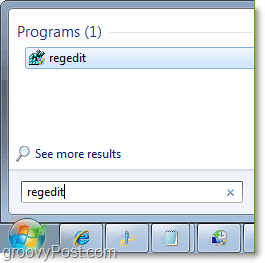
On your Start Menu, Type in regedit and Press Enter or Click the regedit program shortcut.
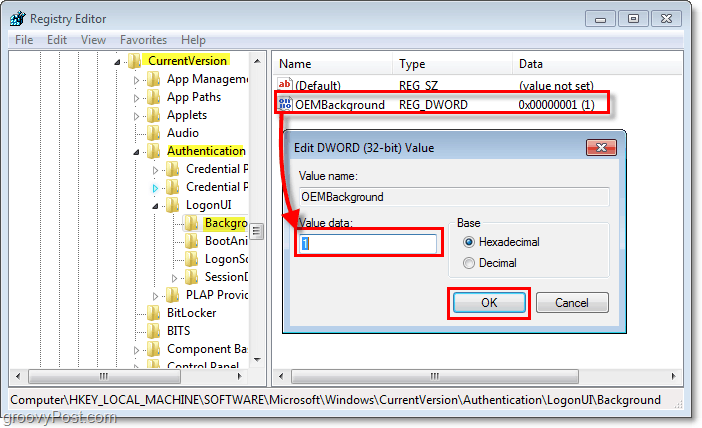
2. Once you are in the registry editor, browse to
HKEY_LOCAL_MACHINE\SOFTWARE\Microsoft\Windows\CurrentVersion\Authentication\LogonUI\Background
Double-Click the key OEMBackground and change the value from 0 to 1.
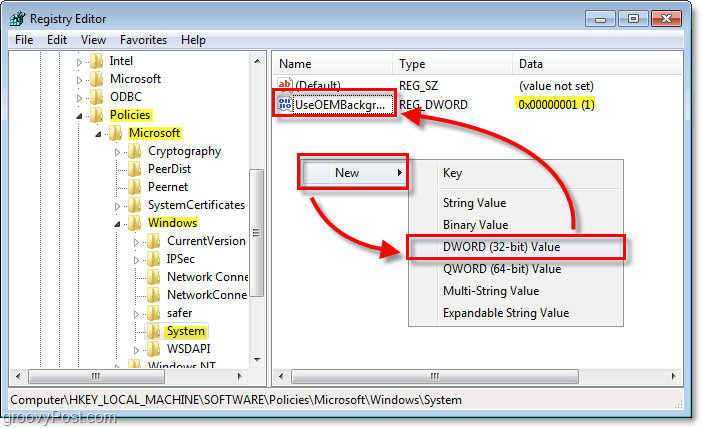
3. Do the same thing for the registry key found at:
HKEY_LOCAL_MACHINE\SOFTWARE\Policies\Microsoft\Windows\System
You may have to create the key. To do so Right-Click Anywhere on the window, and then Click New > DWORD (32-bit) Value. Name the key UseOEMBackground then Double-Click the key like before, and Change the value to 1.
4. Save the image you want to C:\Windows\System32\oobe\info\backgrounds and name it backgroundDefault.jpg
If the location does not exist, read below.
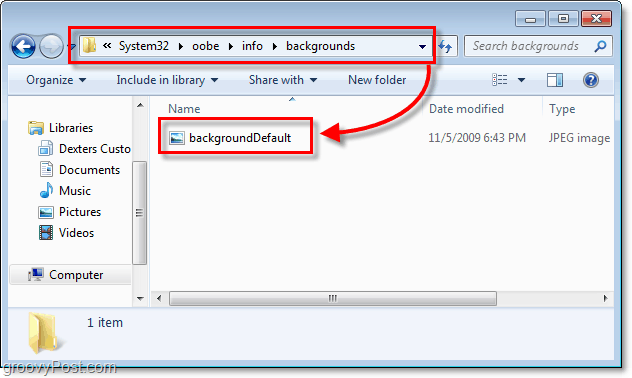
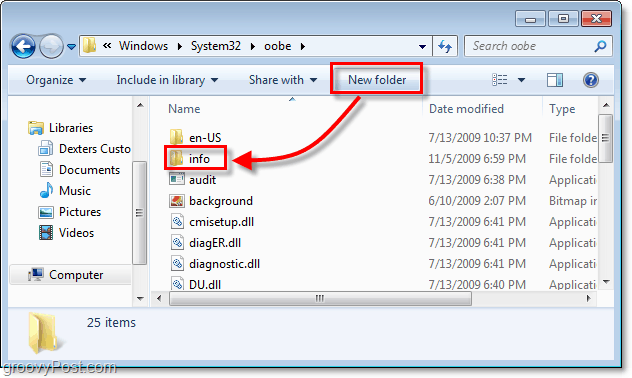
4.b The info and background folders may not exist, and in that case, you will need to create both of them. Just Click the New Folder button, and Name the first one Info and then go into it. Now inside of the info folder, create a new folder again and Name it backgrounds.
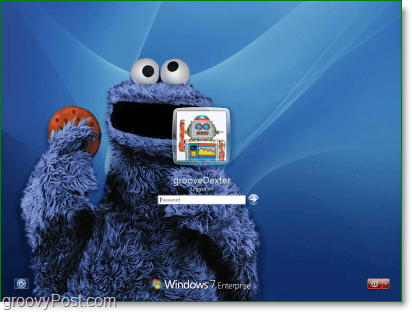
All done!
Now both your login and your Ctrl+Alt+Del menu should have the background you selected. To test it just log out or Press Ctrl+Alt+Del.
Feel free to ask any questions or any feedback you might have below and also on the groovy community board.
111 Comments
Leave a Reply
Leave a Reply







edgar
January 7, 2010 at 1:55 am
just did this..works great! thanks
Matt
July 3, 2011 at 7:50 pm
Just use the win 7 logon background changer, much MUCH easier!
Isaiah Olson
August 20, 2011 at 11:27 pm
Not to steal this spot for advertising, but I wrote a free utility that does all this for you. Anyone can download it at my website http://iwowprogramming.net/software.php
exact same process, but a little quick imho. Thanks!
MrGroove
August 21, 2011 at 8:31 am
No Worries Isaiah – I’ve listed a few in the article and comments. Good to see another added to the list.
guest10111
January 7, 2010 at 6:38 am
I havn't even upgraded to Vista yet lol. I just don't see a reason to. Windows is fucking expensive, all my games work perfect with xp, I can find any app I could ever want with torrents and never worry about incompatibility issues. When Windows starts selling at student prices I might consider upgrading. But for now I still feel ripped off from the last time I bought Windows (over 3 years ago).
MrGroove
January 11, 2010 at 11:08 pm
Good news, Microsoft does offer Windows 7 at a Student discount: https://www.groovypost.com/howto/microsoft/windo…
Granted as of January 3rd 2010, the rose from $30 to $65 but it’s still a good deal.
You can also get a TON of other free Microsoft software through their DreamSpark program.
https://www.groovypost.com/howto/microsoft/high-…
The long list of 100% free for High School Students and College Students. And… it’s legal and malware free unlike the Torrents :)
Jessica Carey
January 7, 2010 at 7:37 am
what about if your computer is widescreen? for example: my res is 1280X800. windows still doesn't recognize it even though it is my native resolution?
robd
January 7, 2010 at 9:34 am
“I can find any app I could ever want with torrents….” theres a reason to upgrade to win 7 right there…
MrGroove
January 7, 2010 at 8:25 pm
Your probably right. That's what I would try out first.
AlexMVP
January 7, 2010 at 7:18 pm
@Jessica,
You should be able to just create a background using 1280×768 or 1280X960 and be just fine. You probably won't even notice the image is not perfect. Should be just fine.
MrGroove
January 11, 2010 at 11:10 pm
Your probably right. That’s what I would try out first.
Erik
January 7, 2010 at 11:27 pm
What about the 16:9 resolutions? I have full HD (1920×1080) on my Windows so will there be pillarboxes on the sides or will Windows stretch lower aspect ratio images (4:3 and 16:10) to 16:9?
MrGroove
January 11, 2010 at 11:11 pm
Try it out Erik and let us know! I’m going to bet on the pillar boxes but will wait to see what you discover!
Harley
July 26, 2011 at 2:37 am
Hey, I just tried out with a 1920×1080 image and it’s fine. Thanks! :)
Erik
January 8, 2010 at 10:53 am
When I try to do this, on step 2, the file isnt there, just the (default) file. Could this have something to do with the fact that I have 64 bit Windows? I saw that you clicked on DWORD (32-bit) Value instead of the 64 one.
MrGroove
January 11, 2010 at 11:07 pm
Hi Erik – Sorry for the late reply.
Step 2 I personally had to create the file myself. groovyDexter mentions that in the Step 2 instructions actually if you take a look at it. Go ahead and Create the registry by RIGHT Clicking in the Tree and clicking New – DWord (32 bit) value etc… as explained in Step 2 above.
And no, the instructions are the same for 32 and 64 bit versions of Windows.
Soldier8451
April 27, 2010 at 10:13 am
also if you want to change the button shadow go here and change the values as followed.
Location in RegEdit
HKEY_LOCAL_MACHINE\Software\Microsoft\Windows\CurrentVersion\Authentication\LogonUI
Create “DWORD Value” called ButtonSet
Values to use
0 = Light Shadow
1 = Dark Shadow
2 = No Shadow
this is for the button shadowing on the logon screen
soda2112
January 8, 2010 at 6:04 pm
I had to log into the hidden Administrator side of W7 64 bit to get this to work. But it did work great! Thanks….
MrGroove
January 11, 2010 at 11:07 pm
Great feedback. Thnx Soda & welcome to groovyPost
Erik
January 9, 2010 at 3:08 pm
Thanks, It finally worked, and the picture was stretched to the 16:9 format. Looks sweet. Only thing i noticed is that unless you have show extensions turned on (so you see the .jpg/.png/.exe after files) you can't name it backgroundDefault.jpg as it doesn't work, backgroundDefault (without the .jpg) works however :)
Thanks
MrGroove
January 15, 2010 at 8:22 am
Ahhh…. Good call Erik. Thanks for the FYI!
Casey
April 13, 2012 at 11:02 am
Thanks so much. I was getting frustrated at why it wasn’t working so I came back to read through the comments for suggestions. That was the problem!
puttzk
January 10, 2010 at 12:20 pm
I like to do things the easy way. Here's a program I found. unpack the zip file click on the exe. file and choose the background ya like and, wa laah. easy as that.
http://www.julien-manici.com/windows_7_logon_background_changer/
MrGroove
January 11, 2010 at 11:22 pm
Agreed – work smart!
Thanks for the FYI on the background changer, will have to update the article calling this out.
RAW-BERRY
March 12, 2010 at 9:33 pm
This is actually a very nice program, and it is quicker to use, more often than not. This program also overrides the resolution and size restrictions which must be considered when changing the logon background via registry editing. Not only that but the program has a few other editable settings not discussed in this particular guide, all in one.
With that being said, I would like to thank grooveDexter and everyone at Groovypost for this guide and the work put into it. I’m just throwing in my 2 cents. Keep up the good work!
MrGroove
March 12, 2010 at 11:57 pm
@Raw-Berry – Thnx
stephen12
January 10, 2010 at 10:17 pm
Great post! haha Anyway I would be able to grab the awesome cookie monster background you have? It's priceless.
Thanks,
Stephen
MrGroove
January 11, 2010 at 11:21 pm
grooveDexter wrote the How-To, I’ll make sure he sends it your way.
grooveDexter
January 12, 2010 at 12:23 am
@Stephen
Hey I’m a big fan of cookie monster too, I created a thread in the groovy community forum here for sharing backgrounds, and yup the Cookie Monster one is on the first post. (Sadly its only 1024 x 768)
Jesse
January 14, 2010 at 11:56 pm
how did you get the cookie monster like that…thats amazing.
grooveDexter
January 16, 2010 at 12:43 am
@Jesse
Thanks! Just follow the steps in the how-to above and you can download the cookie monster background here:
https://www.groovypost.com/forum/windows7/groovy-windows-7-backgrounds-t95929.html
Chris
February 9, 2010 at 2:05 pm
thats for a 32 bit, what about a 64 bit
MrGroove
February 10, 2010 at 9:08 am
@Chris – Actually the How-to steps are identical for both 32bit and 64bit OS’s. No change. I mentioned this up above in the comments. Here’s a link to it: http://is.gd/85W7F/groovypost/
Try it out and let us know if you still have issues.
tapan
March 3, 2010 at 10:36 pm
ya its gud i m bored of that single log screen for more than 6 months….
i tried n ur right it is changed thanks,,
grooveDexter
March 4, 2010 at 12:27 pm
Very happy to hear that this helped out. No more boredom while logging in!
Kurt X22
March 5, 2010 at 10:33 pm
you could do that….
or you could just use this program that does it all for you.
it will even resize you pictures for you if they are not the right size
http://tweaks.com/software/tweakslogon/
its much easier. its what i use.
grooveDexter
March 7, 2010 at 12:12 pm
ew, third party software. You really shouldn’t be installing third party executables for something this simple. More gunk in your system that will just have to be cleaned out later. If you can’t do this by using the registry changes then you shouldn’t be doing this at all.
No thanks! I’ll stick with the article method!
savuth
April 20, 2010 at 4:18 am
i am Can not change Customize Windows 7 Logon Background.
David
April 26, 2010 at 5:29 am
Well seems this doesn’t work for Windows 7 (64), I’m using W7 Ultimate Spanish. i do it all, i create everything with those names and my image is 1280×960 (234kb) but when i delete .jpg from the name the file changes from Type: JPEG Image to Type: File. This is the only detail i see is different from the tutorial. Any help for this?
TMNT-Donatello
April 26, 2010 at 7:53 am
The file has to be a JPEG. Use Paint or make sure file extensions are turned on when trying to convert your file to JPEG format.
Soldier8451
April 27, 2010 at 10:16 am
also if you want to change the button shadow go here and change the values as followed.
Location in RegEdit
HKEY_LOCAL_MACHINE\Software\Microsoft\Windows\CurrentVersion\Authentication\LogonUI
Create “DWORD Value” called ButtonSet
Values to use
0 = Light Shadow
1 = Dark Shadow
2 = No Shadow
this is for the button shadowing on the logon screen
guest1337
April 30, 2010 at 4:52 pm
you could just download WindowsLogonBackgroundChanger, simple program that lets you scroll through any folder, makes it easy to change whenever you feel like it.
silas
May 29, 2010 at 2:09 am
it dosent work when i when im done it just gives me a blue viney background and not the one i put in
Hence Murphy's law
June 18, 2010 at 1:12 am
I cant seem to get it working. I have a Alienware M11x Win7 64-bit. I resized the image. I played with the HKEY’s a bit seeing if I was the value. I have a default image factory installed in the background folder. I took that image out. Left only my image. I CTR+ALT+DEL and its a blue background that’s default for win7. I can’t remove that image due to “Trusted Installer”. Needless to say I’m stumped. Thanks for your help!
Hence Murphy's law
January 11, 2011 at 10:00 pm
Found a program that work’s much better then the step by step. (for me anyway.)
http://download.cnet.com/Windows-7-Logon-Background-Changer/3000-2072_4-11112208.html
GeeTheKing
April 7, 2012 at 6:41 am
I think this way is better then the little apps whats do it instead you. BUT in Win7 64 bit i had a pitty problem too. I had taken the new background image in the signed directory by TotalCommander and its isnt work. Later i tried in windows explorer and i saw that the directories with absolutly same path shows absolutly different files. The c:\Windows\System32\oobe\info\backgrounds\ in Commander totally false! I dont know where this files phisically, but the system cant use these, its sure. So the backgroundDefault.jpg image must be placed another application. And the logon background change will works.
xNiebuhr
July 7, 2010 at 6:03 pm
I did EVERYTHING you said, and nothing happens, i still have the same Windows 7 background.
I did all the things with TrustedInstaller and so, but NOTHING happens. Please reply.
tzakhi
July 10, 2010 at 12:05 pm
thank you – it works – but i have a problem !
sine i followed this instructions , every time i start the pc i get the screen ( before the logon screen ) – ” setting up your desktop for first use ” or somthing like this .
could you Pls tell me how to disable this screen
thank in advance
Deb
August 5, 2010 at 3:22 pm
This is the only set of instructions that I’ve which were clear and concise. Nice work! and they did work :-). Thank you so very much.
Afton
November 4, 2010 at 9:21 am
Works like a charm!! AMAZING tutorial! Thank you SO much! It took away the fear of working in the Registry!! :D
Thank you again!
gus
December 11, 2010 at 8:33 pm
step 3- , “Name the key UseOEMBackground ”
it should be – name the file OEMBackground.
& then it worked for me , thanks (now i have a cool planet earth background)
Andrea
December 30, 2010 at 11:32 am
This didn’t work for me. I am trying to do a Photoshoped imaged that I made myself, I turned it into a JPG and made sure it is under 256KB but it still isn’t working. Or at least when I pres ctl alt del it hasn’t changed. I followed all the steps. Help?
Crystal
January 4, 2011 at 9:26 am
FINALLY! you have explained it so good!!!!! ive tried everything and everywhere!
Stark
January 10, 2011 at 9:35 am
I couldn’t find the key “OEMBackground” so i crate it myself. I couldn’t find UseOEMBackground” key too so i crate it myself too. I couldn’t find info/background folder so i crate them toooo!
It didn’t work at all.
MrGroove
January 10, 2011 at 6:14 pm
So are you working now that you created the keys or are you still stuck?
Stark
January 11, 2011 at 6:59 am
I changed the folder name “background” to “backgrounds”,then it worked well.
MrGroove
January 11, 2011 at 6:11 pm
Yup – that was it. You must have seen in Step 4 and 4B it needs to be backgrounds and not background!
Awesome, glad it worked for ya!
groush
January 12, 2011 at 7:14 pm
when i type “regedit” i get no matches found..
MrGroove
January 13, 2011 at 1:42 am
Try this. Press Windows Key + R then type in regedit.exe
Now did it run?
Hashi
February 16, 2011 at 2:35 pm
The instructions are fine! First off, let me explain what the DWORD and QWORD values are and why they have NOTHING to do with your version of Windows 7 being 32 or 64 bit: the VALUE of the key itself is 32 or 64 bit, which refers to how large the VALUE can be, this does not mean it has to match up with your operating system.
Secondly: aspect ratio and size differences: it stretches to meet the size of your screen. You can see evidence of this in the JPEG artifacts in the default logon background at high resolutions.
And ERIK, your words can level small villages with how alarmingly obtuse they are! If the file extensions are turned OFF, you blustery fool, you would understand, you would REALIZE that they are merely HIDDEN, not completely removed from the file name! the file’s name is still backgroundDefault.jpg. when you attempted to name it with the file extensions turned ON, then you were naming it backgroundDefault.jpg.jpg! I can only imagine that if you were working with an image file of another extension, then perhaps you’d figure (as I did when I was 9 and using a computer for the first time in my life) that simply changing the extension would make it work!
tzakhi, you have worse issues than merely attempting to change your logon background.
For those of you touting the ease of use of the programs that do this: thank you for your part in the fight against computer literacy! Your good deeds hopefully will not go unpunished.
peanutkiller
March 1, 2011 at 10:47 pm
i tried over and over to change my login screen background and it doesn’t work i went through all the steps a dozen times
Hashi
March 2, 2011 at 8:53 am
Clearly, peanutkiller, you’re doing something wrong. The steps involving editing the registry may be where your difficulty lies. If not, then I don’t know what can be done to help you, aside from doing it myself for you.
Stark
March 6, 2011 at 8:53 am
Hey guys-me again.
I’ve just tried this on another laptop,and i couldn’t make it work. I’m very sure i made all steps well… Help me please?
MrGroove
March 6, 2011 at 12:37 pm
Hi Stark,
Messing with the registry can be tricky sometimes if your not super familiar with it. You might want to try this App. a few readers recommended: http://download.cnet.com/Windows-7-Logon-Background-Changer/3000-2072_4-11112208.html
Let us know if that fixes ya up and how easy it was to use.
Stark
March 6, 2011 at 12:40 pm
Ok Mr i solved the problem. The problem was,the image file were bigger than 256kb,so i made it smaller. Thanks a lot anyway.
Karl
March 6, 2011 at 11:23 pm
I did what it listed step by step but it still didnt work…
Hashi
March 7, 2011 at 9:06 am
Actually Karl, the file size limitation is something to consider. Look at the size of the image you’re using. Everything else can be as perfect as pie, but that small oversight will keep it from working. MrGroove’s on it!
Andrew
April 25, 2011 at 2:05 pm
In step 3 I went to make a new: DWORD (32-bit) value and a “Cannot Create Value: Error Writing to the Registry” came up.
?
senselocke
May 9, 2011 at 8:41 am
This seems to have stopped working. I followed this file, sized my pic to 1360×768, made it 250 kB, changed all registry settings, triple-checked the spelling, etc. Checked other sources, watched Youtube vids, etc.
Finally gave up and downloaded “tweakslogon”, which shows the pic I selected just fine–in that program. But it doesn’t show when I actually hit CTRL+ATL+DEL or reset.
Also, my “info” folder is in all caps. Windows 7 64-bit Home Premium edition.
senselocke
May 9, 2011 at 9:04 am
UPDATE:
sevenforums recommends less than 245 kB filesize, not 256 kB as everyone else says. I saved to 240 kB, and it worked fine.
So please update this article: limit is less than 250 kB (most likely the 245 kB).
Crime
May 19, 2011 at 6:14 am
It has Registry Editor but the files are different what to do?????
MrGroove
May 19, 2011 at 8:50 am
If your not familiar with the registry, being that it can cause a lot of issues if you do something wrong (and it can be hard for me to troubleshoot here in the comments), I recommend you try this tool: http://download.cnet.com/Windows-7-Logon-Background-Changer/3000-2072_4-11112208.html
It’s a safe tool with no spyware so I will give it my recommendation.
Let me know if you still need more help.
kan
May 21, 2011 at 12:32 am
you are my SAVIOR!!!!!!!!!!!!!!!!!!!!!!! see what happened, is that i was messing with my computer and some random program and it changed my logon screen to this ugly black thing and wouldn’t let me change it using logon studio. so i followed your steps and the first step fixed it! THANK YOU SO MUCH!
Luis
June 8, 2011 at 11:51 am
It doesn’t work to me, I´ve W7 professional, and there doesn´t appear “\Policies\Microsoft\Windows\System” that is the second part of this work only appear
HKEY_LOCAL_MACHINE\SOFTWARE, and thats all, what is this about?
thanks for your answer!
MrGroove
June 8, 2011 at 1:41 pm
@Luis – Did you try the free App I mentioned? – https://www.groovypost.com/howto/microsoft/change-the-windows-7-logon-background/#comment-235667
Andrew
June 9, 2011 at 1:58 pm
Hey MrGroove;
My log in schreen changed but my desctop beckround did not? Please help. Second question. How can i have two different photos for log in and for backround?
Hashi
June 9, 2011 at 2:51 pm
Andrew, it is stunning that you managed to change the login background, without knowing how to change the desktop background. When logged in and you see the desktop, right click on it [NOT on an icon or anything, just a blank spot] and go to “Personalize”. Toward the bottom, you’ll see a Desktop Background icon. click on it and follow the steps from there. :)
JayPizzle
July 24, 2011 at 9:32 pm
I am having problems with getting it to work. I get to the very end and my photo just doesn’t show up. Can anybody help me?
yash
August 14, 2011 at 5:07 am
can you tell me…that…where can i picture paste it?
yash
August 14, 2011 at 5:14 am
tell me where i paste the picture for change window logo
andrew
August 18, 2011 at 7:42 am
Well great. I did everything as posted and it didn’t work. Didn’t change a thing. Whats worse I tried rebooting the computer and now it woulnt even turn on. Nothing. I get the power light and the hard drive spins that’s all. Anyone able to help with that?
David
August 19, 2011 at 3:01 pm
Works fine on Windows 7 Starter (HP Mini).
Anyone know how to change the desktop image in Windows 7 Starter?
fajas colombianas
August 31, 2011 at 6:54 am
Where do I paste the picture, I cant seem to get it to work.
ASHIMI ISAIAH
October 28, 2011 at 7:40 am
Thanks it worked
Jithin Jose
November 2, 2011 at 3:28 am
here is a nice simple tool for windows 7 management lot more options
changing aero color automatically with wallpaper is the most interesting one
http://www.jtechsoftwares.in/pc-boost.html
SAHIL
February 21, 2012 at 12:13 am
hai
i have gone to the steps and upto the OBMGROUND and double click and i have pressed the window i see new option and then in it a click and after that process i am in confusion then what the next after give a value in obm again we have to come from the first cHKEY/SOFTWARE/MICROSOFT/WINDOWS/SYSTEM and if so then what after that how can i get the dialogue box like system32>oobe>info>background . please tell any one who has done send the process to my email id hammad_sahil2002@yahoo.com
Steve Krause
February 21, 2012 at 10:38 am
Try the free app I listed Hammad. It’s easier and safer than the registry hack.
Smileysyndrome
March 7, 2012 at 3:11 pm
totally awesome! thnx i cant wait to tell my friends about this (:
Miguelitoo
March 16, 2012 at 11:10 pm
Nice. Always wanted to do this! :D thanks
Radhakrishna
March 29, 2012 at 2:23 am
It helped. Thanks.
keyz
July 10, 2012 at 10:54 pm
Hi,
Does this work in Windows 7 64?
I’ve edited with regedit.exe the 2 registry keys Background and UseOEMBackground
created the 2 nested folders one named “backgrounds” into an other one named “info” into the oobe folder backgroundDefault.jpg.
With no success!
keyz
July 11, 2012 at 6:59 pm
W7 premium home edition, I read the posts above please send a feedback
Steve Krause
July 11, 2012 at 11:37 pm
Yes. The process should work just fine for your install. Check all the comments here and you also might try the background changing app I mentioned earlier.
Sent from my Mobile
Domz
July 12, 2012 at 2:44 am
this didn’t work. but thanks for the application u had given. It helped a lot… now i have a new logon background. Thanks man
Lev Villanueva
July 30, 2012 at 11:43 pm
100% Worked. Just followed the instructions. Some people need go back to their freshman year of high school. Bad school systems are to blame.
Brian
September 21, 2012 at 9:19 pm
I’m a freshman -_- This stuff isn’t hard.
Leo
August 15, 2012 at 8:34 am
this worked for me by following the above instructions..
I have a question, How can you use a live link from the Internet to be your default, either screen saver or the log on screnn when you press the control + Alt + delete?
Example “WWW.MSN.COM
Thanks in Advance..
Diffs
September 3, 2012 at 7:52 am
Should I download the app, cause I tried with registry editor, and OEMBackground is not there when I searched it.
Steve Krause
September 3, 2012 at 11:17 pm
Yeah…. just grab the app and go that direction. Probably easier and less of a chance to screw up the registry as well. ;)
Zhane
September 9, 2012 at 7:56 pm
it work, cool without app. thanks how you do you know that.
bob
October 8, 2012 at 3:57 pm
it wont let me make the info/background folder in oobe :(
R V
November 12, 2012 at 5:58 am
the background changes to basic windows 7 background (blue)…….how do i correct this?
Blessed
March 14, 2013 at 10:30 pm
I got all the way through the process of copying the picture from my library, but when I right clicked on the background-default picture it would not give me the option to paste my new pic. .
Any suggestions ?
Thanks in advance.
Josh
March 20, 2013 at 11:47 am
Great!, it worked… Do you also offer tutorials?
Alfonso
April 13, 2013 at 2:22 pm
Hey, so I’ve performed the steps already and works like a charm! But I’ve noticed every time you change the theme in Windows, the key for OEMBACKGROUND automatically changes to zero. You’d have to basically re-enable your background every time you change the theme in Windows. I am using Windows 7 Professional.
dynamichael
January 5, 2015 at 11:52 pm
The tip about excluding the ‘.jpg’ from the file name only applies if you are using the default Windows setting of hiding file extensions. If they are hidden, then naming the file ‘backgroundDefault.jpg’ will actually be naming it ‘backgroundDefault.jpg.jpg’, which Windows isn’t looking for.
Alun
January 20, 2015 at 5:44 pm
Thank you! That was my issue.
semi_exped
April 9, 2015 at 10:30 am
I’ve done this several times on different machines. Now I’m in a different environment and I was wondering if there is a way to change something in the registry to get the background from a network location opposed the the standard folder. I would like to pull the image from a shared drive for our team. Any idea if that’s possible? Could I somehow write a script to remotely achieve this or would it have to be done per computer?
William
May 25, 2015 at 7:57 pm
I used these great instructions a couple of years ago without a hitch, except the image I used for the new default Logon background ended up “‘stretched.” I now am in the midst of setting a number of workstations in a new office, and am back to the process again. It is easy to make a mistake in the instructions (e.g. creating a directory in the wrong place, but everytime something did not work, I just went back and retraced the steps and was able to solve the problem. I solved most of the image stretching problem by artificially “scrunching” the image together in Photoshop.
However, now I have a new problem–the image I chose for the new default Logon has white (actually sort of ivory) right in the middle so the words “Hit CTRL-ALT-DEL to Logon” are very hard to read. Is there a way to change the font for that text so it can be readable?
Thanks again for the great instructions.
peter
August 13, 2015 at 9:14 pm
I utilized such a software I mean win7 logoback ground changer 1-5-2; however, I can’t chosse my pix
so I change the name of the pictures as u mentioned above but It’s not worked sitll.
It’s not the only way I pass, other passes are regidit which u mentioned above and do it again it dosen’t work and I change the size of the file less than 256 kb ,again it dosen’t work.
B. Chatterjee
March 13, 2016 at 10:05 am
Hello! I tried the process but unfortunately the changed background is not coming up in my case. I have checked the reg keys and values along with the new folders created and even the image file size. All are as per your instruction, but there is no result. What could prevent it? Antivirus? I am getting no clue on this. I do not want to use softwares to change the Windows 7 Home Basic, 32Bit OS with softwares. Please explain.
Thanks,