How to Import Multiple Contacts into Gmail from Outlook, Mail or Thunderbird


Moving from Outlook, Mail or Thunderbird to Gmail can be a real chore. But here we’ll show the easy way to import your contacts into a new client.
 Moving from Outlook, Mail or Thunderbird to Gmail can be a real chore. If you have all of your contacts saved into a single vCard or VCF file exported from Outlook or Mail or whatever email client you were using before, then importing contacts into Gmail is significantly easier. But if you made the unfortunate mistake of exporting each of your contacts as its own .vcf file, then it’s going to be a major pain to import each vCard individually.
Luckily, you don’t have to. This groovy How-to will show you the fastest and easiest ways to get vCards, VCF files and exported email contacts into Gmail.
Update 10/16/2012: Gmail has changed its look and feel since we first wrote this tutorial. We’ve updated it with new screenshots and details pertinent to the new Gmail.
Importing vCards into Gmail
Importing contacts into Gmail couldn’t be easier if you have an exported vCard or CSV file.
Step 1
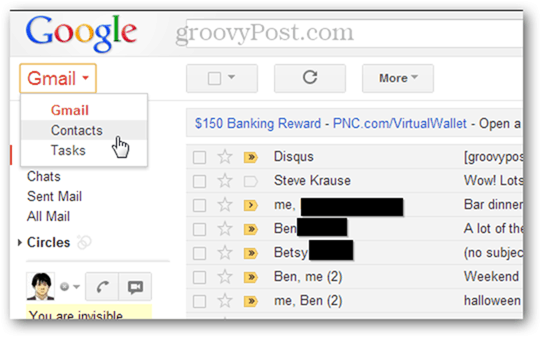
Click Contacts. If you are using the Compact display density in Gmail like me, the Contacts link is hiding in a drop-down menu that appears when you click Gmail in the top-left.
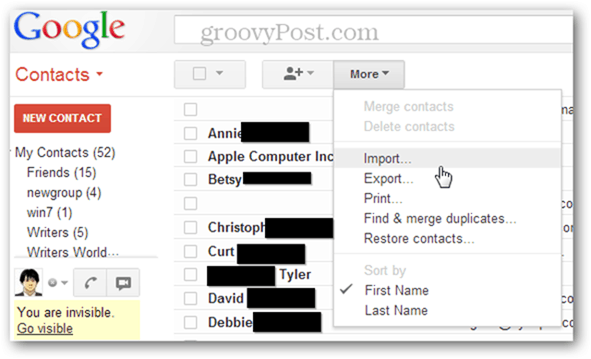
Click More and choose Import…
Step 3
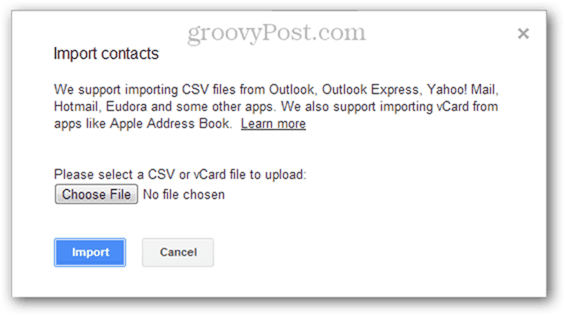
Click Choose File and browse to the VCF or CSV file that you exported from another email program.
Step 4d
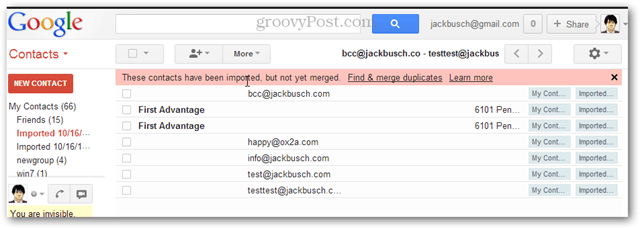
Choose a group to add the contacts to (optional) and Click Import. Done! Your new contacts will automatically be added to the group called Imported MM/DD/YYYY. Click the new group on the left to confirm the contacts have been imported and sort them into more meaningful groups.
Note: If you’re having trouble with VCF files, try exporting as a CSV instead. This often solves the error message: “Sorry, we could not recognize the file format.”
Combining Multiple VCF or CSV Files for Importing
Unfortunately, there isn’t any batch import for VCF and CSV contacts in Gmail. A workaround for this is to take all your vCard or exported contact files and combine them into a single file and then upload that one master file.
Step 1
Launch a command prompt by Clicking the Start button and typing Cmd and pressing Enter.
Step 2
Go to the directory where your exported contacts are located.
Step 3
Type:
COPY *.csv combinedfile.csv
and Press Enter. Or, if you’re combining .vcf files, type
COPY *.vcf combinedfile.vcf
and Press Enter. 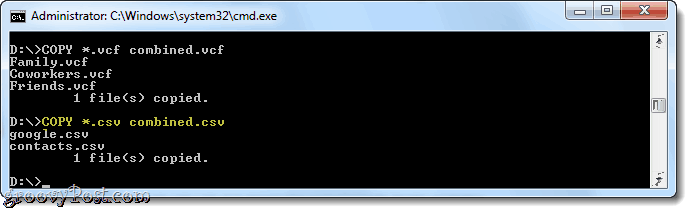
Step 4
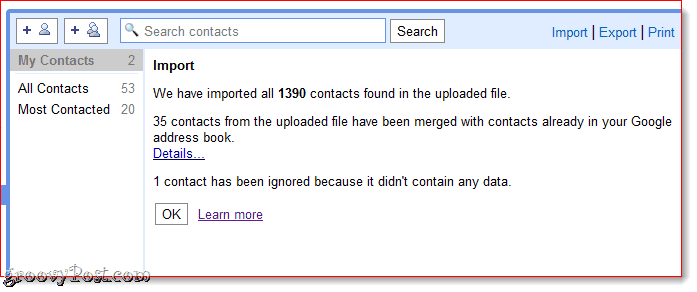
Upload the newly created CSV or VCF file using the steps above.
Combining Exported Contacts in OS X
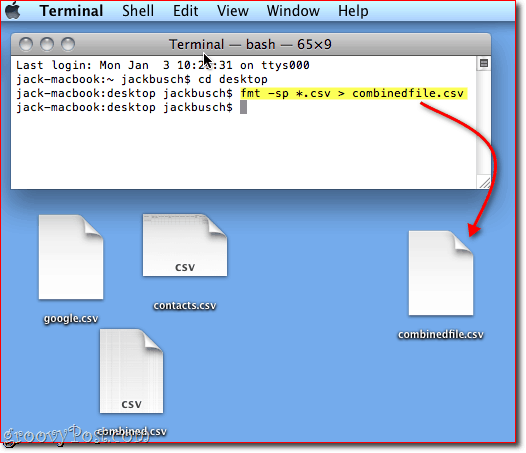
To perform this same task in OS X, launch Terminal, go to the directory that has your exported contacts and type:
fmt -sp *.vcf > combinedfile.vcf
…or
fmt -sp *.csv > combinedfile.csv
And that’s all. Congratulations, you just saved yourself an afternoon’s worth of menial data entry.
76 Comments
Leave a Reply
Leave a Reply







Sandra Eader
March 1, 2011 at 8:02 am
Your site looks great! Love the blog..
Mathew
April 9, 2011 at 12:38 am
Worked like a charm…. was struggling with this problem for some time now , you workaround was so simple and nice , keep up the good work … and thanks a ton !!!
barbara
June 14, 2011 at 2:22 pm
thank you. you were the only site that really explained how to do it. I just have one problem. I can’t find the new file that was created. can you help?
groovinJackman
June 14, 2011 at 5:34 pm
@barbara are you using the OS X or Windows steps? Either way, the file should be in the same folder as the originals. Can you tell me what you’re typing in step 3?
barbara
June 15, 2011 at 6:02 am
I am using windows. I found the file but can’t import it to Gmail. When I check the file, the size is 0 kg.
groovinJackman
June 16, 2011 at 7:29 am
hmmm — can you confirm that you are in the correct folder when you’re at the cmd prompt? If you run the command in step 3 and there are no .csv’s in the directory, this might turn up a 0 KB file.
Rod
October 19, 2011 at 9:22 pm
Worked like a charm. You’re a champion. Thanks
Beppe
November 11, 2011 at 1:10 pm
Thank you very very much!!!
bsp131
November 11, 2011 at 2:58 pm
thanks so much. I have been struggling with this for a while and you were the first person who explained how to do it in a way that I understood. I transferred all of my files. Now I just have to find a way to consolidate the duplicates without losing data. If you know an easy way, I would appreciate hearing it.
JP
November 12, 2011 at 2:08 pm
I have not used DOS in years. I would not have thought it could be so simple ! After searching and searching I found your page and five minutes later my problem was solved.
To the poster above having trouble with duplicates; I had the same issue and found an add-on for Thunderbird.
I needed to clean up my contacts from an Iphone and exporting them to both Gmail and windows7 pathetic wab.exe did not help with the mess. Opening in Excel was an exercise in futility for me.
I hoped that importing in to Thunderbird might work and with Duplicate Contact Manager 0.8.1 as an add-on(It’s free) it was somewhat possible.
It is pretty clunky and featureless (does not merge and has issues with lists over one thousand) but with my 1800 entries it seemed to manage fairly well.
Thanks so much to Jack for his command line solution.
barbara
January 10, 2012 at 4:23 pm
I just used your method to import a group of contacts to gmail again. the first part worked great but when I imported the contacts, gmail took forever and then froze. I had to restart and do it all over. It is now taking over 20 minutes and still not finished. What is it with gmail that they cannot have a site that is more user frienly.
barbara
January 11, 2012 at 8:56 am
I tried to import again today after my unsuccessful attempt yesterday. I stupidly deleted the combinedfile and when I reentered the command, it stated that it could not find file. Please help.
Goyzera
March 19, 2012 at 11:43 am
Nice TIP, Thanks!
Aman
March 31, 2012 at 1:53 pm
gr8 work dude… saved a lot of my time…
Tapan
April 2, 2012 at 8:51 am
Worked like a charm! You saved me lot of time.
Thanks a ton!
Emilie
April 5, 2012 at 3:05 pm
THANK YOU!!!!!!!!!!!!!! You literally saved my life! After importing 500 seperate vcard files into my gmail, with 500 more to go I was desperate. You have no idea how much I owe you for this! THANK YOU!
Cassiel
April 6, 2012 at 2:05 am
Muchas gracias/Thanks
Alik
April 11, 2012 at 4:31 pm
Many thanks, it’s really helped me. THANKS!!!!!!!
Steve Krause
April 12, 2012 at 7:13 am
Awesome! You are very welcome. That you for the feedback!
Dirk
April 14, 2012 at 5:40 am
Wow, I was about to import 120 contacts one by one and already thinking about typing the all again until I found your post. Great, thanks!
Demetri
April 20, 2012 at 12:03 am
Didnt work for me. Everything works fine till the part where the combined file is created. But when i upload that combined file to my gmail nothing gets uploaded. Any help appreciated
JP
April 20, 2012 at 12:10 am
You said “upload” to your gmail.
How exactly are you doing that ?
Perhaps it’s just your wording but “importing” as described at the top of the page is the way to do it.
Does that make sense ?
manny
April 26, 2012 at 12:44 am
thanks. your tips helped me alot . you saved me time and money . :)
sandy
May 28, 2012 at 5:40 am
reallly excellent for me it has helped so munch for me……….
very very thanks……….
haseeb
June 2, 2012 at 1:50 pm
thank u very much…a big problem is now solved !!!!!!
bsp131
June 2, 2012 at 2:43 pm
I have successfully done this before. however, when I just tried it, I kept on getting the message that the files could not be found.
I save all my contacts in a folder named contacts in my C drive.
I cut and pasted the command that you gave and got the message. Please help.
Math T
June 9, 2012 at 3:07 am
Thank you very much, I needed to combine 571 .vcf files into one and your instructions worked without any faults or need to install anything. Now I can get my Google Nexus filled with all my previous Nokia Contacts. Thanks!
rdkaush
June 16, 2012 at 5:42 am
hw do i perfom “Step 2
Go to the directory where your exported contacts are located.”
pls explain i am new to dos
dunbull
July 3, 2012 at 7:22 pm
once you open the cmd function, For instance, mine shows C:UsersJames
then enter CD vcard
Here, I have saved the vcard folder inside the James folder.
Hope this helps
Adri
December 17, 2012 at 4:47 pm
This is where I am confused as well…Do I enter CD vcard or am I supposed to enter where I have my information saved…? Thanks!
Musab
June 17, 2012 at 4:10 pm
You are a darling. Thank you very much. I have been searching for hours now before I came across this posting. It solved 80% of my problems. I have to say that I wouldn’t have bought Lumia 800 if I know how much I have to struggle to get my contacts on it.
Thank you once again.
JuPu
July 3, 2012 at 9:59 am
very very very thanks :)
bhagwant
July 6, 2012 at 8:43 am
cannot see the combined vcf file. OS is win xp sp3. please help
Shu Vo
July 10, 2012 at 4:36 am
i combined all… but cannot import into gmail!!! :-S can u brief a little more!!!
W Earb
July 14, 2012 at 8:07 am
Great time saving suggestion. Thank you.
Steve Krause
July 14, 2012 at 2:31 pm
Awesome! Glad we could help. Welcome to gP.
Bethany
August 3, 2012 at 4:07 am
What I am trying to achieve is to add multiple vCard files to my Outlook 2010. Has anyone ever done this? Outlook will not let me import but the first vCard in the list when I attempt to import them all.
AmandoP
August 14, 2012 at 2:33 am
I remember using Copytrans Contacts for that.
Bethany
August 15, 2012 at 3:15 am
That did the trick. Thank you!
Bethany
August 15, 2012 at 3:15 am
That did the trick. Thank you!
Georges
August 17, 2012 at 9:20 pm
Oh my god, thanks man. Simple. Effective. And fast. :)
Steve Krause
August 17, 2012 at 10:29 pm
You’re very welcome! Welcome to the site George
Kris
August 24, 2012 at 1:40 am
Wow! What a great step-by-step manual…
You really made my day! :)
Kris
August 24, 2012 at 1:40 am
Thank you ever so much, by the way! :)
Kriishna Prasadd
August 26, 2012 at 9:51 am
Thanks Jack, you have just used common sense. It really worked out for me. Thanks a ton
johnz
September 4, 2012 at 11:43 am
Great idea! I was able to combine my vcards into one file, and I checked that it is big. When I import into gmail, I can find it and select it just fine. After clicking ‘Import’ it immediately goes back to the normal contact manager screen and doesn’t show any contacts at all. If I follow the same process with and individual file, it works fine. Any thoughts?
Jack Busch
September 7, 2012 at 10:35 am
hmm unfortunately i’m not sure what’s going amiss here.
i’ll try recreating your problem when i get a chance
or you could send me a combined vcard you’ve created and i can take a look at it (obviously don’t send me the ones with all your real contacts in it — i don’t want em! :-))
Saverio Castilletti
October 16, 2012 at 2:16 pm
I have the same problem, have you got a solution? I have 1300 vcf files and I tried also to split them. I am on a mac but the CSV file looks fine…
tks
Jack Busch
October 16, 2012 at 5:31 pm
I wasn’t able to recreate the problem with my contacts. Could you maybe send me your combined vcf file so I can examine it? jack@groovypost.com
What are you exporting from? Outlook?
Mike McKenna
September 16, 2012 at 8:58 am
Great advice, thanks for saving me so much time.
M@rino
October 9, 2012 at 8:10 pm
Just did it!
Thnx!
Ankit
October 13, 2012 at 9:37 am
Thanks a lot!
I just moved from Symbian to Android. Both symbian and Android can handle multiple numbers or email in the same contact (differently though), but there isn’t any easy way to move from symbian to android without loosing anything (at least they make us believe that). I had wasted several of my weekends exporting and cleaning up my google account, but the same problem kept coming up.
What finally worked for me?
1) From Nokia phone, select all contacts and copy to external memory as .vcf. The send via BT option is not present on my phone.
2) The .vcf files are copied to e:/others/contacts
3) Copied the contacts folder to my desktop (pc suite or usb mode)
4) Joined the .vcf files as suggested by you.
5) Imported in gmail contacts.
6) find and merge duplicates from gmail contacts.
7) Done!!
Maybe there will be some duplicate information still in the contacts, but my concern is not to loose anything. I will eventually clean up as and when I notice.
Any intermediate software or tools between Nokia-Google is hurting. I opened a vcf (exported directly from my phone) which I knew had multiple mobile nos. in notepad. I could see all the details, which none of the Windows Contacts application, Thunderbird or Outlook could display (only 1 mobile phone no popped in all of them).
But the direct export of the vcf to google worked. I would not have even tried for the 500+ vcf files I had, if I had to import individually :)
Thanks again!!
ellie wong
November 13, 2012 at 12:04 pm
thanks a lot coz i was nokia user and now andriod!
shameem ap
October 14, 2012 at 7:56 am
thanks a lot
Muchiri
October 20, 2012 at 12:56 pm
Whaaaaah! This worked like a charm! Thank you very much!
I struggled a whole day to get my contacts from symbian to android. Almost bought funny software for 50 dollars.
Many thanks!
Muchiri
Nairobi, Kenya
Sentil
January 17, 2013 at 6:21 am
Many Thanks. Combining vard files using DOS was very cool. It saved me time and money. I did it for my contacts in samsung mobile into iPhone. Again Thanks a Lot!!!
Sentil
January 17, 2013 at 6:21 am
Many Thanks. Combining vard files using DOS was very cool. It saved me time and money. I did it for my contacts in samsung mobile into iPhone. Again Thanks a Lot!!!
freelancer
February 21, 2013 at 12:01 pm
Thanx man…it solved my problem
Andy
February 26, 2013 at 2:13 pm
How To Import Multiple Contacts To Gmail From Vcards (alternative method)
I used this method to import all my contacts from 123-reg to Gmail.
1. Open the contacts you wish to export, select (in batches if you have hundreds) your contacts and send as Vcard to your email address.
2. Save these zipped files to your computer, then unpack them to a folder on your desktop, name this folder ‘contacts’
3. Next, open up Notepad and type:
Copy *.vcf mycontacts.vcf
Name this file ‘copy’ and save it as a .bat file
4. Drag the .bat file into the ‘contacts’ folder that you created on your desktop.
5. Open the ‘contacts’ folder, locate the windows batch file called ‘copy’ and double click it.
This will batch all your contacts together in one file which is named ‘mycontacts’.
6. Open your Gmail account and go to Contacts-More-Import then upload the file ‘mycontacts’ from the folder you created on your desktop.
7. That’s it, have a brew and pat yourself on the back.
Andy
February 27, 2013 at 8:01 am
https://www.youtube.com/watch?v=XCx92MnjY8w
Shaz
February 26, 2013 at 2:38 pm
Hi, I just tried this and it seemed to work fine…but not all of the information populated the correct fields? the e-mail address and addresses of some appeared in a box to the right instead of in the fields on the left?? Please help….Thanks…
Andy
February 28, 2013 at 10:54 am
Hi Shaz, Not sure if you’re responding to my method or the previous one.
The only problem I faced with my contacts not appearing correctly in Gmail, was that some of the email address’ that I’d imported didn’t have names associated with them.
Just click on that email address and you’ll be taken to a page where you can edit that contacts details, click on add name, type in the name and you’re done, both columns should now be populated in ‘contacts’.
Hope this is what you were on about.
siva
May 21, 2013 at 9:33 am
thanx a million, u are grt
Prabhat
June 16, 2013 at 2:28 pm
You are the man!!
phandrade
June 25, 2013 at 7:43 am
thanks, this article helped me a lot!
Mike
July 20, 2013 at 1:11 pm
DOES NOT WORK WITH WINDOWS 7
Dave C
September 1, 2013 at 6:40 am
I owe you a beer! The .csv was inserting emails into the wrong spot, so I exported .vcf from WinLiveMail. It spit out individual cards though.
This little trick is brilliant.
Thanks
Andrea
November 18, 2013 at 4:44 am
Thanks a lot..! it worked perfect even with *.vcf contacts..
Greetings!!!
mubashir
May 13, 2014 at 11:29 pm
awsome man really worked so simply :) thanks :)
Arif
April 6, 2015 at 7:21 am
it works very well just put a space after “COPY”
Salman Zaidi
June 3, 2015 at 3:07 am
Wonderful!!! :)
L
October 8, 2015 at 9:09 am
OMG Thank you.
Rajiv Sen
September 14, 2016 at 3:28 am
A simple DOS command. You proved that simplicity is indeed ultimate sophistication!
nipun
October 22, 2017 at 9:05 am
thank you . it worked fine
Gary Powers
August 24, 2019 at 9:14 am
Thanks for the tips. The fmt command didn’t work for me (on MacOS) but simple concatenation did (of the form: cat *.vcf > combined.vcf). The resulting file uploaded painlessly into gmail.
Nashville Jam
October 8, 2019 at 9:59 pm
Thanks. Worked like a charm.