How to Use Selective Sync for Dropbox

You don’t have to sync everything in your Dropbox account to all your computers. Here’s how to use the Selective Sync feature to manage synced data on your PC.
If you are using Dropbox at work and home, there is a good chance you don’t want to download content from all folders. Some of your Dropbox folders could contain personal data or items that inappropriate for your particular workplace. Or maybe you don’t want large media files syncing to a computer with low storage space. Whatever the reason, here’s how to manage the Selective Sync feature on your PC.
Enable Dropbox Selective Sync
To avoid problems that can arise from this, you can use Dropbox Selective Sync. It will keep your data backed up in the Dropbox cloud but prevents a particular computer from downloading the files you choose.
What is Dropbox Selective Sync?
By default, Dropbox is set to sync all of your folders. You can change this using the “Selective Sync” feature. Selective Sync does exactly what it sounds like. It lets you select which folders from your Dropbox cloud storage you would like to download to a computer synced to your Dropbox account.
As said, this can come in handy for work, but it could also be useful for numerous other situations — such as school. Or, perhaps you have a Dropbox folder with 10 GB of data in it. And you don’t need to sync that; you can turn off the one overstuffed folder.
Set Up Selective Sync in Dropbox
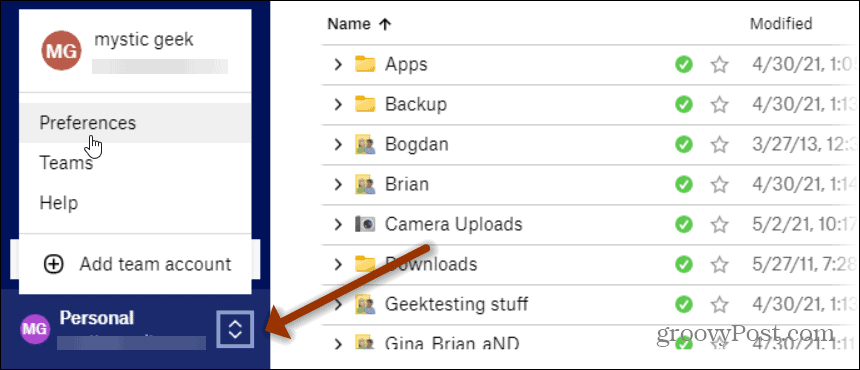
To get started, launch Dropbox on your computer. Click your profile on the bottom-left corner and click Preferences from the menu.
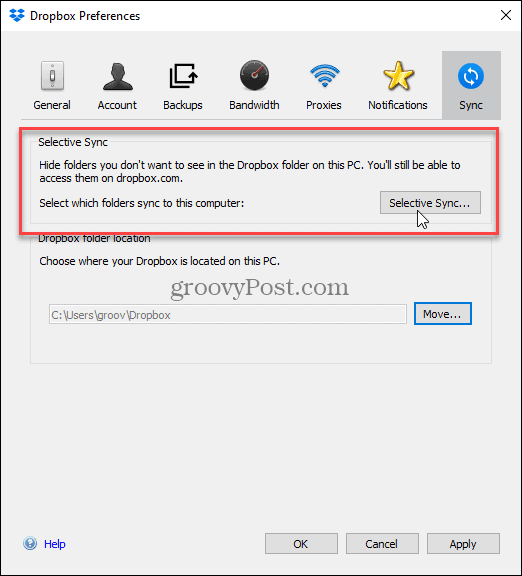
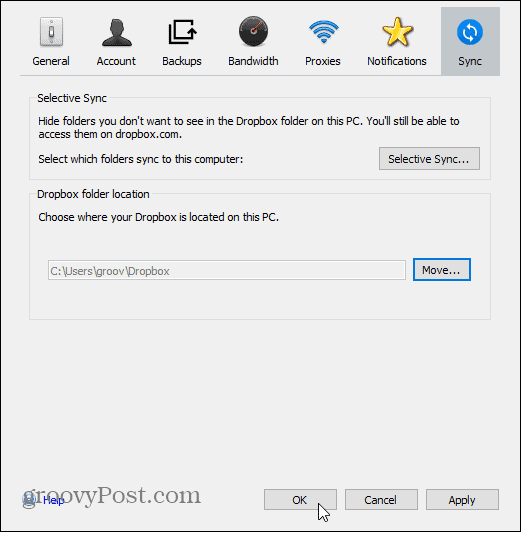
On the following “Dropbox Preferences” screen, click on the Sync button at the top. Then under the main buttons, click on the Selective Sync button in the “Selective Sync” section. This is where you can hide folders you don’t want to see in the Dropbox folder on your PC.
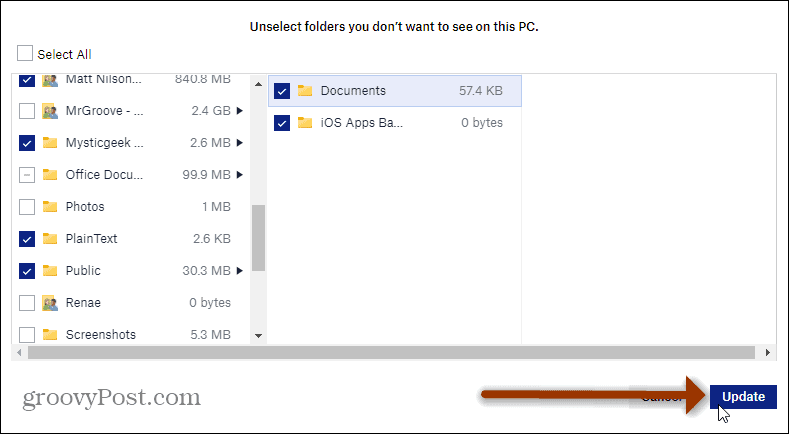
Now go through all of your Dropbox folders and uncheck the folders you don’t want to sync to this PC. Any folder left unchecked will remain in the Dropbox cloud and won’t download to the computer. If a folder is already synced, un-checking, it will delete it locally from your computer, but it will persist online in your Dropbox account.

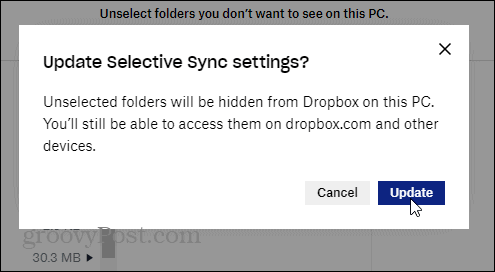
When you are finished unchecking folders, click the Update button in the lower-right corner of the app.
Then confirm you want to make the changes by clicking the Update button again to the verification message.
Next, you’ll be brought back to the “Dropbox Preferences” window. Click the OK button to close out of it.
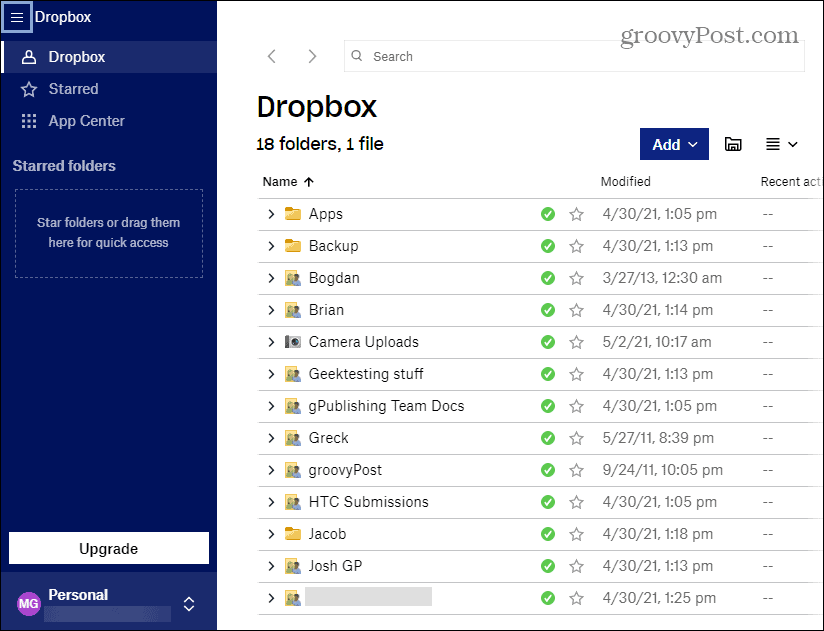
That’s all there is to it. You’ll then see the changes to the folders you selected or unselected syncing in the Dropbox app.
Now you have Dropbox’s Selective Sync feature set up on your computer. You can go back in and tweak this whenever you want to change folders that sync to your PC. Note that you’ll want to manage Selective Sync on all computers you have Dropbox running on.
More on Dropbox
And for more on Dropbox, check out these 10 tips and tricks for the service. Also, you can add Dropbox to the ‘SendTo’ context menu and secure your stored data by enabling 2FA.
8 Comments
Leave a Reply
Leave a Reply







Sandra
February 8, 2012 at 9:25 pm
That’s it folks… MacLitigator all outta ivtines. If anyone else wants an invite it’ll need to come from a prior commenter.
Nisse
March 14, 2012 at 11:42 pm
Thanks for the info,
So my understanding is that you can prevent remote files from synching down to your local computer. What about the opposite direction? What if I add local files that I don’t want to sync up with the server? Do you know if that’s possible?
capaxdoli
July 19, 2012 at 1:20 am
just wanted to say thanks…been looking for this precise info for the past half hour :)
oceandigital
October 31, 2012 at 12:51 pm
What happens when the folder you unceck has files that are not syncronized with the cloud?
Steve Krause
October 31, 2012 at 1:52 pm
They will be removed from that computer ASAP. They will not however be removed from the cloud or other pc’s or devices.
Katie
November 27, 2013 at 12:56 am
As suggested to me, I selective synced a folder that holds my big files so it would free up disk space. Nobody told me that un-synced files would be deleted off my computer! A lot of files in that folder were not synced to Dropbox, and these are design files that are my livelihood…are they SERIOUSLY gone FOREVER?
Steve Krause
November 27, 2013 at 10:46 am
Hi Katie,
First — welcome to groovypost! Glad to have you on my blog.
Second, no they are not gone. When you “unsync” them from your PC they are simply not copied to your computer any longer. They are still however still up in your dropbox account. So you have two options. First, you can go up to Dropbox.com and just download them there (after you login) or, you can just open selective SYNC again and sync them back down again. Both options should get your files back.
Additionally, on the Dropbox.com website, you can access deleted files so even if you did delete them, all is not lost.
Hopefully this helps you? Let me know.
-Steve
Katie
November 27, 2013 at 3:29 pm
Well the issue is that it deleted files that hadn’t synced to Dropbox yet along with the ones that were. It deleted files solely on my hard drive.