Find All Apps Installed on Windows 8 (Updated for 8.1)

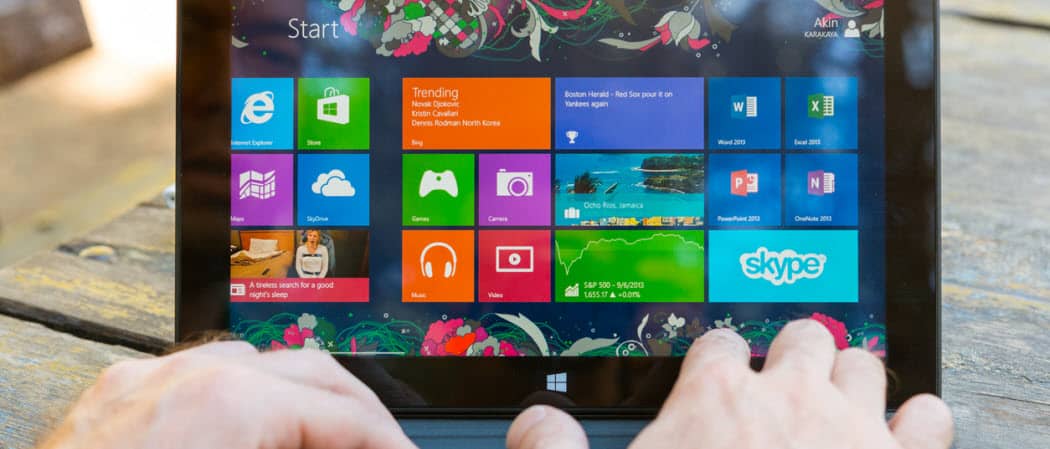
Since Microsoft has done away with the Start menu in Windows 8, finding all of the apps you have installed is a new process. Here’s how to do it on a computer or Windows 8 tablet.
Update: 5/18/2021: Windows 8.1 no longer has mainstream support. If you haven’t already, upgrade to Windows 10. According to Microsoft:
Windows 8.1 reached the end of Mainstream Support on January 9, 2018, and will reach end of Extended Support on January 10, 2023. With the general availability of Windows 8.1, customers on Windows 8 had until January 12, 2016, to move to Windows 8.1 to remain supported.
Find Installed Apps on Windows 8.1
Note that this article has been updated to show how to find all installed apps on Windows 8.1, which is a much easier process.
While the instruction for Windows 8 is still the same, since Microsoft update the OS to Windows 8.1, finding all of your apps has become much easier.
From the Modern Start screen, simply click the down arrow button, or if you’re on a touch screen, swipe from the bottom up.
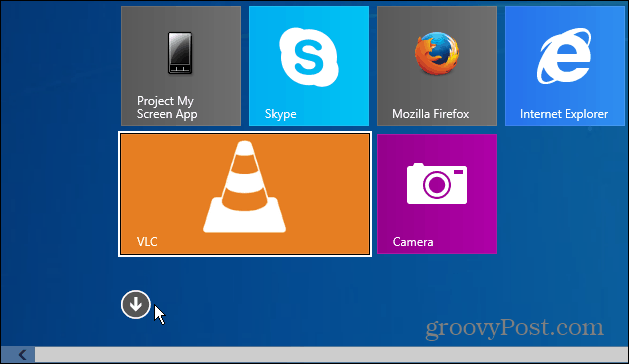
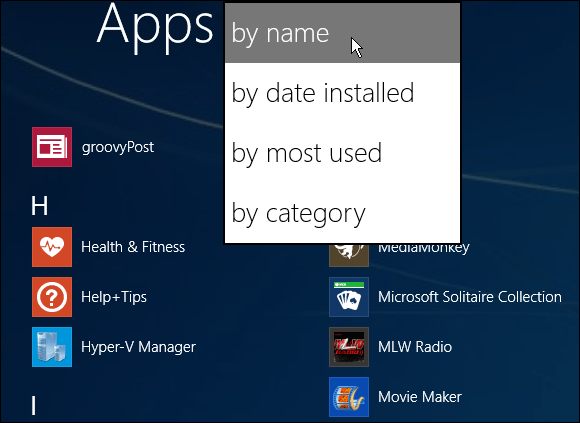
There you will get your apps list. And another new feature is you can organize the apps by name, category, most used, or date installed.
If you want an easy way to find all apps installed on Windows 8 computers, hit the Windows Key + Q in from either the desktop or the new (metro) interface. This brings up the Search box and will display all of the apps. The benefit of this is you can easily start searching for a particular app too.
Find All Apps Installed in Windows 8
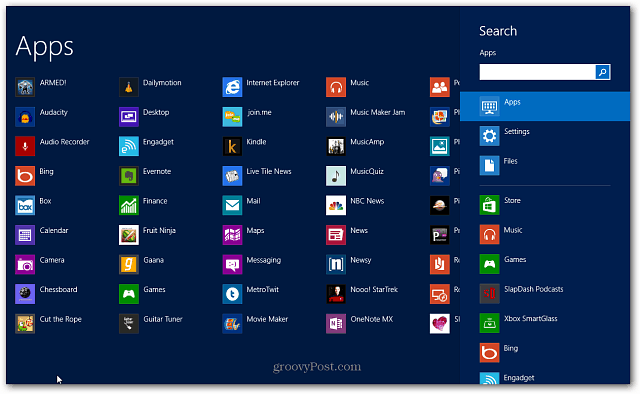
Or on the Start screen, right-click an empty area then click All Apps at the bottom. If you’re using a touch screen, swipe from the bottom up to see All Apps and tap it.
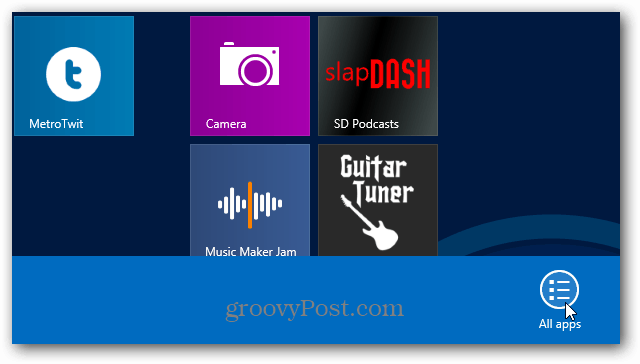
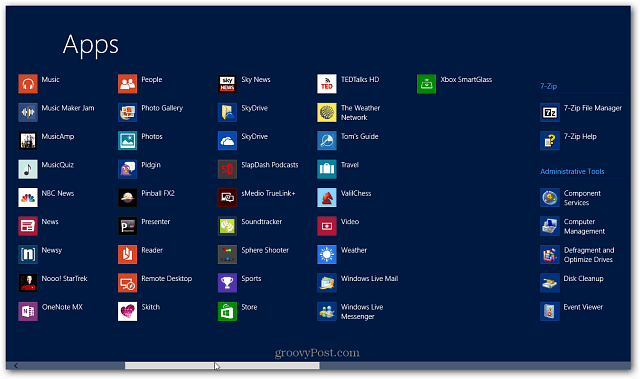
This will display all of the apps and you’ll need to hit the Windows Key + Q to use Search.
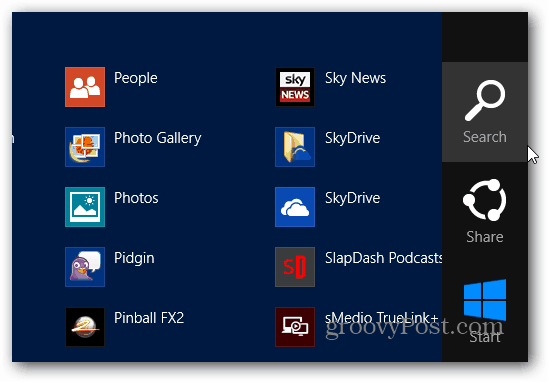
Or on a touch screen, swipe from the right side of the screen to the left to bring up the Charms, then tap search.
3 Comments
Leave a Reply
Leave a Reply





shirley Patterson
September 29, 2014 at 10:31 am
How do i locate my correct type program and also to print, what do they mean print from apps. hopw do i do that when i have something come up i have to print and it will not let me.
whatever
October 21, 2021 at 1:05 am
just press ctrl and p keys on your keyboard, and then click yes.
correct type is probably a built in feature. idk
Richard
September 7, 2021 at 5:42 pm
My question still wasn’t answered!!