Outlook.com POP3 and SMTP Settings for Microsoft Outlook

If you’re using Outlook.com, these are the POP3 and SMTP server settings to use since IMAP is not currently supported with Outlook.com accounts.
Setting up Outlook.com in an email client like Outlook 2007 or 2010 is simple as long as you know the POP3 and SMTP Settings. Unfortunately, IMAP is not supported with Outlook.com accounts. There are rumors Microsoft will eventually support IMAP with Outlook.com addresses, but for now, only POP3 and EAS (Exchange Active Sync) are supported.
For this tutorial, however, let’s focus only on how to get your email client working using POP3 and SMTP. All my screenshots are taken using Outlook 2010; however, 2007 should be very similar. If you’re using Outlook 2013, you should not use POP3. You should use EAS as it configures everything automatically.
How To Add an Outlook.com to Outlook 2010 or Outlook 2007 using POP3 and SMTP
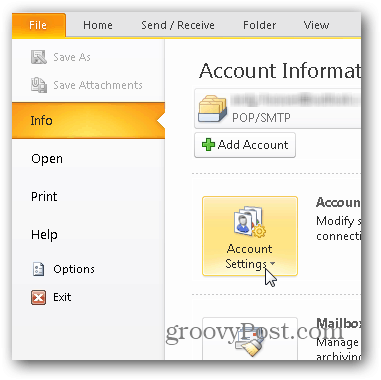
Using Outlook 2010, Click File, Info, Account Settings.
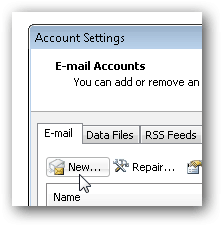
Click New under the Email Tab.
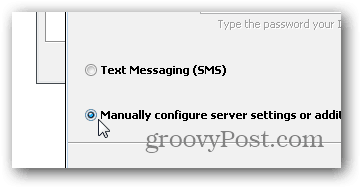
Choose the “Manually Configure Server” bullet and click Next.
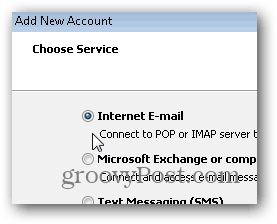
Click the Internet E-mail bullet and click Next again.
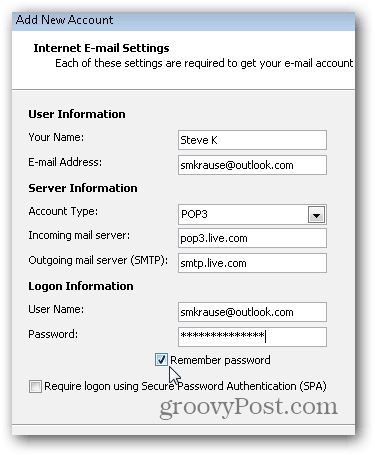
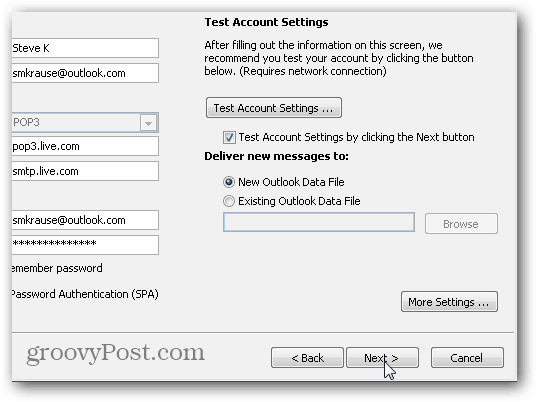
Enter your name, email, and various account info as shown below. For the POP3 and SMTP settings, use:
Server Addresses:
- POP3: pop3.live.com
- SMTP: smtp.live.com
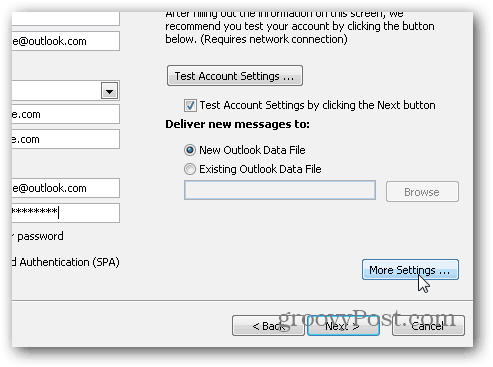
Once all the information is filled out, Click More Settings
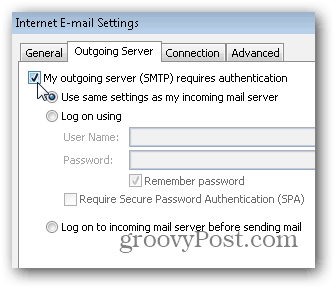
Click the Outgoing Server Tab and check the box to enable authentication for the SMTP server.
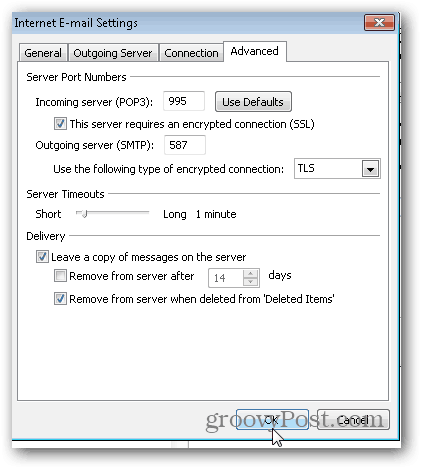
Next, click the Advanced Tab and use the following Settings for the Server Ports and Delivery. Click OK when done.
Server Settings
- Incoming server (POP3) – Port 995 and Enable SSL with Check Box
- Outgoing Server (SMTP) – Port 587 and Enable TLS with Dropdown
Delivery Settings
Note, POP3 is not like IMAP, where it keeps your mailbox in sync with the server. POP3 downloads the email from the server, and you have the option to delete the email once you do this or leave it on the server. My preference is to leave it on the server until I delete it, hence the settings below.
Back on the Main Account menu, Click Next to test the install and finish things off.
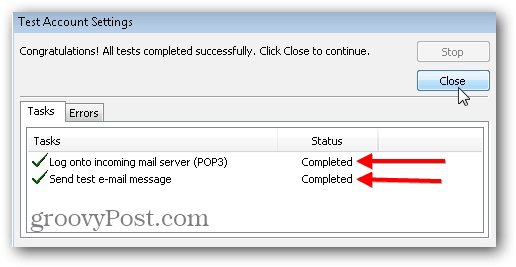
If everything tests correctly, you should get a Completed status. Click Close to finish off the install and Click Finish on the next screen also.
34 Comments
Leave a Reply
Leave a Reply







Johnny TechSupport
January 1, 2013 at 10:30 am
This is always good information to have handy, but you forgot one thing. You probably need to check the box for Secure Password Authentication, I did for my Outlook and Hotmail accounts, this may be an extra setting inside your Email settings panel, but it should be enabled for extra security.
Brian Burgess
January 2, 2013 at 3:47 am
@johnnytechsupport:disqus Good catch! Thanks.
Steve Krause
January 2, 2013 at 9:17 am
I don’t have a lot of experience with SPA however from what I understand, it is Microsoft Propitiatory and based on NTLM.
My setup worked without out it however I agree, can’t have enough security especially if it’s free IE: a checkbox.
I’m curious however why it’s needed being that both the Incoming and Outgoing connections are encrypted with SSL and TLS… Curious.
Dick Pearse
March 11, 2013 at 12:06 pm
Thanks, this is exactly what I was looking for. It is somewhat surprising the Outlook 2010 and Outlook.com are not more compatible. Everything is working great.
Barry Friedman
June 8, 2013 at 2:56 pm
Thank you thank you thank you. I was going crazy trying to get this to work…..finally.
Barney Kalman
July 8, 2013 at 4:27 am
Microsoft finding server settings. AS USUAL IT IS A F——- JOKE.
Dee
July 30, 2013 at 2:18 pm
For me, the test comes back as both ‘completed.’ I can send emails that others receive, but I cannot receive them. Is there something else I may be missing? I have windows 8 and MS outlook 7. Thx.
Filiberto|
December 19, 2014 at 9:48 am
Do you have other clients cheking email on Outlook, remember it’s POP protocol the emails go to the first client that feches the email unless in the client you checkt on advance settings to leave the emails for x numbers of days to give every device the chance to fetch the emails.
This has to be done on every device you use to access hotmail/Outlook if not on the web page is a POP carpet with the emails that have been read by a client and deleted from the server.
Unless in setting in webmail profile was selected to delete emails once read by devices.
KBM
August 13, 2013 at 10:06 am
Thanks a lot !!
Andy De George
August 19, 2013 at 10:09 am
Stop teaching me things I need to know! :) Nice article.
Joe
October 4, 2013 at 1:50 pm
I have set up everything correctly (about 3 times), however, once my test is completed successfully I click close and I get “requested operation failed”. I am running Outlook 2010, I have set up outlook for gmail and have had no problems. Any suggestions would be greatly appreciated… Thank you…
Joe
Naga
November 12, 2013 at 7:51 pm
I want to check the POP3 server name, port configured in outlook.
I do not want to configure the email. Just want to check what is the POP3 server name & port used in outlook2007.
Version of the Outllok i am using is – 2007.
I tried all possibilities but could not able to get the details.
Appreciate quick help. Thanks
-Naga
Rahul
November 17, 2013 at 5:48 am
Hello Sir,
I’m trying to send Emails from my java code using Outlook’s SMTP host: smtp.live.com at port no 587, but on running the code I get the error:
Unknown SMTP host: smtp.live.com
Can u plz tell me what’s the problem.
Thanks in advance.
Filiberto
December 12, 2014 at 4:07 pm
you have to enable pop Access in Outlook.com as it’s off by default go to account settings in you’re profile
Filiberto
December 12, 2014 at 4:09 pm
it’s in inbox/options/connect devices and apps with pop
Kobus
September 24, 2015 at 11:23 pm
Good Lord Thx —— at last mine is working now.
Scott Brantley
December 16, 2014 at 7:09 am
Tried it numerous times, cannot get it to work with Outlook 7. Tried the Outlook Connector, didn’t work. I did enable pop, and tried your instructions again, still no luck.
Filiberto|
December 19, 2014 at 9:41 am
IThe settings in my tablet are:
Outlook Servers:
Incoming Server: pop3.live.com
SMTP Server: smtp.live.com
Username:xxxx@hotmail.com
Substitute xxxx and hotmail for youre email.
Advance Settings:
Outgoing server requieres Authentication
Select (Same as incoming server configuration)
Incoming port (SSL): 995
Check the use of SSL,
Outgoing Port: 587
Encryption Type: TLS
This is on the client in windows/Android/iphone
On the OUTLOOK.COM go to
the gears menu on top right
select settings/Options
Go to:
Connect devices and apps with POP
Select Enable
And select if you want youre device to delete or to move the emails to the pop directory
save
and exit.,
Scott Brantley
December 19, 2014 at 10:28 am
Did all that. Only difference is I am using an outlook.com address.
josegut85
February 10, 2015 at 4:32 am
Nice one. Congrats!
karan
March 12, 2015 at 5:41 am
I am not able to receive mail but I can send them. Why is this error occurring.
pratik
May 11, 2015 at 8:27 am
really helpful information.
lin
June 29, 2015 at 2:54 pm
I have tried this 3 times and will not work. I followed the directions above each time… Am I missing something?
john
September 18, 2015 at 5:28 pm
OMG, Your explanation was so much better than the one I use, and used, and used and finally screamed at just month ago. Thank you for clear and concise.
Philip
November 25, 2015 at 1:24 pm
Doesn’t work for me – mine is a hotmail.account. Test it says it cant logon to server because of bad account name or password – when I cut and paste same values into outlook online they work fine
Maybe I need a differ server – not in US and its Hotmail – why can MS leave things alone.
Philip
January 16, 2016 at 2:30 pm
got it sort of working with IMAP – which is a bit of a PITA in Outlook 2007
Wish MS, Google, Apple etc would recognise that some of us often want to work offline
Debbie Manseau
December 29, 2015 at 5:27 am
I am trying to set up a Pop3 email account through Outlook 2013 and I am getting errors that it doesnt recognize my user name or my password and it’s the same info I use for my Verizon webmail account.
I also get a box that keeps popping up and wanting my logon information again.
Will
January 12, 2016 at 6:23 pm
Make sure that you input your full e-mail address including @outlook.com.
If it still doesn’t work,
you can install the Windows Search,
then you can add your e-mail account,
after you successfully add your accout,
then you can unload the Windows Search.
I don’t know why,but it worked on me.
Will
January 12, 2016 at 6:16 pm
Thanks a lot.
Before I tried pop-live.outllook.com
but it didn’t work.
Now it works,thanks.
Helen Alto
September 12, 2016 at 10:00 am
How did I get pop3.live.com as my incoming server also how did I get SMTP as my out going server? I can not send or receive emails now. My email address is wconcord@msn.com. Please let me know ASAP. Thank you.
Arif
November 9, 2016 at 11:08 am
thanks brother it works
however my outlook mail account show following setting
for POP3
Server name: pop-mail.outlook.com
fro SMPT
Server name: smtp-mail.outlook.com
in tried with live.com
it amaze me
Mohammad Abdallah
August 15, 2019 at 3:47 am
Brilliant!
Muhammad Sadeeq
July 5, 2020 at 12:12 pm
Dear All,
I tried many times with POP3 Settings, but not succeed. I was near to give up, but i tried with IMAP settings, which is successfully completed, Allhamdulillah.
I took settings from Microsoft Site.
IMAP server name outlook.office365.com
IMAP port 993
IMAP encryption method TLS
POP server name outlook.office365.com
POP port 995
POP encryption method TLS
SMTP server name smtp.office365.com
SMTP port 587
SMTP encryption method STARTTLS (i used TLS there also, because STARTLS option was not available).
Hope for your succeed.
Thanks
Elaine
January 12, 2021 at 9:50 pm
ARGH! None of this is working for me. I am using POP3 gmail in Outlook 2010/Windows Pro10. My incoming: pop.gmail.com; outgoing: smtp.gmail.com. Incoming server: 995, with SSL; outgoing: 587, with TLS. Until mid-Dec, I had no problems, then suddenly, I could receive, but not send, in Outlook. Then after a couple of weeks, I could do neither. I have been trying to resolve for about a month – to no avail! Please help me!! FYI, I can still access my gmail online and can download on my phone, but I really need it on my computer… Thanks.