How-To Create A Windows 7 System Image

Are you ready to say goodbye to 3rd party backup applications? Windows 7 makes this possible with its excellent backup and System Image features built into all versions of Windows 7. For me, I love a clean install of Windows. Not coincidentally, right after a fresh install is the best time to make a system image – because creating a system image is just like taking a snapshot of the entire drive.
Creating a System Image will save everything on the drives you select and then compress them into an image file, which is good news since this means less space for backups! At a later time, if you want to return the computer to its original condition (when you bought or built it,) you can just load up the image, and presto! No more “reformat the computer” ritual and no more worry about losing your entire system to a computer crash.
Important
Before starting this How-To Tutorial, please confirm the backup drive where you will save the image is formatted using NTFS. For more information on this reminder, please see the bottom of this how-to tutorial, where I review How To format your backup drive and configure it with the NTFS file system.
How To Create A System Image In Windows 7
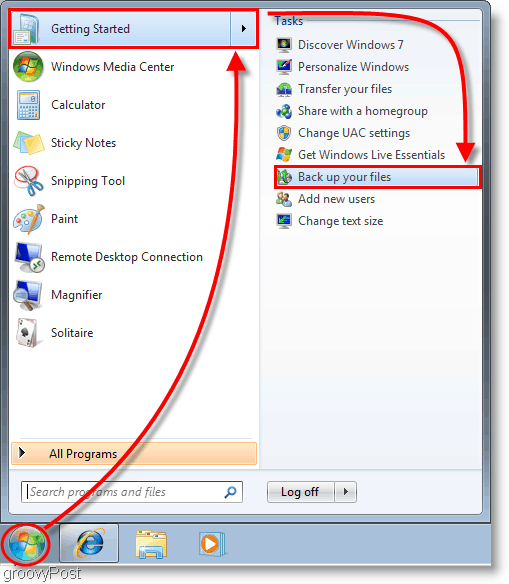
1. Click the Start Menu, then at the top of the menu, Click Getting Started, then on the side, Click Backup your Files.
Note: You can also just type BackUp, and Windows 7 Search should find the application
2. In the Control Panel window that appears, Click the blue Create a system image link.

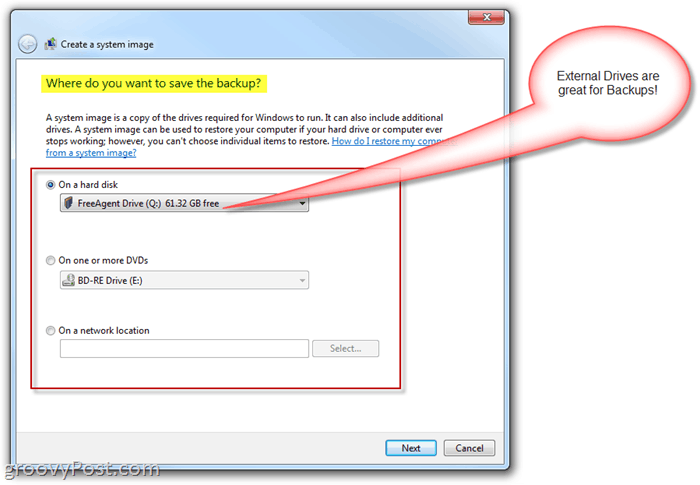
3. The Create a System image window should pop up. Select which hard disk, DVD, or network location where you are going to save your system image. Click Next to continue.
4. On the next page, we’ll keep with the basics, but for now, Check both your System and System Reserved drives. Once you have selected the drives, Click Next to continue.
Note: You can select as many drives as you want, but the more you choose to include the larger the image size will be.

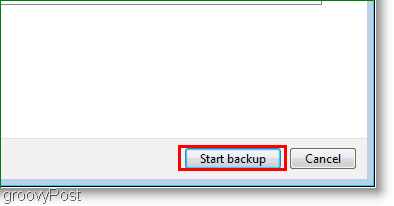
5. The next window is just a review, so make sure everything is correct, then Click Start backup to start the process. This process can take several minutes, so patience is required.
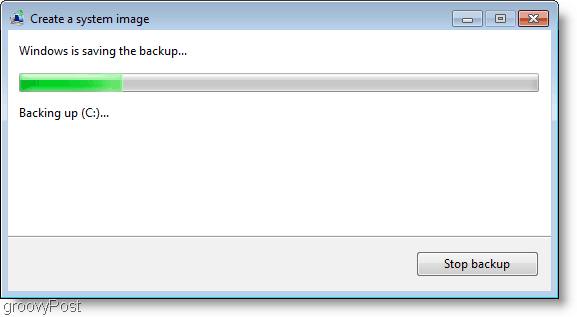
6. After the backup completes, you are presented with the option to create a system repair disc. This option is a good idea just in case your system has any problems in the future. Click Yes.

7. Choose which Disc Recording drive you’ll be using to burn the disc. Insert a blank CD or DVD to the physical drive and then Click Create disc.

Conclusion
Now you’re covered if your computer crashes or if you want a clean slate and the option to be able to return to the way your computer currently is. When that time comes, be sure to read this Tutorial – How-To Restore from a Windows 7 System Image backup.
Important Update – 1/24/2011
Looking through the comments, some readers have been running into issues during the backup/image process. While creating the system image and saving the data to the backup drive/external hard drive, the process aborts, and Windows reports the backup drive has run out of disk space even though the drive appears to be almost empty.
One of our readers pointed out that the common reason for this failure is probably because the drive was formatted using a FAT or FAT-32 file system. A FAT-32 file system is limited in that it will not support files larger than 4 Gigabytes. So, even if the drive is 500 Gigs with several hundred gigs of free space available, you likely will not be able to save a system image to it since your system image file will probably be larger than 4 Gigs.
The NTFS file system does not have this limitation, so my recommendation is to format the backup drive beforehand and use the NTFS file system before storing any data on the drive or completing the How-To Tutorial above.
How to Format a backup drive using the NTFS File System
Note: Formatting your backup drive will remove all data from it. If the drive has any data you need, save it somewhere else before you format it.
Open Windows Explorer and Right-Click the External/Backup hard drive where you will store the Windows 7 System Image. From the context menu, Click Format.

Click the File System Down Arrow and Select NTFS then Click Start.

The drive should now be formatted, and you should be good to go. Now granted, it is also possible to convert a FAT-32 drive to NTFS. However, it’s possible you could have a bit of data corruption, so my recommendation is just to keep things clean and reformat the backup drive as NTFS.
75 Comments







Mike_hts
November 9, 2009 at 11:12 pm
Great post. I haven't used the win 7 imaging utility yet so this was informative. Have you compared it to Ghost or the Acronis product? I'd be interested in learning how it compares. Main question is does the MS imager gracefully recover and restore the entire drive if the drive fails completely and you have to install a new drive (bare metal recovery)?
techri
November 10, 2009 at 7:02 pm
How sad it is to be excited about being able to erase everything and starting over. Windows IS the virus. I'm not a Windows basher. I've used windows since 3.1. I switched to Linux in 2006 and have enjoyed every wonderful virus free, License free upgrade since. Sure I sacrifice a few windows apps that I can't get to run, but…It's a small price to pay. As far as eye candy…Google ubuntu compiz-fusion and watch the fun. I work in an environment with Windows all around me and I am fine. I'm not a “Blogger”, I write very few comments anywhere on the net. I couldn't help but express my feeling after ready the post.
Beau
September 7, 2011 at 8:32 am
That version of Ubuntu looks awesome! I’ve seen it before, but never played around with it. Maybe i’ll do that one of these days!!
MrGroove
November 11, 2009 at 6:39 am
Hi Mike,
I've not used the Acronis product but I've been using GHOST for 10 years now. Ghost is great and I actually still use it for imaging systems over the network etc.. but for home users I don't think you can beat the simplicity of the new Windows 7 backup tools.
A few nice things is yes, you can restore bare metal systems (article almost done) but you can also image live systems since they are using shadow copy to copy the files into the image.
Pretty slick stuff and once I get time over the next few days I'll be posting a few more articles on the subject.
BTW – Welcome to the site!
AlexMVP
November 12, 2009 at 11:29 am
The Windows 7 “Backup” process was a bit confusing so I opted to follow this guide and did the system image. Everything but an excel file I had open was backed up without issues.
The “image” size was 44gigs however my drive is only 50gigs so the compression they use (if any) is not very good. I'm going to guess they don't use compression because the ending file is a .vhd file. This is good and bad. Good because I can probably mount it and pull what I want at a later time. Bad bacause the compression is probably lame.
For now, I'm going to keep my good ole GHOST handy for my monthly images. :)
AlexMVP
November 12, 2009 at 11:30 am
And yeah, if your system dies, you can use the Windows 7 system image to fully restore fram bare metal.
Cindy
January 17, 2010 at 11:46 pm
Hey – I am awaiting the arrival of a new Win 7 box tonight. Should I install all my Apps (Office etc.) first, then do the image?
Many thanks in advance, Cindy
MrGroove
January 18, 2010 at 3:21 pm
@Cindy – Probably not a bad idea. I would also fully patch the box as well with Microsoft updates and get everything else current.
Cindy
January 18, 2010 at 4:28 pm
Thankyou MrGroove – just unboxed a new HP Envy 15, so shall do as you suggest. I assume it would be better to do the image to a spare HDD rather than our NAS?
Cin
grooveDexter
January 18, 2010 at 5:04 pm
Yup, it’s best to create backups on a different HDD incase the one you are operating on goes haywire.
grooveDexter
January 18, 2010 at 5:02 pm
Hi Cindy,
Great to hear you have a new computer on the way!
With “when” to createa system image, it comes down to personal preference. If there are certain programs on your computer that you know you will ALWAYS use, then it can be handy to not worry about reinstalling them if you ever want to revert back to a clean slate. You’ll have to consider how often you’ll want to restore the image. You can also create multiple images, but this can quickly take up a lot of space.
For me, the first thing I do after installing Windows 7 is Windows Update, followed by installing Microsoft Security Essentials. Then immediately after those two I create the system image. Why? I would opt to install Office and other programs, except that newer versions of those software are about to be released (Office 2010). I like to start with a clean slate everytime I revert back to the image without worrying about uninstalling the old software (which could possibly leave stray files and registry keys floating around). Some people aren’t bothered by this but if I’m running an EXPENSIVE PC then it’s a comfort to know it’s clean and running at 100% efficiency. I’ll usually only restore system images about 3 times a year as a sort of “housekeeping” procedure.
You’ll also need to take into consideration that if you purchased a Dell, HP.. etc. The PC is going to come packaged with a ton of software that you most likely won’t want. Many of the software suites will be trial too, which can be frustrating however creating a system image and reverting back can be a way to extend some trial programs. such as ones that don’t rely on date expiration. I would recommend uninstalling all unwanted software then creating the system image before installing any new software.
There are other times to create a 2nd system image, such as:
-Right before installing a new unfamiliar software application
-If you have some good software installed but lost the CD or Product Key
-On a regular basis incase your system crashes
Hope this helps!
Cindy
January 18, 2010 at 5:58 pm
Dexter – my thoughts exactly. It’s the new HP Envy 15, and yes I am clearing the crap off it, and installing office, firefox, AVG etc., then I’ll do the image. I won’t be upgrading from Office 2003 Pro anytime soon, mainly because of compatability issues with other people. Nice to see someone has the same approach as me! I agree – we always buy the best we can afford, and are very PC savvy, so we like our boxes to run at 100% all the time, so hopefully this new imaging software win Win7 will allow us to do it more easily than the old Ghost (even V10 wouldn’t run correctly on our other Vista box), Macrium Reflect etc.
Just confirming – seperate HDD or NAS for the target of the backup do you think? The HDD connects via a USB, NAS is on our home network.
Thanks awfully for your suggestions! Cin
MrGroove
January 18, 2010 at 10:24 pm
NAS Vs. External USB Drive… The NAS drive is nice because it’s your “storage in a cloud” so to speak. Depending on the size of your NAS, that might be the way to go since anytime you can cut a new image or push a backup to it.
That being said, the drawback is NAS is probably more expensive than you simple USB external drive and might be better used storing your images, files etc… rather than storing your PC image and regular Windows backups etc.. so that’s +1 for the External Drive on USB. Another Plus for the external drive is you can keep your System Image and Backup’s on it and keep it locked in a Fire safe ($200.00 from Costco etc..) or take it to work and lock it in your desk in case your house burns down.
Either way, might be worth cutting an image and storing it in both place :)
Anthony
December 30, 2011 at 9:31 am
I have a 1TB NAS drive here at home, excellent piece of kit, however, depending on the vers. of windows you get your hands on, dictates weather or not you can save your backup to a network drive or not. This is not great for my partners Win7 starter or my sons Win 7 Home Premium. Anything less than Win 7 Pro and you have not got a hope in hell of saving to a NAS drive.
This additional extra I have on my laptop is agod send, it seems silly to me that it cannot be added to all forms of the OS.
Cindy
January 18, 2010 at 11:05 pm
OK – yes I had not thought of burning two images – one to the spare HDD, one to the NAS (which is co-located), then store the HDD in our safe deposit box.
I am assuming that the boot DVD (“restore boot DVD” I guess as a description) can only be made once? Seems to be both an HP and a Compaq “issue”. Following on, have you ever tried using a standard DVD copy of a restore DVD and made it work? I am wondering if I should go to the effort?
As a supplemental question – on the Compaq, should I go for an Upgrade to Win 7 Home premium (no need for domains etc.) and install “over the top” or do a re-install from the Vista recovery partition, then upgrade?
Thanks heaps for your help – it’s really appreciated!!! Here’s three virtual beers for you!!!
Cindy.
Cindy
January 19, 2010 at 2:57 am
Ahh – now hang on – NAS won’t work – it needs a directly connected (USB or other port) – It will NOT image to a NAS on a NETWORK drive. Hope this helps!
Cin.
Manly1138
October 24, 2011 at 1:14 am
I save all my images and weekly backups on a network device(8 TB buffalo NAS) or you can save them to a network share on another PC if you want. I have a network of 25 WIn 7 PC’s and can remote into any of them and create a system image of that PC to a network device. Works great
Steve Krause
October 24, 2011 at 3:16 pm
FYI – NAS = Network Attached Storage. It’s basically a hard drive with a network card in it so it can be accessed from multiple systems. Very slick.
manly1138
October 27, 2011 at 12:19 pm
That’s what I was trying in my own feeble way to tell Cindy. That I have an 8 terrabyte and a 16 terrabyte buffalo NAS and I can save my images and backups to them from any of my Windows 7 64 bit PC’s that are on my network. So, yes you can use a NAS or a share on a networked PC to save your images to.
Troy S
February 21, 2010 at 11:50 am
Steps 6 and 7 create a system repair disk by burning it to a CD or DVD? What if the computer does not a CD/DVD burner. Can the Windows 7 backup process create an ISO image instead so that I can copy the ISO image to another computer to make a CD/DVD?
Mike N
July 4, 2010 at 12:24 pm
Tony – see link below. Use Option 2. I just created a Windows 7 System Recovery disc for my netbook using my Window XP desktop that has a CD/DVD burner on it. You have to install a couple programs plus download a file. Follow the instructions via the various links in Option 2 instructions.
http://www.sevenforums.com/tutorials/2083-system-repair-disc-create.html
Bob Coups
April 5, 2010 at 3:29 am
I used Windows Backup once and it worked great (Win 7 Ultimate 64 bit), but when trying to make a new image of my system after I restored it and installed other apps I needed, it won’t complete an image. It returns an error message – something about a file being too big, not enough space, etc. The problem is, I’m using a 1 TB Seagate ext HD so that is not the problem. I figure I must have installed too much extra stuff before trying to make the image, but I still have 247 GB left on my C drive and the error message doesn’t identify the culprit file. Anyone have this happen ?
MrGroove
April 5, 2010 at 9:26 am
@Bob,
Well first let’s go down the bunny trail of drive space. How much do you have now on your C drive (Click Start button, Click Computer). C Drive should show GB FREE and GB Used. In that same Computer view it should also tell you how much space is left on your External 1TB drive. Do you have enough space?
Bob Coups
April 5, 2010 at 3:44 pm
As I said in my original post, I have 247 GB HD space free and the 1 TB Seagate external drive is new, so it is basically empty. Space shouldn’t be a problem, but the error message is saying that a file is too large. It also reports an error number which I researched on the Net and found nothing on it. I have to try to make the image again to get the error message and number because I didn’t write it down the first time. I’ll get back to you when I have more info. Thank you.
moke
January 23, 2011 at 9:12 pm
A tad late, but this is due to your new external being formatted to FAT32 I would guess. FAT32 can’t deal with larger than 4GB files I believe. Reformat the external to NTFS or backup on a ntfs drive, then moce the image to external on extX/ntfs etc. But ye, if you wish to use the usb drive , format it to ntfs (or one partition on it fat32, one ntfs and one ext3 if you are a linux user) as an example.
I post this for future reference for new people arriving here.
MrGroove
January 24, 2011 at 9:43 am
A tad late BUT, a great reminder for me to update the article with this information. I overlooked this scenario so thanks for the post. Rob http://gpo.st/v3 posted the same solution back in December but I forgot to update the article.
Thnx again
moke (Mike Delft)
January 24, 2011 at 3:16 pm
No worries… it still is a valid issue and blogpost, so good you pick up on it for readers :)
Jimmy
April 7, 2010 at 2:28 am
Hello Mr Groove
I did not know about the image program in the win 7 and it was really helpfull thank you.
Just have a question.
If i format my hd and install a fresh copy of win 7 and after that install the dvd”s with the image files i had fixed with win 7 image tools will it restore my drive as it was before?
Or do i have to start installing all my programs from the start again?
Thank you
MrGroove
August 3, 2010 at 12:17 am
Hi Jimmy… late reply sorry.
If you restore your Hard drive using the Windows 7 System Image, it will wipe your HD then bring back your Hard Drive EXACTLY the way it was when you made the image. Your new install will be GONE and all the Apps you might have installed with that new image. You will however have all the apps installed that was on your system when you took the original image.
FG_YON
May 4, 2010 at 9:32 am
I have a notebook ACER 4736G with windows 7 home premium as the default OS, included recovery disk, but two days ago i try to install windows 7 ultimate, when the installation proces I delete system reserved partition from my HDD. can I still restore my windows 7 home premium from recovery disk? how to make the system reserved partition windows 7?
MrGroove
August 3, 2010 at 12:20 am
Usually the recovery disk includes your original image that came from the computer manufacturer. It’s usually stored in a “reserved” partition so you won’t mess with it / delete it.
If you nuked it when you installed Ultimate, it’s probably gone.
Stephan
July 27, 2010 at 1:01 am
Hi there,
I have an external hard drive 1,5TB which I only use for backups and it has 1,1TB free space, my C drive is only 500MB in total, but when I try to do a system image I also get the error that I don’t have enough space for the system shadow image – how can this be?
I am running Windows 7 64 bit on an i5 with 4GB of RAM.
MrGroove
August 3, 2010 at 12:15 am
Not enough space for the SYSTEM SHADOW IMAGE? Very odd… Can you post a screenshot in our forum so I can take a look? https://www.groovypost.com/forum/
Steve Krause
October 27, 2012 at 9:21 pm
Make sure your external drive is formatted with an NTFS file system. FAT-32 Drives is limited to 4GB files. Obviously a system is image going to be larger than 4 gigs so that’s probably the issue.
Kennith Thibadeau
August 17, 2010 at 11:49 am
Great post!
Romel Dulce
August 28, 2010 at 10:36 am
Very informative… thanks man.
Steve Krause
October 27, 2012 at 9:20 pm
You bet. You’re very welcome!
Mike
September 15, 2010 at 7:18 pm
Creating system image to multiple DVDs on Win 7 (32bit), does not seem to work !
I go through all the steps, and it tells me to LABEL AND INSERT A BLANK MEDIA BIGGER THAN 1GB – PLEASE WRITE THE FOLLOWING LABEL ON A BLANK MEDIA AND INSERT IT INTO G: – COMPUTER NAME DATE TIME 1
I label and place a 4.7gb disk in and hit ‘ok’.
Drive spends about 10 minutes creating the disk and then, with the green indicator bar only about 25% across, tells me the following: LABEL AND INSERT A BLANK MEDIA BIGGER THAN 1GB – PLEASE WRITE THE FOLLOWING LABEL ON A BLANK MEDIA AND INSERT IT INTO G: – COMPUTER NAME DATE TIME 1
I think, ok, it obviously needs more space, it said up to 19GB, so I do this again.
But the green indicator loses a few percentage points, down to about 15%, the disk writes, and its back up to approximately 25% when it completes the disk and tells me the exact same thing, again. I do this for 5 times (=25GB) total, just to be sure, but it obviously is stuck in some kind of loop. Yet another Microsoft Bug.
ANY SUGGESTIONS?
MrGroove
September 15, 2010 at 7:52 pm
Hey Mike. First question is the easy one (for me). Have you tried to burn anything with your DVD burner? Just confirming it’s a working drive.
Animis
September 16, 2010 at 4:31 am
Burning 5 DVD’s (25GB) isn’t exactly ideal is it? It might be worth the extra $50 to invest in an external HDD. Just a thought. There are also online backup solutions that don’t cost much, could save the image to your own harddrive and then upload it
Mike
September 18, 2010 at 1:21 am
I have used the DVD burner multiple times. It burned the System Tools disk no problem. I have multiple external drives, but hard drives can fail and be susceptible to EMP, solar flares, and drive crashes. DVDs are relatively cheap, and when stored properly, are reliable. But that’s not the point… The point is, why would the program not properly advance to the next disk once it’s completed the first ?
Dave
November 9, 2010 at 10:33 pm
Mike,
I am getting the same thing but with a 32Gb USB thumb drive. Although mine manages to get to about 75% before asking me to insert the new ‘blank media’. I check the thumb drive at this point and there is 3.99Gb backed up with reams of room to spare on the drive. Once I hit OK it just overwrites the existing backup and starts again.
Rob Steinbach
December 16, 2010 at 4:44 pm
Hi All: Just saw this post. I’m surprised to find that no one asked those with failing backups on large hard drives what their filesystem is on the external backup drive. If its FAT-32, you’d be limited to 4-GB file size or less. NTFS does not have that limitation. This could be the problem for those folks. Converting an existing FAT-32 (or FAT-16) partition is as easy as invoking the CONVERT command line – CONVERT (drive/volume) /FS:NTFS — try CONVERT /? at the command prompt for all the options. Good luck!
MrGroove
January 24, 2011 at 10:45 am
Thanks for the FYI Mike. I overlooked this simple issue when I wrote up the tutorial. I’ve updated it with your comment!
Thanks,
-MrGroove
MaryEmme
February 10, 2011 at 7:28 am
Hi ! Just had the same issue on backing up with the same message: LABEL AND INSERT A BLANK MEDIA BIGGER THAN 1GB – PLEASE WRITE THE FOLLOWING LABEL ON A BLANK MEDIA AND INSERT IT INTO G: – COMPUTER NAME DATE TIME 1 (Ok / Stop Backup)
On “Computer” right click on DVD RW Drive and pressed eject. Then I inserted a new DVD and the backup continued , didn’t had to start it all over again. Did that for 4 times and I was able to create a system image following the instruction bellow.
Having 4 DVDs as a backup solution is not that bad after all … :)
willgame4food
February 27, 2011 at 10:40 am
just checking, im pretty sure i know the answer, but just want a verification on this. if while im making the image (backing up to my ext) im running something like, say, itunes (not changing anything, just listening to music) and my web browser (in this case chrome), will that cause any problems? like, i know they run in the ram, but since i know that itunes changes info about files automatically (play count, date last played, etc) and web browsers save temp files and cookies and whatnot, so since its a sector by sector copy/backup, would the dynamic property of these changes cause parts of the image to be bad when i restore to it. i know most people just do this to backup the bare minimum when they just start out as to be able to return to near factory state, but since i have to send in my laptop this week to get worked on under warranty, and they will no questions asked restore to factory image when they get it(understandable), so this is the best way for me to back up exactly how everything is (settings, programs, system stuff, AND all my personal files and their locations and such) for when i get it back. i want to make sure i dont mess it up.
a response is kinda needed asap and would be greatly appreciated.
MrGroove
February 27, 2011 at 6:20 pm
Hi Will,
Yeah your fine. Nothing to worry about. The system image process uses Volume Shadow Copy so files that are open can still be backed up etc… Nothing to worry about as long as you don’t start blowing away a lot of data or try to install/uninstall something. At that point, your mileage may vary if it even lets you. I’ve never actually tried that :)
willgame4food
February 27, 2011 at 7:46 pm
great! thanks for the speedy response :)
Daf
March 2, 2011 at 4:12 am
Hi, Great tutorial! I was wondering if it’s possible to use the same image on more than one machine, I have multi licence key for all software installed and need to image 5 machines with exactly the same software and setup?
Thnaks,
Daf
Steve Krause
October 27, 2012 at 9:19 pm
You could however, it would need to be the same hardware. It would be better to Sysprep the system first and then make the image. More info here – https://www.groovypost.com/howto/microsoft/windows-7/create-a-windows-7-system-image/#comment-694354075
Andy
April 13, 2011 at 7:11 am
Daf,
To deploy multiple Win 7 computers you will need to use “SYSPREP” or you will have license activation and network issues with your computers; especially if on a domain.
Microsoft TechDoc
http://technet.microsoft.com/en-us/library/dd744512(WS.10).aspx?ppud=4
Good user tutorial
http://www.youtube.com/watch?v=V2BQmZx-H8M
~Andy
Art Cortez
April 27, 2011 at 6:34 am
System restore works fast and fine without any problem, better than acronis and norton ghost.
aep
July 25, 2011 at 6:44 pm
One of the comments above indicated that if you restore your hard drive using the Win 7 system image, it will first wipe your hard drive before bringing it back. That part makes sense.
Now what about the case in which some of the program files are on the main C: drive (which is a small SSD) and in addition (all of the installation-configurable) program files are on another (D: drive). D: is also my storage drive — it holds all my user data 2 TB)
When I initiated image creation, it was smart enough to realize that it needed to grab files from my D: drive as well.
However, when (if) I ever need to restore, will it wipe my entire D drive? (which means I lose all my user data unless I have it backed up elsewhere)? Just trying to be sure I understand ramifications…
Marc Erickson
September 12, 2011 at 7:48 am
“A FAT-32 file system is limited to just 4 Gigabytes.” I think what you meant to say was ‘Maximum file size on a FAT-32 file system is limited to just 4 Gigabytes.’
Steve Krause
October 27, 2012 at 9:17 pm
Oops… Yeah thnx. I’ll need to update that.
s10rookie
September 22, 2011 at 8:25 pm
great post and follow ups greatly appreciated i did not know win7 even did imaging thanks for your time and effort and sharing knowledge i just got a new laptop and installed a lot of programs and was wondering how to protect my self from all the loading again if something happens thanks again
s10rookie
September 22, 2011 at 9:13 pm
i was wondering if it was possible to have more then 1 drive image on the same external drive as long as it was big enough for example a desk top and a laptop or should i get a different external drive for each image ?
Steve Krause
October 27, 2012 at 9:17 pm
Yup. That’s not a problem. All you need is space.
Be sure to format the external drive using the NTFS file system. FAT-32 Is limited to 4 Gigs.
Mike
November 21, 2011 at 9:26 am
Only Windows 7 Professional or higher can write an image directly to a NAS. Win 7 Home Premium cannot – it can write to external USB or DVD, but not a NAS.
D Hagen
December 2, 2011 at 12:40 pm
I have a 64-bit HP Windows 7. I bought a twin internal hard drive to my C: drive, formatted it NTFS, and use it only for system image creation and backup weekly. Each backup seems to go well because the files in the backup drive represent a dated systems image (w/ previous images deleted to save space) and a series of backup data files (of which I can delete the eldest if I need more space). The only concern I have is that the notice I get after the backup is that it DID NOT OCCUR SUCCESSFULLY. I get only 2 choices then: Try Again or Change Settings. Every repeat attempt creates legitimate files, but I get the same error message. Also, my BackUp Page in the Control Panel says that the Last BackUp was performed: NEVER. Am I covered here, and only the victim of a FAULTY ERROR MESSAGE????? Thanks!!!
hpminimom2009
January 9, 2012 at 10:20 am
I tried using the copy image function and the backup recovery function in Windows 7 64 Bit(started 1/8/12) and after 91% recovered and copied to cds it failed backup. Never given the option to use a copy image, grayed out. I did get the error code that Home Prem. users are getting 0x80070020? See posts on CNET.com in Windows 7 forum for more info.
foster
January 5, 2012 at 4:52 pm
thanks a lot for finding you. I’m looking to a good relationship to gaining knowledge in tech. Bless you.
Samrat
January 28, 2012 at 6:07 am
Thank you, It was helpful. I got a problem.
When i try to take a system image of windows ( 64 Bit ). to the HDD, it is saying, volume ” windows 7 system image error 0x8078006B “
Birger
April 18, 2012 at 6:52 am
Hi Thank You for a very good process description.
I do however have a question. I just bought 6 identical pc’s Acer Iconia Tab 501W with Windows 7 home premium
Is it possible to re-establish all of these using the same image and System recovery disc for all of them, or do I need to make 6 different sets (one set for each pc ?)
Im asking also in order to avoid going through the upstart with each of them, removing the amazing amount of crapware is very time-consuming. So if I only need to make one pc perfect and then reuse that image on the rest, it would save my day.
Best regards, Birger, Copenhagen Denmark
chris
April 30, 2012 at 11:48 pm
i just purchased a new Samsung laptop and it had a bunch of junk on it and it was win 7 preamum and i did a fresh install of win 7 ultmat and i installed all the driver to ultmait 7 and i did a image backup . and bye the way nice post
Steve Krause
May 1, 2012 at 10:29 pm
Awesome. Yeah — Ultimate is the way to go.
And thanks for the comment on the post. I’m glad it helped you out! Welcome to groovyPost!
Shaik Forid Ikbol
May 23, 2012 at 2:52 pm
If i want to deployed the image in different model than i am facing problem.. Win 7 is not starting …restart automatically
means i am creating an image in 0830 (Lenovo machine) model and try to deployed the image in 7507(Lenovo machine) model..
Plz help me
Steve Krause
May 23, 2012 at 5:48 pm
No. If you take a system image using the process, the image is only good on like hardware. You can’t deploy the image on different hardware.
aman
June 13, 2012 at 2:35 am
thx
Steve Krause
October 27, 2012 at 11:12 am
Looks like we need to update this for Windows 8!
Michael Sparks
January 23, 2013 at 4:54 am
I am using DVD to backup image to, but needs more than one disk. Problem is when it finishes the first disk it comes up and says insert disk and label it #1 and starts the backup over again instead of going on to #2 like it should. I have backed up other Windows 7 computers before and never had this problem. Any ideas. Thanks
Christine
February 20, 2013 at 2:14 pm
After formatting my USB to NTFS, there is still a warning saying that “This device is not a valid backup location”. What can I do to fix that?
George Steele
April 24, 2014 at 8:34 am
There seems to be a critical flaw in Windows 7 and 8 that bears on
the image backup function – and on the ability to use Windows Home
Server to back up, as well. Three out of four new Windows 7
computers at a local center where I volunteer were hooked into
Windows Home Server. They were also all upgraded with SSDs
(Samsung 840s) to improve productivity. Windows Home Server
wouldn’t back up three of them, and failed with an “insufficient
space to create a volume shadow copy” error. At first I thought
it was the SSDs, but why 3 of 4? Much searching led to a thread
that said that when Windows System Restore packs too much
information in the 100 MB system partition that Windows creates
during installation – such that free space on the partition drops
below 50 MB – the backup will fail. So, too, will Windows Image
backup fail. The failure doesn’t occur when you only back up user
files.
I checked, and the three that wouldn’t back up to WHS sure enough
only had about 5-10 MB free space left in the 100 MB partition;
the fourth machine, however, didn’t have the 100 MB partition at
all – so there was plenty of space to create the volume shadow
copy. Why 4 seemingly identical Gateway DX4870s would differ in
this way is odd – but I think image backup, which gives you a
rapid return-to-yesterday capability in the event of catastrophic
disk failure (we keep a whole spare computer ready to be put in
service if one of the critical staff’s machines dies) is a very
valuable tool. Why Microsoft would put ever-increasing restore
point data in a tiny partition, which needs space to create the
volume shadow copy required by that valuable tool – such that the
tool is eventually rendered useless – is a mystery to me. Deleting
restore points hasn’t worked, and suggestions on the web of how to
fix this present the risk rendering the machine unable to reboot. Poor
design in my opinion, and it continues on Windows 8.
Marc Erickson
April 24, 2014 at 4:12 pm
Two possible solutions come to my mind – the first is to delete all of the restore points except for the most recent one:
To delete all but the most recent restore point
Open Disk Cleanup by clicking the Start button Picture of the Start button. In the search box, type Disk Cleanup, and then, in the list of results, click Disk Cleanup.
If prompted, select the drive that you want to clean up, and then click OK.
In the Disk Cleanup for (drive letter) dialog box, click Clean up system files. If you’re prompted for an administrator password or confirmation, type the password or provide confirmation.
If prompted, select the drive that you want to clean up, and then click OK.
Click the More Options tab, under System Restore and Shadow Copies, click Clean up.
In the Disk Cleanup dialog box, click Delete.
Click Delete Files, and then click OK.
The other possible solution is to boot the computer from a recent version of Linux (CD, DVD, or USB drive – I like Ubuntu or Mint) and use Gparted to resize the 100 MB system partition and move the C: partition to the right on the disk.
I haven’t tried either of these solutions, and using third party disk editors on Microsoft OSes is sometimes a problem. (I remember trying to use <a href="http://www.symantec.com/business/support/index?page=content&id=HOWTO10415">the DOS editor Gdisk/a> to partition a disk one time and subsequently Windows either wouldn’t install or wouldn’t boot after installation. So do test this and make a backup of important data from the computer you are trying it on.
Jokamutta
February 6, 2015 at 4:28 am
Is it possible to make a Windows 7 image what only includes the OS and nothing else, because I want to make a Windows 7 install DVD disc.