11 Ways to Fix OneDrive Not Syncing


OneDrive is great for storing, sharing, and syncing files, but what if it stops working? You can fix OneDrive not syncing using this helpful guide.
OneDrive comes preinstalled with Windows and is an excellent tool for syncing your files between devices. Typically, you can set up OneDrive and forget about it. However, at times, it may not work as smoothly as expected.
For example, you might find that files aren’t syncing correctly or throwing up sync errors, or specific files won’t sync while others do. If that happens, you’ll want to fix OneDrive not syncing. In fact, you might wonder if you can force OneDrive to sync.
Whatever the issue, it’s troublesome when your files in OneDrive aren’t syncing the way they should. Here is a look at 11 ways to fix OneDrive not syncing on Windows.
Before You Begin
If you’re having sync issues with OneDrive, it would be nice to press a button and fix it. Unfortunately, there are different errors, and each one requires its own fix and multiple fixes.
Before you begin, it’s important to note that OneDrive doesn’t delete files that have synced through the OneDrive app. After employing each fix, test OneDrive to see if the problem is solved.
Another vital thing to note is that these fixes will work on OneDrive for Windows 11 or 10.
1. Check OneDrive for Error Codes
This option can be tricky as OneDrive doesn’t always provide error codes. But if you do get an error code, read Microsoft’s guidelines for each error.
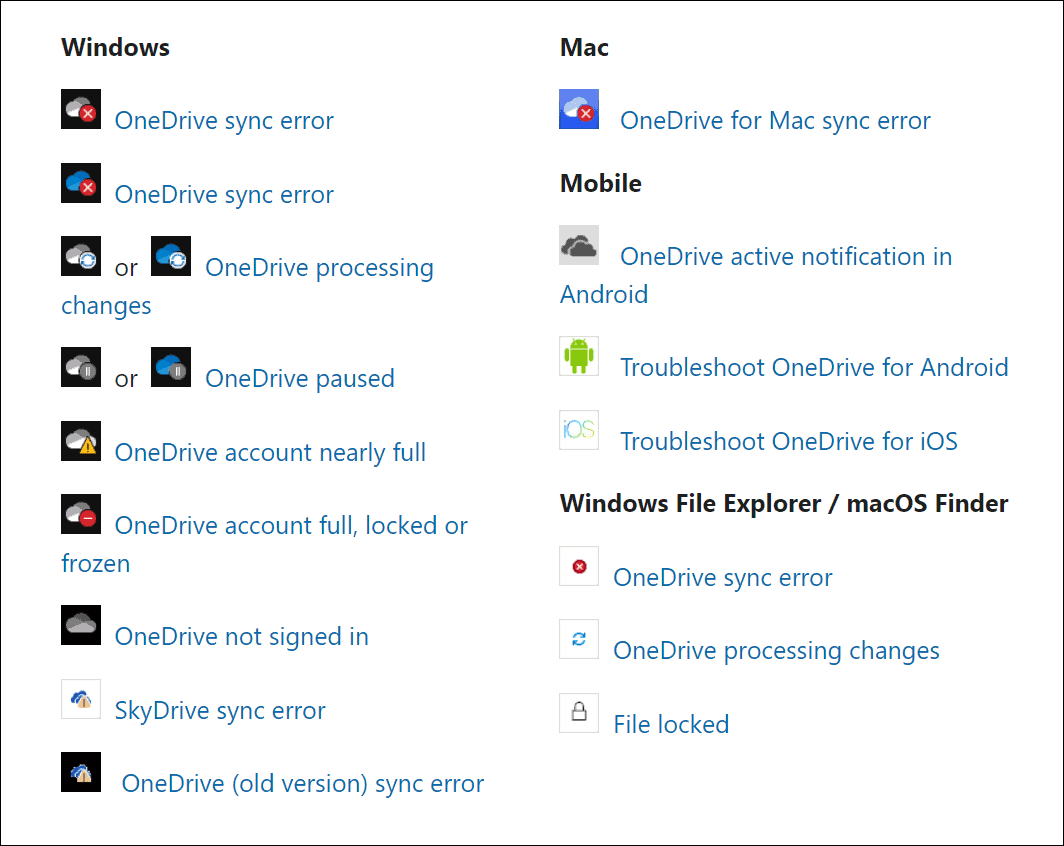
It’s also worth noting that Microsoft provides sync codes and messages. Unfortunately, they don’t all apply to OneDrive, but they can give you a good start with troubleshooting if error messages do appear.
2. Close and Reopen OneDrive App
Like restarting an app or your PC to get things working, you can close and reopen OneDrive. For example, a file can get caught up while trying to sync, or a file could have froze up while syncing.
How to Restart OneDrive
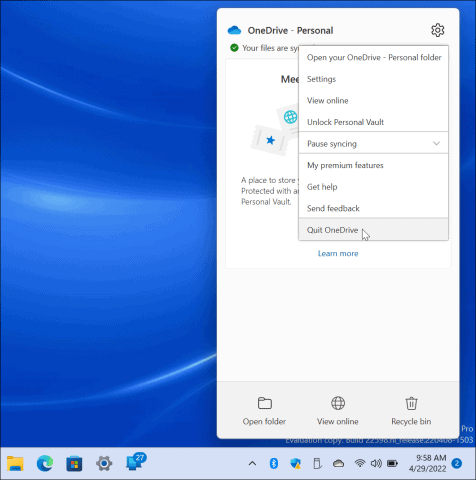
- Right-click the OneDrive icon on the taskbar.
- Select the Gear icon on the top-right corner and click Quit OneDrive.

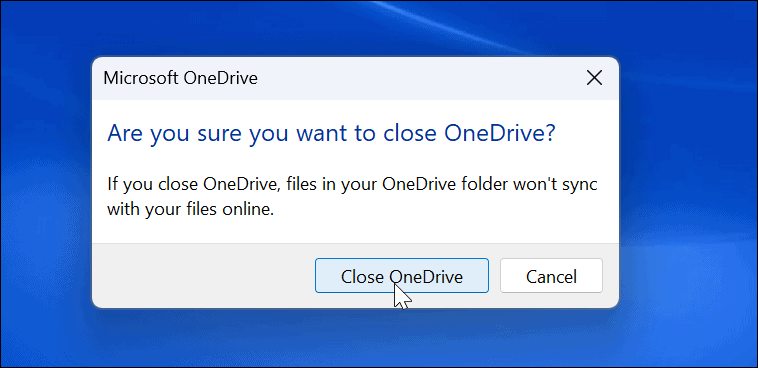
- Click the Close OneDrive button when the verification message appears.

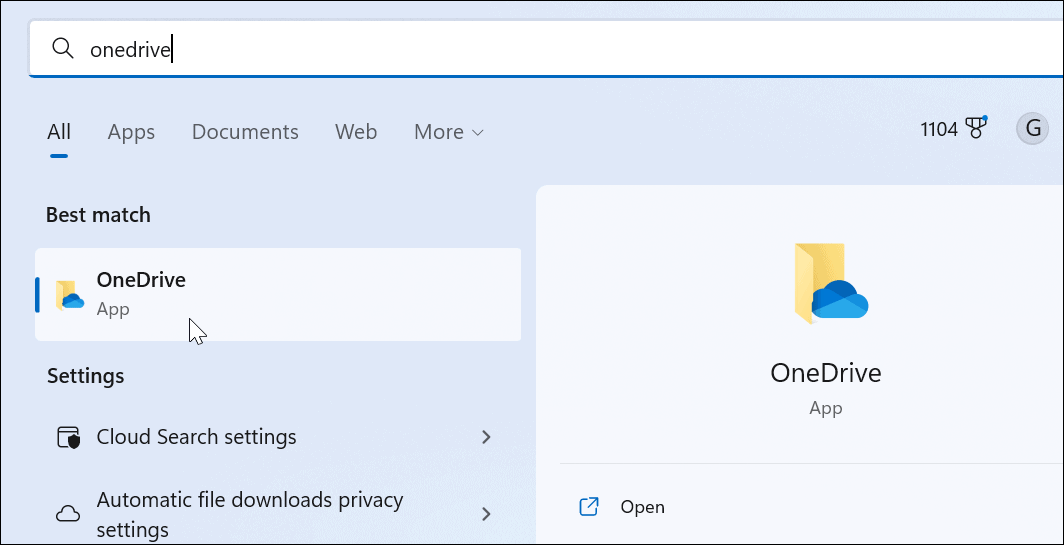
- Restart OneDrive from the Start menu and see if it syncs files now.

3. Verify Storage Amount
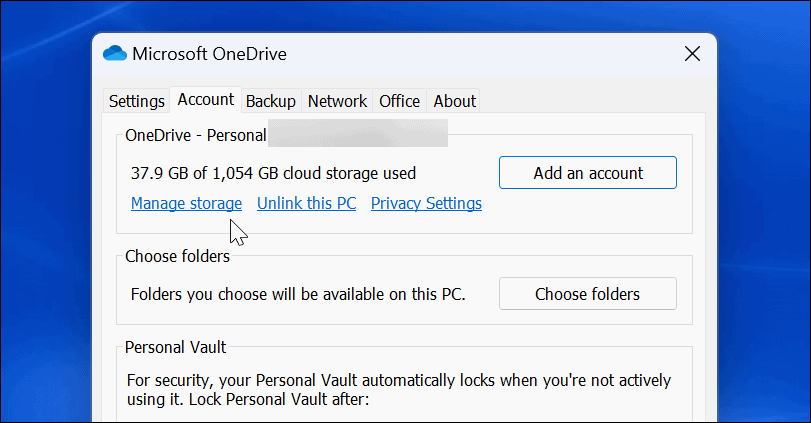
If you’ve reached your storage limit, files aren’t going to sync with OneDrive anymore. Basic users only receive 5 GB of storage by default. To get a full TB of storage, you need to sign up for the Microsoft 365 suite of apps.
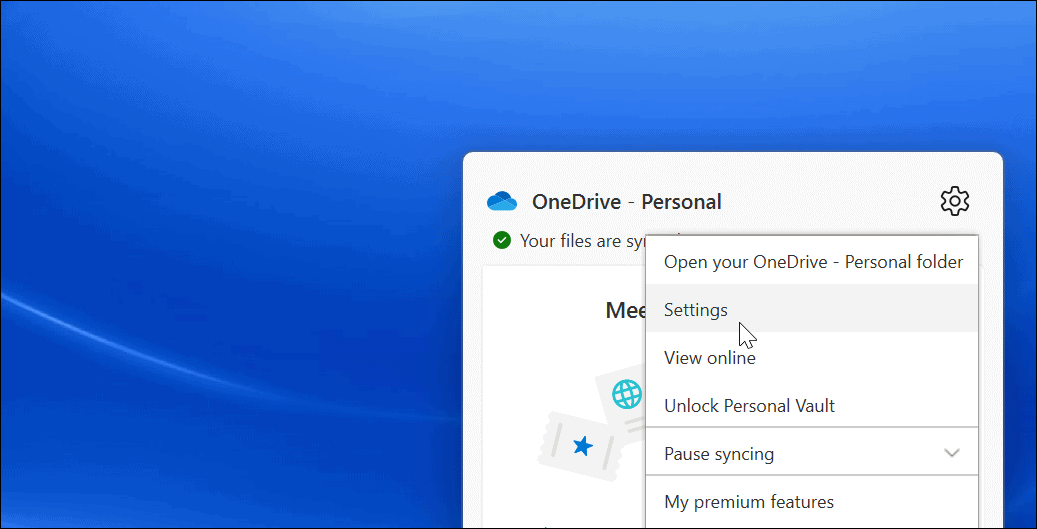
- Right-click the OneDrive icon from the taskbar.
- In the menu, press the Gear icon and choose Settings.

- If you have reached the storage allotment, you may need to go in and delete files or move large files to another location.

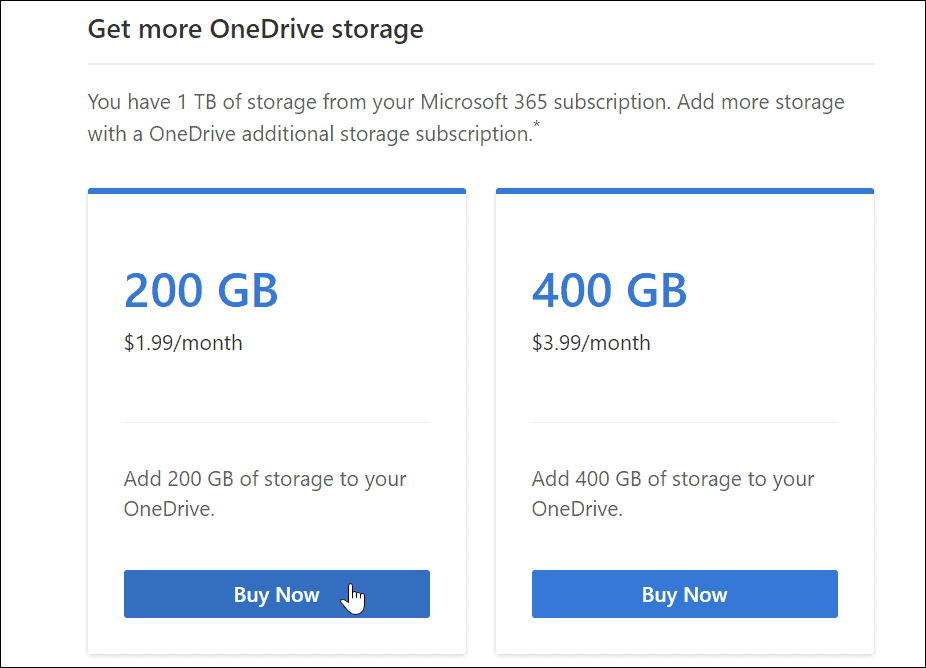
- If you need additional storage, click the Get more storage link. That will bring you to your OneDrive web page. You can buy more storage, starting with 200 GB for $1.99/month.

4. Disable Sync Pausing in Battery Saver Mode
Running on a low battery? Your OneDrive files will stop syncing by default to reduce the demands on your PC. Your PC might be in battery saver mode when this happens.
- Launch OneDrive from the taskbar and press the Gear icon.
- Click Settings in the menu.
- Open the Settings tab and uncheck the Automatically pause sync when this device is in battery saver mode option.

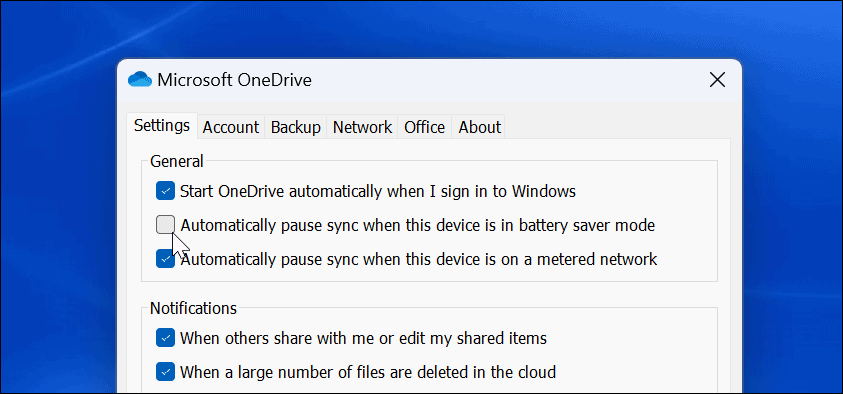
Note that while this option will allow OneDrive syncing while in Battery Saver mode, it will decrease your battery power. However, it might be necessary when you need to sync a critical file.
5. Unlink and Link Your OneDrive Account
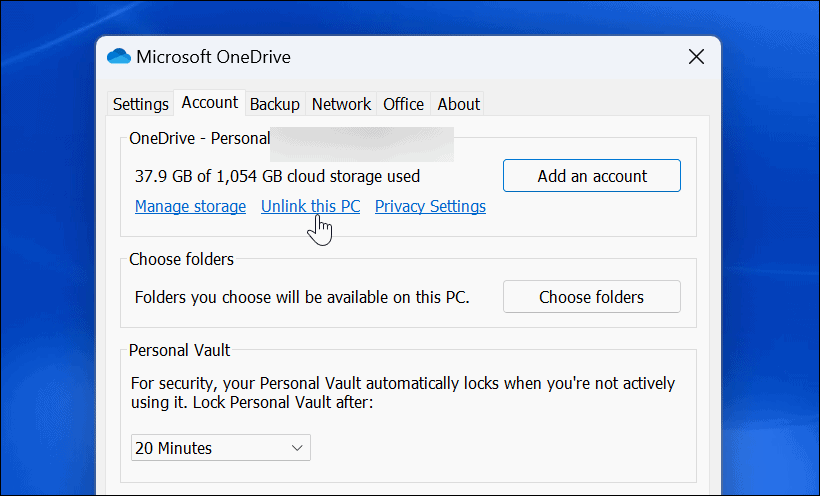
It’s vital to ensure that OneDrive links to your appropriate Microsoft account. Removing your account and relinking to it can fix OneDrive syncing issues.
- Launch OneDrive from the taskbar, click the Gear icon, and click Settings from the menu.
- Under the Account tab, click the Unlink this PC link.

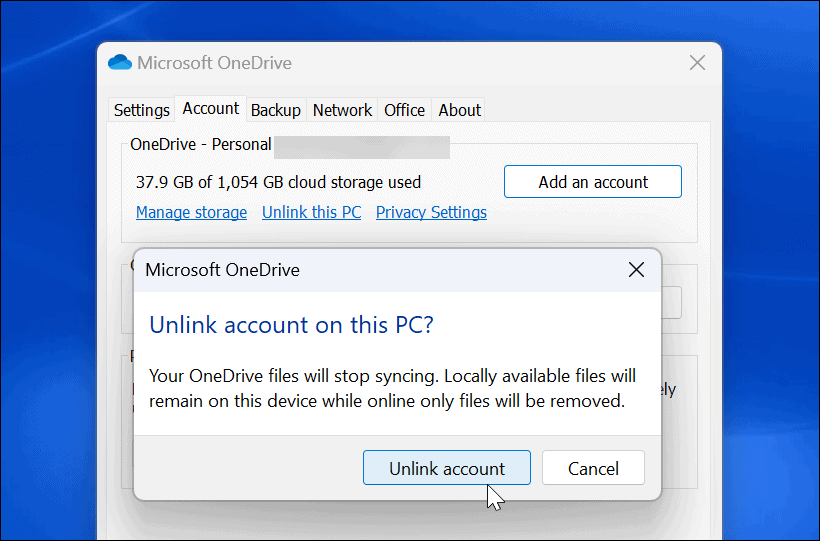
- Click the Unlink account button when the verification dialog appears.

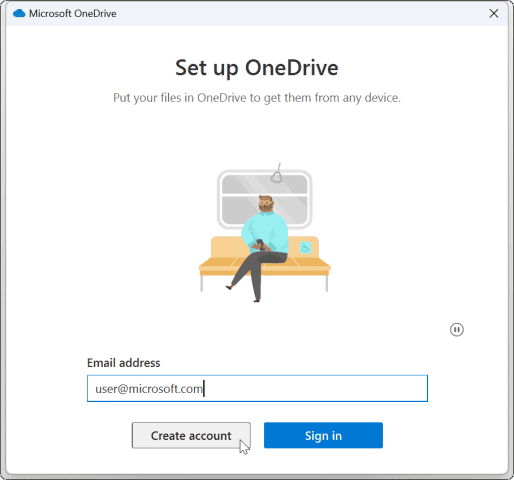
- After unlinking your account, restart OneDrive, go through the setup process again, and enter your correct Microsoft account credentials.

6. Update Windows
Windows updates are essential for the security and stability of your system. They often include bug fixes for Windows applications, including OneDrive, which could fix a OneDrive sync bug.
Some updates will require you to restart your system. If you don’t want that interruption, configure the Active Hours feature first.
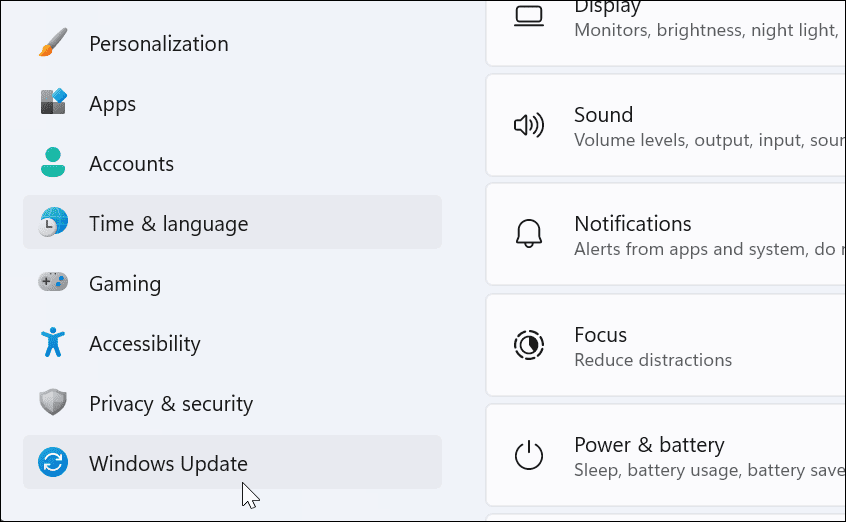
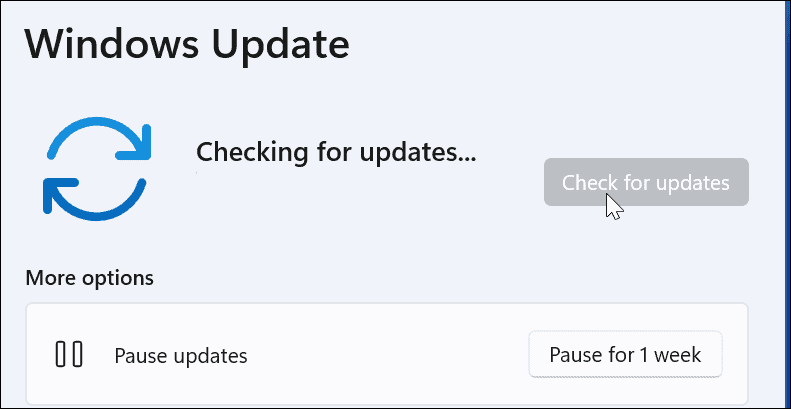
- For Windows 11, click Start > Settings and click Windows Update on the left.

- Click the Check for updates button on the right and download any available updates.

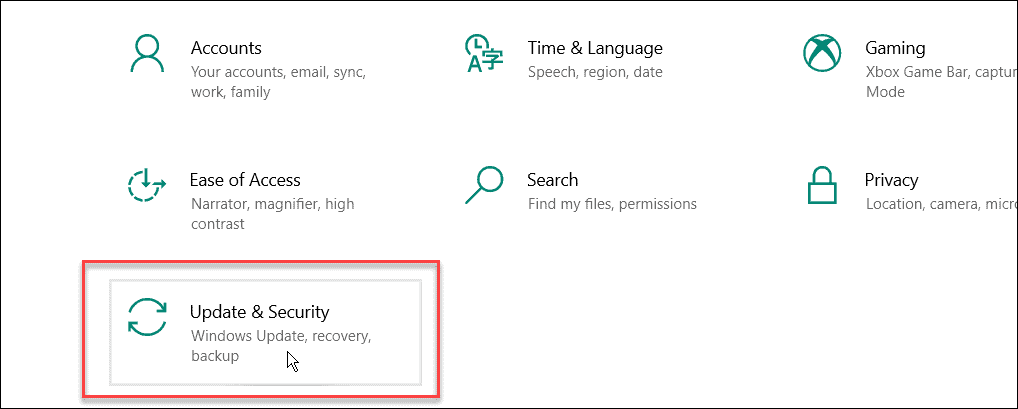
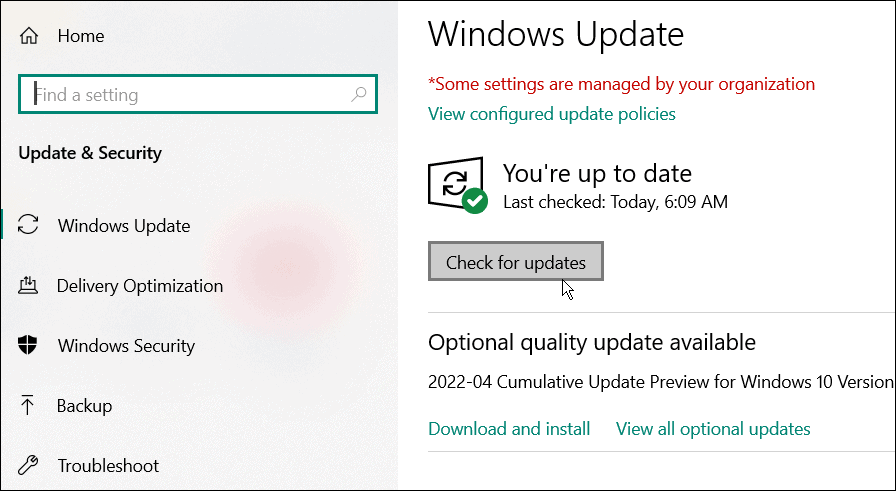
- To check for updates on Windows 10, go to Start > Settings > Update & Security.

- Click the Check for updates button and install any available updates.

7. Restart Your Windows PC
Restarting your PC can fix many issues, including OneDrive not syncing. For Windows 11, just follow these restart instructions.
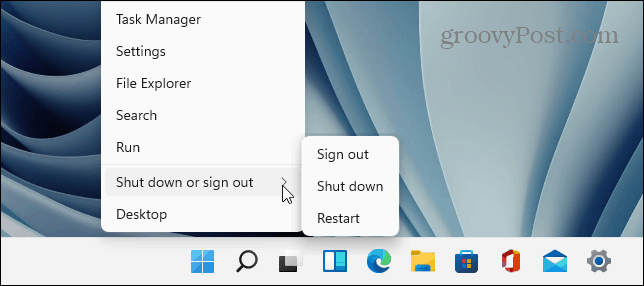
To restart Windows 10, right-click the Start button and select Shut down or sign out > Restart.
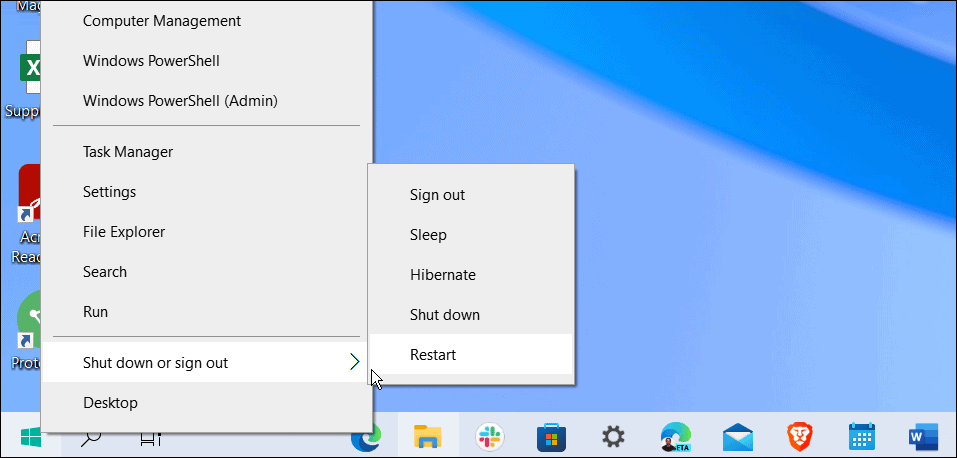
Hopefully, after the restart, OneDrive should be syncing files successfully.
8. Pause Syncing and Resume
If OneDrive syncing seems to freeze up, you might have lost your connection. OneDrive can also occasionally freeze up if a file upload is interrupted and can’t resume. You can manually pause syncing and resume it to fix the issue.
- Open OneDrive from the taskbar.
- Click the Gear icon and select Pause syncing—choose 2 hours for this since we’re going to resume syncing.

- Now, open OneDrive from the taskbar and click the Gear icon again.
- From the menu, click Resume syncing.

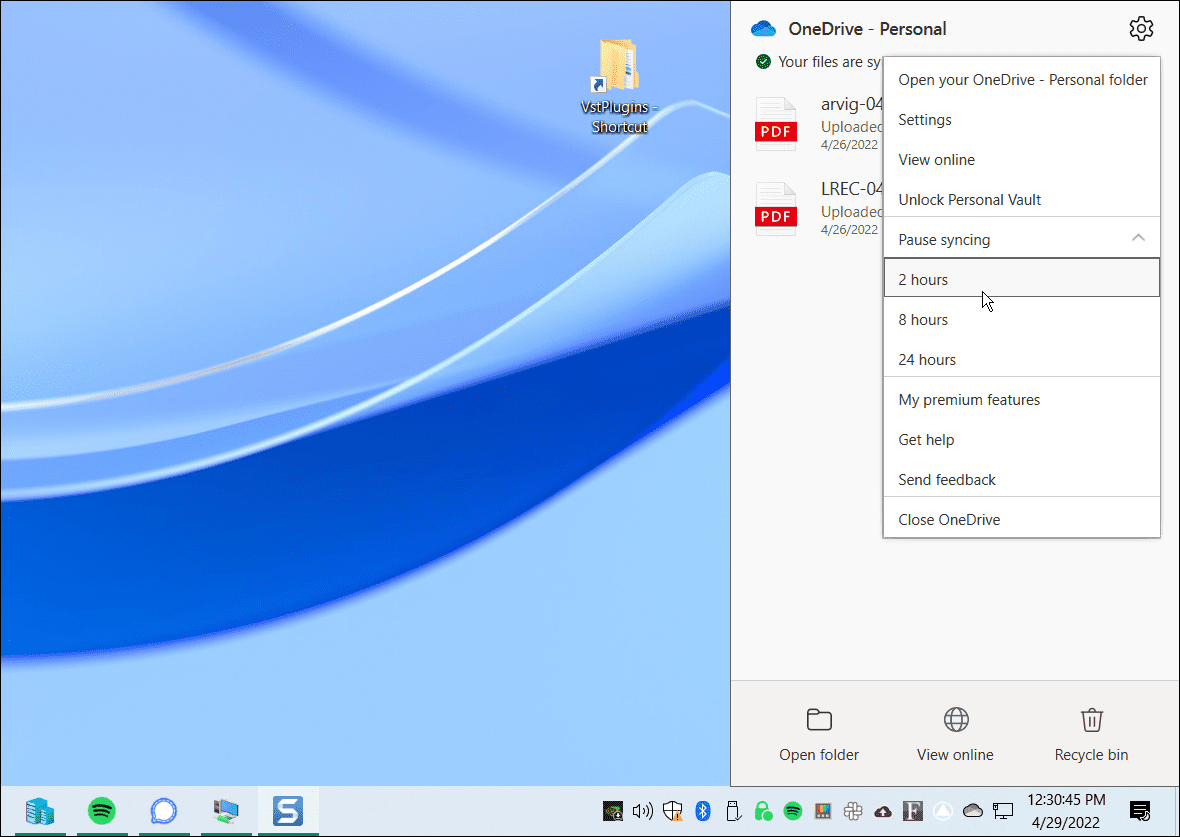
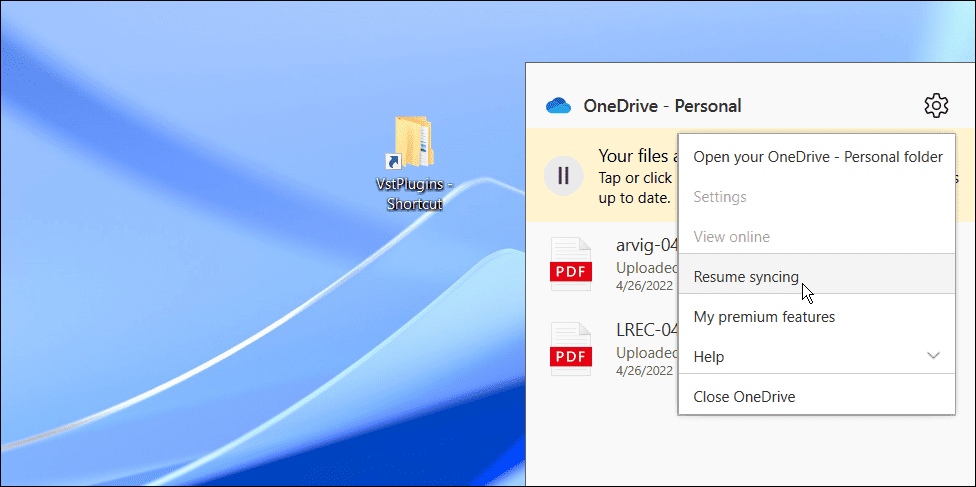
Wait for OneDrive to re-establish its connection to the internet. This should hopefully resolve the issue for most users.
9. Check Microsoft for Service or Connection Errors
If you’re still having issues with OneDrive syncing files, it’s worth checking with the source—Microsoft. If any Microsoft services are down, it could point to an issue that you personally can’t resolve.
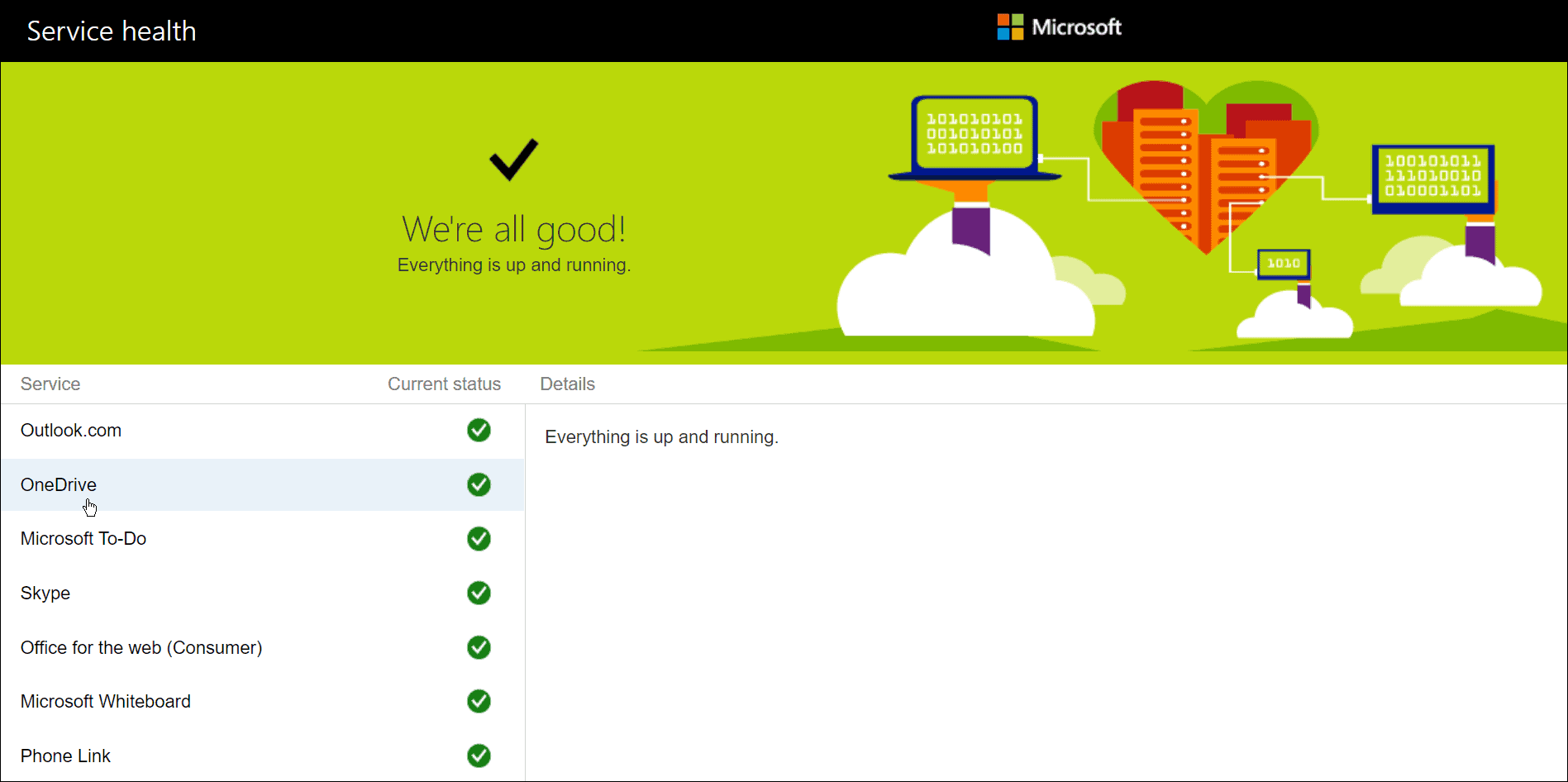
You can check this by going to the Microsoft service health website. From here, you can check on OneDrive to make sure it’s up and running. You can also check other services here like Skype, Outlook.com, and other services.
In this instance, everything is up and running, but it would be on the site if there were an issue.
10. Check Network Bandwidth Restrictions
If you’re using a limited bandwidth connection, you may have put bandwidth restrictions on OneDrive without realising it. If you urgently need files to sync to your OneDrive storage, however, you can remove these limits until the sync is complete.
- Open OneDrive from the taskbar, click the Gear icon, and click Settings.

- When the Settings screen opens, click the Network tab at the top.
- From the Network tab, set the upload and download rate’s to Don’t limit.

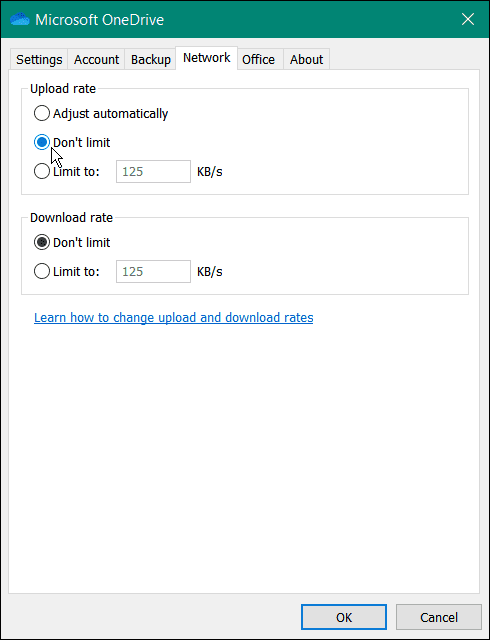
Leave the network settings until your file(s) sync. If you have many files, you may notice that OneDrive prioritizes itself over other online apps and services. Once your files are synced up, set the upload and download speeds back to where they were previously.
11. Reinstall OneDrive
If OneDrive still isn’t syncing, you may need to try and reinstall it. It’s also important to note that you won’t lose any of your files, and the app will resync once you reinstall it.
Other than that, uninstalling the app is easy and you can reinstall the app from the Microsoft Store. If you don’t want to use the store, use this direct OneDrive download link.
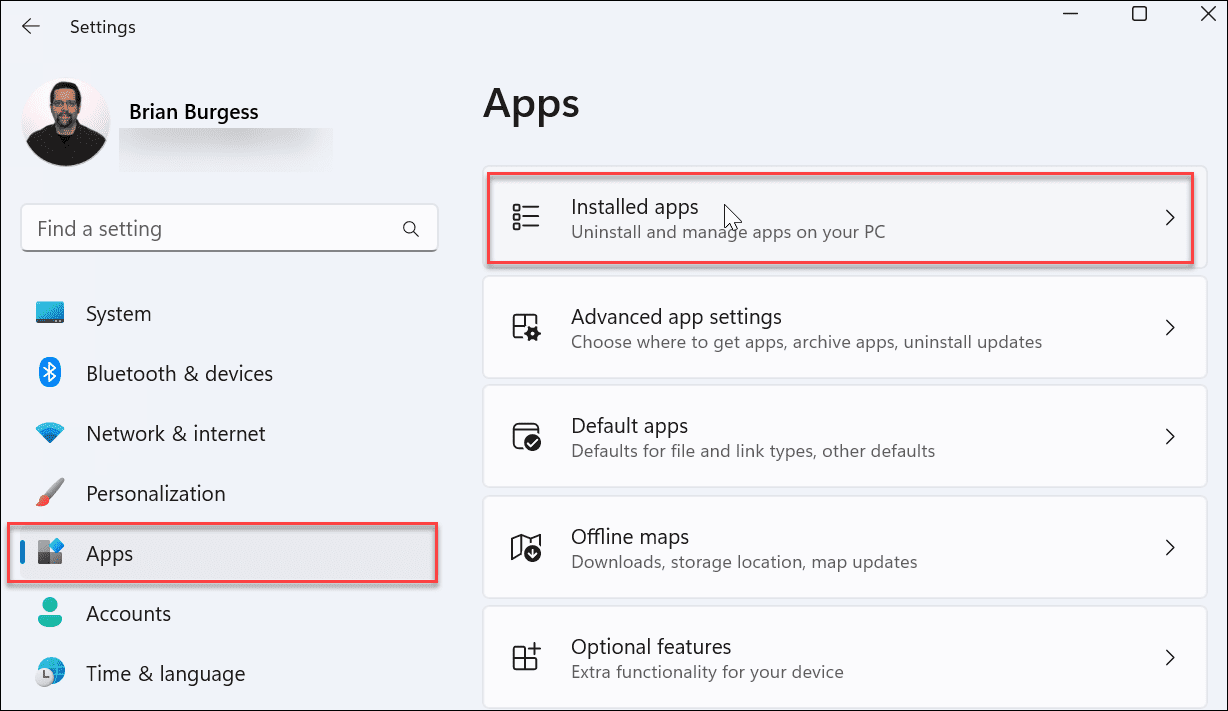
- Open Start > Settings and click Apps > Installed apps.

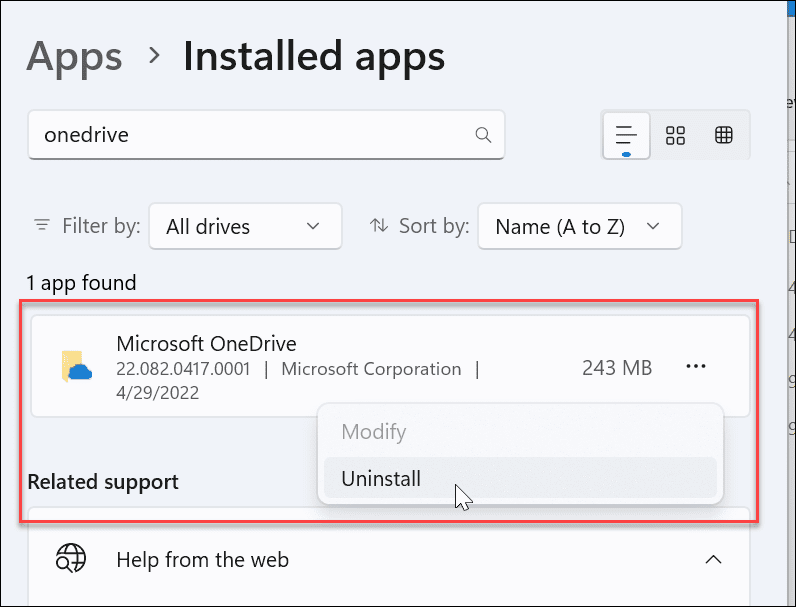
- In the Search apps field, type onedrive.
- Click the OneDrive three-dot button and select Uninstall from the menu.

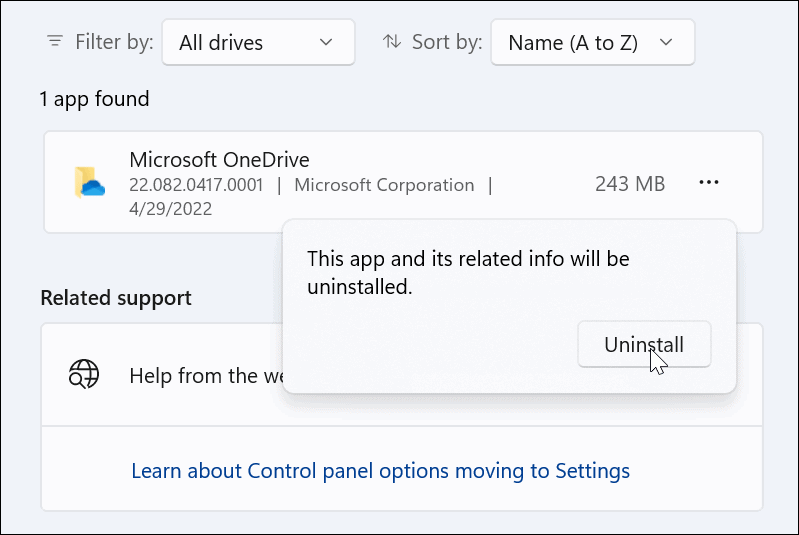
- When the verification message appears, click the Uninstall button.

- After the OneDrive app uninstalls, install the latest version on your PC (and sign in with the same Microsoft account details). OneDrive will also resync all your files.

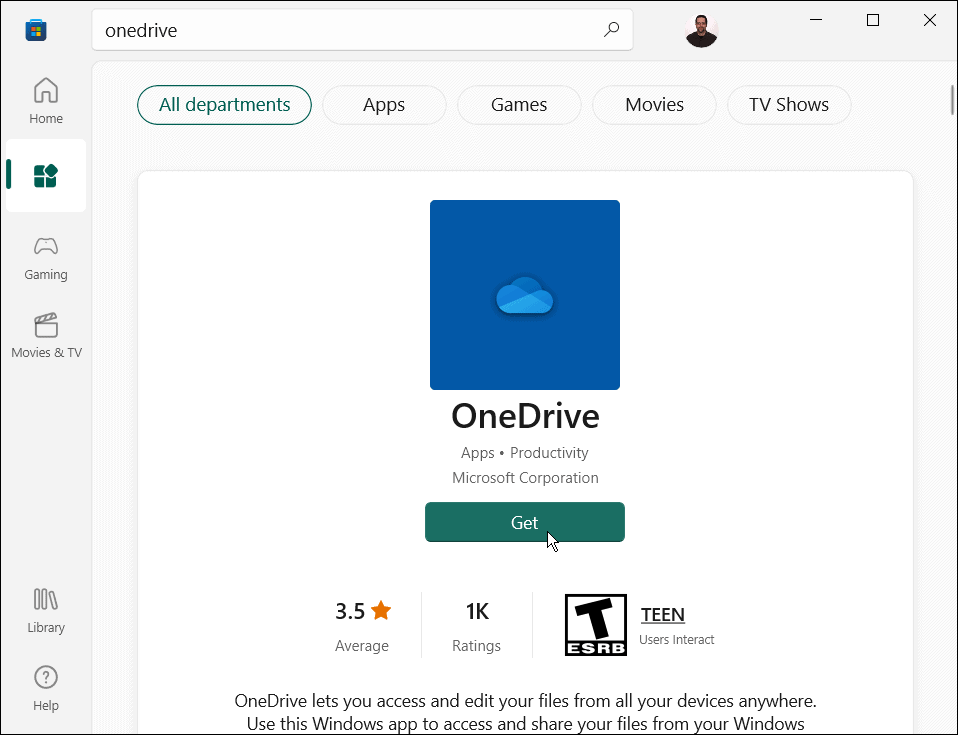
Not on Windows 11 yet? You can also reinstall OneDrive on Windows 10.
Using OneDrive on Windows
OneDrive is an excellent feature built into Windows 10 and Windows 11. You can adjust it to backup your local files when you initially set up your PC. If it doesn’t sync the way it should, using one of the options above should fix OneDrive not syncing to help you get back on track.
Leave a Reply
Leave a Reply