How to Map a Network Drive using Windows 10


If you have access to multiple computers on a network, connecting them to share data improves productivity. Here’s how to map a drive in Windows 10.
If you have access to multiple computers on a network, big or small, connecting to these resources can be critical to your productivity. For instance, in a large enterprise environment, users are often required and recommended to save data to a Mapped Network drive so co-workers can access the files. A network drive is usually a shared folder or computer available on a network that makes it easy to access using File Explorer, just like a regular hard disk.
This is done so everyone has consistent access to resources no matter the device or location. Admins can also regulate who has access to directories in a network share to keep data safe. Even if you are not in a complex network environment (your home network), you can also use Mapped Network drives to store, access, and retrieve data on another computer, home server, or a Network Attached Storage (NAS) device.
Map a Network Drive in Windows 10
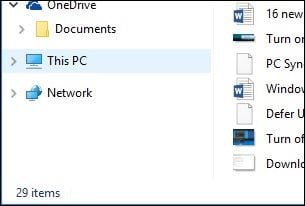
Launch File Explorer on the Taskbar or Start menu, and select This PC (formerly My Computer) in the Navigation Pane.
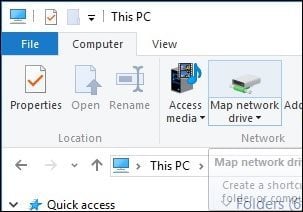
Next select Map Network Drive under the Computer tab on the Ribbon.
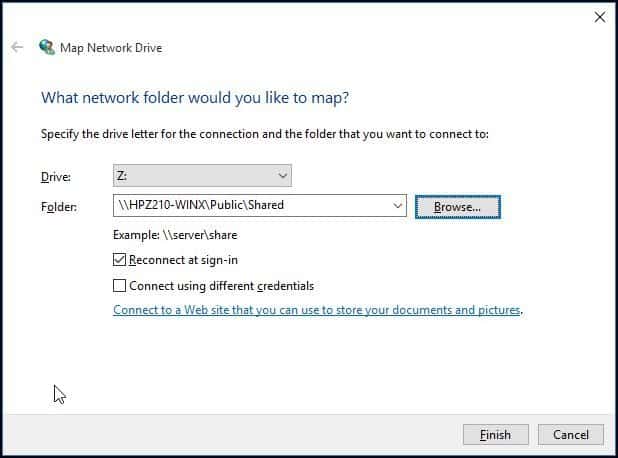
This will launch the Map Network Drive wizard. Here you will see a list of options, including assigning an available drive letter (I go with the default.) You can then type the path to the Network Share, or you can browse to it.
Ensure to check the box Reconnect at sign-in, so it will always be accessible when you sign in; then click Finish.
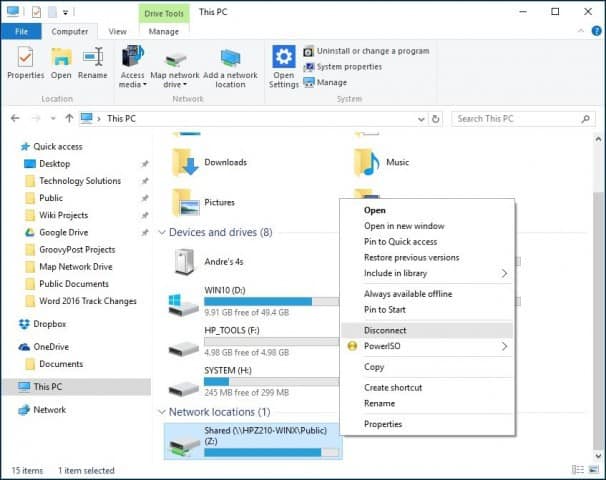
The Mapped Network Drive will then appear in This PC as a Network Location. If the drive is not available, you will see an X emblem on the icon. Anytime you want to remove it, right-click the icon and click Disconnect.
11 Comments
Leave a Reply
Leave a Reply







Natalie
October 4, 2015 at 6:00 pm
When I try to do this from my home computer (I have windows 10)
It connects, then says to enter my username and password, but then a dialogue box pops up that states, “The mapped network drive could not be created because the following error has occurred: Access is Denied.
My question is, is the access denied on my end or on the end where I’m trying to retrieve the access from the Mapped Network?
Please Help!
Alex
October 30, 2015 at 7:32 pm
It’s on the receiving end. Your computer is telling you that the system you are trying to connect to is denying you access due to a bad username/password or both. You may need to turn off password protected sharing or make sure that the system you are connecting to has the user and pass that you are trying to connect to it with,
chris
December 10, 2015 at 7:23 pm
You can’t make a network drive in windows 10 IF, you are logged in with an MS Account, only a local account. Go figure MS!
hw
January 7, 2016 at 4:40 pm
chris, how do I check this/log out?
Micki
April 28, 2016 at 11:13 pm
I have 2 NAS drives; one Seagate and one WMD. Both show up in Network locations. ANd I can access files through these, but it’s in a very annoying library format with folders grouped i.e. Titles A-C D-F etc.
I can mount public share of WMD and that works well.
Neither however show up as drives and neither is visible in the list when I try to map network drive.
I get the same behavior on two PC’s, both with Win10. Don’t have any other machine.
mukesh
May 3, 2016 at 12:25 am
Dear all,
share folder in windows 10 home premium and i want to map this folders in windows 10 pro what i do
pls help me
blast
May 27, 2017 at 2:42 pm
Do u still need help mate?
Michael
May 15, 2016 at 1:15 pm
I’ve had no problem connecting to my NAS; however, I have noticed that in Win10 that the path is much different than it was in Win7 and that’s creating issues with applications where I have connections to content on my NAS.
Example, I have my music on a mapped drive r:. In Win7 my files were added by going to drive r: and then the file path. In Win10, even though it’s still mapped as drive r:, I can only access files by including the network path (network, NAS name and then the share), not the drive letter I have mapped.
Is there something I need to do to extend the network mapped drive letter to other applications?
mukesh
May 17, 2016 at 10:21 am
i want to see our all workgroup computer to show my network place
Lyn
August 16, 2017 at 9:52 am
I have a Windows 10 machine that is currently mapped to the network drive. However, when I attempted to create a second user log in on that machine, the drive could not be mapped. I have done this process numerous times without any issues. I searched online, could not find anything, the diagnostic states that the DNS server is not responding (it was set to automatic). Changing the DNS address did not help. Finally, I changed the secondary user account to an administrator on that system only, and then the mapping was successful.
Gali
February 7, 2022 at 2:17 am
Great article!! I also find out the tool which helps me to figure out the differences between two documents. I really didn’t know about this amazing feature of Microsoft word. Thanks for this.