Disable UAC Pop-Up for Administrators in Windows Vista

Windows Vista comes with some pretty nice security features. One of them is User Account Control (UAC), designed to fill the gaps currently being exploited on Grand Ma’s computer using Windows XP. In an earlier article, I discussed How To Easily Disable User Account Control (UAC) on Windows. This time, I’m going to show you another method to disable the UAC pop-ups without completely turning off Secure Desktop. This approach can be applied to limited user accounts also. However, it will deny them access to any prompts.
A User Account Control pop-up, although there to protect you from malicious software (and people), can become quickly annoying.
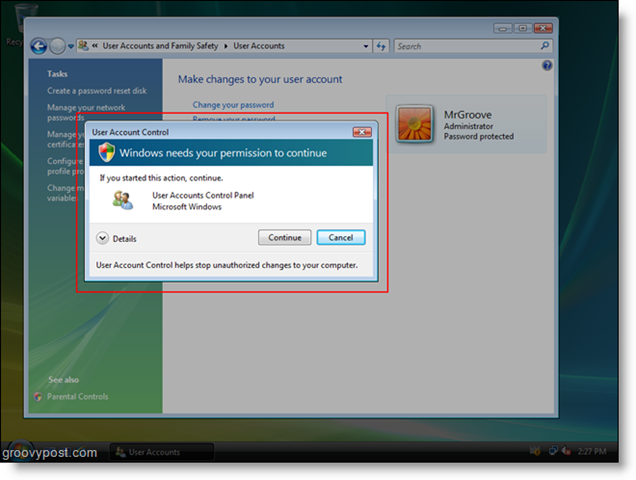
This How-To will explain how to turn off or disable, User Account Control (UAC) pop-ups using an Administrator-level account on your Vista machine.
1. Click Start, Type secpol.msc in the search bar, and Press Enter. Your favorite User Account Control pop-up may appear, just Click Continue.


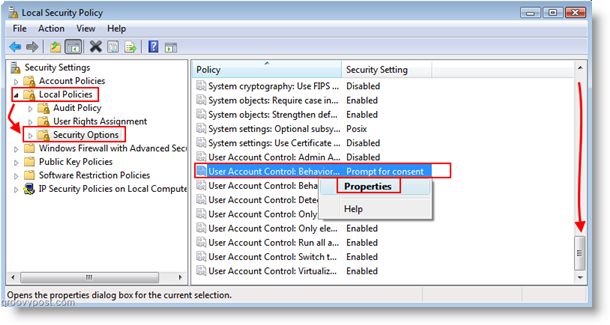
2. Once the Local Security Policy window is open, Click Local Policies, then Click Security Options. Using the list on the right, Scroll Down to User Account Control: Behavior of the elevation prompt for administrators in Admin Approval Mode and Double-Click it, or Right-Click and Select Properties.
3. In the new window that appears, Select the new setting Elevate without prompting. When finished Click OK.

You can also do this for limited user accounts in a similar way using the User Account Control: Behavior of the elevation prompt for standard users policy editor found right below the one I just showed you.
Leave a Reply
Leave a Reply



