Recover Deleted Email in Microsoft Outlook from Any Folder


Recovering Deleted Items/Emails from any Folder in Outlook 2007 is a trick that’s been around for a long time. I think the first time I found it was back in the Outlook 2003 days. It’s a very practical tip because if you ever move an email from your Inbox or other Folder, the only way to recover it is using the Recover Deleted Items command.
Unfortunately, however, that command is not enabled by default on any folder except the Deleted Items folder.
So, as you can imagine, this tip can be a lifesaver. But before I start, let’s first go over the basics of deleting emails in Outlook. Yeah, yeah, I know… what could be simpler than deleting an email? True, it’s a complex task but a lot of people honestly don’t fully understand it, so let’s spend a paragraph reviewing it quickly.
Three Different Ways to Delete Email in Outlook
Method 1
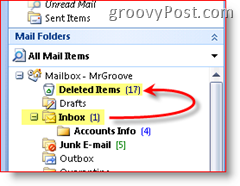
Let’s say you’re reading an email in your Inbox. If you Delete the mail by pressing the Delete Key on the keyboard or highlighting the email, then clicking the X icon up in the Outlook Toolbar, the email deletes. Well, not really.
When an email gets deleted in Outlook, it just moves that email to the Deleted Items folder, where you can go in and recover if you delete an email by accident. To “finish” the job, Delete the email again in the Deleted Items folder or Click Tools, Empty Deleted Items Folder. This action will permanently delete everything sitting in the Deleted Items Folder (well, kind of – I’ll talk more about this later).
Method 2
Some people (me) don’t want useless email (that I’ve already deleted once) cluttering up their mailbox and using up their quota space on the mailbox server, and I don’t want to spend time emptying my Deleted Items folder (Recycle Bin for Outlook). So, to permanently delete something from the Inbox (or any other folder in Outlook), simply hold down the Shift key and press Delete (or Click the X icon on the Outlook Toolbar). If you did it correctly, you would get the following prompt asking you – are you sure?

If you click Yes, the email will be permanently deleted and not moved to the Deleted Items folder.
Method 3
The last method of removing an email item in Outlook is moving an email from your mailbox to a PST file. When you MOVE an email from anywhere in your Outlook account to a PST, it essentially uses the Permanently Delete feature (from the 2nd Method above) and then copies the email to your PST file. So, if you ever go looking for the email, it will be gone unless you use the steps below to recover Permanently deleted emails from your Deleted Items and other folders in Outlook.
How To Recover Permanently Deleted Email Items From the Outlook 2007 Deleted Items Folder
Even if you empty your Deleted Items folder, you can still recover the deleted email for a short period (the exact duration depends on how you configure the Exchange server).
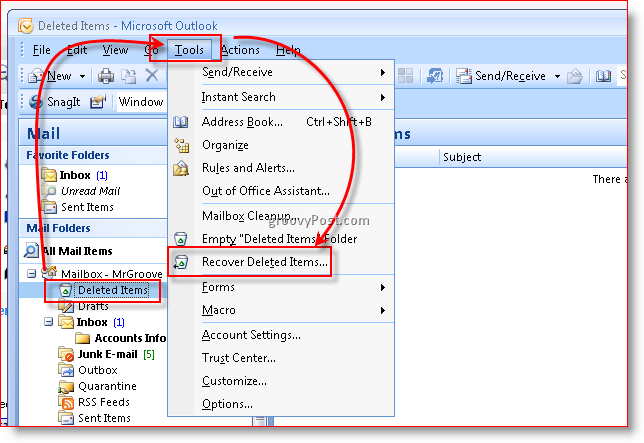
Click your Deleted Items folder, click Tools, click Recover Deleted Items
Click the Email you want to recover, Click Recover Selected Items icon (as shown below) to retrieve the email
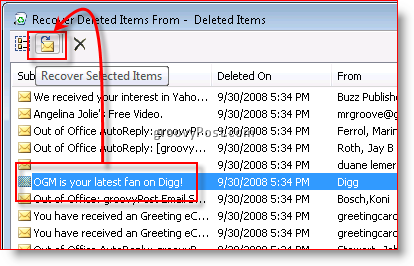
Note: If you click the first Icon, it will select all stored emails in the “Dumpster Bin” or Deleted Items archive. You can then either choose Recover Deleted Items or press the X Icon to purge them all off the server. Security Paranoid users (or ppl just trying to cover their tracks) use this method to delete all traces of emails off a server.
After the recovery, those recovered emails will show up in your Deleted Items folder again.

Recover Deleted Items from All Folders
Recovering Permanently Deleted Items from your Deleted Items folder (that sounds funny) is simple because the feature is on by default in Outlook 2000, 2003, and Outlook 2007. Unfortunately, this default is not the case for all other folders. This default setting is important to know. If you’re like me, and you Press Shift-Delete on emails in your Inbox, Sent Items, or other folders, the email item will remain there until the file is purged Permanently by the server (as mentioned above, this period varies depending on the Exchange Server config.)
So what we must do is quickly make a Registry change on your computer to enable the feature, and then the process will work the same way as it did above in Steps 1 and 2. With that said, let’s get right into it.
Note: If you’re not comfortable modifying your registry Steps 3 – 6, click here to download a .reg file. Save the file to your Hard Drive and Launch it. It will automatically update your registry for you and configure all folders so you can Recover Deleted items from them. IE users can just click the link above, but Firefox Users might need to Right-Click the link above and click Save Link As.
Close Outlook, Click Start Button and type: Regedt32 and press Enter key to open the Windows Registry Editor

Browse to Computer\HKEY_LOCAL_MACHINE\Software\Microsoft\Exchange\Client\Options
Click Options Tree/Folder (as shown below), Edit, New, DWORD Value

Type the name DumpsterAlwaysOn, Double Click the new Entry, and type a 1 to set the value

Again: If you’re not comfortable modifying your registry Steps 3 – 6, just click here to download a .reg file, save it to your PC and run it.
All done. Close the Windows Registry Editor and Open Microsoft Outlook.
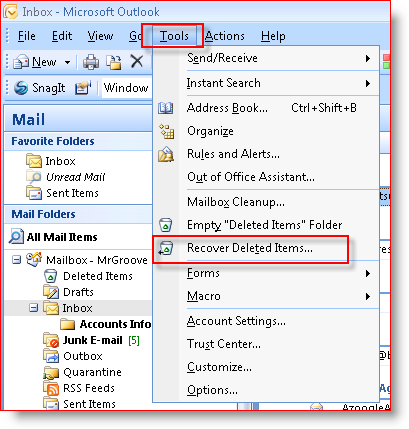
If you click on your Sent Items or your Inbox, you will notice you have a new command under the Tools menu item as shown from the screen snip to the right.
The next time you do a Shift-Delete on an email and Permanently delete it, or move a file from your Inbox directly to a .PST and need to recover it for some reason, you can. Just click on your Inbox > Tools, Recover Deleted Items.
24 Comments
Leave a Reply
Leave a Reply







Trang
October 16, 2008 at 6:49 am
Hello Mr. Groove,
Tks so much for your detailed instruction!
I have accidently deleted permanently so many mails. I want to recover it but i could not find the recover deleted items in the tools menu… Despite the fact that i have added the Dword Value – DumpsterAlwaysOne as instructed. But the outlook still does not appear the “recover deleted items” in the tools. I’m using Microsoft Outlook 2003. What should I do to have this option? Pls help!!!
Steve
October 21, 2008 at 3:57 am
Brilliant instructions. Worked a treat for me.
In response to Trang, is your Dword value DumpsterAlwaysOne or DumpsterAlwaysOn ? It should be the latter.
MrGroove
October 21, 2008 at 8:32 am
@Trang
Hello Trang. Steve has it right. From your comment it appears you might have a typo in the registry Dword you added. Verify and get back to us here on your status!
@Steve
Thanks for the keen observation and the feedback! ;)
L
October 24, 2008 at 7:02 am
THIS WAS INCREDIBLE! Thank you so much! It totally worked. My IT department is very slow and it would’ve taken them all day to get around to restoring my deleted inbox. This made my day!
Ravi Luck
November 4, 2008 at 9:34 am
This is a great guide and it was very helpful until I realized that the outlook on these computers are not on an exchange server. Are all my “accidentally deleted inbox email” really gone? Any ideas??
Thanks
MrGroove
November 4, 2008 at 5:41 pm
@Ravi – Hello. Well, although there’s not a “perfect” solution, there IS a solution for recovering email your Outlook PST files. You see, an Outlook PST file is nothing more than a small database. As long as you don’t use the Outlook “COMPACT” feature, email that gets deleted in the .PST file is not actually deleted. The process to recover the mail is not simple however (Requires a HEX Editor and a Microsoft tool called ScanPST.exe). So, what I’ll do is write up a quick How-To Article today which explains the Step by Step process.
Are you running Outlook 2007 or Outlook 2003?
John
November 7, 2008 at 7:26 am
Hi Guys,
I also can’t see recover deleted items in Tools menu. I have tried and retried but can’t see the problem.
I am using Windows XP and Microsoft Outlook 2003.
Ravi Luck
November 7, 2008 at 2:13 pm
@MrGroove – Hello. Great news! I actually recovered the email using the .PST file. I’m using 2007. A friend told me to locate the .PST file, then in the file, under its properties (maybe advanced properties), restore it to a date before the email was deleted. I did this and then:
• Back to Outlook, File, Import and Export, “Outlook…”
• Import from another program or file.
• Under Select file type: scroll down to “Personal File Folder (.PST).
• Navigate to the .PST file that was restored. I believe I dragged and dropped 3 different .PST dates into a folder on my desktop.
• Pick the file closest to your deletion date/time.
• Let Outlook restore the PST file. It’ll ask you where you want to restore it to. I picked what seemed like a default: Personal Folders with the option to skip duplicates.
• Let Outlook load old email and personal info.
Done! All email should be restored.
groovypost rocks – Thanks for all of your help MrGrove.
MrGroove
November 7, 2008 at 5:19 pm
@Ravi – Hey that’s great news! Thanks for the great email reply! You must be using Windows Vista?
That’s one great thing about Windows Vista is the “Previous Versions” feature. Really glad the process worked for you! I’ll have to turn it into a groovyPost article now (with credit back to you of course) :)
Dtruong
November 17, 2008 at 9:37 pm
I nuked everything in my inbox with shift-delete. Almost lost it until I found this article. Thank you.
Richard
November 20, 2008 at 4:32 pm
One of my users… in finance… deleted their entire INBOX… with this great post I was able to get it all back for them in about 5 minutes AFTER my boss told them that recovering the mail was impossible.
Thanks for making me look great!
Kat
December 8, 2008 at 8:04 pm
OK…bare with me. I need to recover deleted outlook emails or my butt is in a sling. Don’t need anyone knowing the were accidentally deleted….having said that……if my comp spends some time with the IT dept. (as it often does) will anyone know/ realize that I changed he registry key? Or it something that can just be blown off as though I knew nothing about it?
Sigh…..great instructions BTW and thanks!
MrGroove
December 9, 2008 at 7:57 am
@Kat – Well first of all. I probably should have mentioned that by default, you don’t need to make the registry change for Outlook 2007. Recovering deleted items from all folders is available with no registry key.
Now, if your using Outlook 2000 or Outlook 2003 then go ahead and make the registry change and follow the steps to recover the deleted emails. Don’t worry about your local IT dept. checking in on the Registry. I would bet 99.999% of all IT people would never spend the time to look if you made this change and if they find it, they probably wouldn’t know what the reg key does. And yes, you can always claim ignorance / play the dumb user. There’s no auditing to track that you made the Registry change.
Hope that helps you! We defiantly don’t want your butt in a sling!!! :)
PS….. If your SUPER nervous, after you recover the mails (don’t forget you need to close outlook after the change for it to take affect) you can always just remove the registry change.
Kat
December 9, 2008 at 8:03 am
You rock! Thank you. Right now I can only recover from the deleted folder.
You were a huge help.
MrGroove
December 9, 2008 at 1:17 pm
@Kat – Ok then that’s normal for Outlook 2000 or 2003 “BEFORE” you make the change. Hopefully after you made the change you can recover from all folders (Inbox, Sent items etc…). Let me know if you still need help.
Thanks!
Rene
December 17, 2008 at 11:23 am
Sorry Mr Groove, but I have the same problem as John I followed your instructions of adding the DumpsterAlwayOn, but the recovery deleted items still does not show on Tools. I am using Xp and Microsoft Outlook 2003 SP3.
Incidently I noticed that my Dec messages in my sent items folder has gone is this because the autoachive (which I did not know ) is on?
DTR
January 21, 2009 at 8:10 am
Same as Rene and John.
I have followed these instructions and it did not work.
MrGroove
January 23, 2009 at 11:14 am
@Rene – Hi Rene I think it would help if you posted your issue in our forum and included a screenshot there of the registry changes you made.
It’s very important that you make the registry exactly and then exit Outlook and then reopen outlook.
In regards to your sent items folder, are you saying email has vanished? Remember, the archive process just moves email to a .pst on your machine. so nothing should be gone “forever” as long as you dont delete that PST file.
@DTR – Same as above, plz open a forum topic with your exact issue so we can troubleshoot there.
Rene
January 23, 2009 at 12:08 pm
Thank Mr Groove, unfortunaltey I am having to get a technician in, my computor started rebooting by itself every 10 or so minutes. I have just switched it off and using another comp at the moment which is another story as I do not like Vista and my other comp. was XP. I find now that sometimes Outlook 2007 stops responding at various intervals. Incidently I did managed to recover my sent items but not emails that I have had for over 2 years contained in my Inbox. Thank you once again for yr assitance.
MrGroove
January 27, 2009 at 3:46 pm
@Rene – Sorry to hear that. Sounds like your having quite the Horror story!!! Hope it all gets worked out!
Edwin
February 4, 2009 at 8:19 pm
After following your instructions I was able to recover ALL the Inbox items I accidentally deleted. I thought that there was no way to recover items deleted PERMANENTLY (SHIFT+DELETE combination) since they are not stored anymore in the Deleted Items Folder. Many thanks for the great help!
Mark Noland
February 11, 2009 at 3:00 pm
Hey MrGroove……. I have mysteriously lost “sent” emails from March of 2008 to present….. the sent emails from March 2008 back further were still there. I just don’t know how approx 10-11 months got deleted or disappeared on their own. I have tried each and every option listed above, and none of them have worked for me. I have Microsoft 2007 that I recently installed. I really need to recover, as I use them alot with my business to refer back to. I cannot say that I “deleted” them, because I would have had to click on each one of them to do that, about 150 emails, and that didn’t happen. I tried the import/export steps, and get to and click on .pst and it says, “cannot find this folder, verify the path and file name are correct….” I don’t know why it stops me at that point,….. then, I too, do not have the option, “Recover Delted Items” as a choice. It’s just not there. So what do you recommend I try. Thanks for any help. Mark
MrGroove
February 11, 2009 at 6:45 pm
@Mark – These comment sections are no place to troubleshoot an issue. I moved your question into our Forum where both I and other members of the groovyPost Community can help solve the problem.
You can find a link to the Forum Topic (to continue our conversation) below. You will need to register first but that’s a fast and easy process. Thanks!
MrGroove
February 11, 2009 at 6:46 pm
Please direct all future questions and comments to the following Discussion Topic created for this Article:
https://www.groovypost.com/forum/microsoft-office/recover-deleted-email-in-outlook-t95593.html
This way the entire Groovy Community can assist you!
Thank you!