How to Look Up or Back Up Google Chrome Saved Passwords (Updated)



Update: Chrome now encrypts password data and this method no longer works. If we find another method for recovering Google Chrome passwords, we’ll update this article.
Aren’t saved passwords great? No more racking your brain to remember obscure login credentials or locking yourself out of your account after too many failed login attempts due to typos. These are especially common inconveniences if you have a decently strong password with non-dictionary terms, uppercase and lowercase letters, numbers, and symbols. But the problem with the luxury and ease of saved passwords is that after months, perhaps years of relying on saved and auto-filled login credentials, you just plum forget what your passwords are.
Viewing and Deleting Saved Google Chrome Passwords
Google Chrome saves passwords used in web forms and log ins. You can manage these saved passwords as well as view them (to jog your memory) from within Google Chrome’s Options menu.
Step One
Launch Google Chrome. Click on the Wrench icon in the top-right and Click Options.
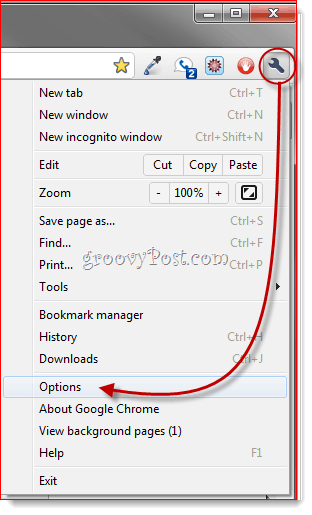
Step Two
Click the Personal Stuff tab. Scroll down to Passwords and Click Managed saved passwords…
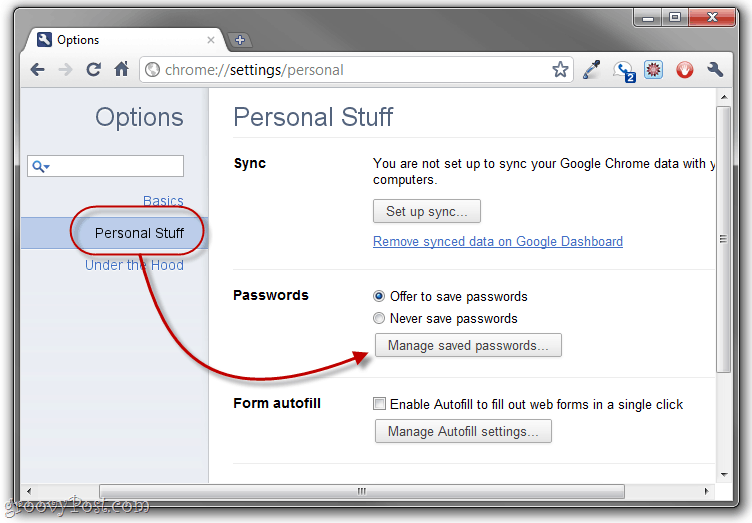
Step Three
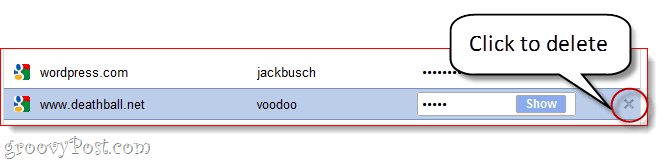
This will display all of the passwords that Google Chrome has saved. When you first view them, the password values will be masked. But you can display them by selecting login and Clicking Show.

If you are at all paranoid about your security and privacy, this is immediately problematic for obvious reasons. A good solution: Tell Google Chrome to Never save passwords.

Or, you can go through and delete individual passwords by Clicking the X next to each one. This is something you should do if you accidentally saved your password on a friend’s computer or a public PC.
Backing Up Google Chrome Saved Passwords
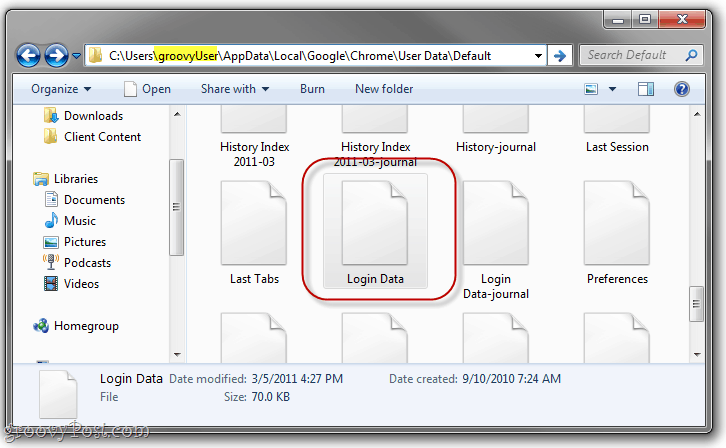
If you are on a trusted computer and don’t mind saving your passwords, Google Chrome’s password management feature can actually be pretty useful. Your saved passwords are kept in a file called “Login Data” in Google Chrome’s App Data folder. You can back this up, save it to a thumb drive, and copy it to a new computer in order to transfer your saved passwords. This is also handy if you plan on re-installing Chrome, but don’t want to lose all your saved passwords.
Step 1
Close all Google Chrome windows. Then, navigate to the Google Chrome AppData folder in Windows Explorer. Usually, this is at:
C:\Users\[yourusername]\AppData\Local\Google\Chrome\User Data\Default
Step 2
Locate the Login Data file. Click and Drag it to another location, such as your desktop, your Dropbox folder or a thumbdrive.
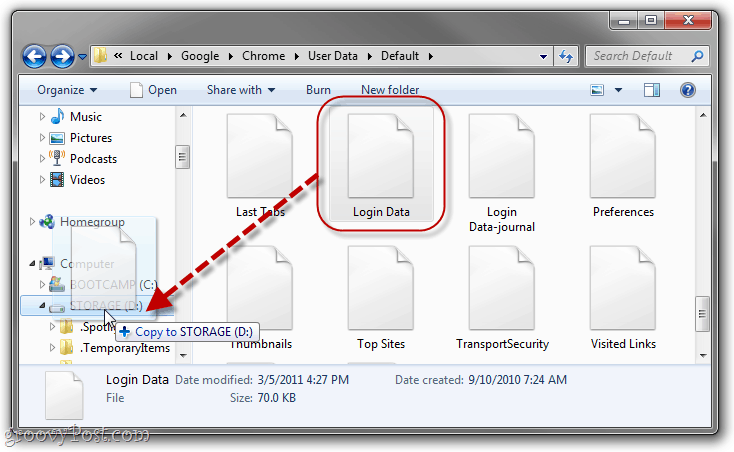
Step 3
You don’t have to, but it’s a good idea to Rename the file to something that denotes it as a backup. I like “login data.bk”.

There. Now, in order to restore your Google Chrome saved passwords from your backup file, simply hunt down your Login Data.bk file and rename it back to “Login Data”. Then, copy it back into the AppData folder I showed up above, overwriting the exiting Login Data file. (Note: This will delete any saved passwords on the current installation, but if it’s a brand new install, then this is a non-issue.)
That all being said, a much better and more secure solution is to use a dedicated password manager, such as LastPass, password corral or password safe and sync your passwords with dropbox. But that’s another groovyPost for another time!
27 Comments
Leave a Reply
Leave a Reply







Hi
March 6, 2011 at 3:50 am
Thanks for the post.
Irrelevant question: what is the image editing tool that you are using to mark those red guiding lines.
groovinJackman
March 7, 2011 at 5:04 am
SnagIt! Best thing in the world. Worth the $$ but you can get a 30-day free trial
http://www.techsmith.com/download/snagit/
KSK
March 7, 2013 at 4:35 pm
You can use MS Word to get the outline and the shadow. Take a screenshot of what MS Word shows and save it as a separate image.
Chloe
March 8, 2011 at 5:41 pm
AWESOME, have been nervous about this for a long while. Perfect solution!!!!!! And I learned other things as well! THANK YOU!
Salima
November 15, 2011 at 1:07 am
Superb! really helped – thanks!
Microsoft Windows 7
December 6, 2011 at 7:58 am
hello!,I really like your writing so so much! percentage we keep up a correspondence extra about your post on AOL? I need a specialist in this space to resolve my problem. Maybe that is you! Having a look forward to see you.
Yeon
March 7, 2012 at 8:30 am
I tried to replace ‘login data’ for the password, It looked working list and username show well butht no password shown. Only the passwords were blank.
How do you solve at this?
Exparta
April 1, 2012 at 10:03 pm
If I re-install windows, then the backed up password file won’t work for chrome. It will only show usernames, but no passwords. How to fix that?
Killuaj
April 10, 2012 at 2:57 pm
Can i copy this fill to all my Pc and i will have the same pass and user on my browser ??
doesnt work
May 17, 2012 at 11:33 pm
Unfortunately it seems it doesnt work.
The usernames are autofilled but passwords remain blank :(
spreadzz
October 21, 2012 at 8:19 am
same here, the guy who wrote this unfortunatly is a retard
kunjan
June 2, 2012 at 4:11 am
thanks..
good work..
fuk puk
September 28, 2012 at 1:22 am
DOES NOT WORK WHEN RE INSTALLING PC WITH WIN7 64 BIT, you SHIT ASSHOLE
Canuckster
October 11, 2012 at 9:17 am
Just a heads-up: The Login Data file is now in C:Users[yourusername]AppDataLocalGoogleChromeUser DataProfile 1. (as of latest Chrome update 11/10/2012 when I wrote this.)
Scroll down (everything is alphabetical), then you’ll see the file. Then you can proceed with all he says here. it sounds like it’ll work! I saved it to my external hard drive, and renamed mine to Login Data.bk (as you suggested).
Looks good, thanks!! Just one question, can we follow basically the same procedure for Mac (Except for different folder system and whatnot)? Or is it completely different?
Thanks. :)
praveen
March 31, 2013 at 8:03 pm
I want to see the file in a text format ?
Is there any way which enable to arrange the passwords in txt file ??
shoko
April 1, 2013 at 8:40 am
I have the same problem of yeon and exparta, usernames showing but blank passwords, please please I need to retrieve them , how can I do it?
Aotr
April 25, 2013 at 9:09 pm
doesn’t work anymore
Chip
June 19, 2013 at 4:55 am
How can i find the Equivalent for android login data file ? cause i have deleted by mistake the passwords, and i have a phone and a laptop that ware offline at the point, the only way i can recover the passwords at this point.
samiam
December 18, 2013 at 9:20 pm
This doesn’t work. Passwords are encrypted using local windows user credentials, which are different on different computers. Nice try, though.
Charles
January 9, 2015 at 5:02 pm
Just copy the “Login Data” file to another PC and the passwords are not recognized by Chrome. Eventually I extracted the saved passwords from Login Data with this tool:http://www.top-password.com/password-recovery-bundle.html
gino
May 4, 2016 at 10:17 pm
Hello, could you elaborate how?
ali
June 9, 2015 at 6:14 am
good .. i didn’t thought there is a single file like this for saved passwords !
Steez
October 13, 2015 at 12:35 pm
Finally the answer I was looking for, there’s a lot of duplicate “look in chrome to see all your saved passwords” answers, but nobody specifies the file where the passwords are actually saved.
Thank you.
Lea
June 15, 2017 at 6:04 am
I tried to resave my file and I get an “Error 0x800704C8: requested operation cannot be performed on a file with a user-mapped section open.
Cynthia
July 15, 2019 at 4:56 pm
Do you have an update to this article? In my case it particular, I am attempting to save my passwords to transfer them onto a computer with Windows 10 from one that had Windows 7, if it makes any difference.
Lea Wilhite
July 16, 2019 at 12:39 pm
Google passwords should be available on any device that you log into using Google/gmail. I believe it is now cloud based and not simply stored in a folder on your PC. If not on your Google drive, then sync the PC to the drive.
Muhammad Siddique
December 20, 2021 at 10:59 pm
Click On upper right Corner on your Sync account in google Chrome, You will see three icons beneath Keyicone, Map Icon, Payment Method Icon. Click on Key Icon and see all saved passwords.