Spy On Your Kids Using Your Wireless Router


This article reviews how to monitor your children’s internet browsing to help keep them safe online. The steps review the process on your wireless wifi router.
When it comes to ensuring safety and responsibility on the Internet, proper education and a policy of mutual trust and respect are the best policies. But who am I kidding? The web is a vast playground of debauchery and anthropological horrors, and it’s a teenager’s prerogative to peer occasionally over the Gates of Mordor into the land of shadows. From porn and bomb-building guides to Facebook and Twitter, the Internet is a vast cornucopia of potentially hazardous material. For the most part, I’m of the opinion that a little bit of minor mischief is harmless, and perhaps even character building, as long as they come out relatively unscathed. But if you’re interested in sheltering your child, there’s an equally lavish smorgasbord of parental control and net nannying tools at your disposal.

The logical route for today’s concerned, yet lazy, parents, is to shell out hundreds of bucks for some off-the-shelf piece of software that they can install on their kid’s computer. The problem is that a quick Google search reveals a dozen workarounds for even the most expensive parental censoring spy tools. Making matters worse, by installing the software on their machine, you’re immediately tipping your hand by revealing that [A] you are watching them and [B] which tool you are using.
The better way to do things is to take a page out of the government’s book and surreptitiously and warrantlessly monitor all Internet traffic that goes out of your house. This process is better because it prevents them from using a browser with an Incognito Mode or just clearing the browser history (perhaps the first thing a mischievous tot learns how to do on the computer). If only there were some gateway that stood between your house and the World Wide Web…oh wait, there is. It’s your router.
In this tutorial, I’ll show you how to retrieve the web traffic log from a NETGEAR WPN824v2 router and how to block individual websites for selected computers in your house—all without installing a single piece of software on your kid’s computer.
Accessing Your Router’s Settings Page
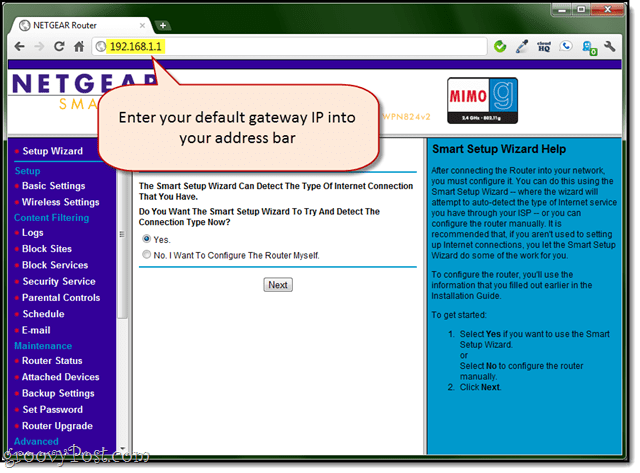
From any computer, access your router’s setup page by typing in its IP address into your browser window. For me, it’s 192.168.1.1. Try clicking that and see what happens.
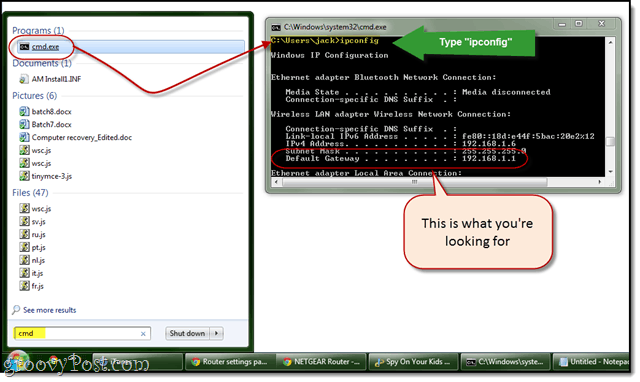
If that doesn’t work, open CMD.exe and type: ipconfig /all and look for the field that reads default gateway.
A Quick Note About Your Default Password
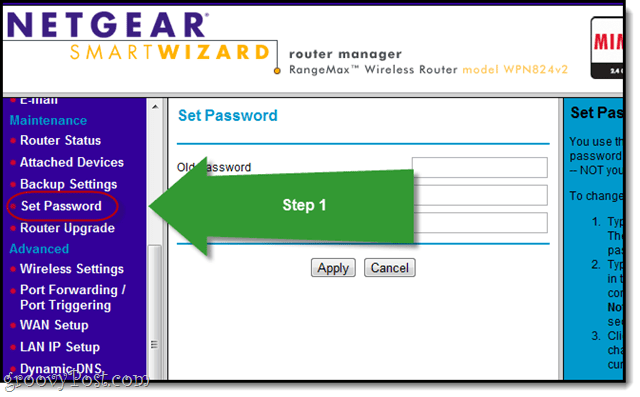
You’ll probably be prompted to enter a username and password. You probably don’t remember what this is. Try admin / password or admin / 1234 or admin / admin or root / root. You can also Google your router’s model number and “default password.” Once you’ve done that, you should change it. On the NETGEAR page, it’s Maintenance > Set Password
Viewing Your Logs
To get a feel for what we’re working with, go ahead and click Logs under “Content Filtering.”
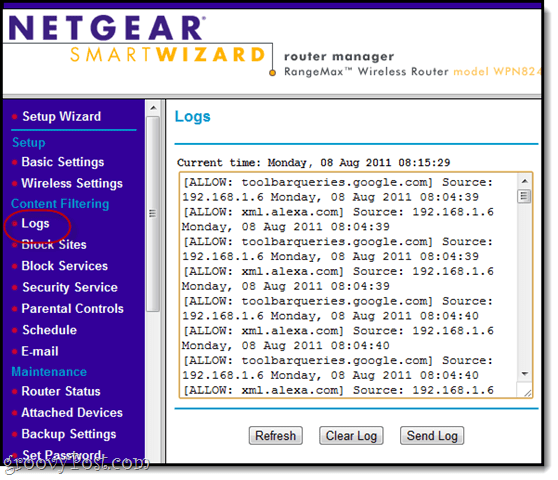
Initially, this is going to be a bunch of mumbo-jumbo. But don’t worry, we’ll make sense of this. If you can already parse out all this info, then great. If not, read on.
What you want to pay attention to in this screenshot are the IP addresses for the Source. Using this information, we’ll track who was looking at what. Here, we see that all the activity is coming from 192.168.1.6. That’s my computer. How do we know? See below.
Viewing Attached Devices
Click Attached Devices under “Maintenance” to see.
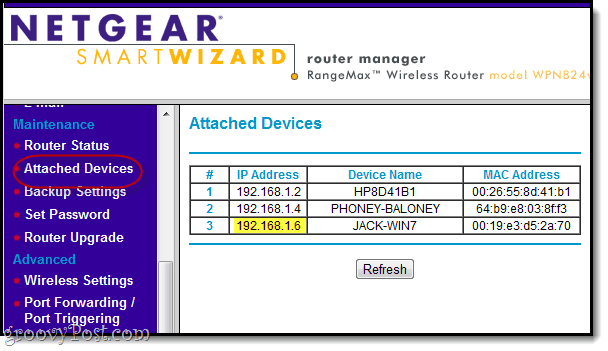
This lists all the devices that are connecting to the router. As you can see, 192.168.1.6 is JACK-WIN7, which is what I named my main computer. PHONEY-BALONEY is my iPhone. HP8D41B1, I’m assuming, is the netbook sitting open on my kitchen table. Or it could be my neighbor stealing my WiFi. At any rate, this is a useful page to remember.
To illustrate, I’ll visit yahoo.com on my iPhone and see if it shows up in the logs:
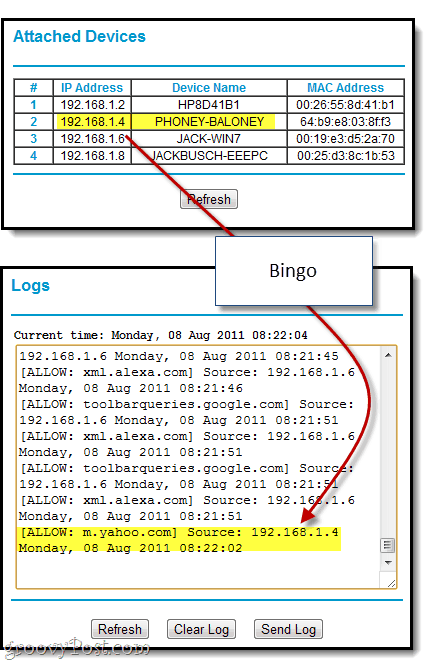
Now, I’m going to hazard a guess and assume that you don’t want to spend your evenings sifting through the log, matching up IP addresses to salacious websites. Luckily, you can automate it somewhat by blocking sites.
Blocking Sites
Blocking sites and services on your router restrict access to certain websites or activity on certain ports. This is a rock-solid way to police web activity because it can’t be circumvented from a computer. You have to access the router to change this.
Click Block Sites under “Content Filtering.” Here, you can enforce restricted websites by entering keywords you want to be blocked. You can choose to block sites according to a schedule (Click Schedule to choose the times/days of the week to block) or you can elect to block them always.
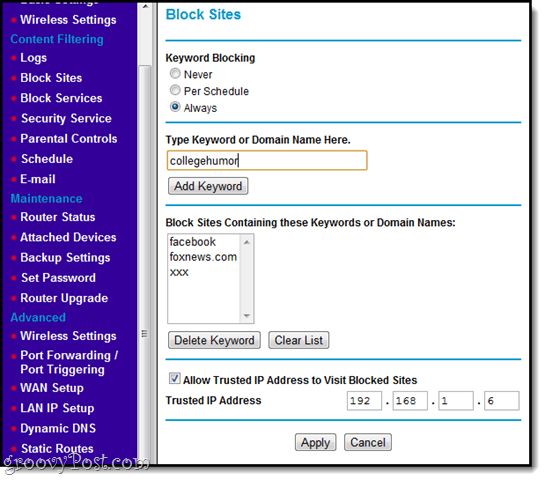
Notice along the bottom that you can add a trusted IP address. In this case, I don’t want to block myself from these sites, just my untrustworthy kids. Remember that my IP address is 192.168.1.6, so we can punch it in here to give us full access. Note that this presents a potential workaround, as a clever user could find a way to get assigned that IP. Use at your own peril.
Now, when you try to visit a blocked site, you see this:
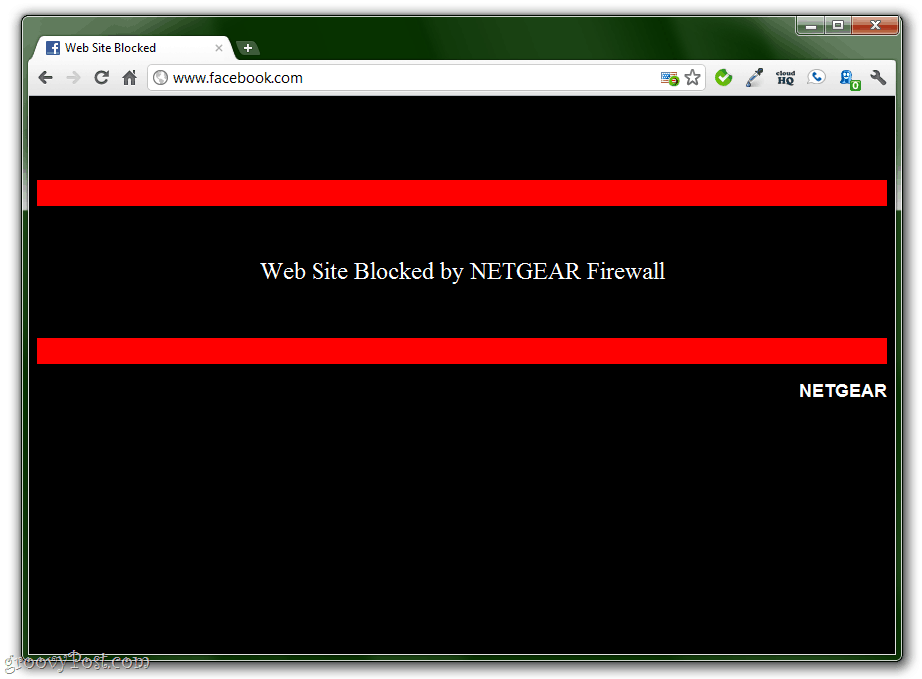
Note that one may be able to circumvent this kind of filtering by typing in an IP address directly (for example, to get to Facebook, just type 69.63.189.11 into the browser window). To avoid this, add the known IP addresses to your block list.
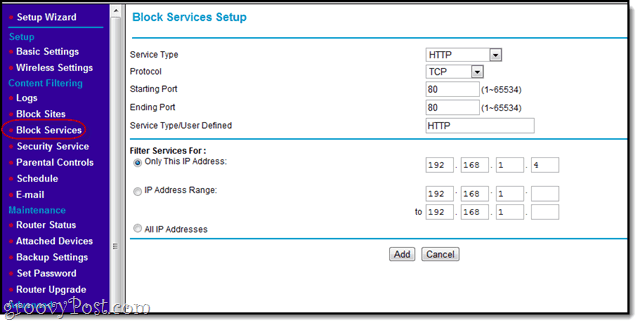
Tip: If you want to block all Internet access, say, after 9 PM, use the Block Services tab and choose HTTP from the drop-down. Then make sure you specify the IP address for the restricted devices.
E-mail and Alerts
Using the E-mail tab, you can have your router email you the logs on a daily/weekly/hourly basis or each time someone tries to access a blocked website. Or, you can send the logs manually from the Logs page. 
Either way, the email will usually show up in your Spam folder, so be sure you filter it correctly.
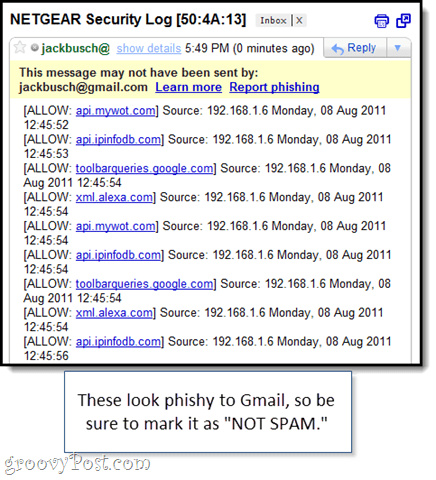
What I suggest doing, rather than actively blocking sites, is to set yourself up a Gmail filter that scans your logs for certain keywords and then stars them. This will save you a lot of time sifting through the logs manually and also prevents your suspects from knowing that you’re monitoring their activity.

With a filter like this, you can get a daily report of your son or daughter’s web activity, as well as a flag each time certain keywords show up. All without them knowing.
Conclusion
Using NETGEAR’s built-in security tools, you can easily monitor all network traffic going into or coming out of your home. The advantage of this is that there isn’t any software installed on your child’s computer, meaning that it’s harder for them to detect and nearly impossible for them to get around. They could use proxy sites, but that’s a pain in the butt and easily picked up on if you look at the logs. The main limitation is that you won’t be able to see any web browsing that’s done on their smartphone or tablet via a cellular data network (e.g. 4G, LTE).
And I want to reiterate that properly educating your kid about safe web browsing activities is the first and most important step to keeping them in the clear on the web. A lot worse can happen to anyone on the web who doesn’t know basic web safety principles. And that goes beyond watching bootlegged episodes of South Park or a risqué CollegeHumor.com video. From viruses and phishing schemes to sexual predators and dangerous misinformation from irresponsible news journalists, there’s a lot out there that can harm your child and your family that can’t be stopped through Big Brother-style monitoring. Your energy is far better spent trying to teach your kid to be a responsible and thoughtful consumer of media.
But if you are ever suspicious that your kid is involved in something way over his or her head, these tools may be able to help you catch it before something disastrous happens.
Okay, enough preaching. Godspeed, you paranoid parent, and happy spying. If you would rather just connect a device to your network to use to enforce parental controls from the palm of your hand, check out the Circle Home with Disney.
125 Comments
Leave a Reply
Leave a Reply







groovinJackman
August 8, 2011 at 11:40 am
It goes without saying that this would also work for employees, though I think there are more professional solutions out there.
hotdogperson
May 29, 2018 at 12:47 am
thank god you posted this my mom loves to pull this stuff that for the notes
Ankit
December 27, 2011 at 10:19 pm
hi i am ankit
how to block Https sites using netgare router
my email id is ankite@unisysinfo.in
Jake
January 18, 2012 at 11:10 pm
I’m having issues figuring out how to use the email function to email my Gmail account but you seemed to have it working for you in your snapshots. Mind lending me a hand?
Steve Krause
January 19, 2012 at 3:48 pm
Hi @Jake – Could you ask your question with specific details in our help forum? – https://forum.groovypost.com
We should be able to help you out there — and the entire community for that matter will lend me hand in troubleshooting your issue.
Thanks,
-S
Jake
February 16, 2012 at 9:17 am
My Netgear router is newer than the one in this article but has most of the same settings. I have a parental controls option where I can set up alerts and logs through email. I’d like to set up email notifications of those logs “when someone attempts to visit a blocked site” to my gmail account but can’t seem to get the settings right. You have a picture above under “Email and Alerts” which seems to use a gmail account to receive those alerts. Any help you can give would be great!
MEH
January 20, 2012 at 8:35 am
Hi, Thanks for the article. My son was using opera mini browser to get around my parental controls.Unfortunately your article did not help and he can still browse, using this proxy browser. Is there a way of blocking opera mini? thanks
Helpful guy
February 8, 2015 at 1:28 pm
You could just uninstall Opera Mini Browser from his device/devices and block the website so he cant install it again….
mysticvortex13
February 9, 2015 at 12:45 pm
seriously, enough fooling around with parental controls.. he’s his own human being.. you’ve no right to censor him like this.
even then, he can still use proxies and vpns unless you blocked all the ones he knows of..
if he’s even trying to defy you like this, i take it he’s a teenager.. teens are in every way adults save that very sense of stubborn defiance.. it may get in the way of them making rational choices sometimes, but they full well know the potential real world ramifications of their actions..
even if you block something, there’s a chance he’ll be able to get around it by typing “https” instead of “http”. parental controls simply cannot work. you may as well not even try.
RC
December 21, 2015 at 11:14 pm
So, whose side are you on anyway? Perhaps you’re right about the work arounds for teens, but isn’t something better than nothing? Do you think every teen is going to figure this out? Go ahead and let your kid do whatever, but don’t expect anyone to feel sorry for you if something bad happens, because let your kid do whatever.
Dave
January 30, 2016 at 12:43 pm
> So, whose side are you on anyway? :)
As a web developer who has ‘web security expert’ in my CV, I am inclined to agree with @mysticvortex13
I’ve recently been researching strategies to help my sister keep an eye on her children’s online activities in a discreet way. The same kids whose natural abilities with computers has astounded me since they were 3 years old, so a formidable task indeed.
You could install shady software on their computer/device, but they could get it off or work around it. You could put a logger on the router, but they could use the cellular network or a different router, or no router.
Actually if IP-level site blocking is your thing, it could be fun to hide a ‘secret’ router in the wall which is wired to the primary internet source, then wired to an ethernet outlet, ‘faking’ the primary internet source. You would then set up rules on that one, then make it undiscoverable. That might take a while to figure out!
Oh, then cellular scrambling! Home cyber warfare! In the end, though, oppression will always be defeated…
Dark Space
February 5, 2016 at 9:08 am
In addition to agreeing with Dave on his points, the adversarial approach with your kids just doesn’t work. In any case, be it your teenager wanting to look at porn, share secret messages, or even in the bigger world where you have to groups engaged in battle – if you are approaching what you see as the problem in this manner there are only two possible outcomes. The other side gives up, or the other side tries harder to get around your barricades.
If I were a spy, say, and I discovered that someone else was spying on me. Do you think I gain more by outing that person and letting them know that I know? If so, they are either defeated, which is unlikely, or next time they use different tactics to evade your detection. If you caught them following you on foot, they may use a GPS tracker next time, as a simplistic example. I would argue you are better not letting them know you are on to them and use it to your advantage.
If the kid is looking at porn, as an example, it might be best to have a conversation about what you think is a different healthier way to look at his sexuality rather than spending your days and nights trying to block all potential routes to the internet (because frankly he is probably better at tech than you). Obviously if he’s about to go meet some grown man in a basement, you should stop it (and then destroy the pedo).
Dave
February 5, 2016 at 4:37 pm
The “grown man in a basement” scenario is one I had in mind when as I was looking into this.
As far as I know, it’s not technically possible to monitor messaging in a catch-all kind of way – ie. log all incoming and outgoing messaging no matter what messaging app they’re using on phone and laptop.
You can be sure modern messaging platforms are transmitting via SSL/HTTPS (it’s encrypted), only that browser/app can view it. You can’t get this data on your router, or anywhere except that service with the right login.
And, there are so many messaging platforms now that there’s no point trying to keep up. If you demand passwords to their messaging accounts, there will always be another platform you don’t know about where they can chat unmonitored.
The monitoring options are bleak, education and trust is the only answer.
jomama
May 12, 2016 at 4:06 am
I would place the computer in a central location where it is being monitored by adults all the time and block access to the computer with a password only the parents know so they can’t log on 24/7. Sure porn is a part of life for teenage boys but they will thank you in the long run for maintaining their innocence as long as you could.
davers
January 28, 2023 at 11:40 am
You may be an expert on the proclivities of juveniles, but you certainly aren’t an expert on child psychology: Most WANT to have fence to keep nasty stuff from popping up with the wrong accidental word combination. All kids (older and younger) think the nasty stuff is gross and will do anything to avoid it.
And those that don’t? Be afraid.
Even the soft porn … little kids think it’s gross and for older kids it feeds a hunger that needs no feeding, as every child psychologist will tell you.
My dad was a child psychologist, a very open minded one, a very good one, once told me that when it comes to letting them have a porn magazine under the mattress you might as well put a loaded gun under their bed and tell them you “trust them” to use it responsibly. That was before the internet. Porn movies online are 10x worse. And there are worse things online than porn.
No kid starts smoking with the plan to die of lung-cancer, and no kid feeds their curiosities with the plan to become a creep. A parent’s job is to lessen that risk by treating them like they kids they are instead of like responsible adults. Here’s the deal: Kids have an underdeveloped frontal lobe and so they do stupid stuff. No “trust” will prevent that. Child psychology 101.
You CAN develop trust with kids by telling them upfront about what filters are there, and that you’ll check their online activities, and why. You will not develop trust with kids, and definitely not respect, by presuming they have the frontal lobe of a full grown adult. You just won’t. And if they do end up creeps they’ll blame it on you and hate you for it.
Kiddies
August 20, 2016 at 12:40 am
I hope that you realize that he can use Tor to get around it, or Psiphon, or a huge set of other programs. And it doesn’t matter if you block the website to these applications, there are an infinite amount of mirrors (websites with the same material and downloads) that he can get these applications off of. So, kids, if your parent is blocking your internet, google one of the 2 programs that I just mentioned. Psiphon is the easiest and most effective to use. Tor isn’t really meant to get around firewalls, it’s just a side-effect of what it’s main purpose is. Psiphon was created to bypass firewalls using multiple VPNs. Tor does the same, but it is harder to set up; where as for Psiphon, you just press a button.
K
September 27, 2017 at 10:31 pm
Even if you found a way, he could easily bypass it with other browsers, why are parent so bent up on trying to shelter their children
SAMEA
March 20, 2012 at 4:10 am
Hi, when I try to log in to my netgear router, ii shows only router login info and blocked site loin info, please could you let me know how to set it up to get the login info of all the websites visited.
Thanks.
Gary
April 6, 2012 at 5:48 am
So I set all controls and set my new password, i have a Netgear router.
All my daughter does is press in the little reset button in the back of the router
and its game over, everything is reset or at least the password goes back to
admin and i have to do this all over. Its useless!
Any help would be greatly appreciated.
thanks,
Gary
Steve Krause
June 29, 2012 at 10:01 am
What you might try is setting up a white list on the browser instead….
Kiddies
August 20, 2016 at 12:42 am
Try Accountable2You. It’s a program that is really hard to get around and it’s only $5 a month, I think.
Chris
February 2, 2017 at 3:04 pm
Lock the router behind a key
Chris h
MROX
April 9, 2012 at 12:19 am
I am following the instructions above to be able to view internet traffic on my wireless router (mostly sites visited by my 3 children). I came as far as opening CMD.exe and type ipconfig and looked for the field that reads default gateway as shown in your screenshot.
For me this line shows up empty. Only Default Gateway and then blank.
Would you know why this would be. I got my router (Netgear) from our internet service provider. Upon ringing their client service department, I was told that it was probably pre configured by them because seeing the log that I wanted would be totally comprimising my network security.
I am trying to do everything you say step by step, as it is set out very clearly, though I have no idea what I am doing. Any light you can shed?
tyler
May 21, 2012 at 9:46 pm
if someone resets the router, is all of this erased??
Jimmy G
June 9, 2012 at 1:42 pm
Okay, First of all, it shames me to see so many comments on this article. I will not even bother to comment on why, but everybody wants to be a spy watching what other people do, let your children Grow up the same way you did, without someone censoring everything they do, it does not work. Yes all they have to do is reset the router and all of your hard work that you set up to watch what they do is gone. Children are curious and they are smarter than their parents today, so please do not go through all this trouble to try to watch where they are going on the internet because they will outsmart you and they will never forgive you for it. I was 11 when the internet was first accessible to me in my house and I spent days looking at whatever I wanted to, and I turned out fine, so don’t bother, just talk to your children.. that is all you have to do.
joe
June 29, 2012 at 9:40 am
really, jimmy? how many kids do you have? do you take them to times square and drop them off, and tell them ‘i turned out fine, so will you?’ likewise don’t expose them to all that is on the internet. it’s much much worse.
mysticvortex13
August 11, 2014 at 1:45 pm
um, no. it is not. the internet can only affect what happens in real life if A: they are emotionally sensitive to popular opinion or B: they know nothing about the dangers of social sites and/or havent heard it to be inadvisable to use your real identity on the internet.
i know this because me and my friends having been teens ourselves is still fresh in my memory.
we adults take one glance at their apparent recklessness and instantly dismiss any shred of redeeming wisdom or humanity they have as non existant, when in fact, on average, we’re none the wiser than they are.
actually, for that matter, they oftentimes know far more about the subject than we do.
let me ask you this: do you consider YOURSELF in danger of abduction or some other harm of person on the internet? if not, why them? wisdom works in such a way that if one possesses it, knowledge and experience become slightly less relevant.
knowledge is knowing a tomato is technically a fruit, wisdom is inferring that it’d probably taste terrible in a fruit salad. experience comes in more ways than just age, even if it is responsible for fueling both wisdom and knowledge.
on top of all that, if we spy on them or block their sites, we not only will lose our children’s trust, we will also be inadvertently encouraging them to do these kinds of things all the more, perhaps even going so far as to actively hunt them out in real life instead of using the internet.
instead, i recommend finding a way to inform them of the potential dangers of these actions, so that they can make good decisions of their own accord. granted, if you approach them directly they might not be inclined to listen but you gotta do what you gotta do..
do not listen to this article’s bs. invocation of the word “responsibility” implies there’s something good about removing the freedom of your child. there is not. it will NOT keep them any safer than if you didnt.
its so terrible i even feel like quoting the bible, despite being an atheist: “woe be unto him that call evil “good”, and good “evil”, that put darkness for light, and light for darkness, that put bitter for sweet, and sweet for bitter.”
in other words, this article, like the criminal “justice” (revenge) system, and religion, pretends to be acting in the best interest of society while secretly encouraging you to strip people of human rights.
what is purely of fiction cannot poison the mind. only what is factual, or at least partially thereof, can do that, for the healthy human mind inherently knows the distinction between the two.
RC
December 21, 2015 at 11:27 pm
Really?! Good luck with trusting your kids! Don’t be too surprised when your “words of wisdom ” blow up in your face.
If your approach works for you, then great. But, who do you think you are telling other parents to listen to you, with your lax approach to parenting. So you “turned out alright” though you did whatever when you were a teen… Good for you!
Don’t think your advice is good for any other kids. It’s the,parents who really love their kids, who are looking for ways to monitor and protect them, regardless if their kids outsmart them or not.
So, grab some pine, meat and let the rest of us do our jig the best we can without your “advice!”
Steve Krause
June 29, 2012 at 10:01 am
Hi @bb6138a0b7ad8a29c3d26c78beb7f4da:disqus. Thanks for the comment however I’m with Joe on this one. I don’t agree with you at all.
Sure, children do need to have freedom to learn and grow however I wouldn’t be doing my job as a parent if I didn’t work hard to protect their young minds from garbage on the internet including violence, porn etc… There’s a reason I let them watch Curious George vs. Debbie does Dallas.
Looking back to when I was a kid (80’s and early 90’s), yes there was a lot of trash out there however however it was very hard to access vs. just flipping on the PC and typing a simple query into Google.
Now looking forward I plan to loosen my control over both their online and offline life however as it stands today, I keep a tight grip on what they are exposed to. After all, that’s my job.
mysticvortex13
March 19, 2015 at 9:36 am
porn is not trash. i’ve been looking at it since age 9 and it wasnt what messed me up.. that didnt come until abusive authority figures started being complete dictators, punishing me 24/7 for the slightest perceived infraction..
parents, teachers, cops, doctors, media outlets, businesspeople who like moderating their websites, i hate them all..
RC
December 21, 2015 at 11:31 pm
Yep, you ARE messed up! You hate authority because you are/were the target of such! Wonder why?!
HSart
November 29, 2016 at 12:17 am
Porn is not the only thing on the internet. You have sites like rotten .com or sites that show people been executed, burned alive, raped. Pedophiles are on the net 24/7 scouting social sites.
It is stupid to think that a child is emotionally equipped to handle what the whole internet has to offer. Most adults don’t even know how bad the internet can get. The internet can be a good thing and a bad thing. Kids are curious, some more than others. As parents, we should be aware as to what our kids are interested in learning. Web monitoring is vital, just going by what a teenage child tells you is a very bad idea.
each child is different in maturity, and as they get older we can slowly educate them about the world (good and bad).
Yes, we can not stop them if they really want to learn something but we can make it difficult. But at the end of the day, if they really want to get on some site, they will find a way (friends cell phone, neighbors open wi/fi . . . . .)
The point I am trying to make is that the security and freedom do not have to be a black and white topic. Kids need to be exposed to the threats of the world including the internet. However, it should be done with the level of maturity of the child. A good parent does not 100% block the world from the child; a good parent exposes the world to a child in a manner that will not harm a child but make the child stronger.
.
Mømma Tęėn
January 30, 2020 at 10:12 pm
ZYEEEEESSSSSS PREACH! I 10000% agree & approach this way with my 3 sons
AS
April 16, 2021 at 12:23 pm
Then rather than limiting their computer and “Spying” on them, just use mccaffe(it filters harmful and virus ridden websites.)this solves all problems regarding privacy since you won’t see their history and you can be rest assured that they will not be watching porn or getting viruses.
Lexicology
February 18, 2016 at 12:26 pm
Thank you for the breath of fresh air reply to this article. It has been 4 years since your post. I cannot help but wonder how it is turning out for you. We can TALK to our kids and WARN them all we want, but it is still our job to PROTECT them. That is after all why we do not let our children play in road as toddlers…lol
Max
February 17, 2014 at 6:40 pm
I agree with you. I had and still do have messed up internet searches, but im perfectly fine.
Jennifer
November 5, 2014 at 12:23 pm
Did you really turn out fine? It doesn’t sound like it. You sound messed up.
mysticvortex13
November 25, 2014 at 5:00 pm
of course he’s fine. as was i, and pretty much anyone else you can think of. name a person, any person, and i can find something to defend their humanity about.
how is he messed up? just because he looks for information on questionable topics? information is information.
Sepp
May 29, 2015 at 6:57 pm
The people who become control-freaks ARE messed up. People who become tolerant are FINE.
mysticvortex13
May 30, 2015 at 12:38 am
control freaks are deluded into thinking what they do will help matters any.
they’re not doing it for themselves, at least, that’s what they think.
all we can do is show them they were wrong. that they were too paranoid.
they’re not monsters nor saints. they’re human beings just like the rest of us.
MC
June 29, 2015 at 4:01 pm
You haven’t had NEARLY enough information to tell if he sounds “messed up” at all. In fact, you sound as if you’re the “messed up” one, judging people so quickly.
Stathi
March 17, 2015 at 1:31 pm
Dear Dr. Spock, who the hell do you think you are? You have no idea the context, situation, or reasons why people monitor their own networks. Maybe you should not make assumptions about things you know nothing about.
mysticvortex13
March 19, 2015 at 9:24 am
you are also making assumptions about spock, ye hypocrite..
there really is no valid reason i can possibly imagine that people watch other people’s actions on the internet. no matter who they are. parent, police officer, child predator, con artist, businessperson, it does not matter.
just lobby for websites to bear a disclaimer showing that all personal information is disclosed at the risk of the person disclosing it if you feel that strongly about this..
that way, if your kid gets themself abducted, it’s their own fault for being complete morons..
RickinSD
June 1, 2015 at 5:09 pm
The advise contained above is completely foolish. You demonstrate a lack of love and protection for your children as I’m sure your parents did for you.
mysticvortex13
June 1, 2015 at 6:19 pm
it is not foolish. i have no children, i just vividly remember what it was like to be a child myself seeing as it was not so long ago..
you dont have any either otherwise you’d find talking to your children about these things works to keep them safe.
inform them of the danger. then, let them do as they will. that is love.
dont let them run in blind, but dont be a control freak either. you’ll scare your children far worse than any crook on the streets ever could.
i speak from experience. you evidently live a sheltered life.
Marina
July 2, 2021 at 7:23 am
And the teenager will perfectly understand and follow your advice,,,, Did you do?
RC
December 21, 2015 at 11:17 pm
Wow.Good luck dope!
melody
January 25, 2017 at 1:59 am
It really upsets me every time someone makes the comment not to watch (spy, monitor) what sites others are going to, I have a 17 y old special needs child and should be monitored what might be harmless to some even most is not translated the same to a special needs person at any age. And because the Government 100% monitors every one and every thing that is routed to your IP address you are held responsible for any and all traffic suck as child porn – your IP could get red tagged and not even know… Also it helps to know and understand what things your child may be going through and or doing that most kids do not talk about with mom and dad if your child is asking google sex question its better to find out before its too late. Or find out your partner is cheating. So much is available and very damaging if used incorrectly.
So its the IP owners responsibility to know what is being used from your router
Kat
July 16, 2012 at 3:19 pm
The only problem with tutorials such as these being on the net for parents, parents must also be aware that there are such tutorials for their kids to undo these blocks. There are better ways to do this, such as merely blocking certain keywords without the spying on content. Tell them you’ve done it, and say they can ask you to unblock content if they want/need on it (for example: blocking sex-related terms can block biology sites they may need for research. I’ve had it happen to me.). It also does not hurt to have the computer somewhere easily visible that you, as parents, can regularly walk by.
But be aware: at some age they will find those things you tried to hide. they will access porn, they will find the violent pictures. It will happen eventually, so don’t keep insisting they stay as sheltered as they were at 12 when they reach the age of 17.
Kristina
August 6, 2012 at 2:32 pm
Mount the router on the ceiling out of reach. DUH. ;)
mysticvortex13
March 19, 2015 at 9:25 am
what’s to prevent them from getting something to stand on, or if they’re tall enough to reach it regardless of where in the house you put it?
again, blocking is pointless. they’ll always find a way around it.
Miliroxx28
October 14, 2012 at 3:20 pm
>:) Parents are IT professionals, and I felt like this was necessary to give them a “taste of their own medicine” xD
Christy
March 3, 2013 at 9:16 pm
Hello! I am the biggest idiot when it comes to computer anything I swear..lol..your post was very educational. I have a very insecure boyfriend who is always spying on me and checking to see if im being unfaithful. Time and time again he will gain access to my emails or facebook and I finally think Ive figured out how hes doing it.
My question is, if I go on facebook while connected to our wifi from my cell phone will he be able to access my facebook directly from the traffic history or does the history show any of my passwords I use
Netto Cash
March 7, 2013 at 1:11 am
First, this is not a page out of the government’s book as you like to put it. Your Internet Service Provider (ISP), the company you pay for internet service, would be the culprit monitoring you.
Couple of things about router logs…
1) this is VERY basic monitoring.. that fails to identify websites that use shared hosting or that do not reverse dns to the websites domain but instead the actual hosting domain which is pointless since most hosting admins honor their clients privacy
2) router logs also are worthless if person uses one of the 1000s of web proxies available fast n free (proxy dot org)
3) router logs expire quick so you wont always know what IP they visited unless you monitor them 24/7
this method of monitoring is a complete waste of time, thankfully I had enough sense to skim through it, rather than waste my life reading this worthless tutorial
If you want to monitor people with your router, your best bet is to get a program like “dsniff”, its for advanced users only, but its certainly more effective than your router firewall. Honestly, understanding computers is not for everyone. So don’t beat yourself if you cannot setup dsniff. Just pay a professional to do it or find an alternative to spying
Ty
March 24, 2013 at 5:38 am
This is rather ineffective to be honest. Not only have to watch for router tampering, proxies, but could just connect to an open router. Ipod touch anybody?
Laurence Cope
April 17, 2013 at 2:01 am
Netgear Router stats and logs are so basic they are rubbish! What Netgear should do is provide a historical graph of network usage per device so we can see how much traffic and when each connected device uses. At the moment our internet in the office is slow and I have difficulty knowing what machine or person is using it.
jlkxv
May 25, 2013 at 10:20 pm
Need software to monitor all router traffic in real time, needs to be 100% free, please give link
James Smith
May 30, 2013 at 11:42 am
Before I start I would like to say that im turning 18 within the month and I only want access to sports, games, and youtube.
Hi, im looking to get around the netgear live parental controls that my parents have set up. However, I would like to do it in a way that would allow me access the internet without their knowledge. They use the account frequently, but would never check the logs.
I have tried to find passwords throughout their computers and came up with nothing. I also tried to put in my computers ip adress into the browser window and was propted for a username and password once again.
any help would be appreciated,
James Smith
(If you want to post regarding anything in the nature of listen to your parents, please save your breath. I don’t need a life altering post that could forever change the way I look at life. Thanks you unaproving parents/people for backing away from your keyboard)
Jessica
March 13, 2016 at 6:53 pm
If your turning eighteen, get a job, sign your own internet service contract and pay for it yourself. Then you can be without your parents snooping.
James S
June 25, 2013 at 4:58 pm
Is there a way to block the undesirable (according to me, the mom) parts of Facebook? Or do I have to block the whole site?
Steve Krause
June 25, 2013 at 8:26 pm
yeah… not a super easy problem to solve because you will never stay ahead of the undesirable areas. Better to whitelist the sites your kids can visit vs. try to blacklist the ones you don’t want the kids on.
mysticvortex13
March 19, 2015 at 9:32 am
let me tell you something for free, all facebook is undesirable.. anyway, so what if i saw it? so what if i foretold the fire? if i’d tried to stop it, then what?
it would only have led to another disaster, that’s what..
Dj Thomas
July 20, 2013 at 11:59 am
Does the log show the specific page that my child is using or just the name of the website
Shelley
August 2, 2013 at 9:00 am
I can get to the weblog page no problem, but how can you decipher the log into an actual website? Here is an example of what I am looking at.
[DHCP IP: 192.168.1.107] to MAC address 94:39:e5:0a:98:3a, Friday, August 02, 2013 07:06:33
How do I get to the webpage from here?
Angela
September 29, 2013 at 7:11 pm
I’m following all this but i don’t see the log tab or the one for the devices
Max
February 17, 2014 at 6:38 pm
I laugh at you over protective parents. I have watched porn for many years and i have not changed or been screwed up from it. I turned out fine and my one friend who drinks a lot and does drugs had over protective parents. Give your child some freedom.
Remember parents, kids are always 2 steps ahead.
Look up “The Silk Road” thats what you should look out for.
The Kid That Knows
February 23, 2014 at 2:34 am
I’m a kid, and I have a wireless router, and when I read this, I started to freak out (i got on all the websites that the asshole publisher of this howto is afraid of) and I decided that I needed to learn how to access all of this before my parents, so thanks to Jack Busch, I figured out how to access my routers main page, and when I needed to log in, I read the access code on the router, logged in, changed the access code, then I deleted the router log, and I no longer needed to worry, since I now have control over the router, I don’t need to worry about any of this “parental control” shit anymore, I can spy on my family with the router logs, and when i’m finished reading them, I can delete them myself, and if any websites are blocked, I can unblock them myself, and I can even listen in on their private phone calls using my router, and since I know the password, it cannot be changed by anyone, other than me, I know that my ISP knows everything I do online, but I also know that my ISP cannot share any of it, unless they are ordered to do it by court, and I don’t do anything illegal online, neither does any of my family members, so I won’t have to worry about that, and if any spyware is installed, I could always uninstall it, anyways, I feel like an NSA agent, being able to spy on my family is really fun and interesting, but it’s not all just to be bad, it satisfies my curiosity, and now I know what to get my mom for her birthday. :) But seriously, stop trying to keep us kids “safe”, I don’t do anything online to get worked up about, but I do get on some really “embarrassing” things sometime, and if my family knew about this, it wouldn’t do any good for me at all! So please stop trying to spy on us, unless you have a really good reason for it, other than to just be an asshole, although if it wasn’t for this, I never would have gotten steps ahead of my parents in such a way. Thank you Jack.
Dave
January 30, 2016 at 1:15 pm
Just class. I think this more-or-less sums up the debate.
It’s the kid that knows!
Brian
June 1, 2014 at 7:17 am
Easy there, kid. All your family would have to do is hard reset their router (something a trained monkey with a paper clip can do) and your megalomania would come to an end. Or call an IT professional, which is more likely.
mysticvortex13
March 19, 2015 at 9:29 am
it works both ways fool.. kids can hard reset just as easy as us adults can, so i say let kids see what they want..
if they’re smart, they wont allow anyone to see their contact information. if not,that’s what we have education for.
lloyd
June 18, 2014 at 5:48 pm
hi! can you help me to do that but using zyxel router please?
thanks..
mike
June 19, 2014 at 12:07 am
Does it pick up history from apps like instagram that my kid uses a lot?
Jeffrey
July 12, 2014 at 12:32 am
It sure does Mikey ;-)
Sarah
August 12, 2014 at 10:47 pm
I have a gmail account I am trying to get logs sent to and it is not working. can anyone help. im using “smtp.gmail.com” as the outgoing mail server.
Zidan
October 23, 2014 at 8:42 am
This is wrong on so many levels…even the title of this article seems like it’s trying to get people to realize how wrong this is, but it’s serious? Parents, I am dissapointed.
melody
January 25, 2017 at 2:35 am
My comment to ALL and anyone using the internet if you don’t pay for the Ip (internet) then you should not be allowed to use it any way you fill you want. the Government monitors every single site visited and they hold the Ip user responsible seriously if you want to use the internet anyway you want to pay for it yourself, kids laughing because they think no one can stop what they do and it’s harmless you are very wrong and lets see how you fell when it’s your children by then you will really understand the good as well as the bad that can come from the internet. it is disappointing to see how smart kids think they are when they have so much to learn and remember that no matter how old or wise you may think you are there is always more you can and should learn and if mom and dad want to monitor they should be able to they pay for it and thank them for letting you to use it.
Mr. Erin
December 2, 2014 at 9:16 am
Log doesn’t show web address anywhere.
Ming
December 2, 2014 at 7:43 pm
The router log doesn’t seem to include everything. For example, my kid is on Facebook talking to his friend all the time over his iPhone, however, I couldn’t find anything in the log. From what I observed, the router log mostly contains entries from outside, which happens a lot during computer games. This is a typical log entry from my NETGEAR genie WNR3500L v2:
[LAN access from remote] from 186.34.21.246:46487 to 192.168.1.8:64907, Tuesday, Dec 02,2014 21:34:35
I even created a web app in hoping to monitor the router activities (mainly to monitor kids Internet activity) based on the router logs, but in the end to find out the log is incomplete. Is there a way to make the log more complete?
Amy
September 6, 2015 at 2:41 pm
Your child’s iPhone is most likely sending it’s data over 3G/4G, not over WiFi, monitoring your router is not going to get any data sent over phones because phones do not connect to your WiFi, phones connect to the phone fiber networks. Also, if your child goes to school and uses the school WiFi, or to a friends house and uses their WiFi, or hacks into your neighbor’s WiFi network, it’s not going to work to track them. If you’re tracking your child at all, you need to think about why your relationship with your child is so poor that they won’t tell you about their internet habits, and why you haven’t taught your child how to navigate the internet safely on their own. There are creepy people who target adults too, you need to teach your child how to navigate those safety risks on the internet on their own, they won’t always be on your devices, or using your WiFi, and you can’t get records if they aren’t using your stuff (which is probably a good thing, all the methods you use to track your child, your crazy ex or a terrorist could potentially use to track you…)
Tricia
April 17, 2015 at 8:57 am
How do I intercept all the texts using various apps on different devices/OSs and translate them into readable content?
Angela
May 10, 2015 at 4:32 pm
hi please can you tell me how I do this From my linksys router. Dlink DSL 3680.
Thanks
hahaha
May 15, 2015 at 4:15 pm
Hi, I just used this to hack my parents account! They’ve been spying on me and I really don’t appreciate it, plus they need better security questions. If you are thinking of spying on your kids don’t do it, they might be as smart as me and change your password and username.
-lmao
Steven
December 20, 2015 at 1:36 am
you tha real mvp
Kidsburger
January 10, 2022 at 10:53 am
agreed with steven
mark
May 26, 2015 at 10:18 am
I need to disagree that this method monitors all network traffic in/out of you home. I simply logs the ip addresses which is not the same thing. There are legitimate sites that can be visited where my teen can still get into trouble. What my main interest is what data is being exchanged with host IP addresses. Is it an innocent chat with one of her friend or is the pedophile across town trying to set up a meeting at the mall. Do you see the important difference. I have been scouring the web looking for a solution but all I can find is network sniffers that record everything in a sort of cryptic raw format and you have to be really savy to interpret the data and what it means.
I want a software solution the just watches and records All network traffic to certain devices in the home and will recreate the webpage visited, the message exchange and the photo downloaded. I think any parent would pay for such a valuable tool. Are there such tools available.?
mysticvortex13
May 27, 2015 at 5:01 am
it’s not valuable at all to know what a child’s doing.
your child knows exactly what they risk getting themselves into if you’ve been a responsible parent.
pedophiles arent dangerous, serial killers are.
but even they arent such a big deal. consent is everything. a child knows nothing about what a police officer is until you tell them about it and yet you’d support them on their path to becoming one if they said they wanted.
why are sex and death and psychopaths any different?
just because of the stigma? or what? think about that long and hard. then think some more.
just because you dont want that for your kid doesnt mean it’s your choice to make.
you’re so worried, tell them not only that they’ll probably regret doing it but why it is, and if they still dont listen, oh well. at least they’re either not unhappy anymore or just plain have the potential to get over it if they survived the ordeal.
i was nearly killed as a child on numerous occasions.i would know.
Liz
June 1, 2015 at 8:55 pm
Can it still show the websites if it was used on private browsing ?
me
July 1, 2015 at 10:43 pm
don’t spy on your kids UNLESS you can confront them about it when you think they are doing something wrong. if you’re just going to spy and not say anything to them, you are just a messed up perverted person, who has fun invading other people’s privacy. you should not be a parent.
mysticvortex13
July 2, 2015 at 6:40 am
even then it’s a bad idea to spy. tell your children about whatever it is you’re afraid of happening and if you’ve raised them right before then, they wont let whatever that is happen. no need for spying or getting into a counterproductive argument with them.
me
July 2, 2015 at 10:46 am
yah, humiliating your kids is not the best thing to do. parents and kids do something wrong and things get ugly sometimes, but it’s what family needs to overcome together. keeping things from each other is terrible. and spying will only make things worse.
lana
July 14, 2015 at 8:08 pm
spying on others like this is so bad, don’t do it to your kids, especially if they are young and impressionable. it could leave them, even years later, with trust problems and this behavior is borderline manipulative
if you do insist on reading others browser history, do make sure the person knows that you do this.
mysticvortex13
July 17, 2015 at 7:34 pm
everyone manipulates everyone else in this world. that’s part of human nature.
what we need to pay attention to is the means by which they are being manipulated, and the motive for that manipulation.
if they’re justified, fine. if they are not, like we see here, then we start to have problems.
these people legitimately believe they’re keeping their children safe.. however, that belief is misguided. you cannot stop a determined child from making it past your security.
and to do this to them will make them never listen to you again on any important matters in life whatsoever.
give this game a try and you’ll see exactly how it goes down in real life. well, minus the fact that it takes place in a medieval-looking era and thus has no electronic devices involved.
Zoro
July 22, 2015 at 12:18 am
I hope you know kids like me google this to see what our parents do
mysticvortex13
July 24, 2015 at 6:43 pm
valid point that many people have already addressed here.
make sure your parents know you’re being suffocated and you already know the dangers of the big bad world.
you know how to make responsible decisions.
you fear your parents more than you fear some serial killer or rapist.
https://www.cbsnews.com/news/serial-killers-rare-in-real-life-prominent-in-pop-culture/
if you don’t make that clear to them, they’ll continue to believe they’re acting to keep you safe and instead keep oppressing you by calling a professional to reverse your efforts.
you wouldnt even be stupid enough to disclose your personal information anyway, right? only a determined hacker could take what you dont reveal and there’s no stopping that kind of lunatic so damned if you do, damned if you dont.
Pieter
August 12, 2015 at 3:10 am
Hi – I use a d-link 2450U router. It is not as user friendly as the netgear… any ideas on how I can track sites visited on this router? (I have managed to gain access to the router etc, but can not find / identify the correct place to enter to get this info).
Thanks
Pieter
mysticvortex13
August 12, 2015 at 7:48 am
you’d best not bother. talk to your kids about what you’re worried about. if you’ve been parenting them right, they’ll listen to you.
this is a control freak behavior. doing it will make you fundamentally just like those people you’re worried your child will encounter.
Maria
November 9, 2015 at 9:49 am
Hi… I have a netgear MBR1310. I can see the logs but the Allowed entries are not shown at all. I have tried finding out why this is the case and contacted Netgear to no avail. I cannot monitor what is typed in the URL of the computers so it is hard to see what needs to be blocked. Does anyone have any advice in how to get the router to register the allowed sites? Thank you
Karen
November 10, 2015 at 12:42 pm
These comments are hilarious and made my day. Teens and parents are really mad at each other huh. Even right here in these comments. Wow
lol
oh the internet
mysticvortex13
November 10, 2015 at 10:15 pm
which people specified their ages and which effectively specified their status as parents?
also… your tendency to laugh at everyone’s fighting in such a manner suggests that you’re a teen yourself.
Steven
December 20, 2015 at 1:34 am
lets be real here, 80% of people who googled this wanted to clear router history or unblock porn. The other 20% are some overprotective parents that suddenly dont care about thier childrens blue balls.I am the 80% and everyone who stands with me has real balls.
s.v.copseen2much
January 22, 2016 at 1:23 am
First I want to express my disappointment in all the negative parental bashing I have read here, everywhere in my line of work. I am very passionate about my job and I PROMISE ALL YOU that you dont have to come from messed up family to be victim of sexual preditors that are online just looking for kids, teens and even adults that are niave to the danagers of what you are looking at even what you search.
With that said. FIRST and MOST IMPORTANT thing you should do as a parent or for yourself to protect all of you. EDUCATION about the dangers, the way these “Predators” use the internet to gain access to all things on the internet you do and don’t do. EDUCATE yourself and then EDUCATE THEM. Let them even watch ONE OR TWO TV show’s like “WEB OF LIES” to illustrate so they can visually watch what happens to kids their age when they don’t follow the rules of internet use and RESPONSIBLITY. You don’t have to MONITOR their EVERY MOVE, BUT I do believe and know from many cases I have worked that you should check in on their internet actitives every now and then, ask questions pay attention to them, their changes in behaviors and if you suspect something is NOT quiet right check into their activities. I myself check in every now and then on my son’s activities and when he was 11 years old it was a good thing I did (after his older sister came to me and expressed conerns of his chatting on his playstation 3), I found several names of people that seemed too old or things they were saying seemed not right. Call it being a police office in the sexual crimes unit if you want, but after just LITTLE checking, I did in fact find this one person that had my concern the most. Although his profile picture and information showed him as 14 year old the tructh was far from that. He was 38 year old man and the picture turned out to be of his neighbor’s son (taken and used without their knowledge), and I called the police in his jurisdiction long story short, He was arrested for 38 accounts of kiddy internet porn, and enticing/luring minor’s sexual situations, attempted abductions of 4 seperate childern,. All this came to light after several “NOSEY” “OVERPROTECTED” parents alerted police to thier concerns, My call just added more reason to excute a search and arrest warrant.
OK enough about that, in my line of work I have seen EVERYTHING most people can think of, but again I can NOT EXPRESS enough to EDUCATE EDUCATE EDUCATE yourselves then your children. YES MONITOR WHEN YOU NEED to and ALWAYS do a spot check or random checks on their activities.
You don’t have to quoting from one comment on here: “let me ask you this: do you consider YOURSELF in danger of abduction or some other harm of person on the internet?” to become a victim of dangerous people in this world.
LAST THING again quoting from comment on here: “there really is no valid reason i can possibly imagine that people watch other people’s actions on the internet. no matter who they are. parent, police officer, child predator, con artist, businessperson, it does not matter.”
If you are a parent there is VALID reason, if you are a POLICE OFFICER who is part of the team that monitor the internet for the scum bags I see, deal with, and see first hand the damage they do to people and families, we are doing a service to ALL OF YOU and your families to protect you from going through finding out that your loved one was found DEAD, AND SEXUALLY assaulted from a detetive like myself. Then when you find out that there was evidence, clues, that they were messing around on the wrong things, sites, chatting with questionable people I PROMISE you will spend the rest of your life wishing your just PAID ATTENTION, and CHECKED THEIR ACTIVITIES cause it was all there. IT destroys families. So to say THERE IS NO VALID REASON to monitor your minor’s activities or for police to monitor activites is ridiculous, and niave. Trust me when I say if police are monitoring someone there is a VALID REASON, we don’t just sit around suring the internet “spying” on just any person there is and by law HAS to be reason, sexual monsters, terrorist activity or talk, identy theft, murders, and YES CORRUPT Government associates it’s not just the average person.
EDUCATE EDUCATE. My BEST WISHES TO EVERYONE and I hope your never become a victim of the internet bullies, and monsters out there.
BEFORE anyone asks why I was looking at this blog/site, I was trying to EDUCATE myself on Private Browsing and a new app I noticed on my son’s ipad that I never heard of and didn’t like the 3 mins I looked at what was said in the chat. (I also had his permission to look at his ipad) And I discussed with him AGAIN like I have MANY times before the dangers and for him to think first and NEVER meet anyone from the internet in person at least if he decides to I need to know when, where, why and MUST BE IN VERY BUSY and PUBLIC Place! After I expressed my concerns and reminded him why I had concerns he dicided on his own to STOP all communication with this person, when I asked why he said when he went back and re-read the messages back and forth he too then saw why I was worried and he himself thought it was questionable and terminated it. I educated him AGAIN and let him make his own decision on what he felt should be done.
someone interested
February 2, 2016 at 3:49 am
Hi. I read this to learn, and I did. I learned you don’t spy on kids, neighbors, coworkers and loved ones alike – I should engage, educate and let freedom of choice pervail.
I was:
Made to go to Sunday school /Church
Given the opportunity to make my own decisions
Allowed to explore unmonitored as a youth
Spanked with the belt by my father
Had a paper route and earned $ as a youth
Never talked to about sex by either parent
I now:
Have 2 daughters I don’t need to identify on their 9th bay, at the morgue on a slab
Take them on dates and show them how one should be treated on a date
Have found the oldest surfing porn, taught by a schoolmate, and had a talk with her about it and asked her to be a child first, before becoming an adult
Had the 8 year old tell me she was chatting playing Xbox and asked about replying to them, and told her maybe he’s not your age as he/she claims…that they’re fingers on a keyboard. ..possibly telling the truth, possibly not
That I see both points, being a divorced father of 2, have to ask, engage in dialog with, and share my past and present experiences with them, to further solidify the trust and credibility we have between us since the moment I cut their umbilical cord when they were born.
s.v.copseen2much
February 2, 2016 at 9:29 am
SOMEONE INTERESTED: I AGREE TALK WITH AND KEEP THE DIALOG OPEN WITH THEIR TRUST. EDUCATE THEM, I’M NOT SAYING BE THE TYPE PARENT WHO SPIES EVERYDAY ALL DAY,I AM SAYING SPOT CHECK EVERY NOW AND THEN I MEAN SPOT CHECK. THAT DOESNT MEAN HOURS CHECKING. SORRY FOR CAPS I DIDHT TURN OFF CAPS LOCK AND DONT HAVE TIME RETYPE. I HAVE TO GET TO WORK.
G
February 8, 2016 at 3:32 pm
I don’t think the people on here were looking for parental advice, just tech advice. just sayin….
mysticvortex13
February 10, 2016 at 7:16 am
it’s not about what they were looking for. it’s about what they require.
if parents are controlling enough to seek out an article such as this one, then what they require is a therapist, not a tech expert.
Azhar
April 25, 2016 at 3:29 pm
It is not about controlling, as a parent one has a responsibility of raising their children with some ethics that few of the commentators have no idea what it means to be ethical. Instead of spying validating that your child listens to you; you need to monitor until you are responsible to raise them with ethical values.
1. First thing is to communicate with your children directly.
2. Provide them device to work on in a central place (living room) instead of their own PC or tablet or smart ph. until they are 14.
3. Put restrictions on games (as this the major contributor of violence and impatience in children).
4. Once they pass the middle school age then replace their dumb blue phone to a smart phone.
5. work with your cell phone provider to block data services on those phones.
They can use your home wifi or school wifi network that has some sort of web sense installed.
6. How to block bad sites from your router.
A, But a router to bridge it with your ISP provided router that is usually dumb router.
B. Suggestion : NetGear AC1900
C. Setup OpenDns on your router as parental control.
D. OpenDns requires your account and you can block certain sites as well.
7. How do I monitor all my devices activities.
Use Linklogger that is a firmware on your router and it supports majority of routers.
Keep in mind your child is safe only at home and most likely at school. But they can go to neighborhood McDonald’s, or use neighbor’s wifi that will let them have access to everything.
So in addition to that as a guardian you have to also watch your children devices if they have wifi network saved from neighbors and remove them as you are gaurdian of a child and provided them this facility/luxury.
Finally, spend more time with your child. Put them in sports extra curicular activities instead of them being glued to computer and smart devices. By the time they are 18 they will have no interest except on a need basis on these devices. It is the age 12-18 (for boys) and (9-16) for girls that requires all that monitoring. For younger children simply have them use a computer in a living room with parental control.
A concern parent in Today’s technology.
mysticvortex13
April 26, 2016 at 9:45 am
responsibility? ethics? what are these but subjective nonsense?
spying, monitoring, mere semantics…
ethics are a consensus of morals. consensus on anything whatsoever is not a constant, least of all a systematic, self-righteous sense of moral obligations.
you say you need to monitor people for a purpose other than control? then you better damn well back that up with evidence. not anecdotes since those dont prove whether things are commonplace, not statistics since those are easily fabricated 96 percent of the time like i just did now by asspulling that 96 percent statistic.
only hard evidence will do.
children are fully capable of learning on their own. that’s the wonder of human life. you dont need a teacher to be able to learn.
superking75
April 29, 2016 at 12:28 pm
Um sorry to say but if the kid is at all tech savy he will reset the router and costomize it to his liking.
Leah
May 5, 2016 at 12:10 pm
Hello,
My Verizon router does not give me the capability to view logs like this one and a Netgear router will not work with Verizon Fios. Does anyone know what brand and specific model router will give me the ability to view a log like this one?
PS does viewing a log like this also show incognito mode or deleted history?
Nobody
May 7, 2016 at 1:42 pm
I think it’s a little silly to get so overprotective. I understand you may be curious as to what your child is doing, but I hardly think it’s fair or helpful to censor them like this.
People learn from experience; it’s a fact. As a child, I accessed some pretty dodgy sites in my time, but as my parents and school had educated me in basic morality and ethics, I was able to understand that these were not the right sites to use. Admittedly, some of them I enjoyed using despite the fact that I shouldn’t have been, but I learned by growing up and growing out of them, as all teens do. Okay, so I read explicit fanfiction and watched videos unsuitable for my age. But I grew up, grew out of these things, and now just look back at them as stupid, childish folly. Memories. If anything, they helped me to grow up and understand how the world works- there are bad people, good people, and a little bit of both. Morality is not black-and-white, but grey. Things are not always what they seem.
I’m rambling now, so I’ll get to the point. Tracking your child isn’t the most effective method: as one who experienced it, I can tell you that it doesn’t work. If they want to access something, they will find a way, and all you’ll gain is their resentment and distrust. Ever heard the phrase “strict parents create sneaky children”? It’s true. Do as you wish, but I can guarantee that you’ll lose their trust if they ever find out, and it’ll be difficult to win it back. I witheld many things from my family because I was afraid they wouldn’t understand, and now as an adult, I have realised that they were willing to understand and talk about these things, if only I had been willing to trust- but because my parents tracked me like sniffer dogs, I wasn’t.
Don’t spy on your kids. Talk to them. Sit down and make them understand your fears; share your knowledge. I know it sounds stupid, but a lot of teenagers actually do want to and enjoy being able to talk, maturely and sensibly and honestly, if you can pin them down long enough to get through. If you are a good parent, you’ll get your message across, and they’ll understand.
By all means, keep an eye on their activity, and if something genuinely distressing, such as hardcore porn or “adult” chat sites come up, check it out and talk to them about it, make sure they’re okay and stop them if necessary. But don’t become alpha parent, keeping tabs on the pack’s every move like a bloodhound. It doesn’t work. It just creates disharmony and discontent.
Okay. Peace out. Goodnight.
If I have offended anyone in any way, I apologise. That was not my intention. I hope you all have lovely, long lives and enjoy them to the full.
Just another random nobody, cashing in her two cents~
Marianne
September 8, 2017 at 8:44 am
Good idea, but just to let you know, I did just what you say and it worked at first, but then my child started resenting me and distrusting me just like you did to your parents. I believe it’s peer pressure from spoiled kids whose parents give them anything and everything, without realizing the dangers. Wake up. Everywhere we turn coaches are complaining about technology destroying even the sports world (kids aren’t turning our like they used to for good physical sports), teachers complain of the distraction taking away from a child’s ability to focuse, doctors are complaining of the trauma. Your parents cared about you. Go give them a hug. There’s something else going on. These computers aren’t meant for children yet, and we are all giving them one. We have no idea what we’re doing. Parental controls don’t work. We’re called helicopter parents if we care, “normal” if we don’t. It’s like giving a 12 year old a car and saying “you can drive, don’t worry about studying for your license.” But we don’t do that because it’s obvious its a “tool” they could hurt someone with physically. Computers are emotional “tools” that damage a person’s psyche and life without ever touching anyone. Things are too easily gotten to that shouldn’t be, and a child feels empowered on there. Think about it. Don’t resent your parents, be happy they cared enough to be proactive and not lazy like most who don’t give two cents about anything.
TC
June 20, 2016 at 7:19 pm
Hi, My apologies in advance if the answer to my question is buried among all of the uninvited parenting advice posted above (on what is clearly a tech site), but if my router logs only give me IPs, how do I go from that to determining if it is something I want to block? Thanks in advance, TC
Jonas
July 23, 2016 at 12:21 pm
Can I delete individual sites from the logs, without having to clear the whole thing? If so, how? Also, how long does the log keep records for?
Mlabra
August 28, 2016 at 9:52 pm
When I was growing up there wasn’t any internet but I am sure my parents would have kept track of my activities for my own protection. I know my mom would have worried about predators or things I wasn’t mature enough to understand or handle.
Which is why I wasn’t allowed to go walking alone places I had to have at least one friend or sibbling. My parents always had to know where I was, who I was with, what I was doing. They controlled the movies I could go see. I had a bed time and curfews. Even as a young child I knew in my heart this was protection not censorship, I would be old enough one day to go out and experience anything I wanted soon enough. So for the cynics that consider it censorship instead of protection you do not understand what a lot of parents would do to keep children safe. They will be old enough one day to go anywhere they want. Sorry I know its a tech site just some posts I read got to me.
J Parfitt
December 26, 2016 at 11:48 pm
Amazing that that one guy kept coming back to the web page and using filthy language and criticizing parents when he is not a parent. You have to become one to understand the intensity of feeling that love for your child creates in your heart. God put that there. God made us and made right and wrong. Thank you to everyone who above rebutted him and told the truth: parents are there to protect and one way to protect is to have ALL the facts before confronting someone. Some children make stupid, wrong choices. We don’t say “Oh well” as the guy did above in one post. We are not going to just let go of them and allow them to drown! We are going to reach out and rescue them, even risking our very lives to protect our children. Someone who is not a parent cannot understand that. Thank you for writing out these instructions to help us see what is being accessed in our own homes with our own equipment.
Louis
February 6, 2017 at 9:10 am
Hi, I’m just wondering how long the logs will be available to view using this kind of spying technique?
yash
March 21, 2017 at 10:19 pm
how to deal with iball baton router? plz reply
Jim Crawford
April 17, 2017 at 4:20 pm
My router has a phone jack that I use for my home phone. Is there a way to block calls at the router level? Robo calls are driving me nuts!
Coop
May 18, 2017 at 12:39 am
I agree thats a good way to do it but what about installing a peice of software that does it for you?
There are alot of good mobile and PC monitoring applications that can control what others do on the device and also we can see what the child or suspect is doing behind closed doors. It’s best to have a discussion about this before hand just to avoid breaching of privacy.
Very Informative Post I Like your content!
Cheers.
Ian
October 21, 2017 at 7:49 pm
It’s not spying if you own the router. You’re looking at your own home network, so there’s no spying.
Log stay on as long as the router is set to hold them. It’s also possible to export log data on some devices, and save it as an archive.
Christian von Delius
November 10, 2017 at 1:43 pm
The Russians are helping my kids to hack my parental controls ‘-)
Stosh
March 5, 2018 at 8:51 am
Will this process work if my wireless router is built in to my cable tv box? My cable company is WOW! The box/router is an ARRIS DCX3635-W.
JC
December 3, 2019 at 2:12 pm
Anyone figured out how to do this with the google fiber router?
davea0511
January 19, 2023 at 9:19 pm
Why is every article out there on parental controls like this written by some sanctimonious ass-wipe who says stuff like “but if you’re an idiot parent who wants to ruin your kids and your relationship by not trusting them then here’s how you do it”? Here’s a clue: nobody, AND I MEAN NOBODY, is reading your how to for parenting advice. You guys clearly think too highly of yourself.
gracie2504
March 27, 2023 at 5:45 am
I’ve read many of the comments on this post and it seems like most of them come from parents but some are just random people trying to argue. Here is my unimportant take as a 17-year-old girl in 2023. Growing up, I had pretty open internet access, no blockers, no “spying”, and no controls (for the most part). My parents made sure I knew what was “wrong” for me to look at, and to seek out (ie; porn, shock porn, etc). Let me tell you, as a curious pre-teen and teen, I found it all. Looking back, I do wish my parents would’ve talked to me more about the effects this stuff had on my mind. I wish they would’ve been more restrictive with my internet access. That being said, I probably still would have found a way around it. Now, I’m not here to force you into my firm belief that porn is, in fact, harmful not only to young brains but brains of all ages, I’m simply stating how it had its effect on me. You may be wondering why I am even looking at this article, to begin with, let me provide you with an answer. I found this article while looking at ways to block porn sights on my own devices because I had become addicted to looking at that stuff from a young age. Again, I’m not telling you that EVERY kid will become addicted, or EVERY kid will find these things without strict parental supervision, this is simply my experience. Anyways, do what you think is best for your kids, what you wish you may have had growing up.
-S