Enable or Disable Chrome Address Bar Instant Search


If you want Google Chrome to give you instant search results, you can enable this groovy feature that is otherwise turned off. But, this service comes at a high cost to your privacy.
Google Chrome has a feature that lets you bring Google’s instant search to the address bar. By default it’s turned off, and for possible good reason. The Chrome address bar instant search essentially allows Google (or your current search engine) to track everything you type into the address bar. If you’re okay with that, you can enable it. Disabling it is done from the same spot in Chrome settings.
Chrome’s Instant Search
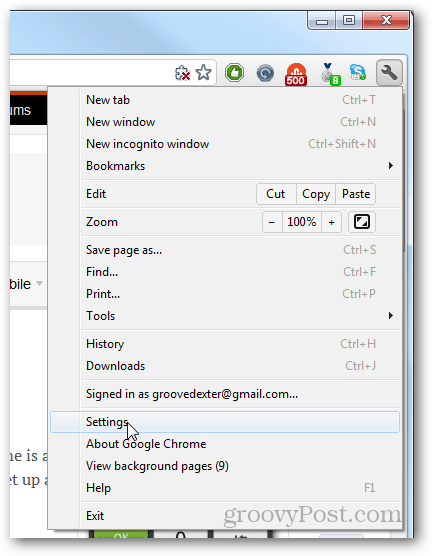
Open up Chrome and click the Wrench >> Settings option.
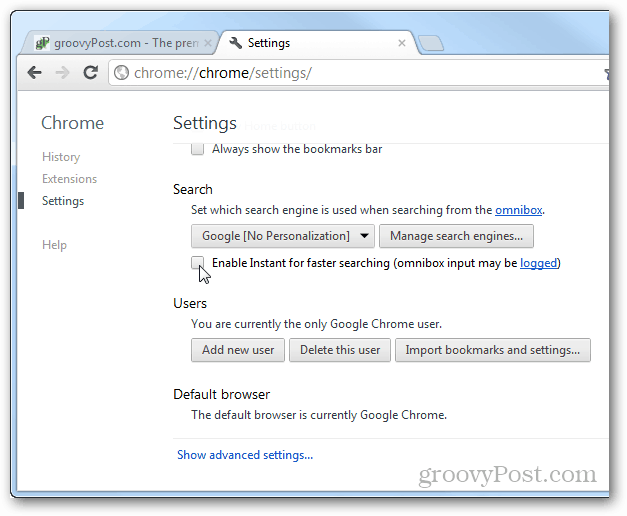
Scroll down the settings page and click or unclick the Enable Instant for Faster Searching (omnibox input may be logged).
If you’re enabling instant search, Chrome will display an extra confirmation window. This window asserts that your data may be logged if your current default search engine supports this feature. If you agree with it, click OK.
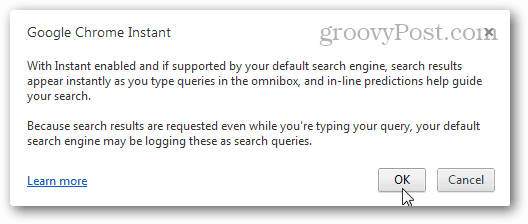
Google’s official privacy policy on Chrome Instant Search.
Policy: Any text you type in the address bar is sent to Google so predictions can be retrieved. If you select a prediction from the address bar menu, press Enter, click the search results page that appears, or pause for three seconds with the same text in the address bar, Google logs your text as a search. Otherwise, Google treats the text you typed as partial query data, which is stored for up to two weeks and then deleted.
That’s all there is to enabling or disabling Instant search results in Chrome. If you don’t mind Google or another search engine knowing everything that you type in the address bar, then having it enabled is a rather groovy feature. But if you are more privacy-minded, it is definitely something you’ll want to keep turned off.
12 Comments
Leave a Reply
Leave a Reply







Kelsey E. Benedict
January 27, 2013 at 2:37 pm
So when you type a phrase into the Google Chrome address bar and one of the results turns up in a bolded font, what does that mean?
Austin Krause
January 28, 2013 at 5:34 am
The bold text is just highlighted to show that it is an exact match to your query. It can be part of the webpage title, description, or URL. You aren’t like to see it as part of the description or title though unless you have already visited that page or it is stored in your bookmarks.
Jane
August 14, 2014 at 3:14 pm
This feature is not available, now. Version 36. It is VERY ANNOYING !
fuck
July 29, 2015 at 9:01 pm
Fucking Google, everytime you figure out how to stop their intrusive crap, they change the version.
Clzwld
December 21, 2015 at 9:01 am
Update the info
Not showing the enable box. Version 47 Dec 2015
RP
February 3, 2016 at 6:14 am
This idiotic ‘feature’ needs to go. Minor typos result in the whole address changing. Idiots.
Peter Ruseckas
February 6, 2016 at 7:51 pm
How do I shut of search in omnibox?
David Spector
February 10, 2016 at 9:37 am
To disable search in omnibox, see https://productforums.google.com/forum/#!topic/chrome/gX-XROa4f6c for a workaround that works in version 48.0 .
No other solution seems to be posted on the Web as of Feb. 2016. Google apparently knows exactly how its users should use its products, so only a few options are supported.
Slabbs
December 5, 2016 at 12:31 am
Bought this referb system from a local privately owned computer repair store in my town. Granted, it is running Windows 7 Home, AMD Athlon 64, 4 GB ram (3.87 GB usable)… so, it’s not a “great” system. But, you’d think it would be enough to run a simple browser game (League of Angels) without much problem or lag issues, right? Well, and keep in mind the guy who sold me this says that I shouldn’t have lag issues using Chrome, I get SO much lag that I can’t compete in many of the events held in the game I’ve been playing for the last 2 1/2 years (on my last system that crashed – but had no problems up to that point while using IE). Can it be because Chrome (and all it’s “features”) is causing my issues with this refreb? Could Chrome/Google have (without my approval) installed programs and/or software that is bogging down my processor? I’m at a loss here, I’m no expert in any form when it comes to technology. But, I (given all the known facts up until this point) am suspecious about all the “issues” with Chrome, omibox, and definately Google it’s self. Any thoughts to this circumstance?
Annemieke
June 11, 2019 at 9:39 pm
Hi, Just checked this fix. It may have worked in earlier versions, but the Settings menu looks different now and the “Omnibox” is no longer mentioned, i.e. available to turn on or off. So how does one stop Google from searching in the address bar now?
marlin
November 30, 2019 at 5:07 pm
I don’t have that menu option either and like the other comments Dooooo not like the menu bar search.
jim
March 23, 2020 at 11:38 am
I do not have same screen shots as you show under “settings” and the wrench.