Configure Apache Web Site to Use Multiple Ports


A few months back, I needed to configure my private Website running on Apache to use multiple ports. The Internet provider for my home began to block inbound Port 80, so I had to configure Apache to use an alternate port. The process was very easy, and since I was recently asked “how” on my blog, I figured I’d document the process quickly for all the readers.
Context: I ran Apache on Port 80 on a single IP in my example. However, I also needed Apache to listen to and serve my website on port 8080. Although I chose Port 8080, you can use any Port (however, I recommend a port over 1000). Ok, let’s get into it.
Step 1: Open Apache Configuration File httpd.conf (on my Windows host, it’s located here: “c:\Program Files\Apache Group\Apache2\conf”)
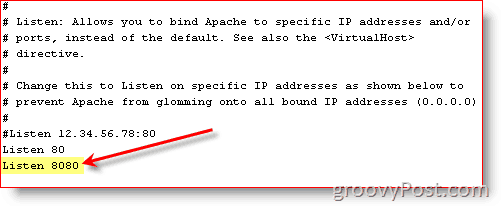
Step 2: Find the line: Listen 80 and Type Listen 8080 on the next line:
Step 3: Find the VirtualHost portion for your Website config and Add *:8080 as shown below:
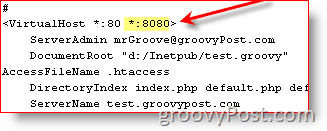
Note that your config file might not look exactly like mine. Instead of *:80, you might see an IP address:80 – it depends, but this should give you a general idea. You can also just replace the old port number with the new one if you don’t need your site to be accessible on both ports.
Step 4: Restart the Apache Web Service
All Done. Your Website should now be accessible using either Port.
Be sure to test your work by hitting your website on the new Port number: https://www.yoursite.com:8080.
23 Comments
Leave a Reply
Leave a Reply





cruiser77
May 20, 2008 at 10:01 pm
hi mrgroove. love the site. i’m still having problems after following the advice step by step. i posted the issue in the forum here: https://www.groovypost.com/forum/change-apache-port-from-80-to-8080-t92215.html
im stuck. thanks
cruiser77
May 21, 2008 at 4:22 pm
you can ignore. poneil helped me with my issue in the forum :)
thanks everyone!
MrGroove
May 21, 2008 at 4:30 pm
@Cruiser77 – Welcome to the site!
Ah… my favorite type of problem, a RESOLVED one! :)
A big thank you out to all the readers who help resolve problems (thanks pOneil!). Wow, looks like a small community is forming! Excellent!
Raju
April 27, 2009 at 4:13 am
Hi, you made the work really simple than ever. And the best part of your articles is hitting on the right point instead of bla bla bla.. stuff which we see very regularly on so many websites.
Thanks a lot…My apache running now on new port as well.
MrGroove
April 27, 2009 at 9:16 am
@Raju, I appreciate the feedback. I’m glad the article helped you out!
Andres
July 4, 2009 at 10:24 pm
Thank you it work prefect
Creems
February 8, 2010 at 3:49 am
Hi Mr Groove,
I have IIS running a couple of our intranets on port 80 and also need Apache to run some other applications (Self Study CDs).
When I installed Apache to run on port 8080, which I think it’s kind of limited to the current user … It works on the machine but when I tried to view from other machine it doesn’t work.
Can you please assist me here.
Regards.
Creems
Sarvesh
March 12, 2010 at 2:36 am
Hi Mr Groove,
I tried this, my Apache is on SSL (port 443), so I tried to change it to port 8443 in ssl.conf … it does not work on changing the two directives in ssl.conf.. any clue ?
Sarvesh
March 12, 2010 at 2:46 am
I am running apache 2.0.53 on AIX 5.2
shockersh
August 2, 2010 at 9:20 pm
plz post your question in the forum where we can assist!
Brenda
January 7, 2011 at 1:37 pm
Thanks, your explanation was very clear, especially with the images line per line.
Have a nice day!
Diego Alvarez Nogueira
January 18, 2011 at 6:06 pm
Thanks!!!!
Now i can run my projet on port 8080 in my virtualbox!!!!!
MrGroove
January 18, 2011 at 10:36 pm
Awesome and your welcome! ;)
Vetor
December 16, 2011 at 1:39 pm
Pretty part of content. I simply stumbled upon your weblog and in accession capital to say that I acquire in fact enjoyed account your blog posts. Any way I?ll be subscribing to your feeds and even I fulfillment you get admission to consistently fast.
Reynold
December 26, 2011 at 10:52 pm
Thanks a lot:)
Really quick and easy !!
webkinz cats and dogs
February 29, 2012 at 1:47 pm
Helpful info. Fortunate me I discovered your website by accident, and I’m stunned why this coincidence did not took place earlier! I bookmarked it.
abhay
May 22, 2012 at 10:02 pm
hi team,
how i will be able to stream video from apache server on port other than 8080
abhay
May 22, 2012 at 10:04 pm
sorry i posted a wrong question, i want to know how i will be able to stream a video on differnet port other than 80 from apache server side.
Steve Krause
May 23, 2012 at 6:14 pm
You just need to configure Apache to listen to the alternate port and then load up the appropriate video content on your apache box and you should be good.
littleguy
February 25, 2013 at 4:28 pm
Really useful!
clear
March 13, 2013 at 2:53 am
Hi there I am so happy I found your weblog, I really found you by error, while I was browsing on Bing for something else, Anyways
I am here now and would just like to say cheers for
a incredible post and a all round exciting blog (I also love the theme/design), I don’t have time to read through it all at the moment but I have saved it and also added in your RSS feeds, so when I have time I will be back to read a lot more, Please do keep up the fantastic work.
peter
May 7, 2013 at 10:33 pm
may i ask a question?
how many ports can be binded by apache.
Kenneth
May 26, 2013 at 2:21 am
Once I got the interface between the keyboard and the chair inebrated then rested, things became more clear. This was the best guide I’ve been able to find on the web. It is documented very well. THX